How It Works

Cigati Email Migration Tool

The Cigati Email Migration Tool is designed to migrate emails and mailbox data between multiple email platforms while preserving the integrity of the original data. It maintains folder hierarchy, email formatting, attachments, and other mailbox properties throughout the migration process. Built for both individual users and IT professionals, the software provides a secure, reliable, and efficient solution for email migration across different platforms and environments.

strip-img

Email Migration Tool

4.7

Download Purchase

Step-1

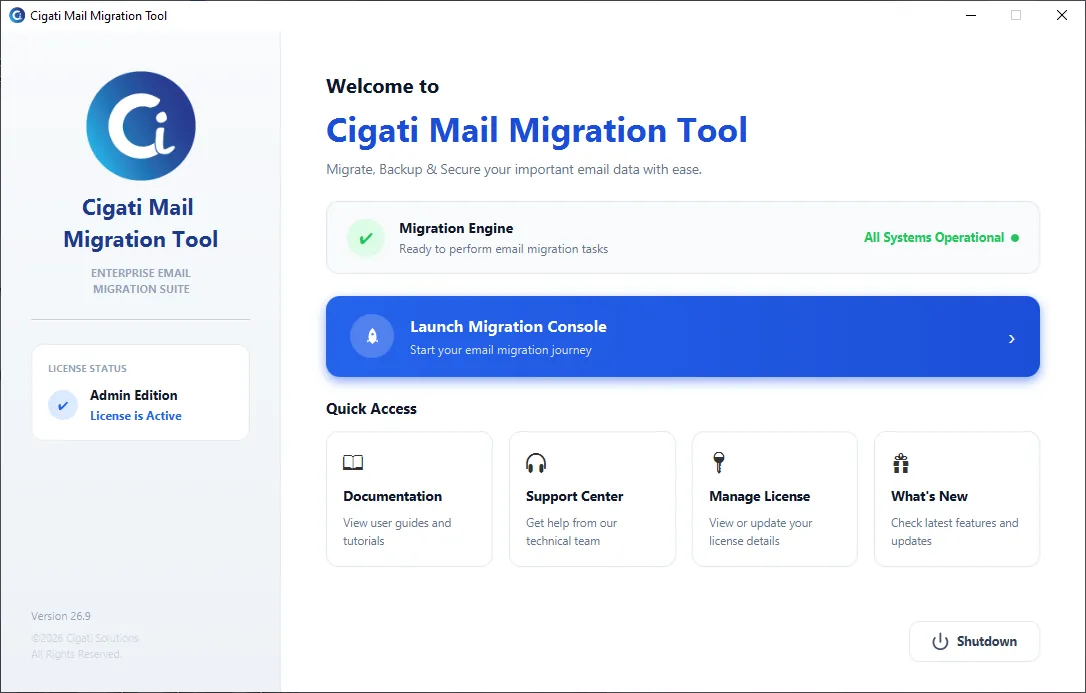
The Cigati Mail Migration Tool dashboard provides quick access to launch migration tasks, documentation, support, and license management. It also displays the active license status, system operational status, software version, and latest updates. Click on Launch Migration Console to proceed with the migration.
step

Step-2

Launch the Cigati Email Migration Tool and select Source from the left navigation panel. The Select Source screen provides the following options:
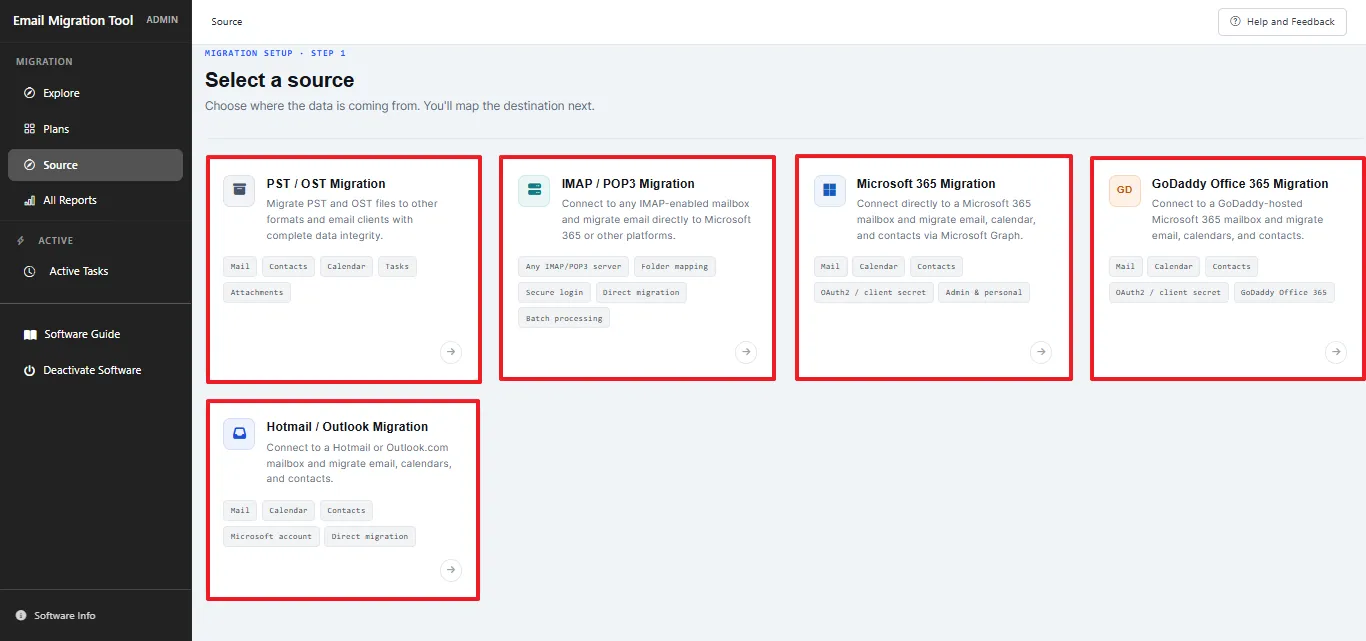
  • OST/PST Migration: Use this option to migrate email data from locally stored Outlook PST or OST files.
  • IMAP Migration: Select this option to migrate emails directly from an IMAP-enabled mailbox.
  • Microsoft 365 Migration: Use this option to migrate mailbox data from Microsoft 365 accounts to the desired destination.
  • GoDaddy Office 365 Migration: Select this option to migrate email data from GoDaddy-hosted mailboxes to Microsoft 365 or Office 365.
  • Hotmail/Outlook Migration: Use this option to migrate emails and other supported mailbox data from Hotmail or Outlook accounts.
step

Step-3

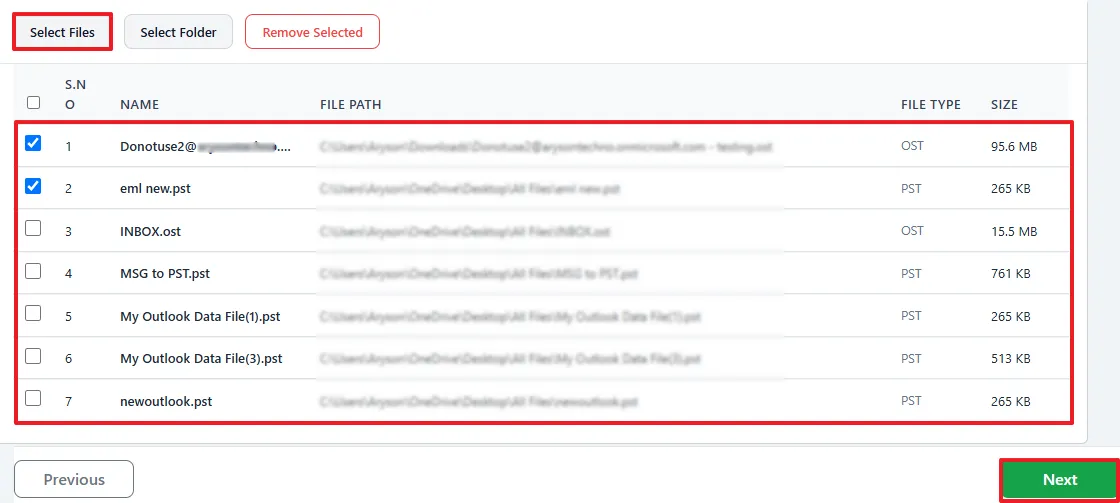
The Select Files screen lets you add the Outlook files you want to migrate. You can choose from the following options:

  • Select PST/OST: Browse your computer and add individual PST or OST files.
  • Select Folder: Select a folder containing multiple PST or OST files for bulk migration.
  • Remove Selected: Remove any selected file from the migration list.
step

Step-4

Click on select file and browse the PST file from the system. After adding the required files, click Next to continue.
step

Step-5

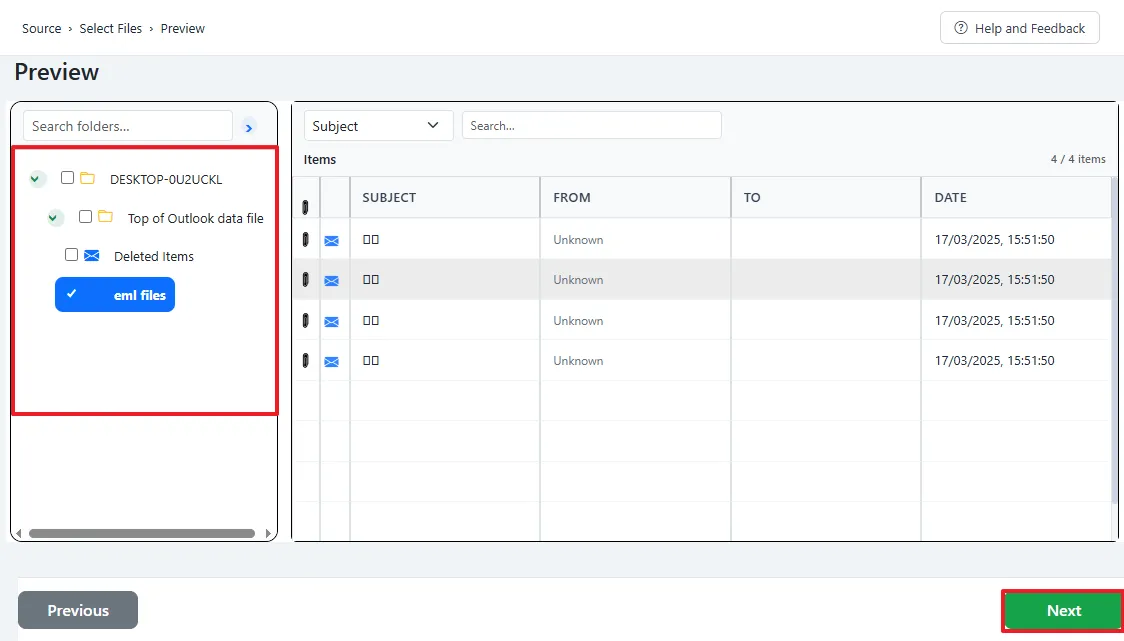
After loading a single PST or OST file, the software displays its mailbox structure in the Preview panel. You can view folders such as Inbox, Sent Items, Drafts, Deleted Items, Contacts, Calendar, Tasks, and other custom folders.

You can:

  • Select a folder from the left panel to view its emails.
  • Use the search options to find emails by Subject, From, or To.
  • Select an email to view its complete content in the preview panel.
  • Review the mailbox data before starting the migration.

Use the available search fields to quickly locate specific folders or email messages.

Note: The Preview feature is available when a single PST/OST file is selected. When multiple files are loaded through Select Folder, the software skips the preview screen and takes you directly to the destination settings.

Preview Email Content

Double-click an email from the message list to open its complete content. The preview displays details such as the sender, recipient, subject, and message body.
step

Step-6

After reviewing the source data, move to the Filters screen. Here, you can select how you want to process or migrate the mailbox data. Select the required destination option and continue with the migration settings. The destination options are organized into two tabs:
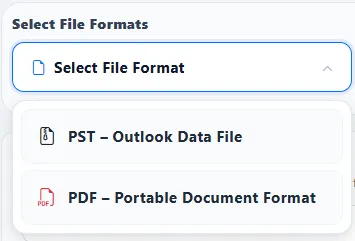
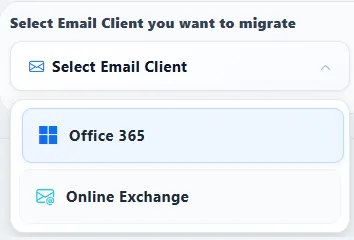
  • File Format: Save the migrated mailbox data in supported file formats such as PST or PDF.
step
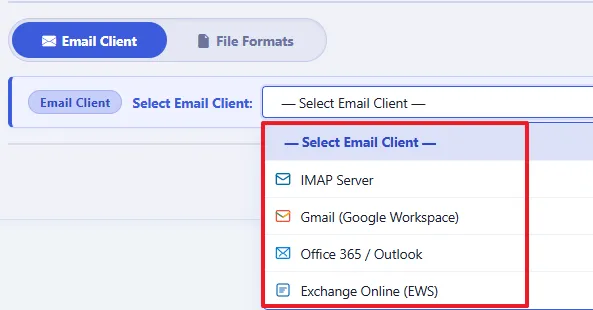
  • Email Clients: Migrate the selected mailbox data directly to supported email platforms such as Microsoft 365.
step

Step-7

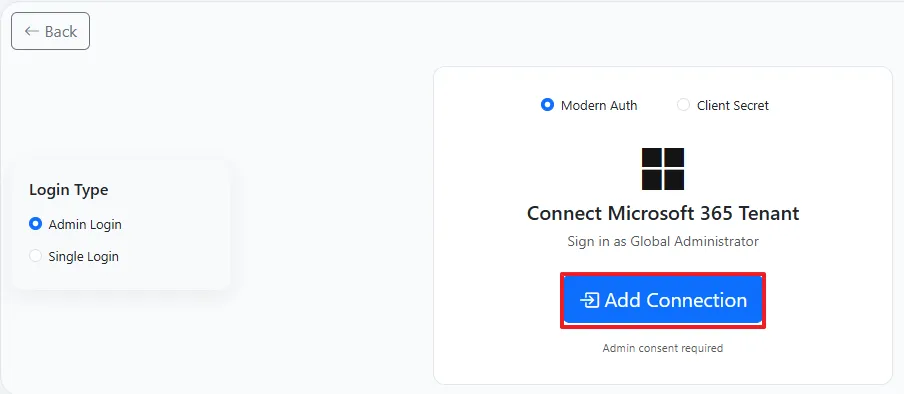
You can choose either File Format or Email Client in which you want to migrate data. We will continue with the Email Client “Office 365”. Click on Add Connection.
step

Step-8

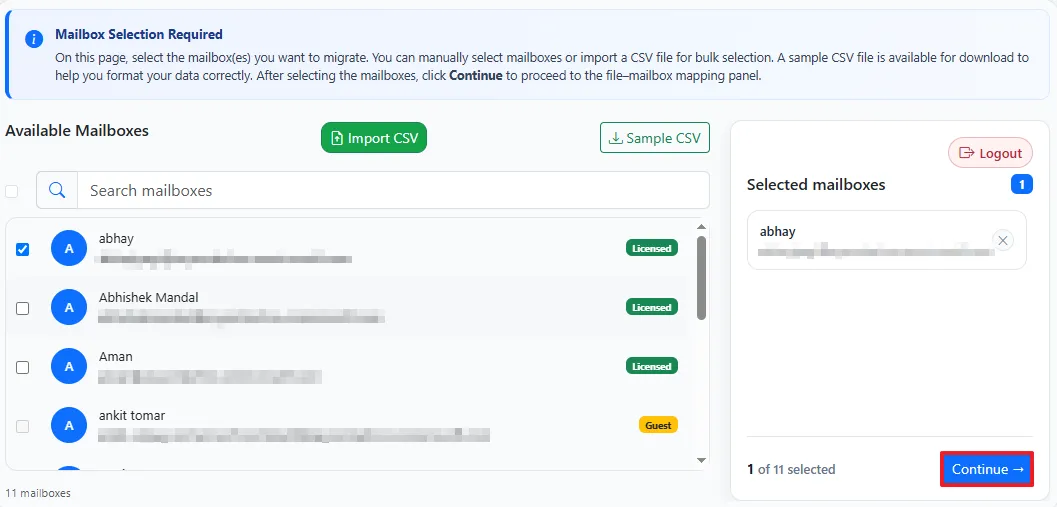
Choose the mailbox from where you want to move data and click on Continue.
step

Step-9

It provides multiple filtering options to help you control which mailbox items are processed. Configure the following settings according to your requirements:
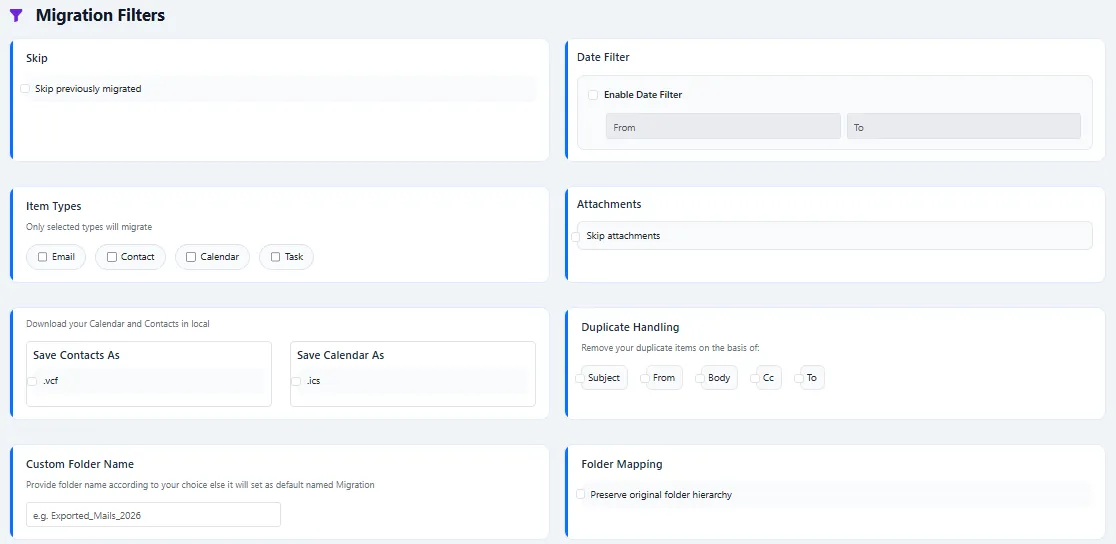
  • Skip Previously Migrated: Skip items that were already migrated during an earlier session. This is useful for continuing an interrupted migration or performing an incremental migration.
  • Date Filter: Specify a start and end date to migrate emails from a particular time period.
  • Item Types: Choose the data types you want to migrate, including Email, Contact, Calendar, and Task.
  • Skip Attachments: Exclude attachments when you only need to migrate email messages.
  • Save Contacts as VCF: Save contact information separately in VCF format.
  • Save Calendar as ICS: Save calendar entries separately in ICS format.
  • Split Resultant File: Set a maximum size for PST output files and split larger files into multiple parts automatically.
  • Custom Folder Name: Specify a custom name for the destination folder. If you leave this field blank, the software uses its default folder name.
  • Duplicate Handling: Select matching fields such as Subject, From, Body, CC, and To to identify duplicate emails during migration.
  • PDF Size Restriction: Set a maximum PDF size so that large PDF exports can be divided into multiple files automatically (Only available in PDF).
step

Step-10

Click Start Migration to begin processing the selected mailbox data. Cigati Email Migration Tool applies the configured filters and saves or migrates the data according to your selected destination.

step

Step-11

During migration, the Processing Status screen lets you track the progress of the operation. It displays information such as:
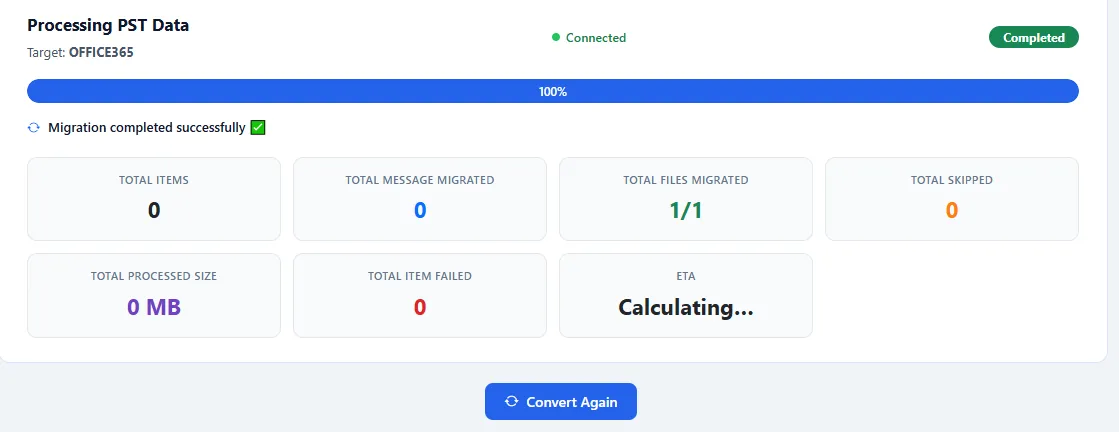
  • Processing Status: Shows the current migration status, connection details, selected target format, destination path, and progress.
  • Total Items: Displays the total number of selected mailbox items.
  • Total Messages Migrated: Shows the number of successfully migrated email messages.
  • Total Files Migrated: Displays the number of successfully processed files.
  • Total Skipped: Shows the number of items skipped based on the selected settings.
  • Total Processed Size: Displays the amount of data processed during migration.
  • Total Items Failed: Shows the number of items that could not be migrated successfully.
  • ETA: Displays the estimated time remaining for the migration process.
step

Step-12

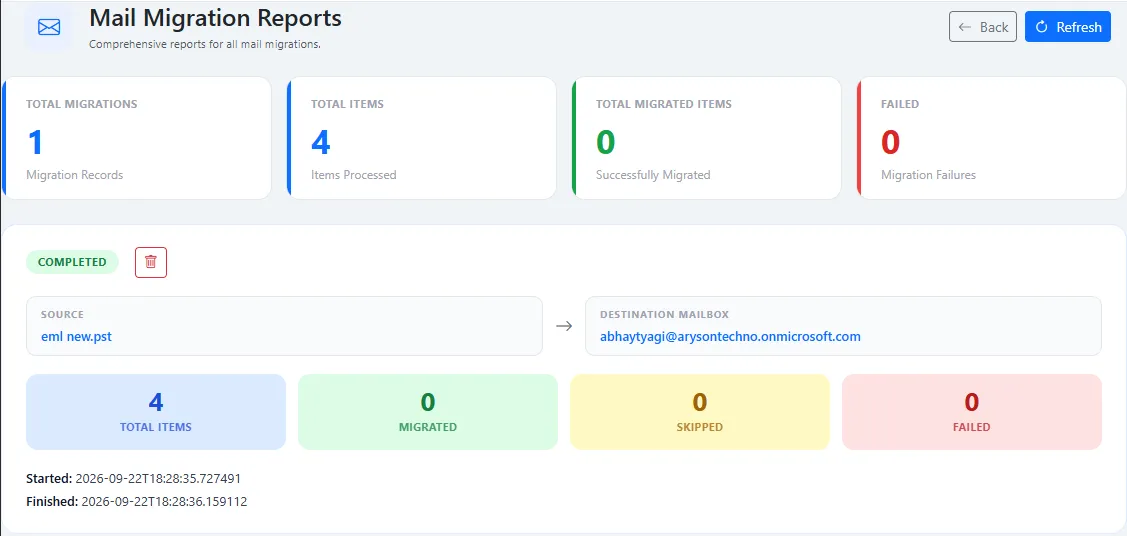
After the migration is complete, select View to open the detailed migration report. The report provides information about the export status, processed items, skipped items, failed items, and other migration details.

Use the report to review the migration results and identify any items that may require further action.
step

Step-3

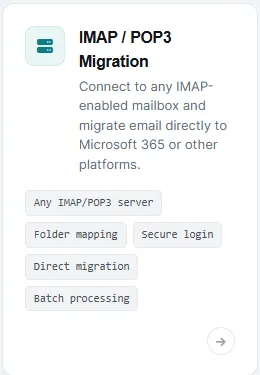
Select Source from the left panel and choose IMAP Migration.
step

Step-4

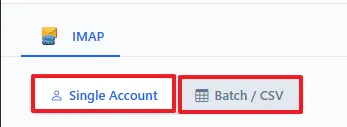
The software provides two ways to add IMAP accounts: Single Account and Batch CSV.
step
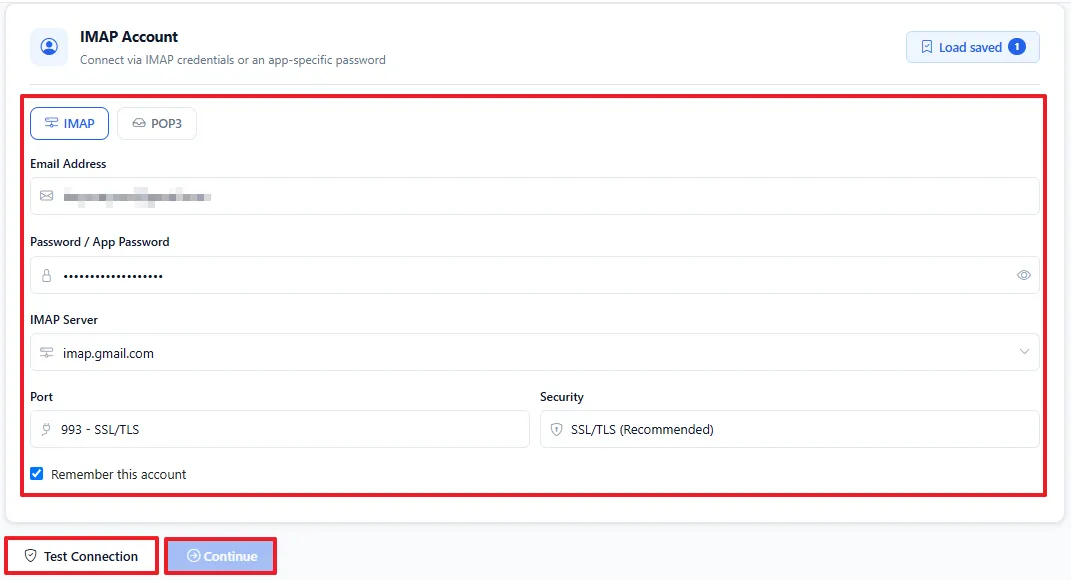
  1. Single Account: For a single mailbox, enter the required IMAP account details and click Test Connection. The software verifies the credentials and checks whether the IMAP server connection is active. After the connection is successfully verified, click Continue. Enter the following details:
  1. Email Address: Enter the complete email address of the source mailbox.
  2. Password / App Password: Enter the account password or an app-specific password when required by the email provider.
  3. IMAP Server: Enter the IMAP server address provided by your email service.
  4. Port: Enter the appropriate IMAP port, commonly 993 for SSL connections.
  5. Security: Select the required security type, such as SSL, TLS, or None, based on your mail server configuration.
step
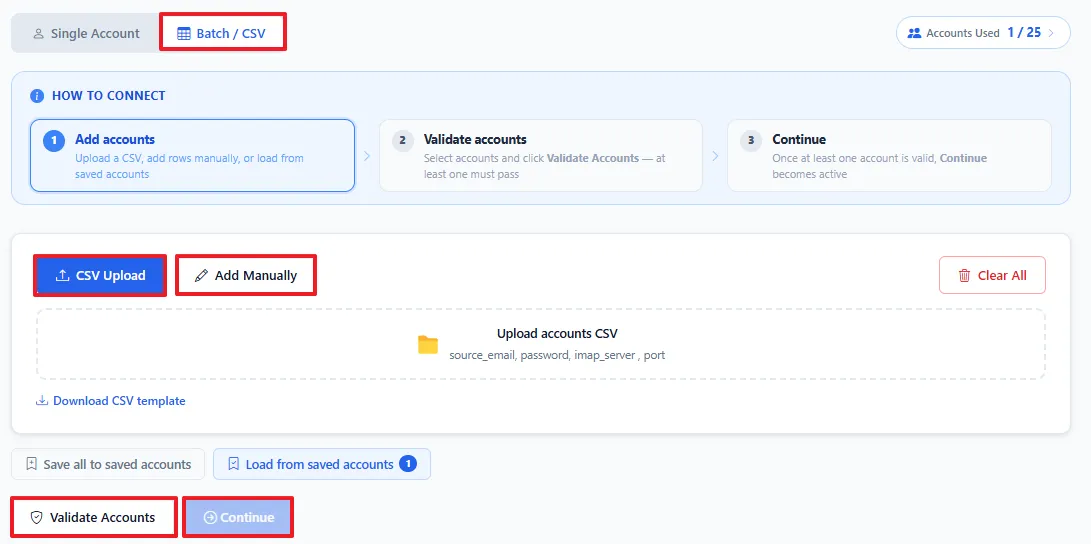
  1. Batch CSV: Use Batch CSV to add multiple IMAP accounts for bulk migration. You can upload account details through a CSV file or add individual accounts manually.
  1. CSV Upload: Import multiple accounts using a CSV file containing the required email addresses, passwords, IMAP server details, and port information.
  2. Manual Account Addition: Enter the IMAP credentials and server settings manually when you need to add specific mailboxes individually.
  3. Account Validation: Validate the added accounts before migration to identify connection or credential issues in advance.
step

Step-5

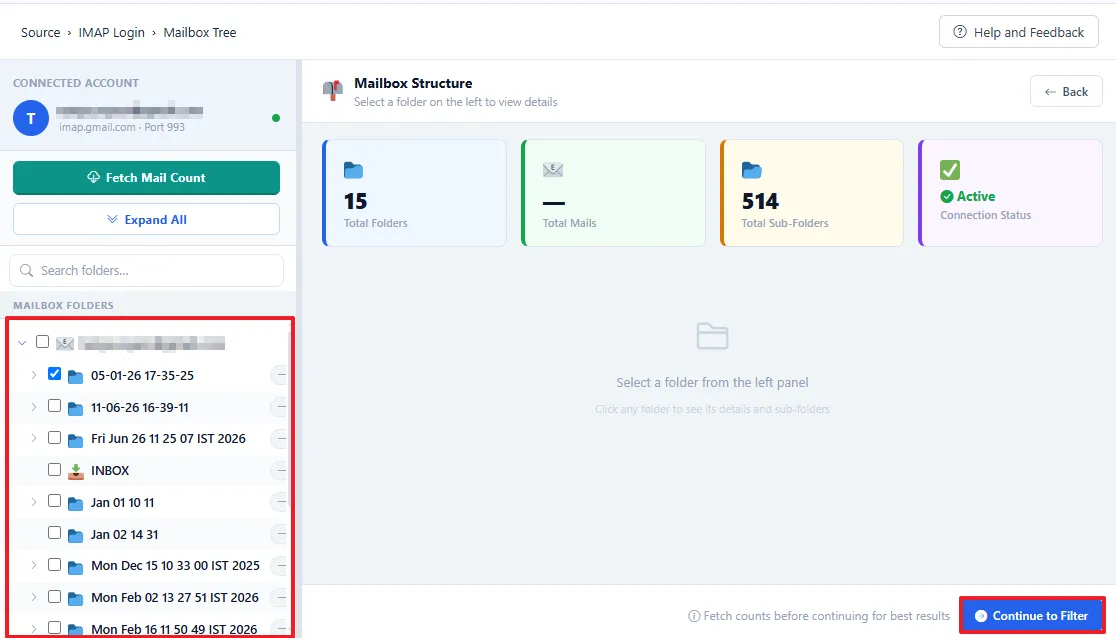
After connecting the IMAP account, select the mailboxes and folders you want to migrate. Single Account Mode: The Mailbox Tree displays the folder structure of the connected IMAP account. It also provides mailbox information such as total folders, emails, subfolders, and connection status. You can:

  • Enable Maintain Folder Hierarchy to preserve the existing mailbox folder structure.
  • Select or clear individual folders according to your migration requirements.
  • Click Fetch Mail Count to retrieve the number of emails available in each folder.
  • Review your folder selection and click Continue to proceed to the filter settings.

Note: The Preview panel is available only in Single Account mode. When using Batch/CSV mode or processing multiple accounts, the software proceeds directly to the filter configuration without displaying the preview screen.
step

Step-6

The Destination Filter panel provides two destination categories:
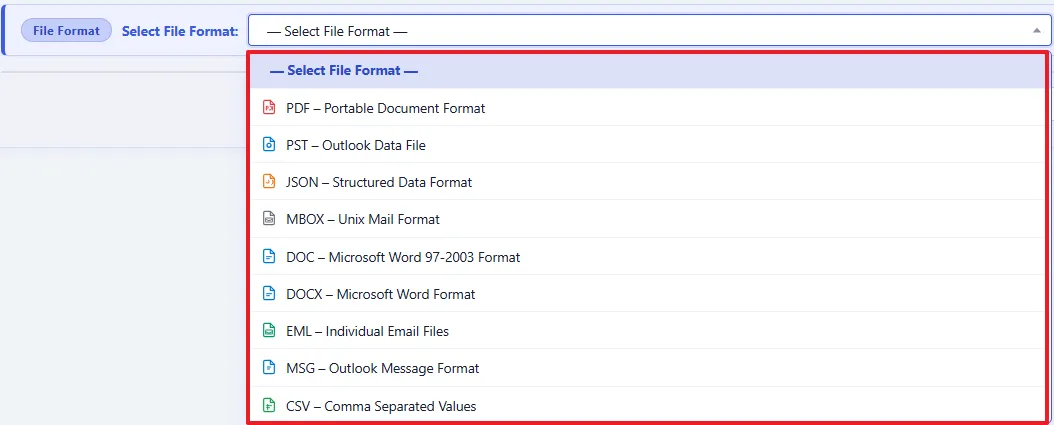
  • File Formats: Export IMAP mailbox data to formats such as PDF, PST, JSON, MBOX, DOC, DOCX, EML, MSG, and CSV.
step
  • Email Clients: Migrate mailbox data directly to supported platforms such as IMAP, Google Workspace, and Microsoft 365.
step

Step-7

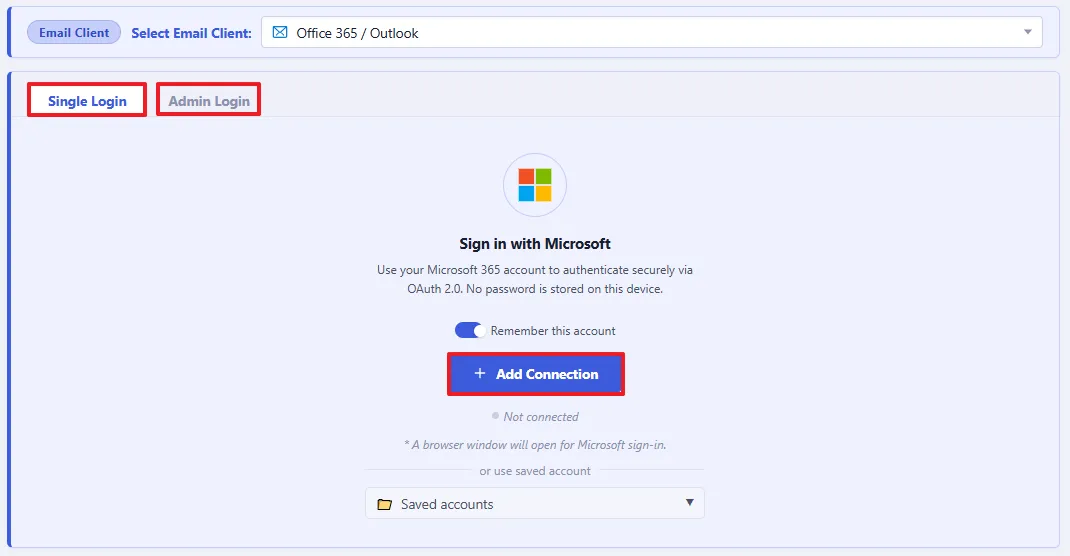
Here, we will show you the migration of IMAP to Office 365. Select the login from which you want to login eithe Single or Admin. Then, click on Add Connection.
step

Step-8

It provides different filters and output options to control the export process. Configure the following settings as required:
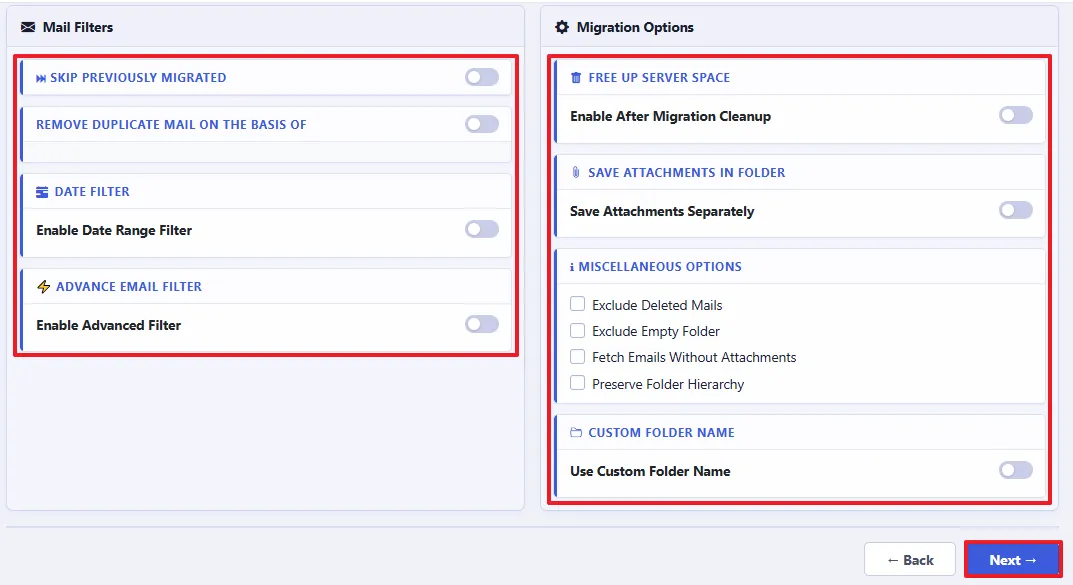
  • Date Filter: Export emails that fall within a specific date range.
  • Advanced Mail Filter: Apply additional criteria based on available email or header information to narrow down the data.
  • Remove Duplicates: Identify and exclude duplicate email messages from the exported data.
  • Free Up Server Space: Remove or archive source mailbox data after successful migration to help free up storage space.
  • Save Attachments in Folder: Save email attachments separately in a dedicated folder along with the exported mailbox data.
  • Miscellaneous Options: Configure additional options available for the selected output format.
  • Custom Folder Name: Enter a custom name for the output folder.
  • Next: Click Next to begin processing the selected IMAP mailbox data.
step

Step-9

The migration progress screen allows you to monitor the export process in real time. You can:
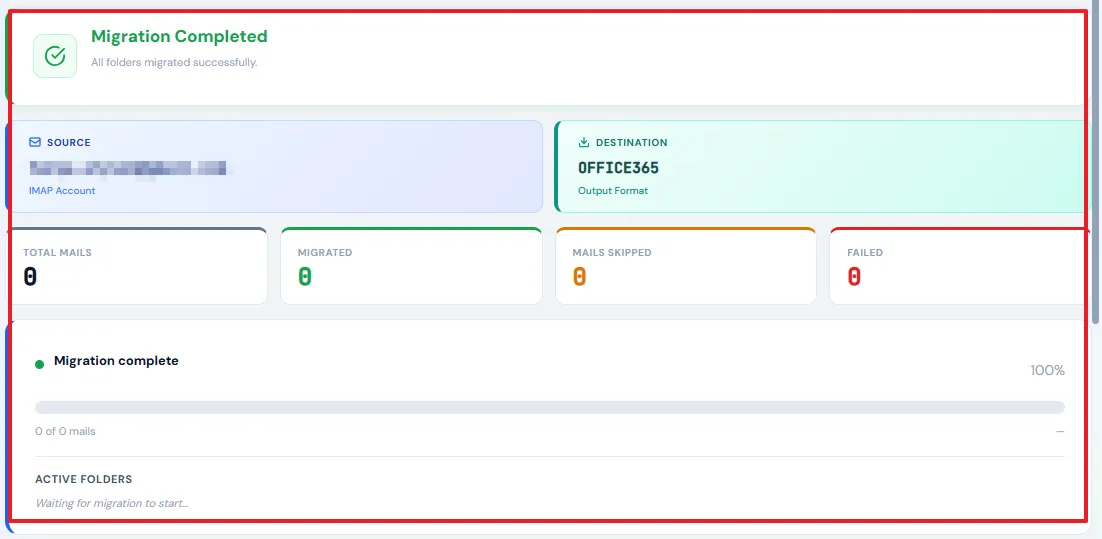
  • Check the completion status and verify whether the selected folders were processed successfully.
  • Review the source account and selected destination format.
  • Check migration statistics, including total, migrated, skipped, and failed items.
  • Monitor the progress bar and currently processed folder.
  • Review the final migration summary and confirm the location of the exported files.
step

Step-10

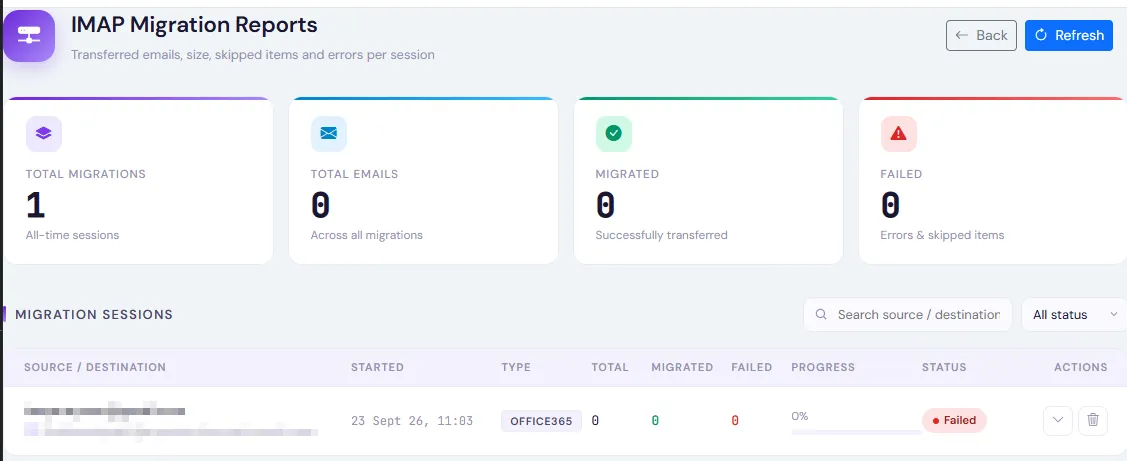
After the export process is complete, open the All Reports section from the left navigation panel. Select IMAP Migration Report to view the report generated for the completed migration.
step

Step-3

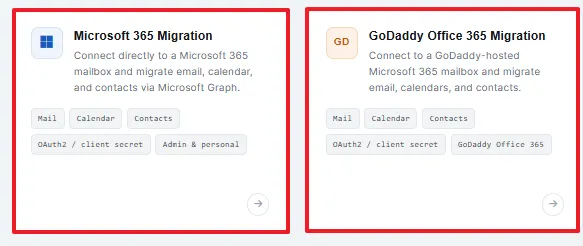
Select either Office 365/GoDaddy/Hotmail Migration as the source platform.
step

Step-4

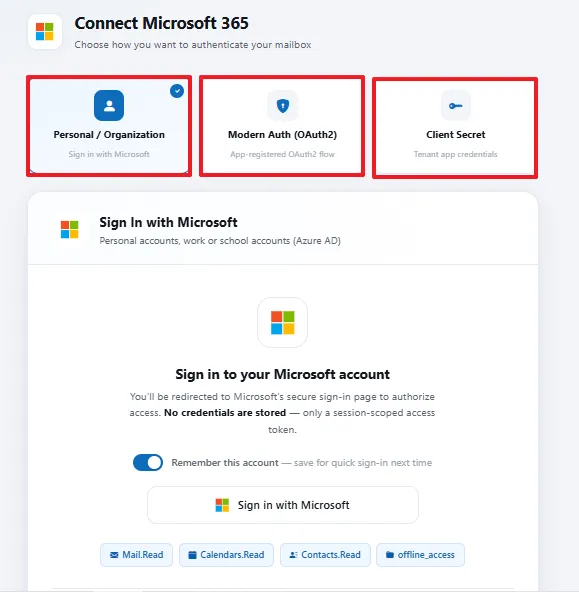
Choose how to authenticate your mailbox — either "Personal/Organization" (sign in with Microsoft), "Modern Auth (OAuth2)" app-registered flow, or "Client Secret" (tenant app credentials). Then complete the Microsoft sign-in, granting Mail.Read, Calendars.Read, Contacts.Read, and offline_access permissions.
step

Step-5

Select Mailbox Content

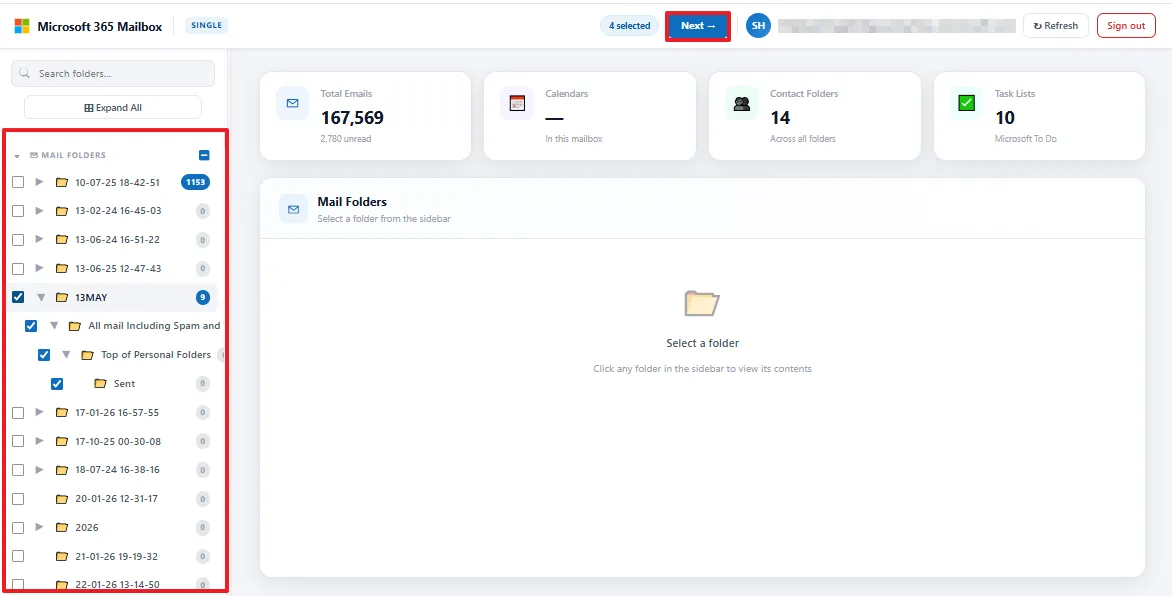
In the Microsoft 365 Mailbox view, review the summary (Total Emails, Calendars, Contact Folders, Task Lists), then check the folders you want to migrate from the sidebar tree (e.g., a specific dated folder and its subfolders like "All mail Including Spam", "Top of Personal Folders", "Sent"). Click Next once your folders are selected.
step

Step-6

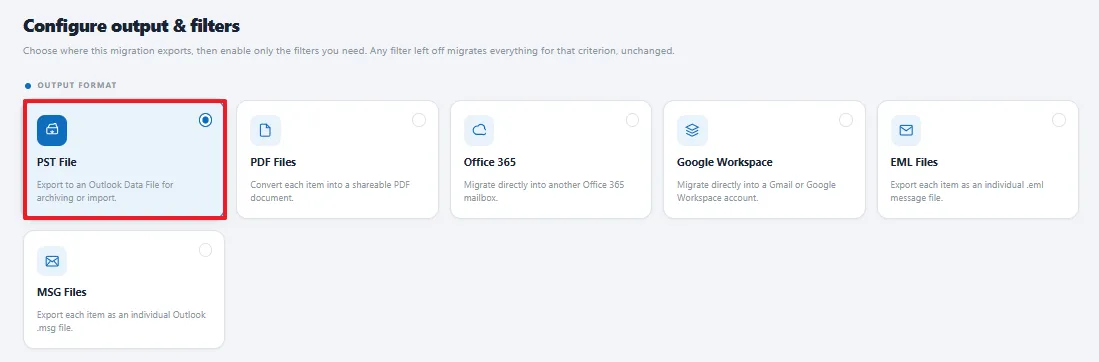
Choose Output Format

Pick the export format for the migration — options include PST File, PDF Files, Office 365 (direct mailbox-to-mailbox), Google Workspace, EML Files, or MSG Files.
step

Step-7

Configure Migration Options

Set additional preferences as needed:
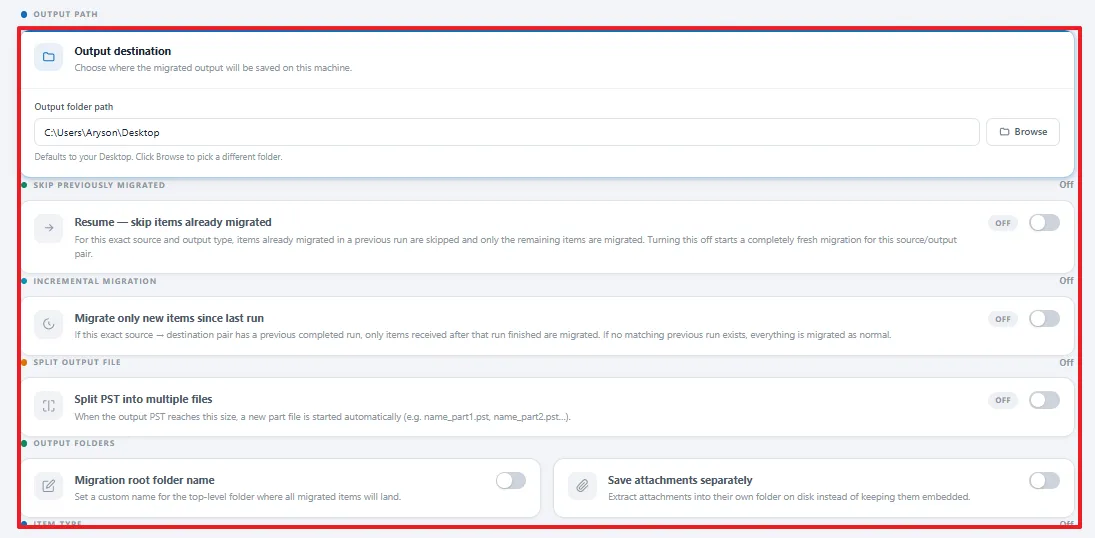
  • Skip previously migrated items (resume mode)
  • Migrate only new items since last run (incremental)
  • Split PST into multiple files at a set size
  • Custom migration root folder name / save attachments separately
step

Step-8

Apply filters for specific data migration.
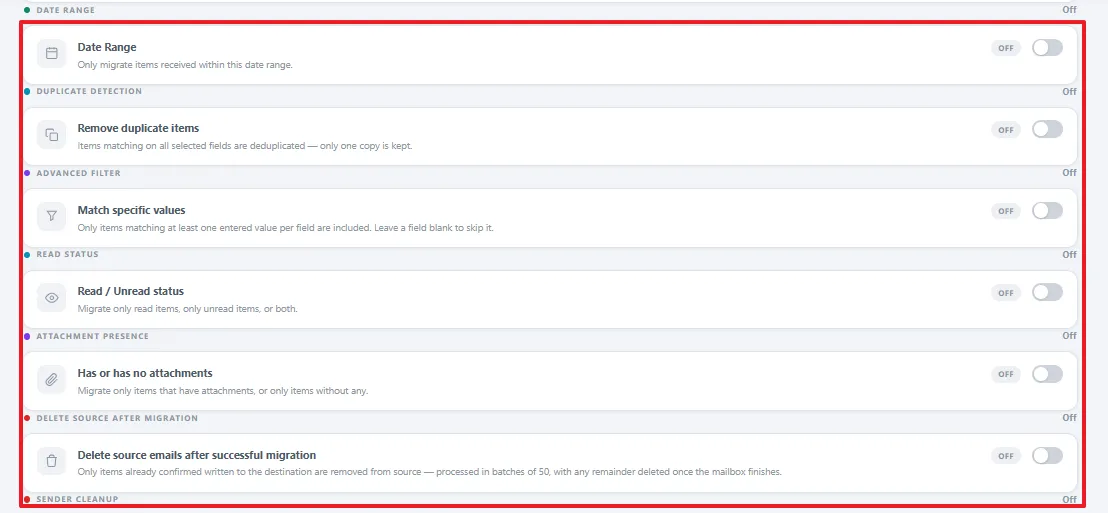
  • Date range: Only migrates items received within a specified start and end date.
  • Remove duplicate items: Deduplicates items that match on all selected fields, keeping just one copy.
  • Match specific values (advanced filter): Includes only items matching at least one entered value per field, skipping any field left blank.
  • Read/unread status: Restricts migration to only read items, only unread items, or both.
  • Has/has no attachments: Migrates only items that have attachments, or only items without any.
  • Delete source emails after successful migration: Removes items from the source mailbox once they're confirmed written to the destination, processed in batches of 50.
  • Delete unwanted sender emails (e.g., Facebook, LinkedIn notifications): Skips and permanently deletes mail from listed senders instead of migrating it.
  • Folder & attachment handling behavior: Controls structural processing of folders and attachments during migration (uses default behavior when left off).
step

Step-9

Start Migration

Click Start Migration to begin the migration process (or Back to review earlier steps).
step

Step-10

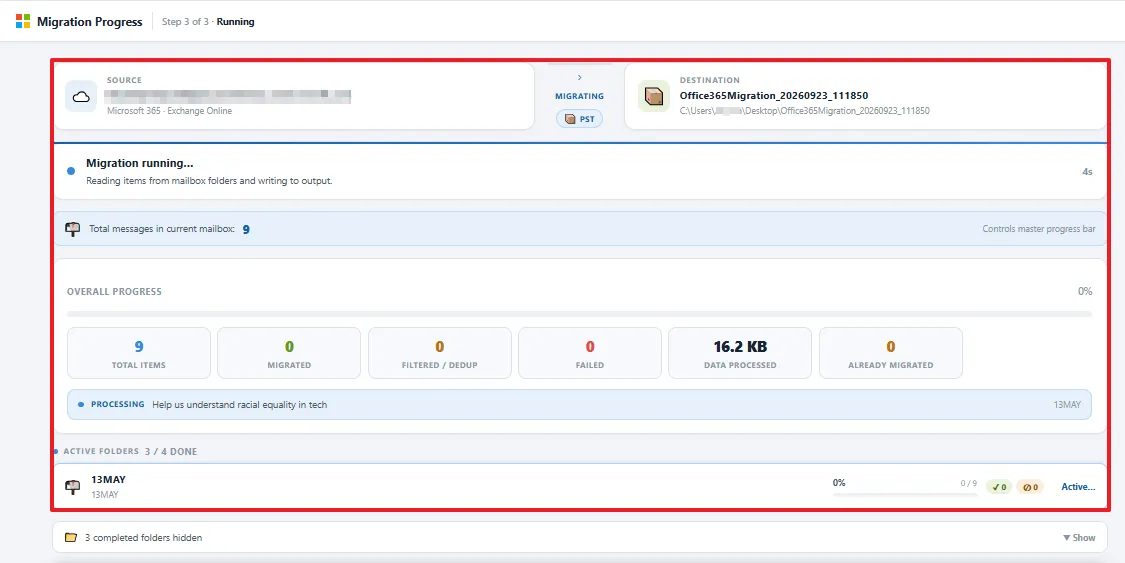
Monitor Progress: Watch the live migration progress screen showing source/destination, total items, migrated count, filtered/dedup count, failed count, data processed, and per-folder completion status.
step

Step-11

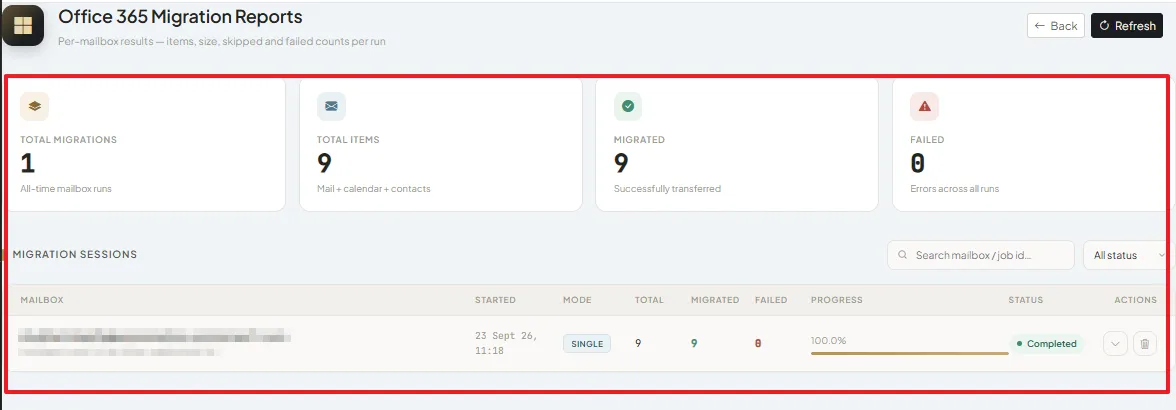
Review Migration Report: Once complete, check the Migration Reports page for a summary: total migrations, total items, successfully migrated count, and failures — along with a detailed log per mailbox (start time, mode, totals, progress %, and status).
step