MBOX File Viewer
4.7
A user-friendly application with an intuitive design for beginners to navigate effortlessly.
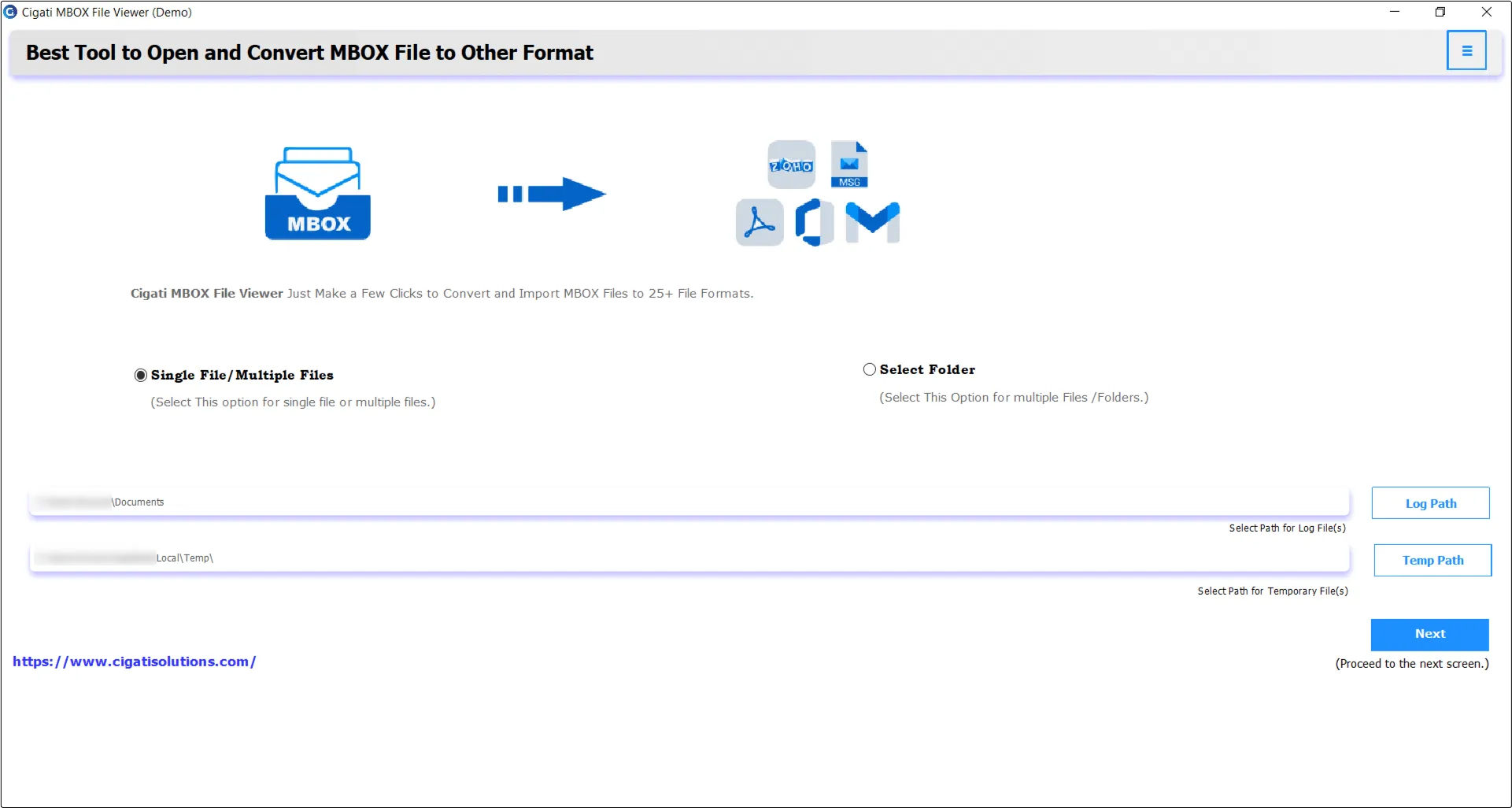
Install and Run the Cigati MBOX File Viewer Tool.
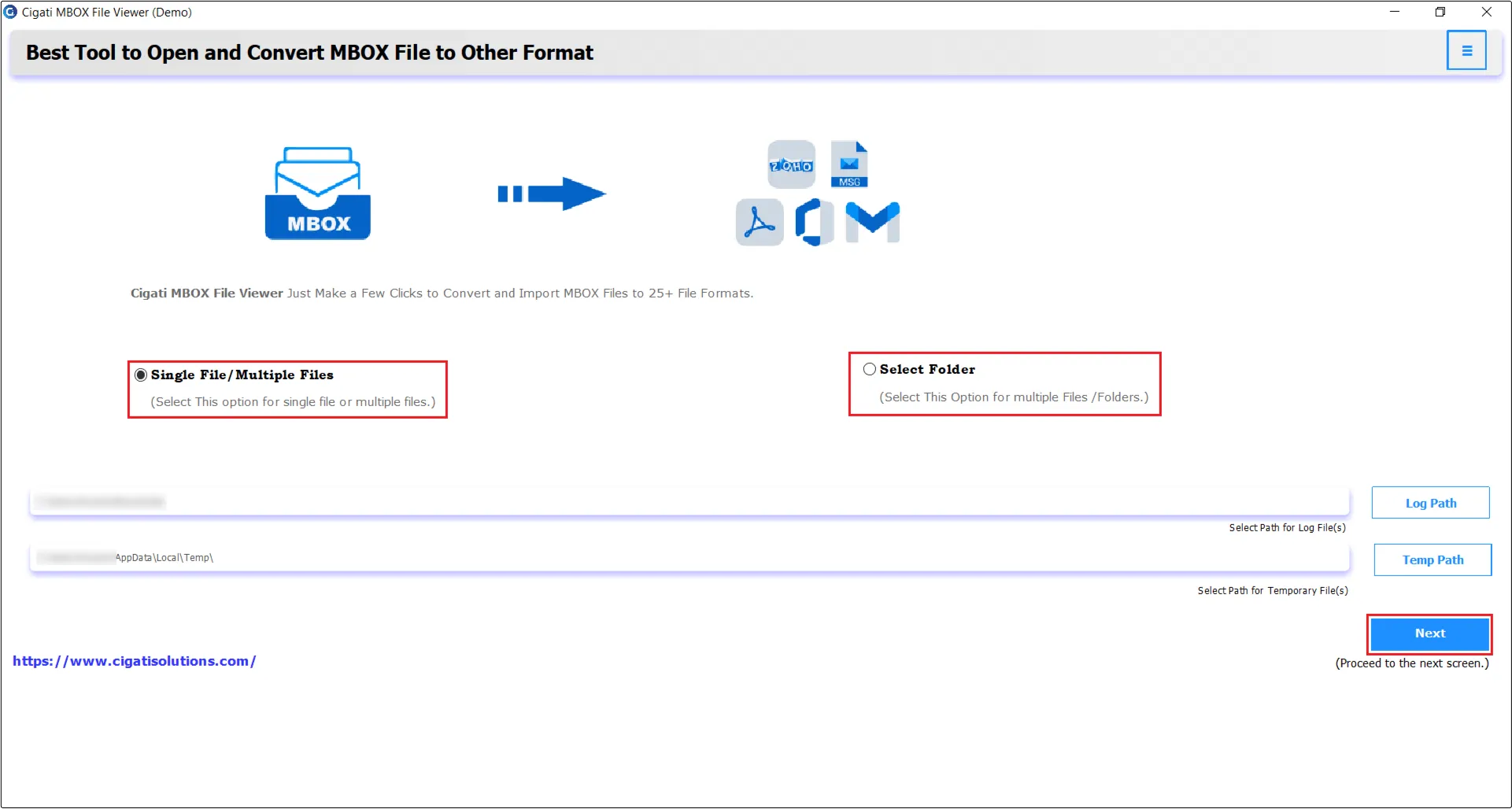
Select either Single File/Multiple Files or Select Folder to add a PST file, then click Next.
Select Files or Folder to choose a PST file, then click Open to add it.
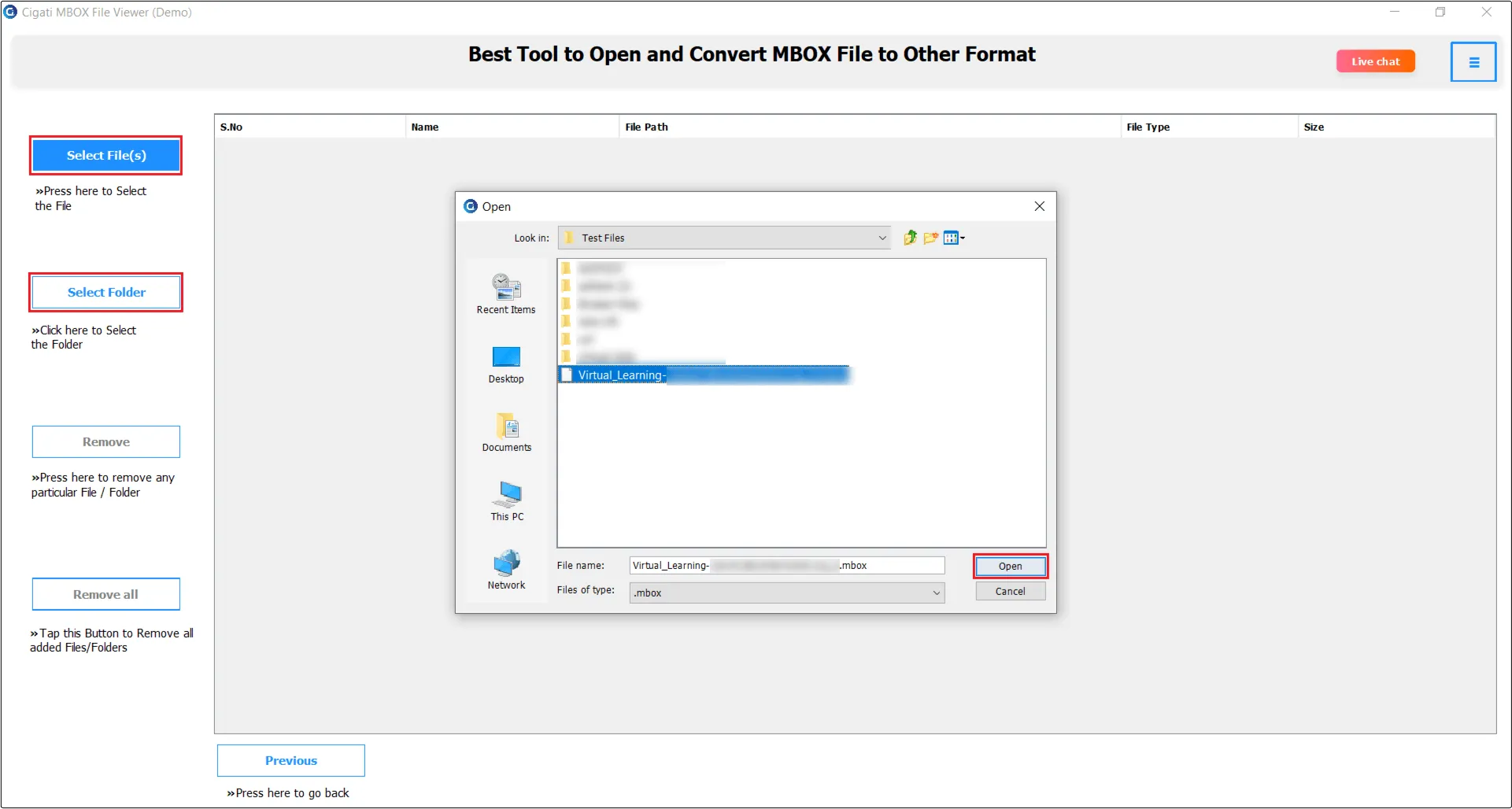
The added PST file will now appear in the list. Click Next to proceed.
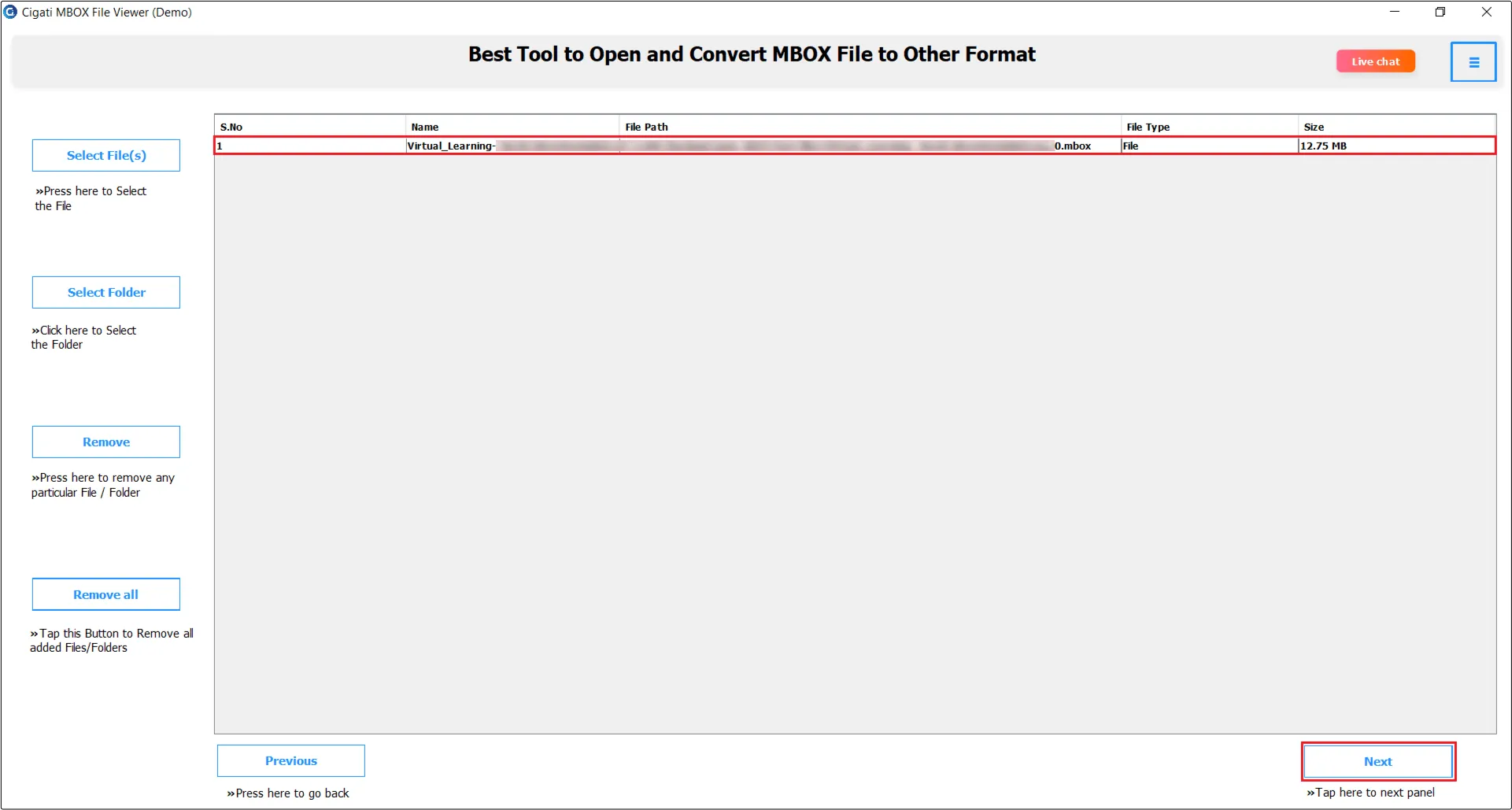
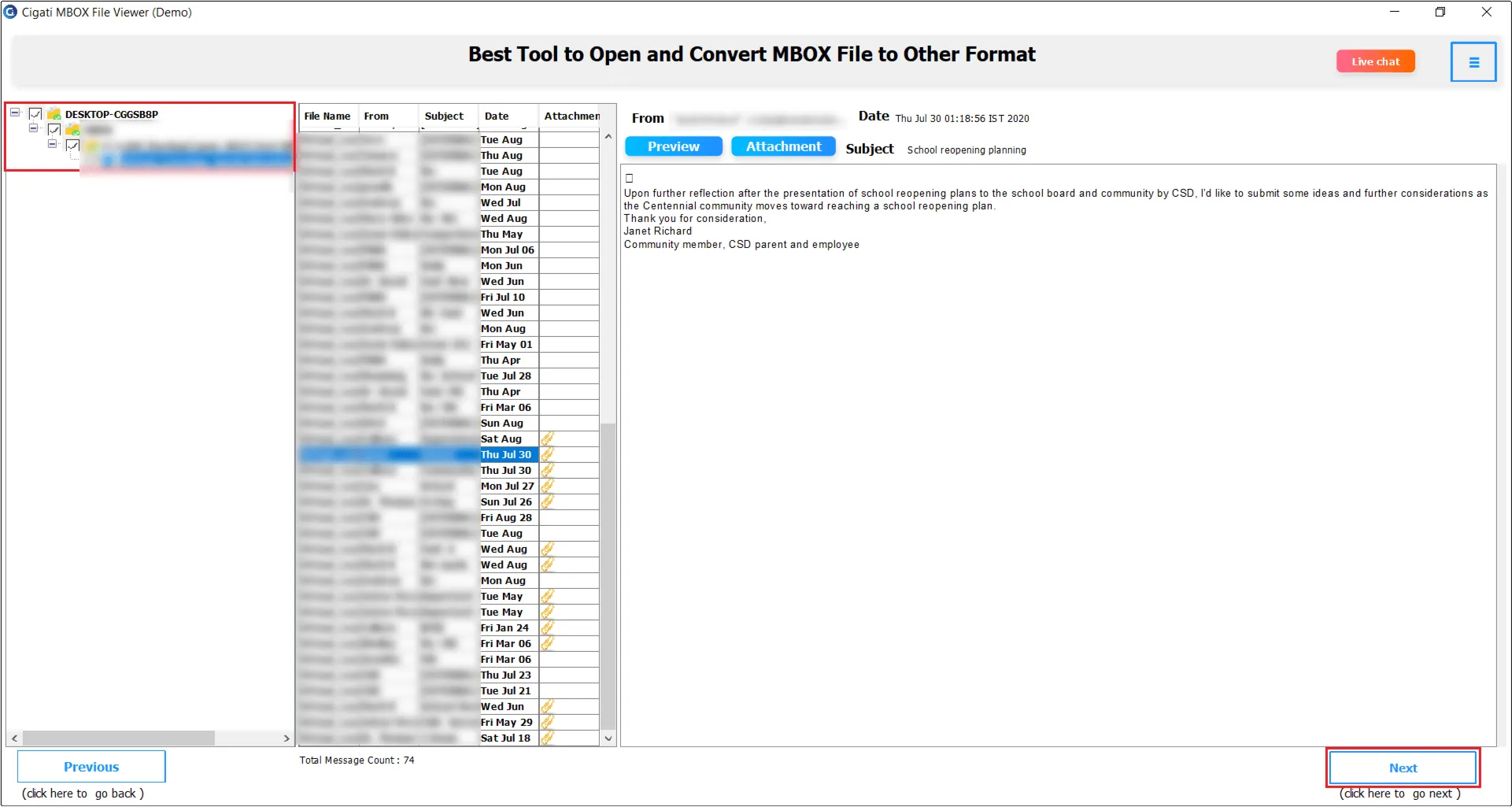
Select the folders you want to convert and click the Next button.
Note: Here you can view your MBOX file emails and attachments.
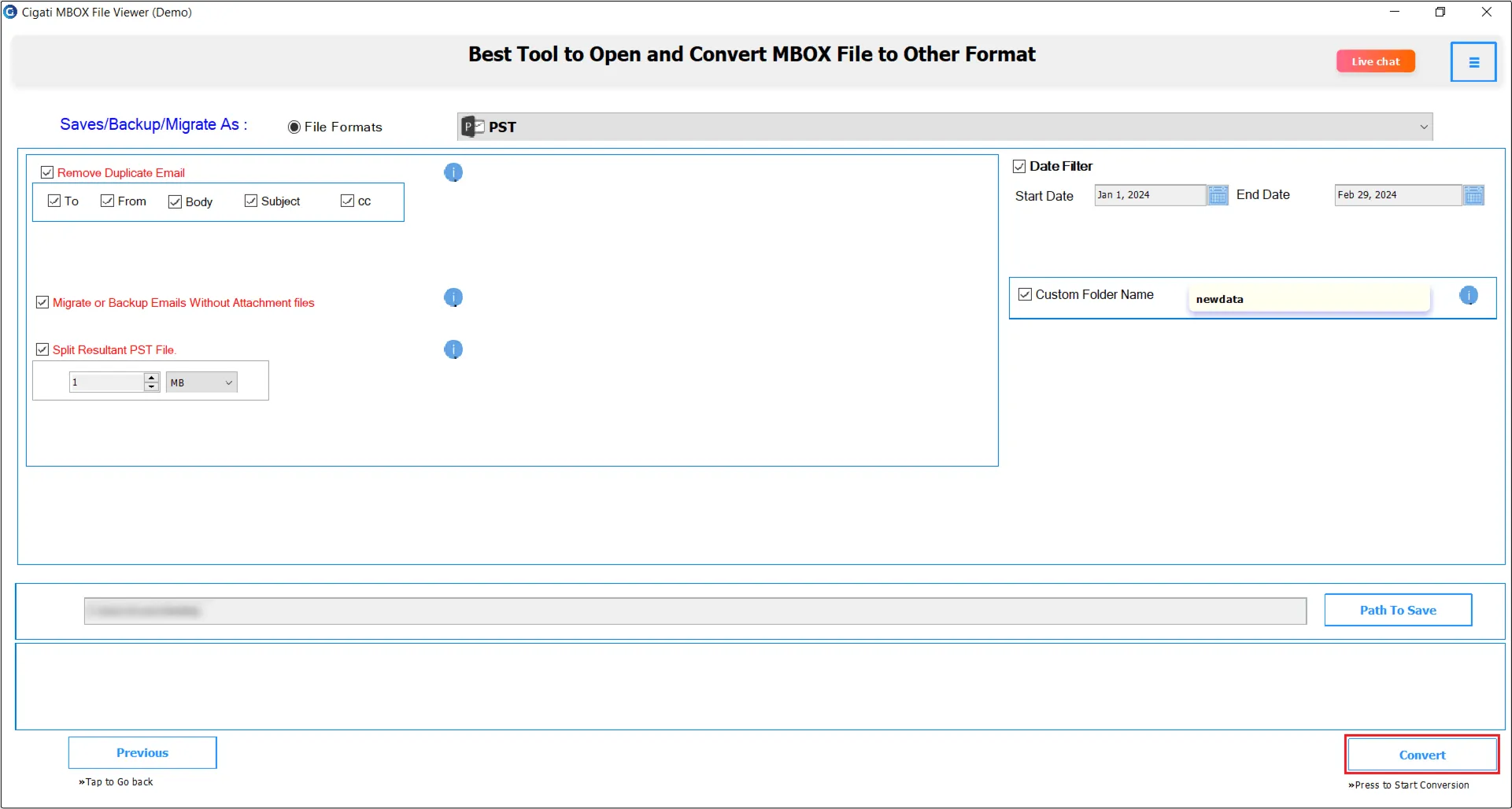
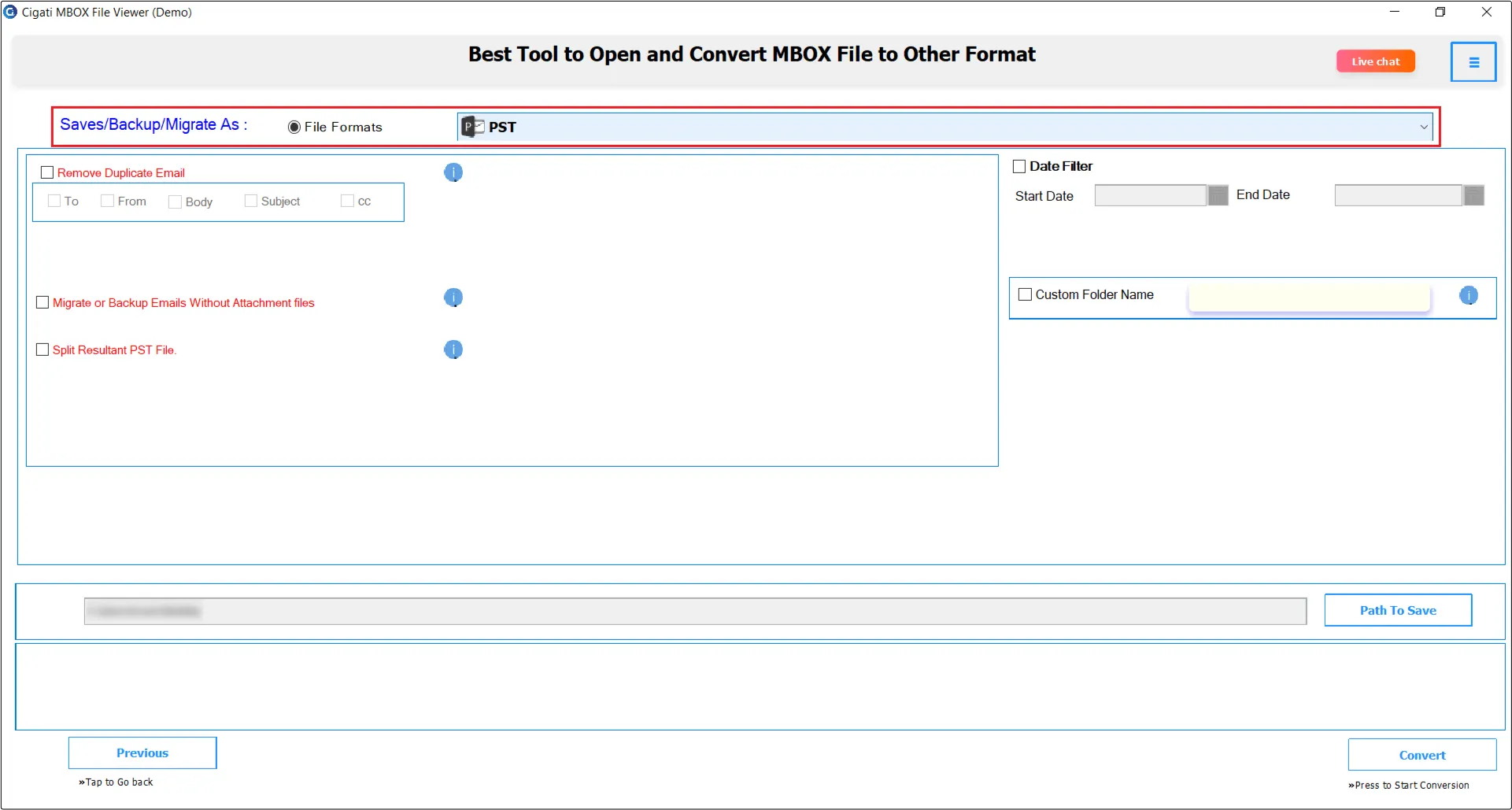
Now, choose PST as the file format for saving emails.
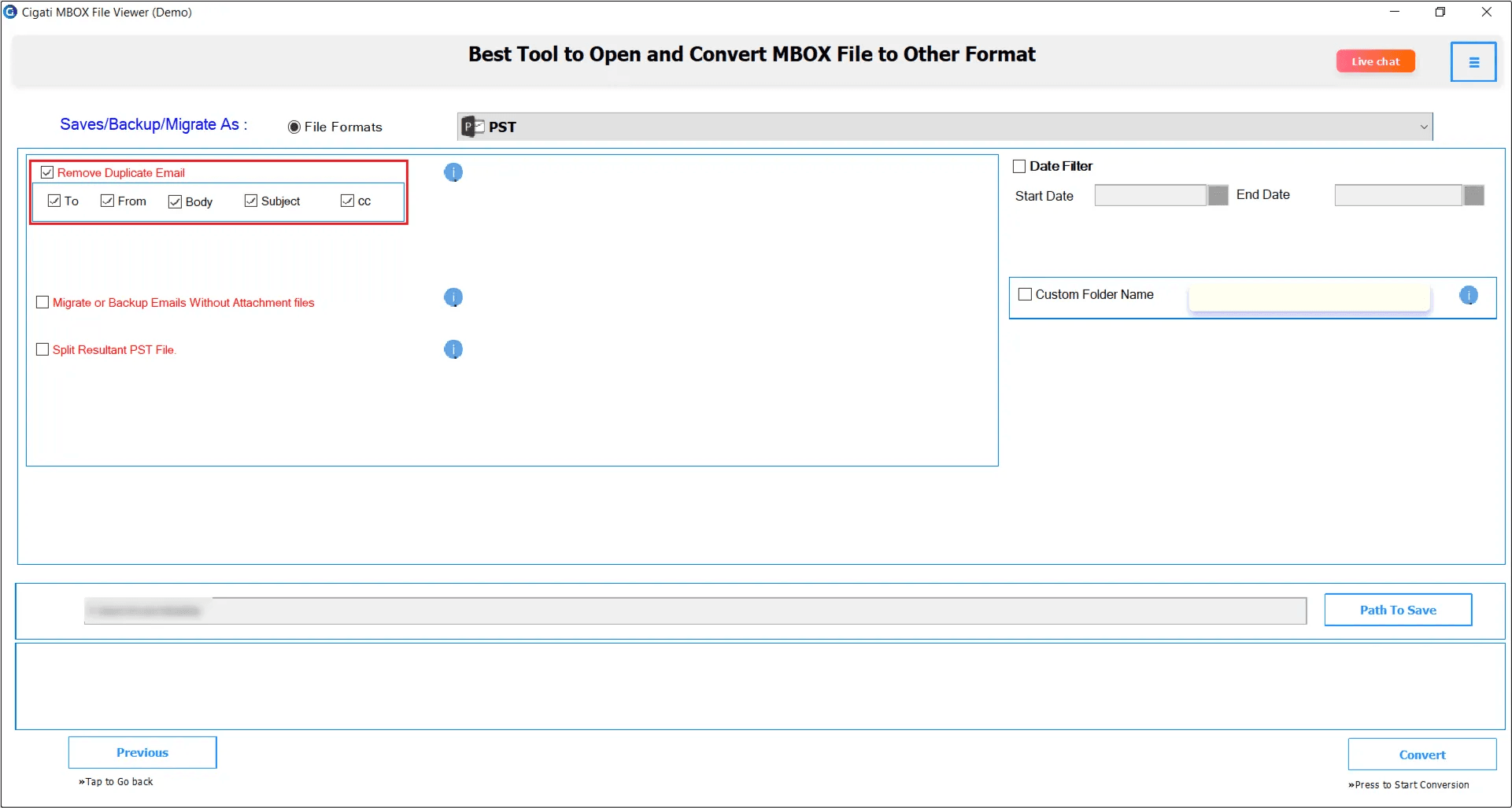
You can utilize the Remove Duplicate Email feature to remove duplicate emails based on the To, From, Subject, and Body fields.
Choose the Migrate or Backup Emails without Attachments option to exclude email attachments.
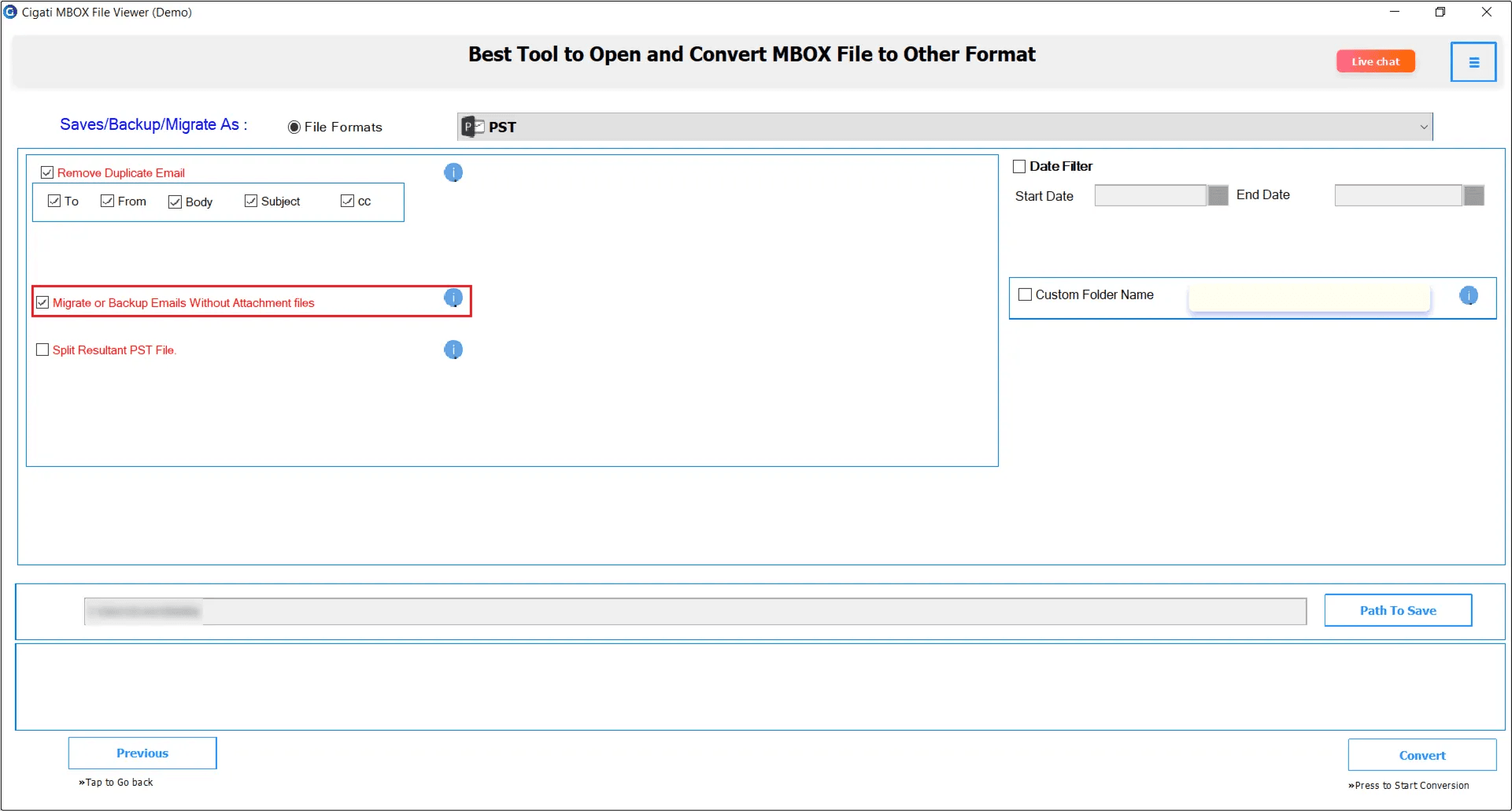
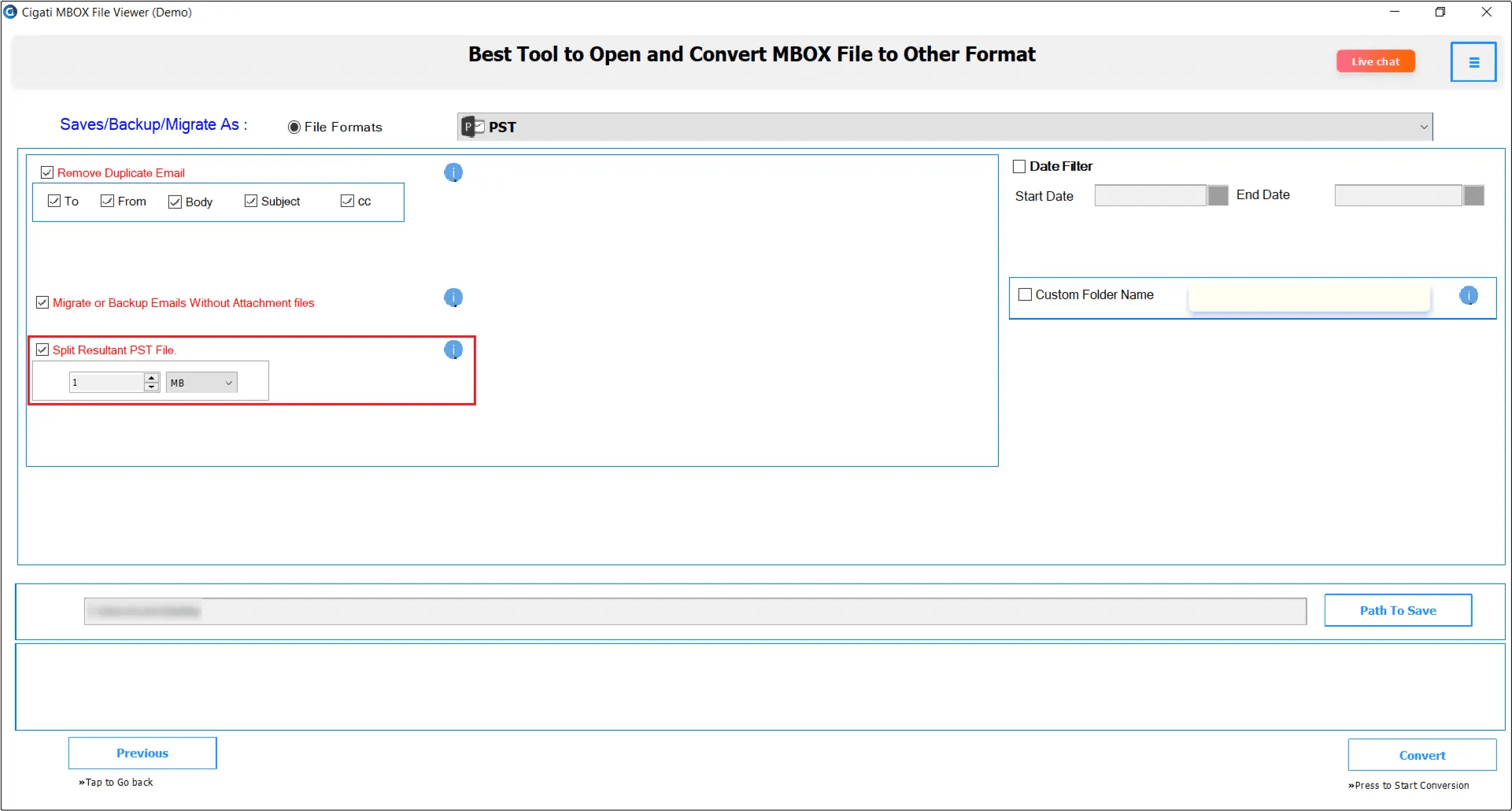
Select the Split Resultant PST File option to divide the output PST into smaller PST files.
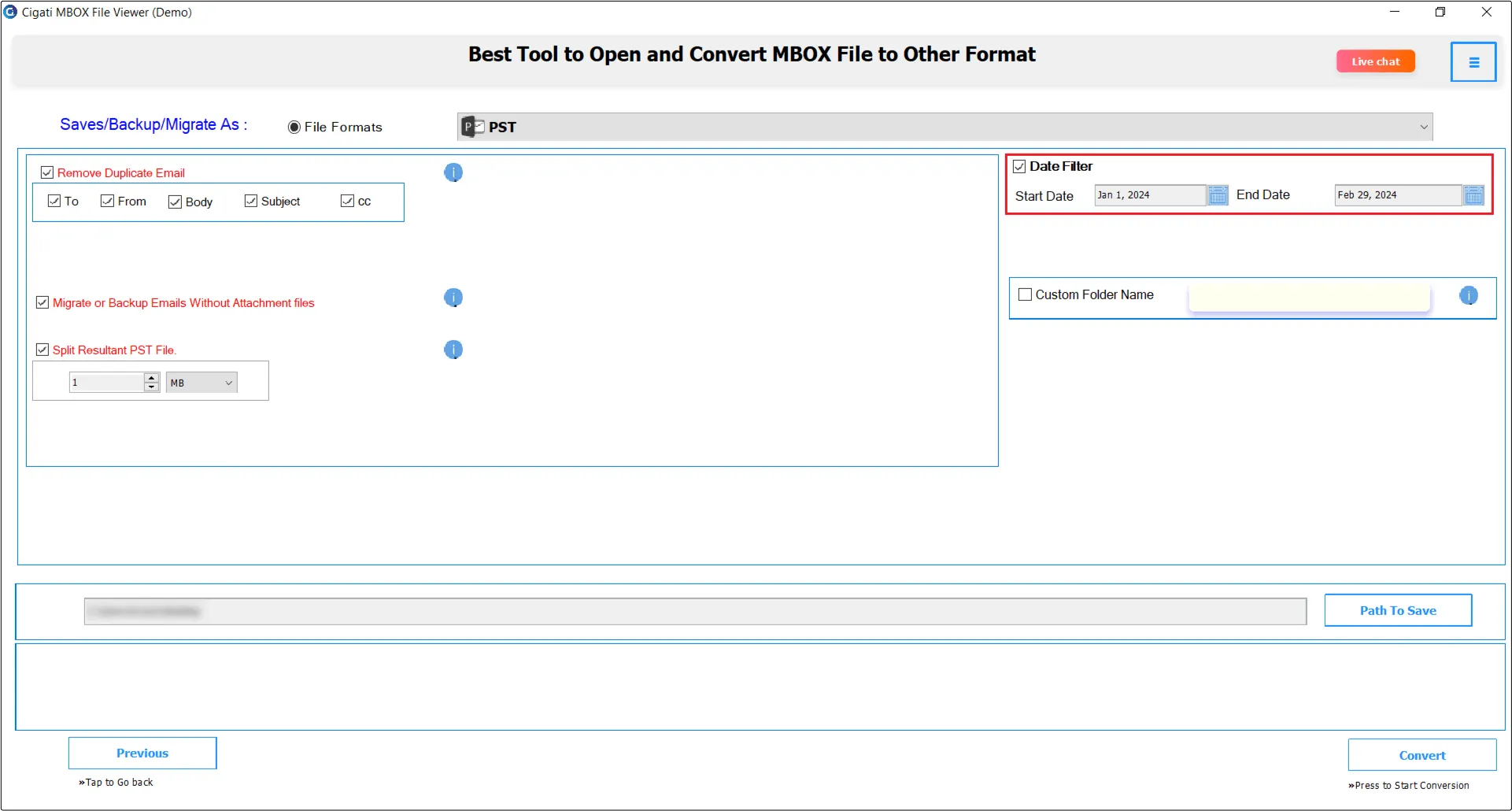
The Date Filter allows for selective conversion based on specified dates.
Choose the Custom Folder Name option to assign a specific name to the folder where the output files will be stored.
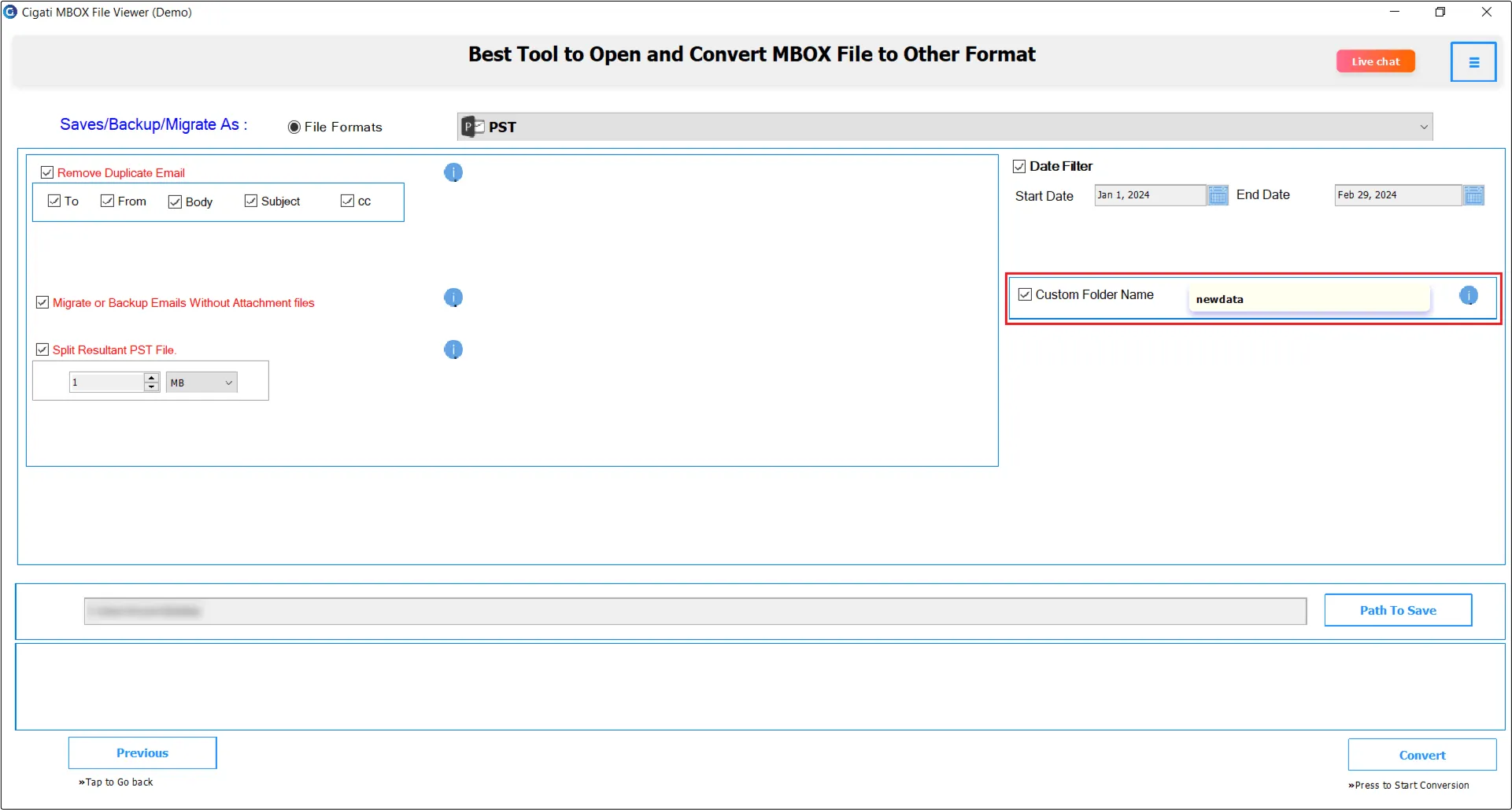
Click the Path to Save button to choose the location for the output file.
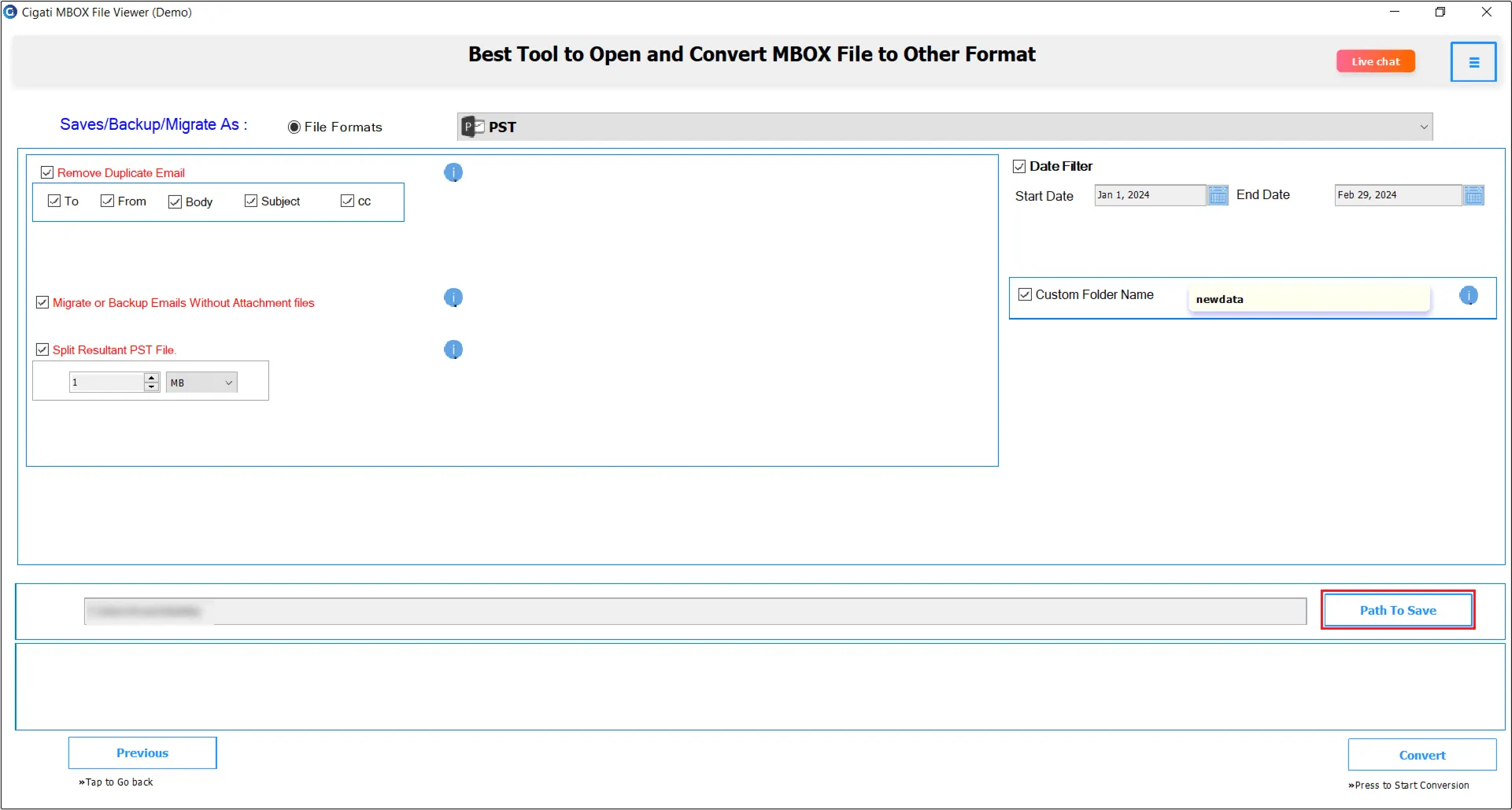
Finally, click the Convert button to start the conversion process.