Cigati OLM Viewer for Mac
4.7
A user-friendly application with an intuitive design for beginners to navigate effortlessly.
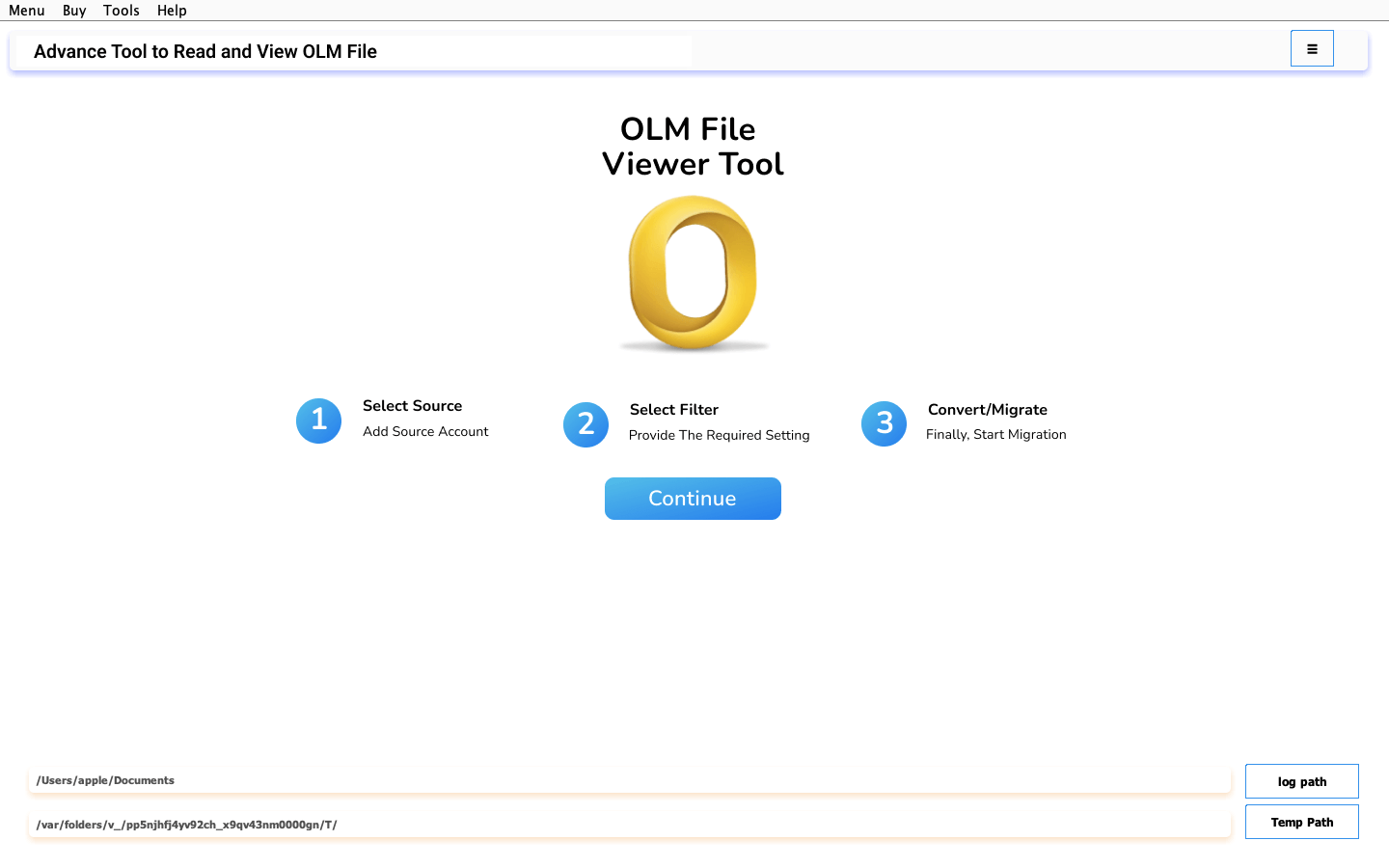
Download and install the Cigati OLM Viewer for Mac on your local system. Launch the application to begin
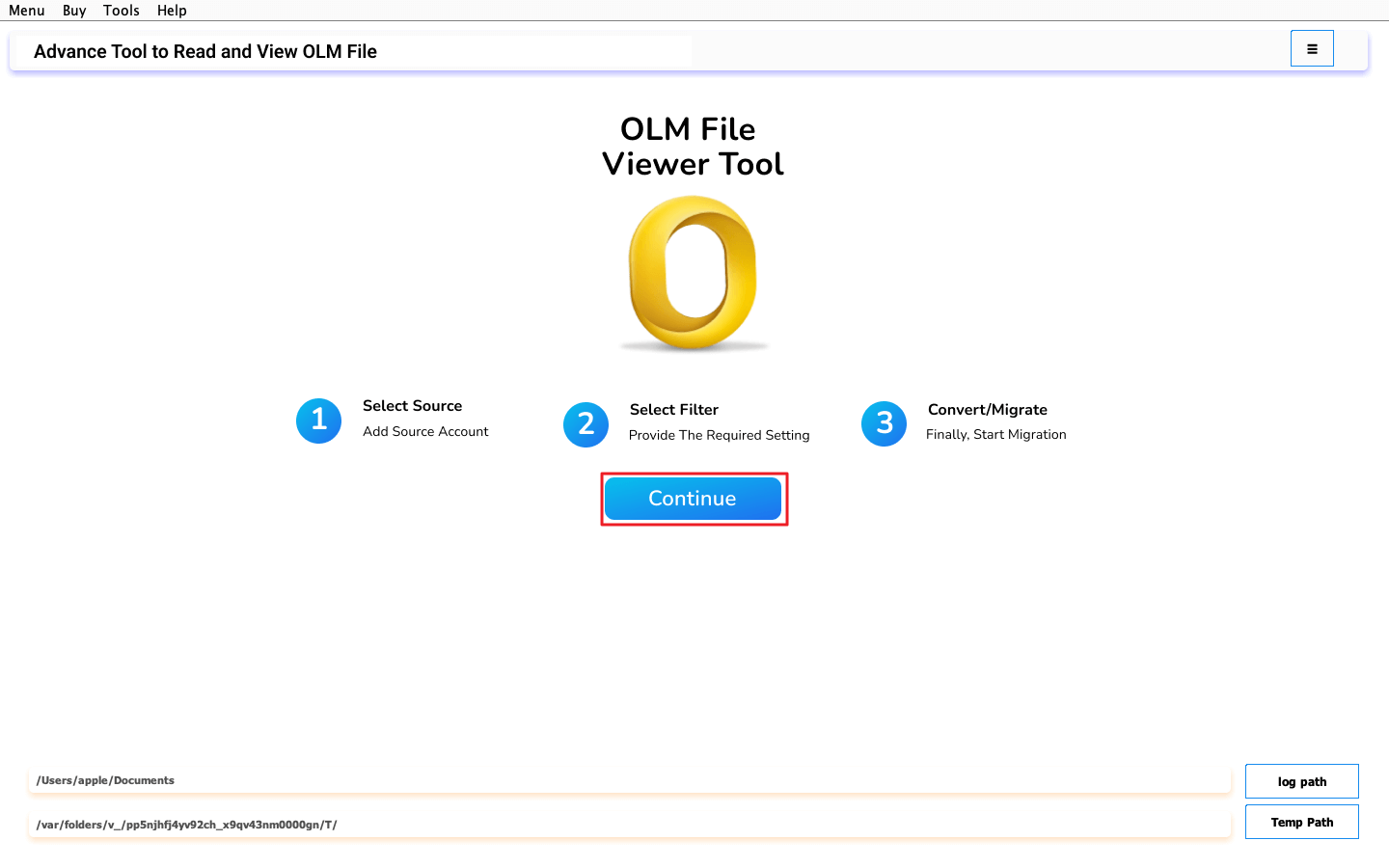
Click the Continue button to proceed.
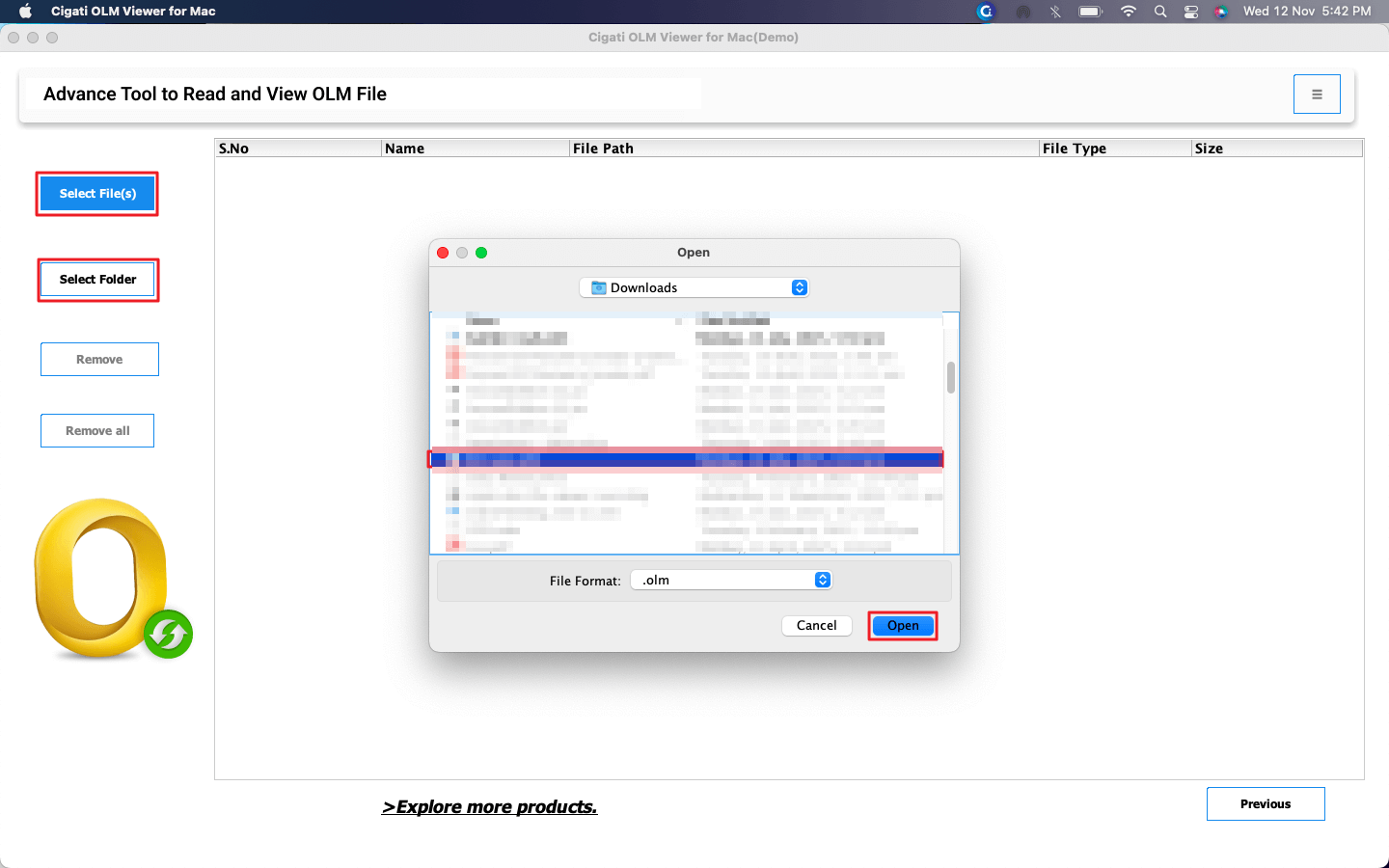
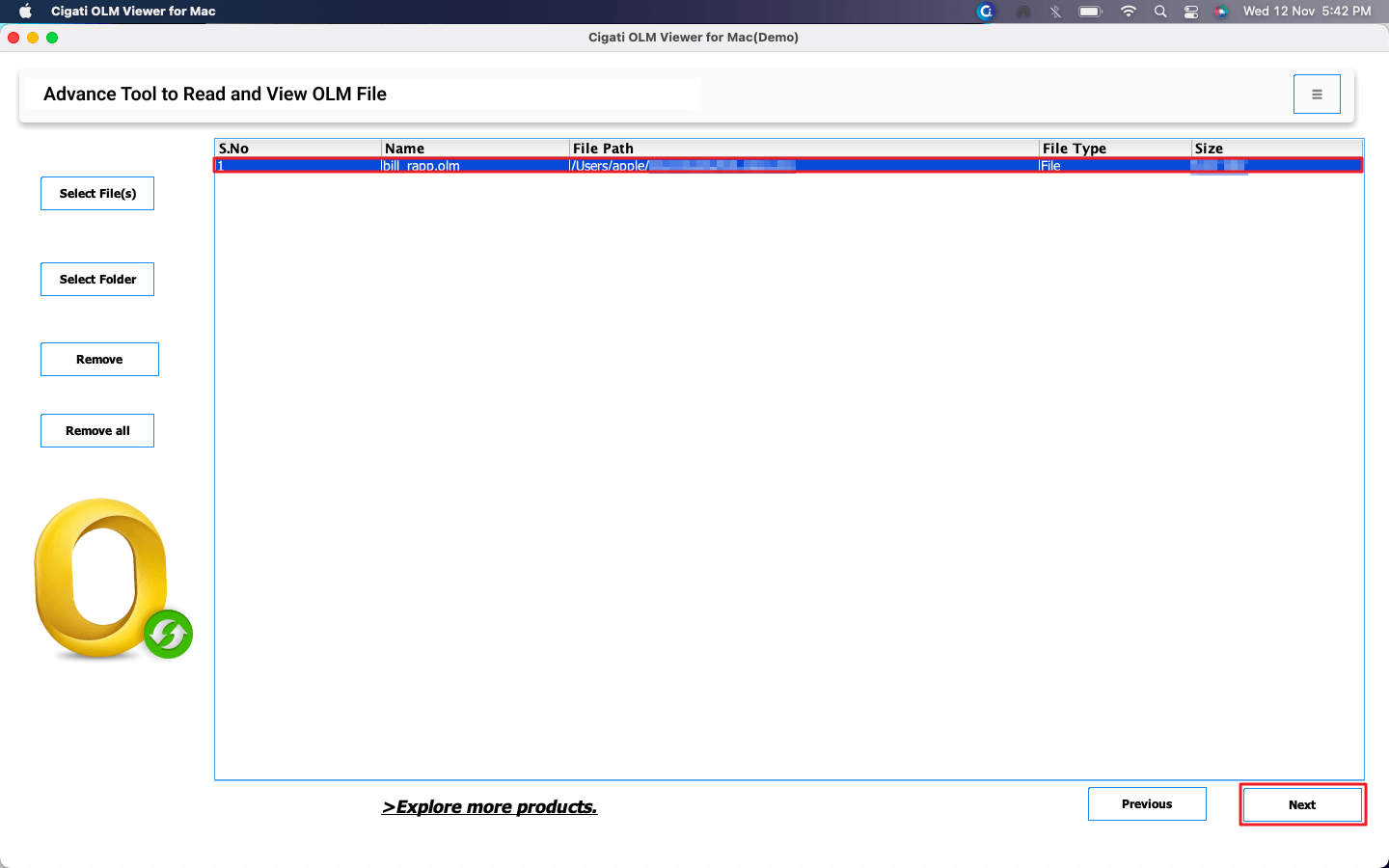
Choose either Select Files or Select Folder to locate your OLM file(s), then click Open to add them.
Once added, the OLM file will appear in the list. Click Next to continue.
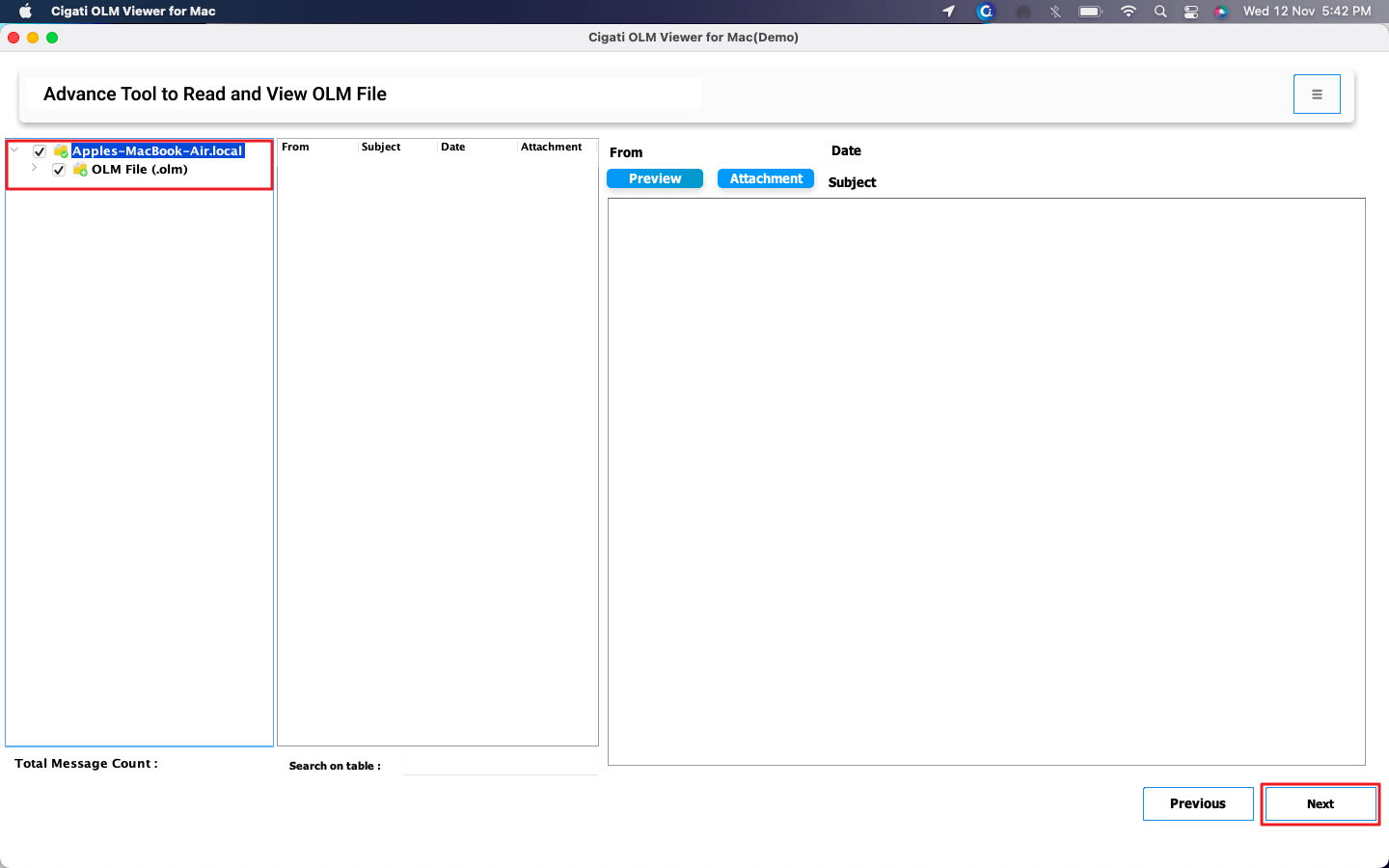
Preview the mailbox content and select the folders you wish to convert. Click Next to proceed.
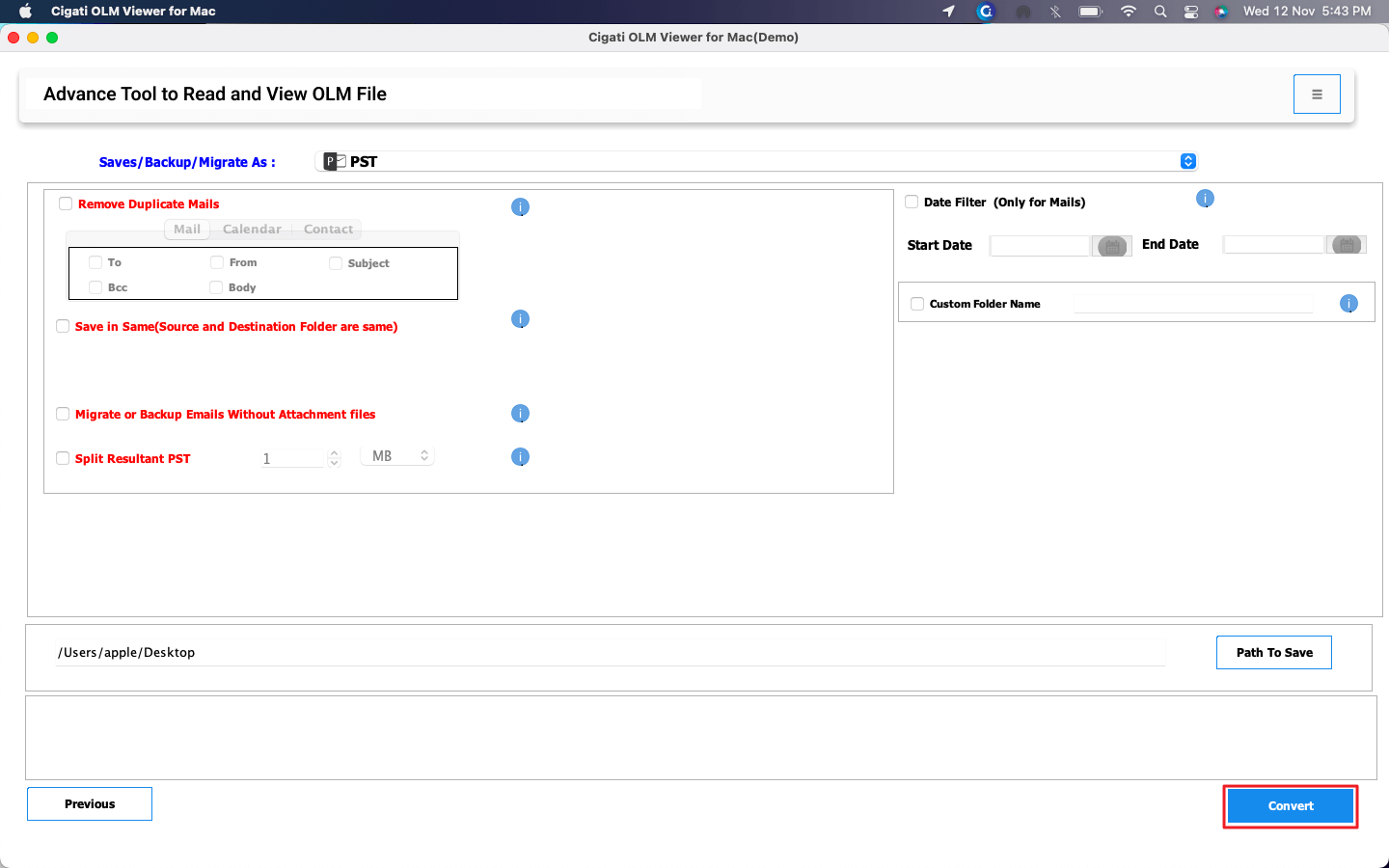
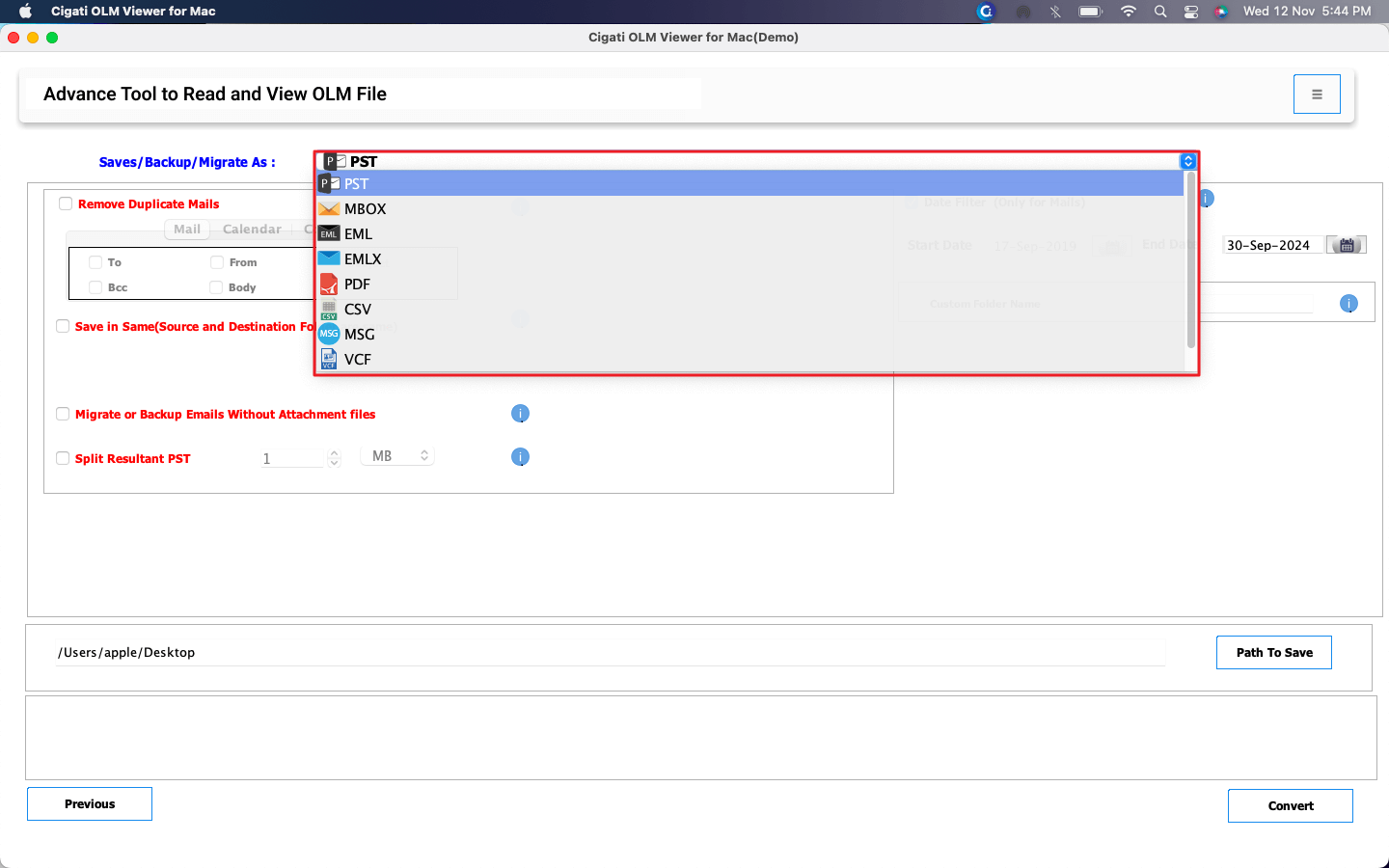
Select PST as the desired file format for conversion.
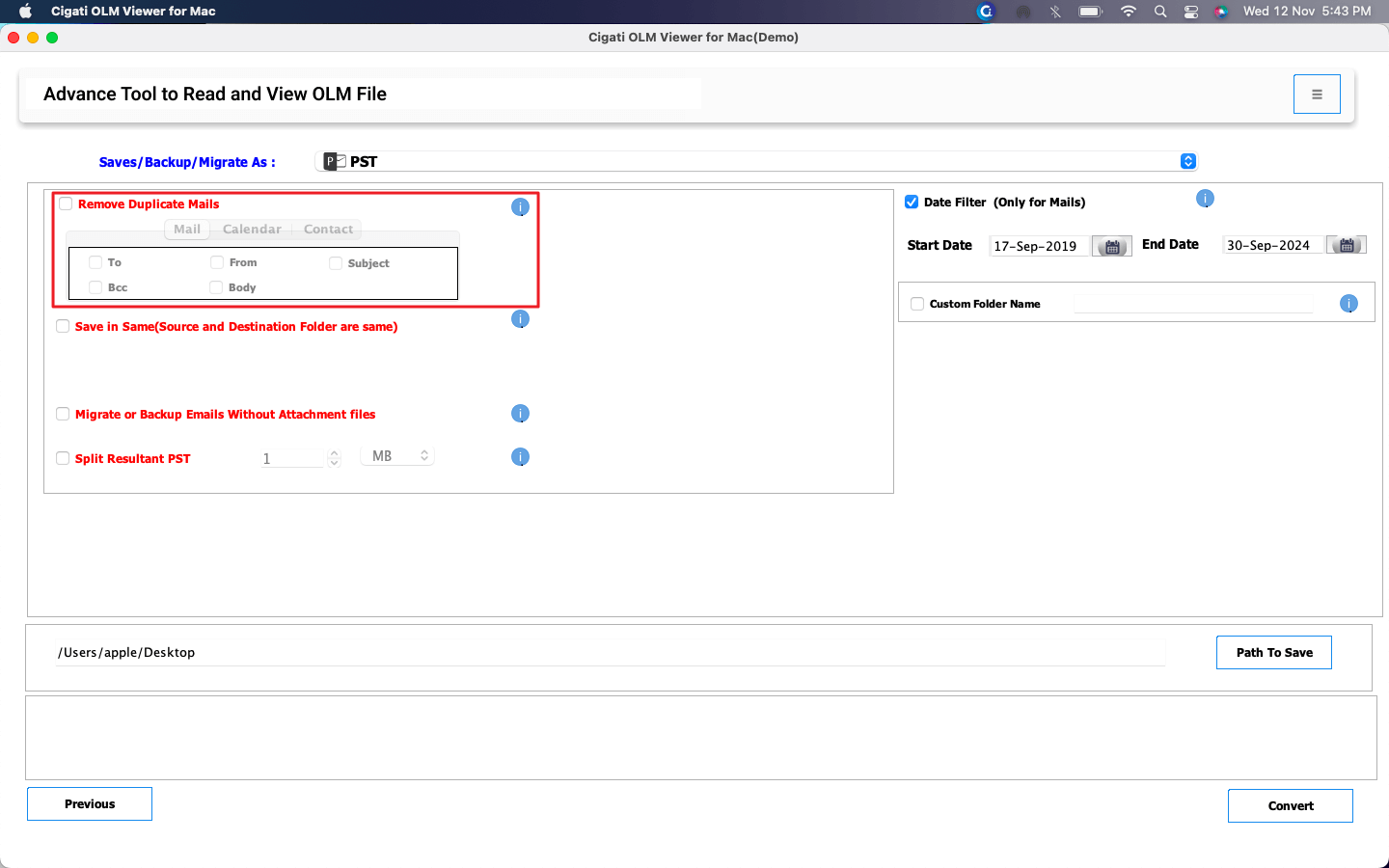
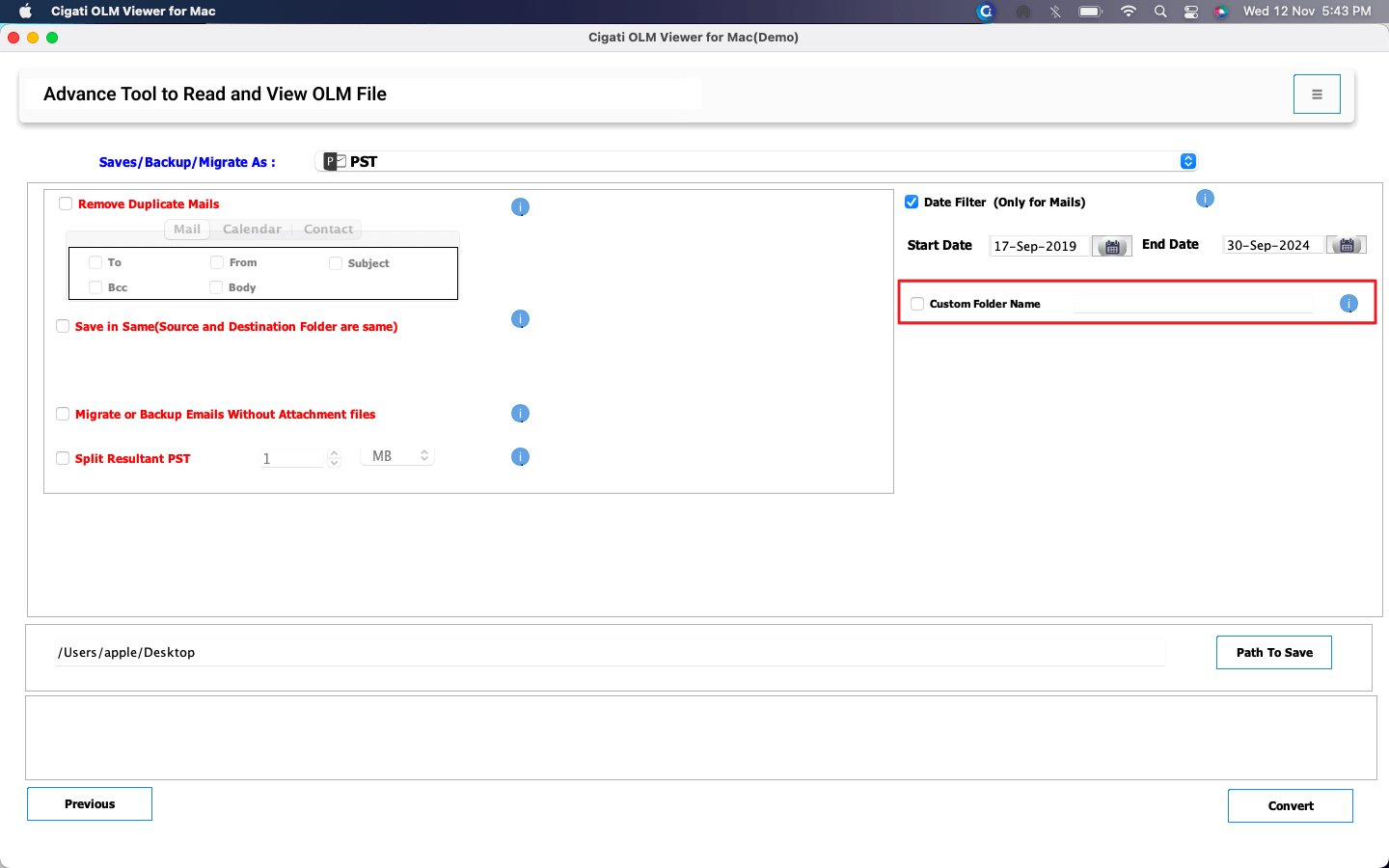
Enable the Remove Duplicate Emails option to filter out duplicates based on To, From, Subject, and Body.
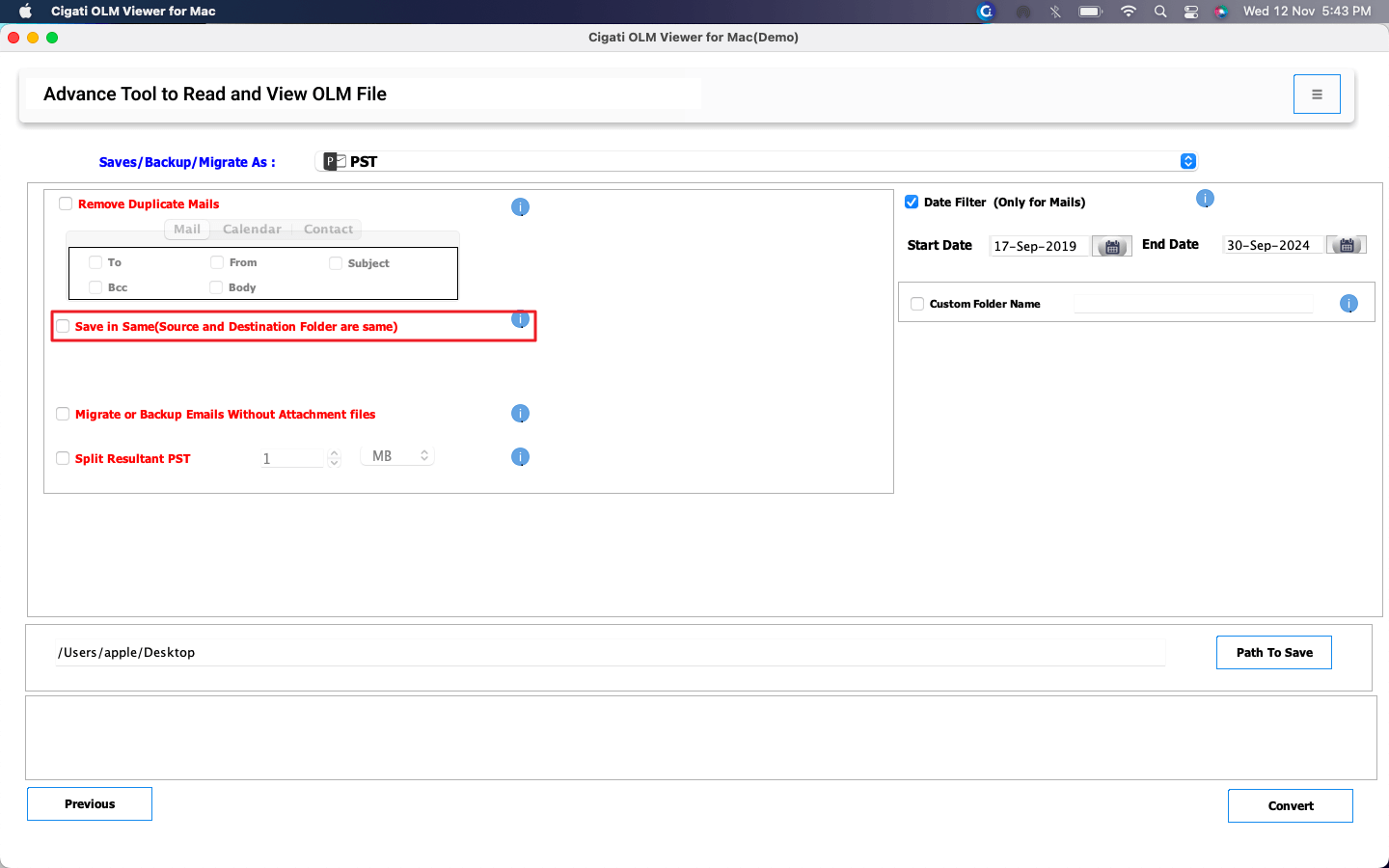
Check the Save in Same option to preserve the original folder names in the output.
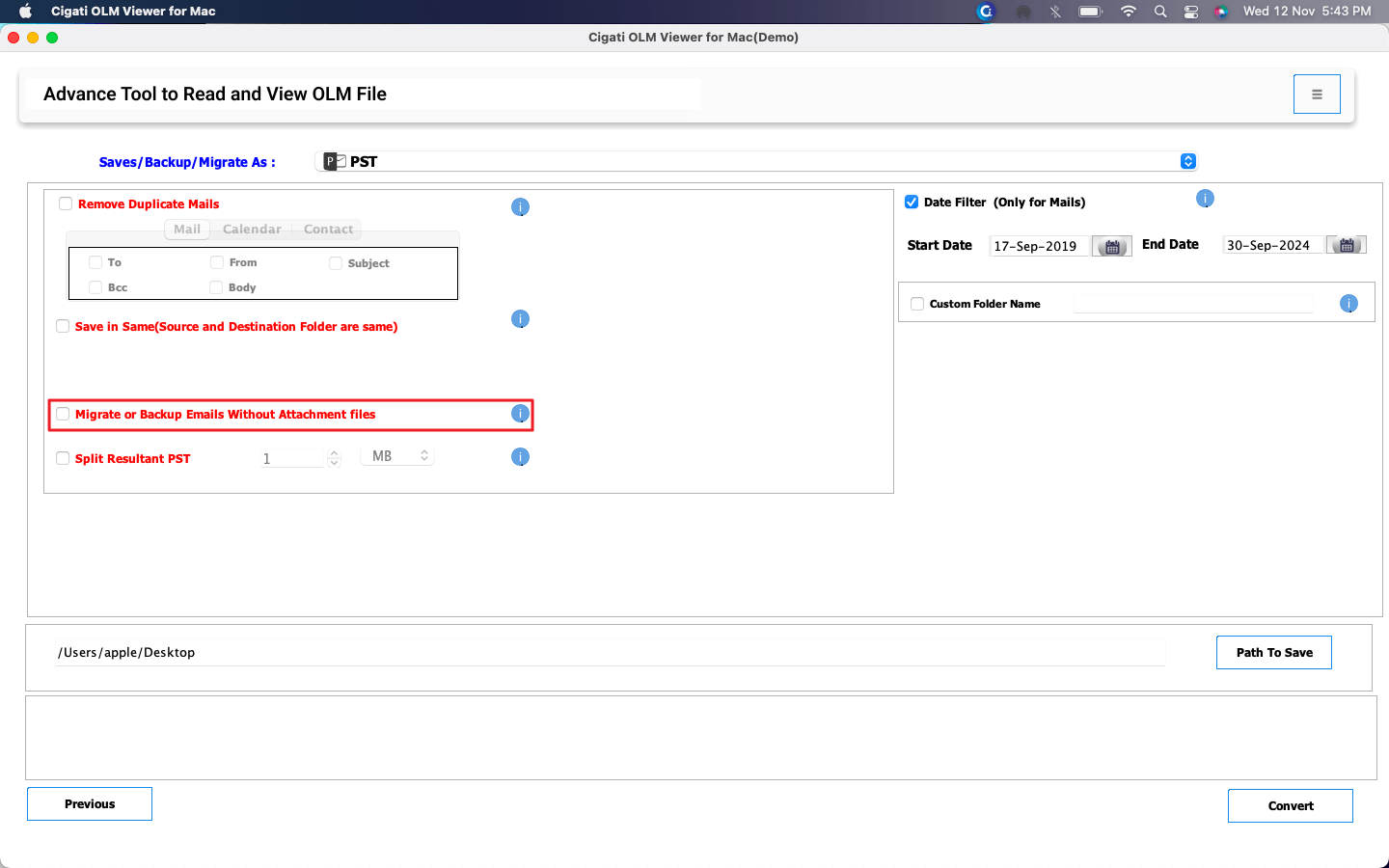
Select the Migrate or Backup Emails without Attachment Files option to exclude attachments from the conversion.
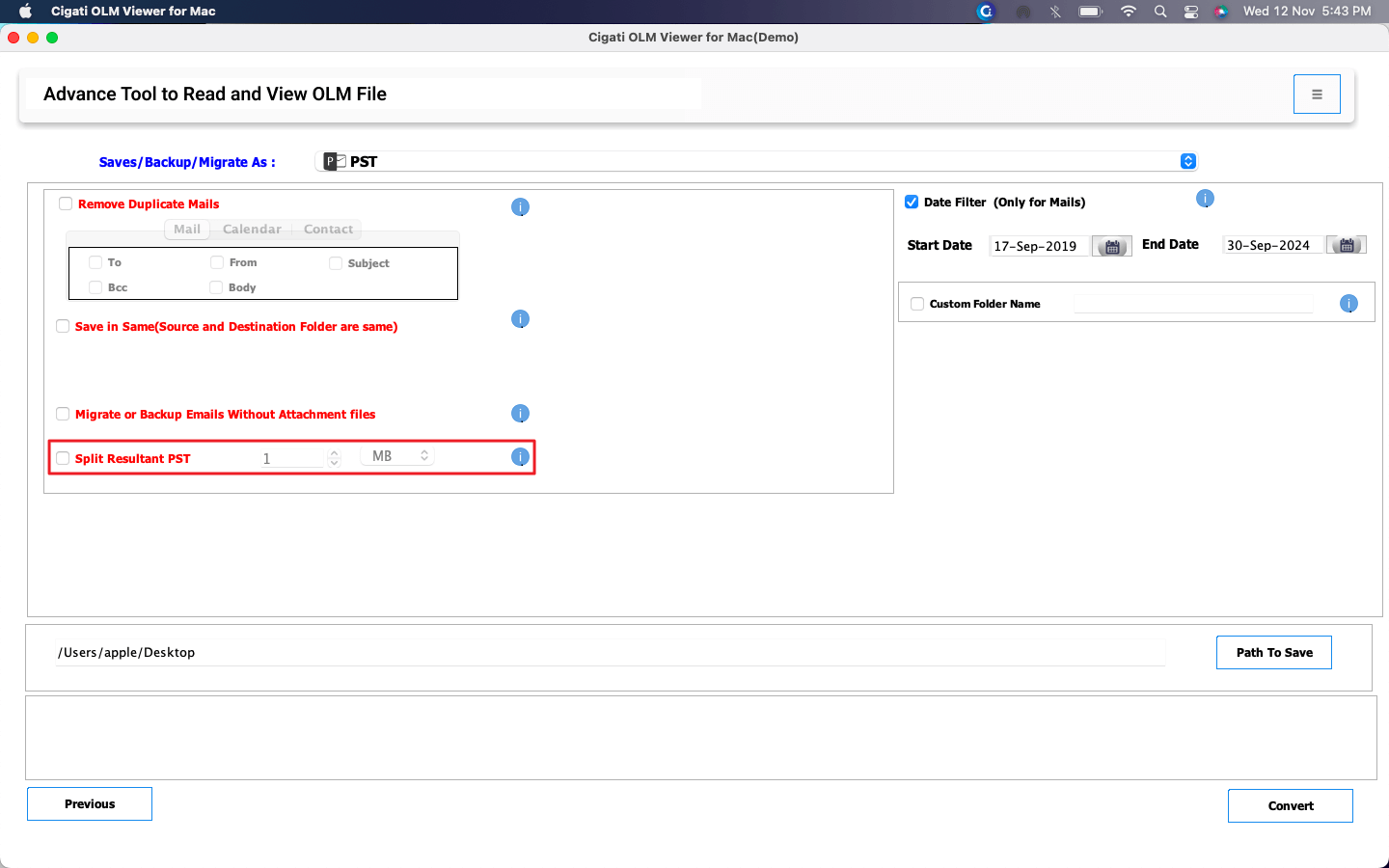
Enable the Split Resultant PST option to divide the output into smaller, manageable PST files.
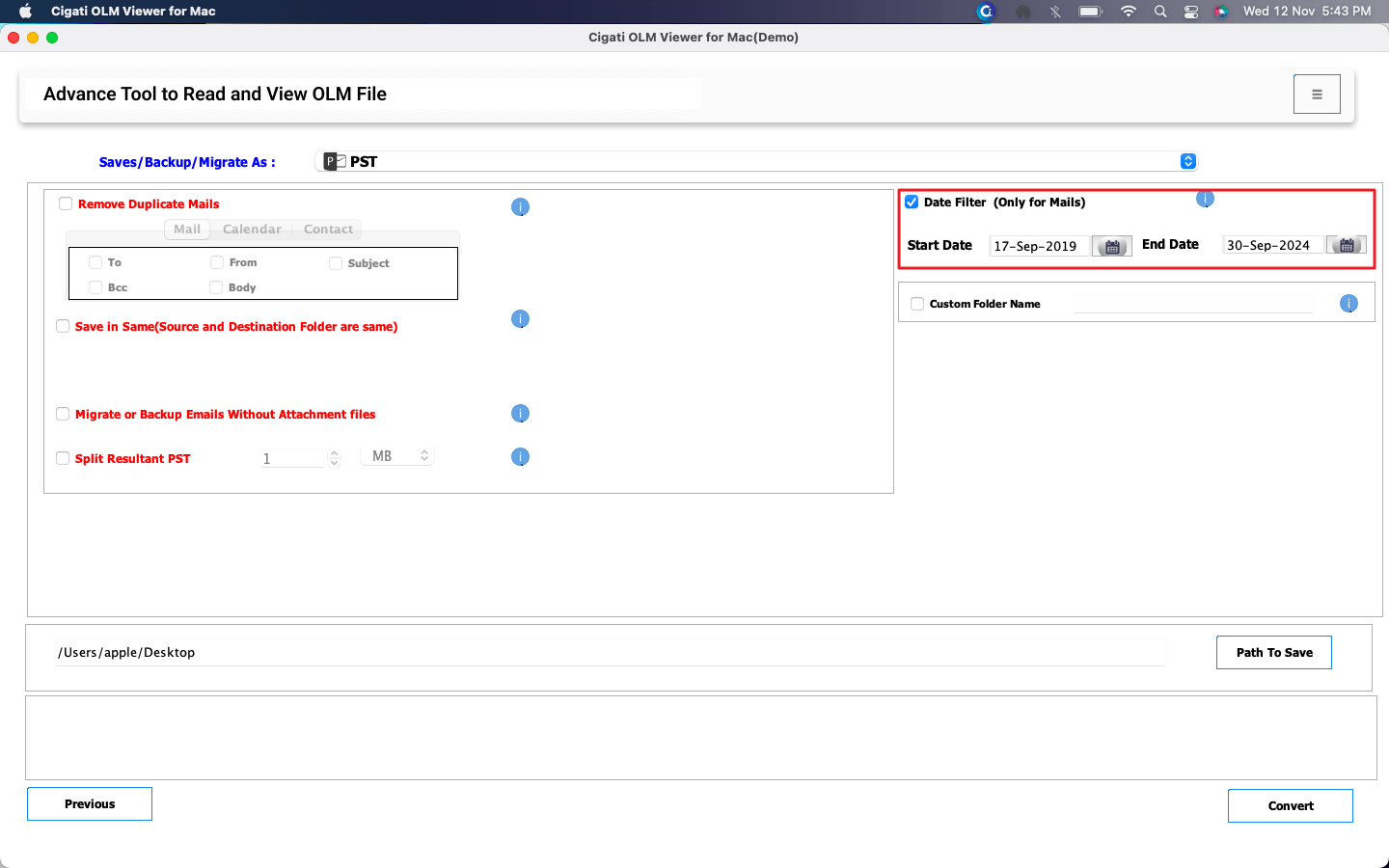
Use the Date Filter to convert emails from a specific date range only.
Choose the Custom Folder Name option to assign a personalized name to the output folder.
Click Path to Save to define where the converted file will be stored on your system.
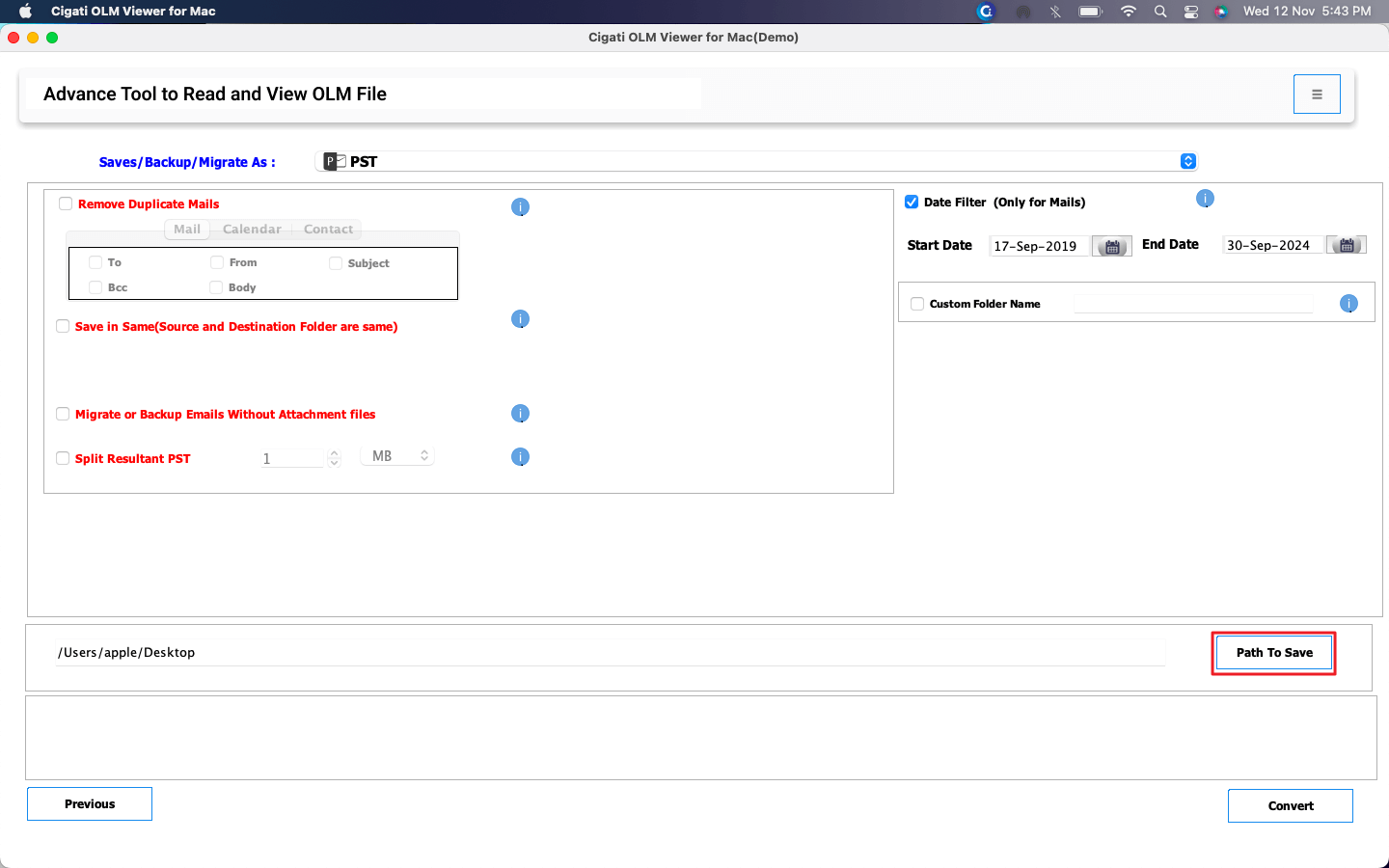
Click the Convert button to initiate the OLM conversion process.