
PST Viewer Tool
4.7
The Cigati PST Viewer is designed to open, preview, and export Outlook PST/OST files, including recovered or corrupted mailbox items, into multiple formats. It preserves folder structure, attachments, and email details throughout the process. Built for both individual users and IT professionals, it lets you inspect mailbox contents before exporting and apply detailed filters to control exactly what gets saved.
Launch the Software
Open Cigati PST Viewer. The Dashboard shows the toolbar (Add Outlook File, Save Outlook File, Migrate to Office 365, Remove File, View Logs), an empty Mail Folders panel with a Drag and Drop zone, an empty Email List with search and columns for From/Subject/To/Date, and an Email Details pane below.
List Outlook Profiles
A prompt appears asking if the app should identify and list all available Outlook profiles automatically. Choose Load Outlook Files to scan automatically, or Choose Manually to select files yourself.
Browse PST/OST Files
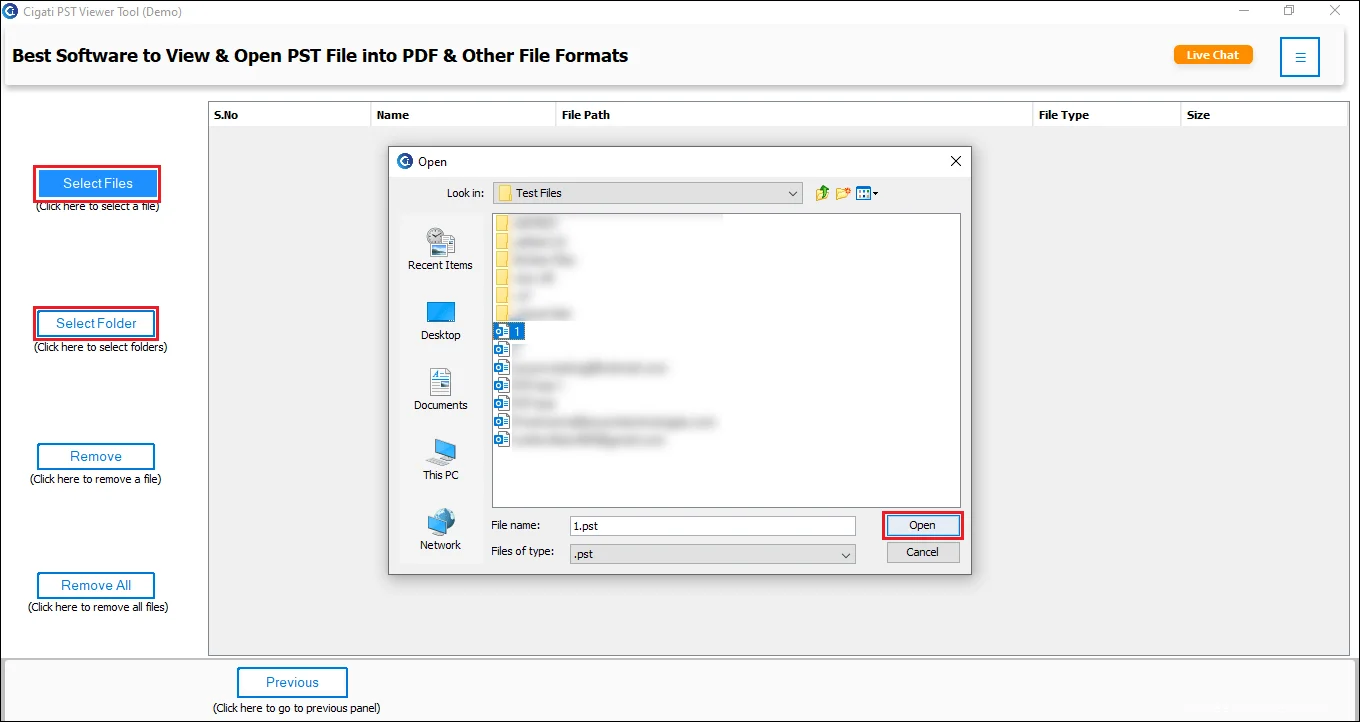
In the Select Outlook Data File window, use the Choose Manually tab. Click Browse to pick a single file, or use Add Folder/Find to locate PST/OST files in bulk. Review the file list, then click Load.
Review Loaded Files
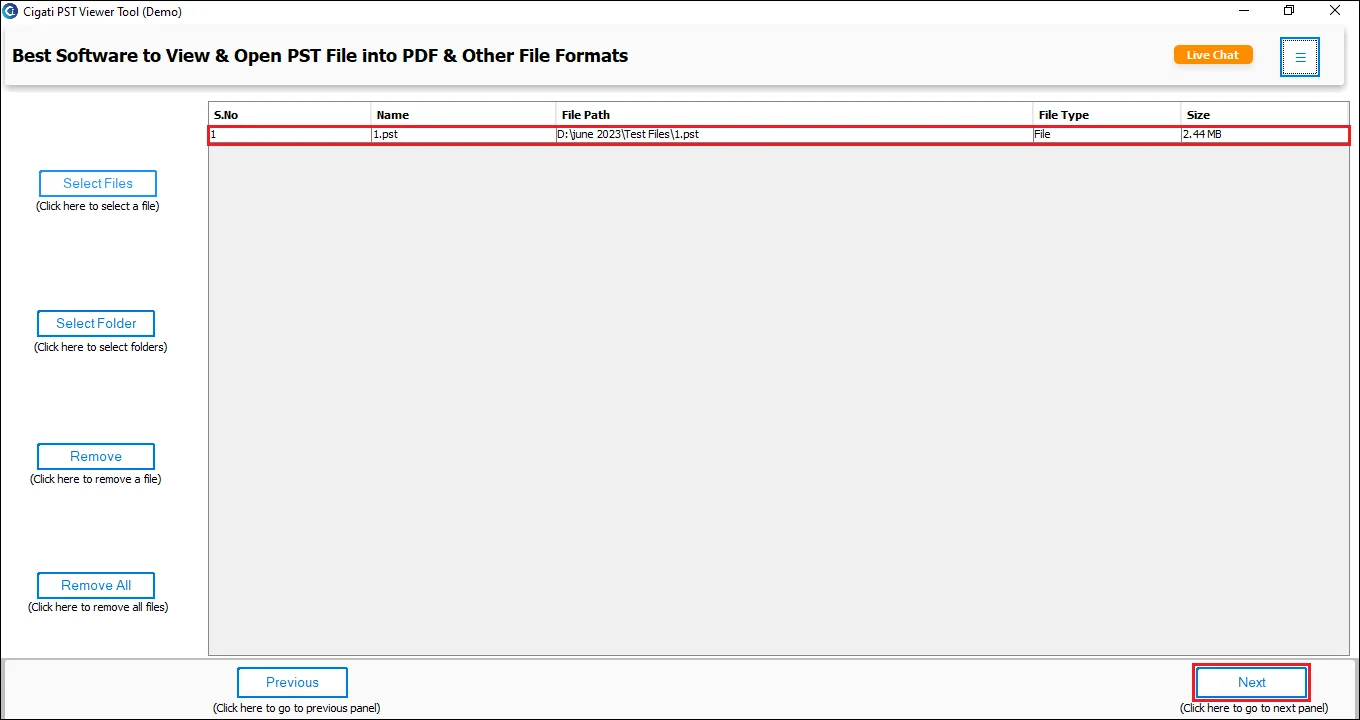
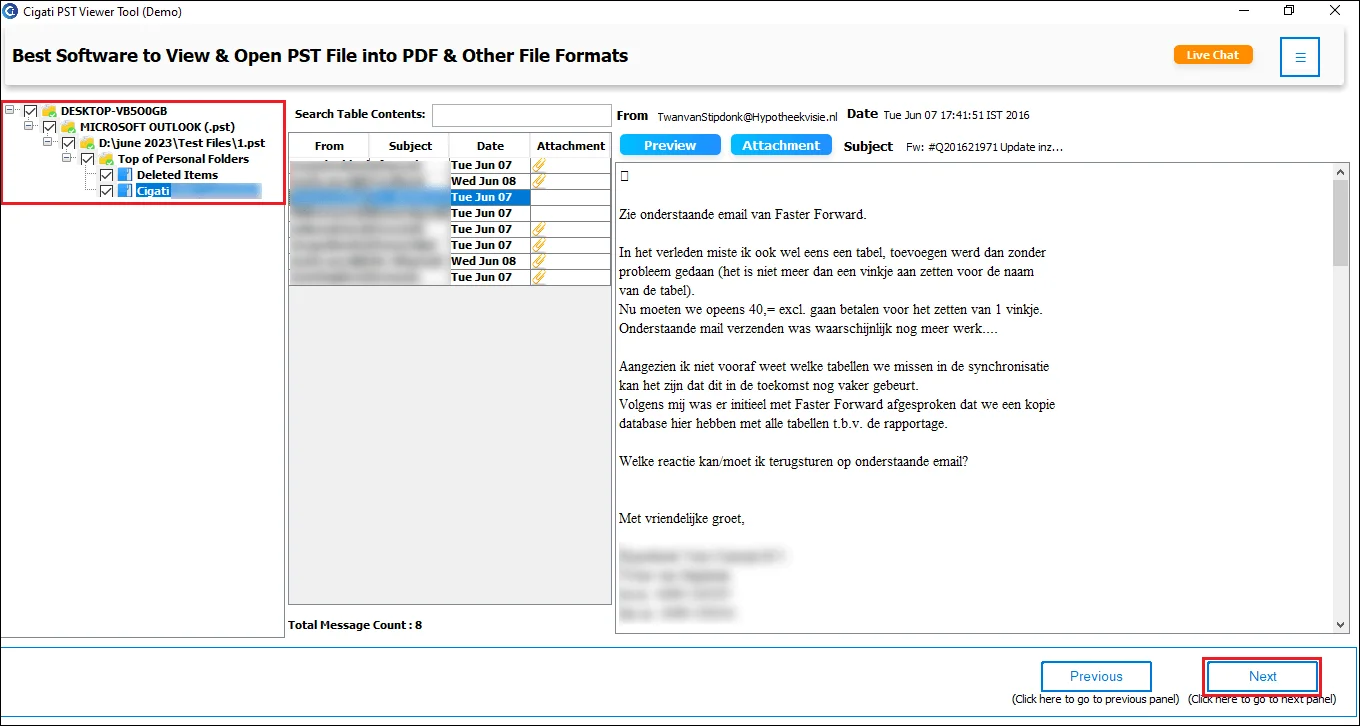
Once loaded, the Mail Folders panel populates with a tree of all detected PST/OST files and subfolders, each showing item counts and checkboxes. The status bar confirms the total number of loaded files (e.g., "Loaded Files: 16").
Preview Mailbox Data
Select any folder in the tree to view its emails in the Email List (From, Subject, To, Date, with an attachment icon where relevant).
Preview Individual Items
Click any email to view its details in the Email Details pane, using the tabs Body, Attachments, Task, Notes, Header, MIME, or Raw HTML.
Choose Destination
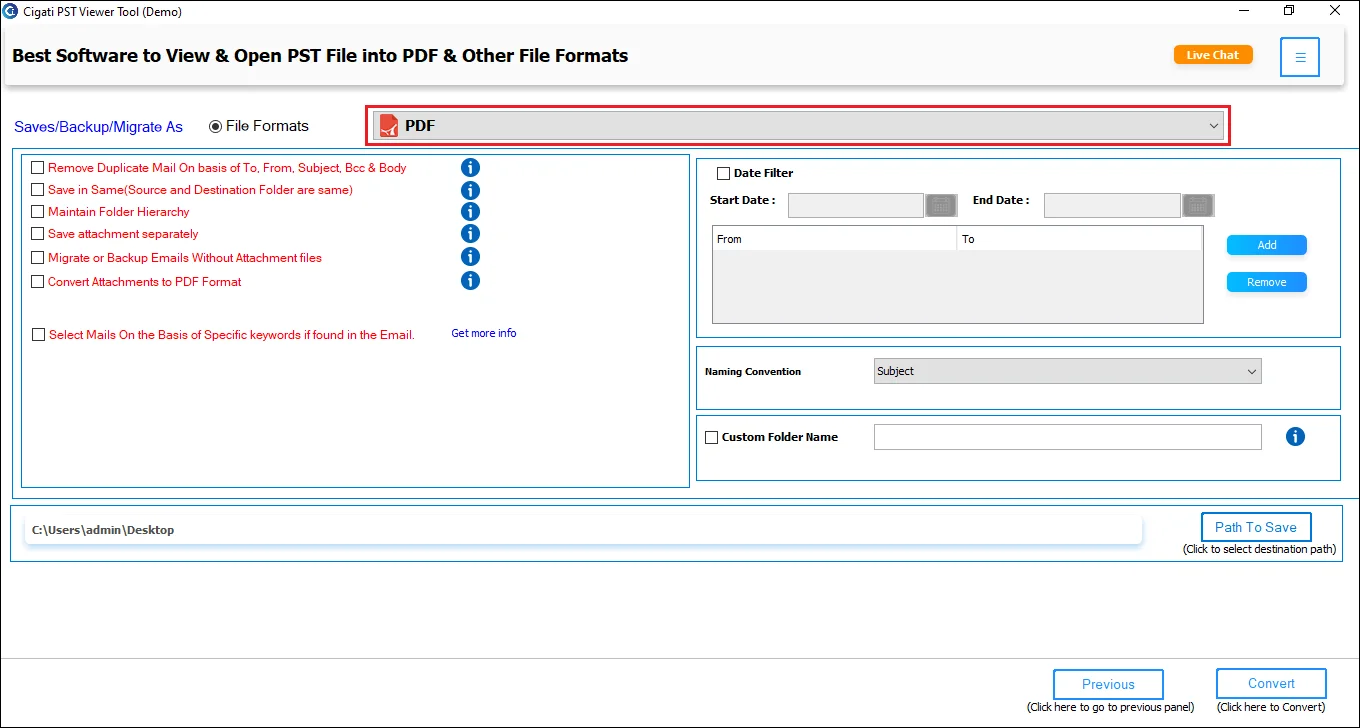
Click Save Outlook File to open Filters & Options. Under Save Format, select the output type: Outlook Data file (.PST), Email Message (.EML), Outlook Message (.MSG), PDF Document (.PDF), MBOX Mail Archive (.MBOX), or CSV Spreadsheet (.CSV).

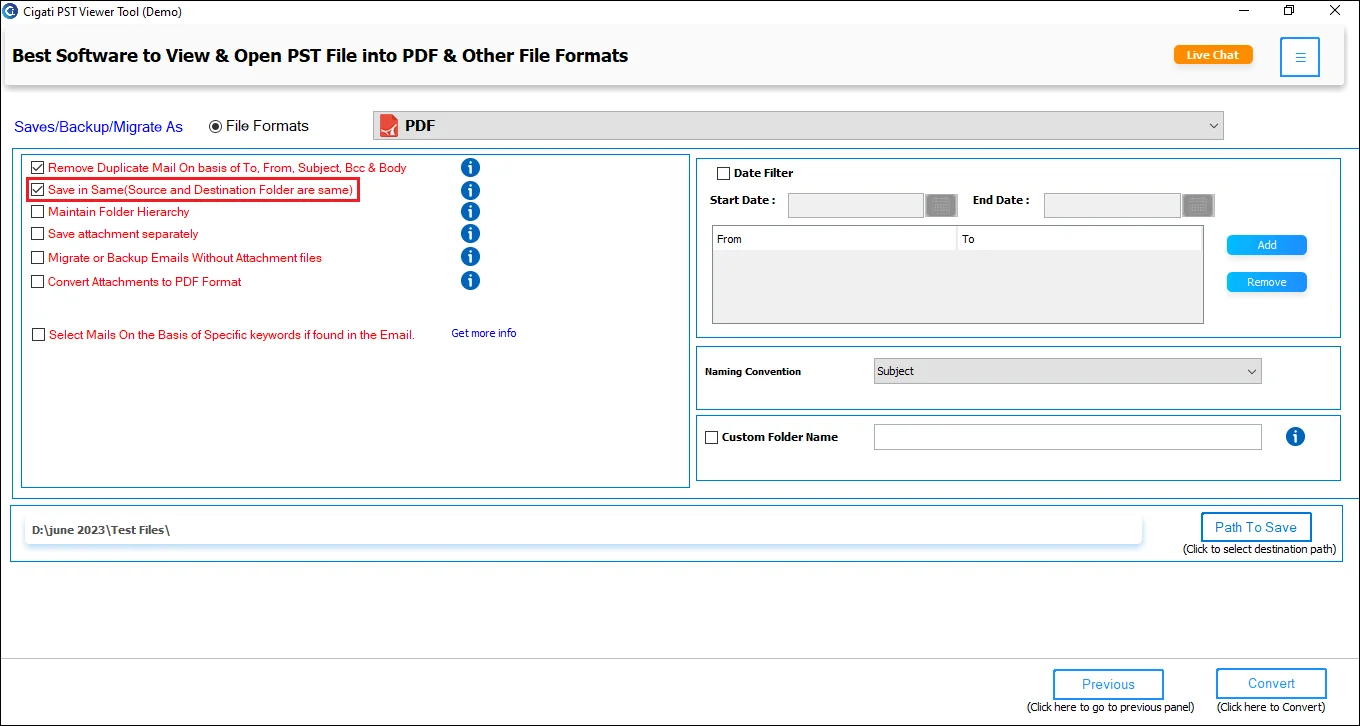
Configure General Settings
Use the available options to customize the export:
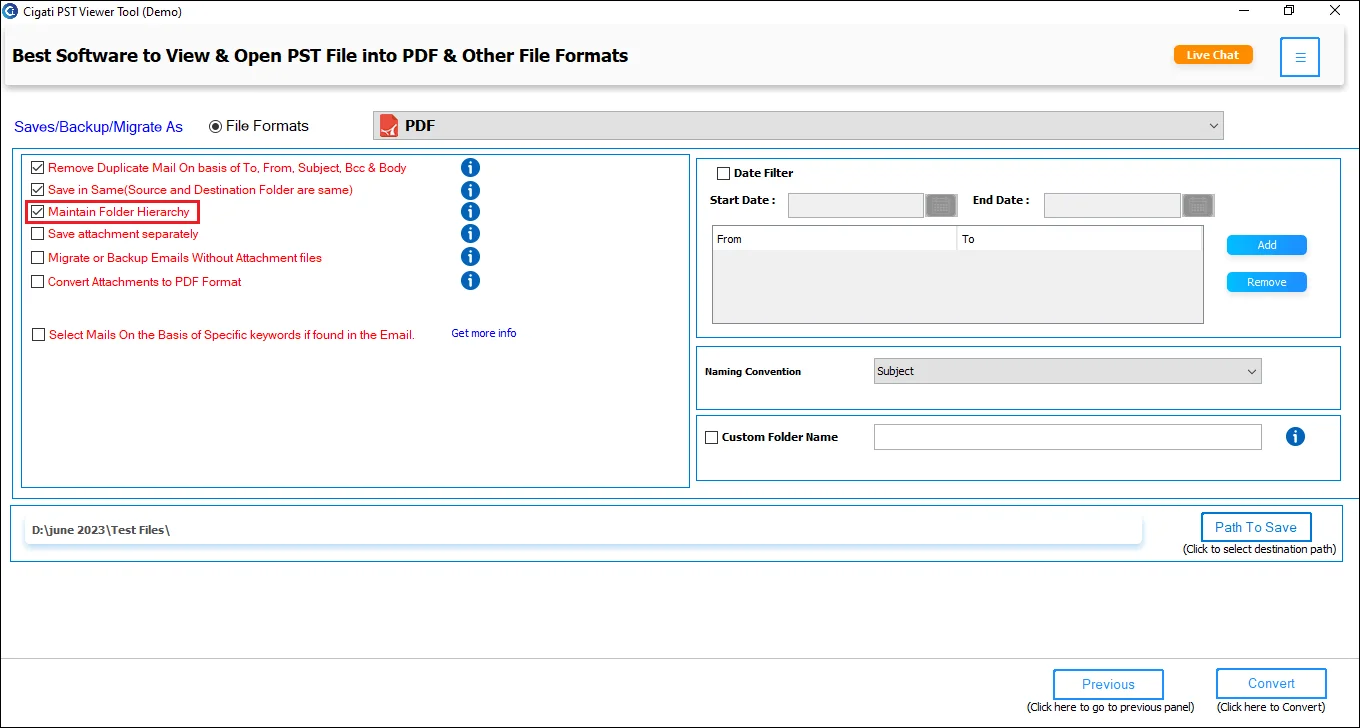
Configure Advanced Controls
Fine-tune the export with additional filters:
Additional Features

Select Destination & Configure Export Settings
Enter or browse to your Destination Path, review all configured filters, and click Save to begin exporting the emails according to your selected format and settings.
