PDF Password Unlocker Tool
4.7
How to Unlock Password from PDF Documents
A user-friendly application with an intuitive design for beginners to navigate effortlessly.
Easy Steps to Unlock the Password-Protected PDF Files
Download and Install Cigati PDF Password Unlocker Tool.
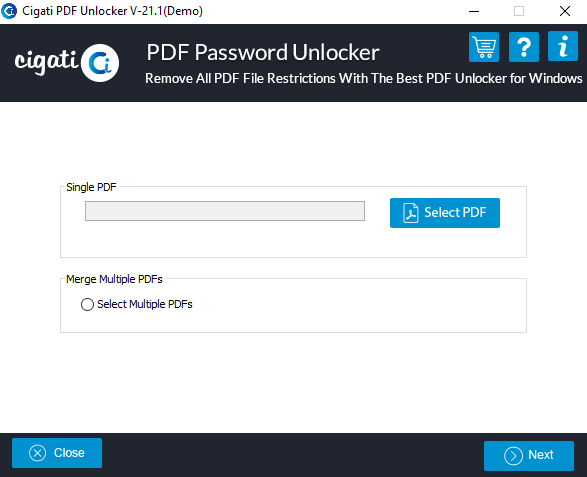
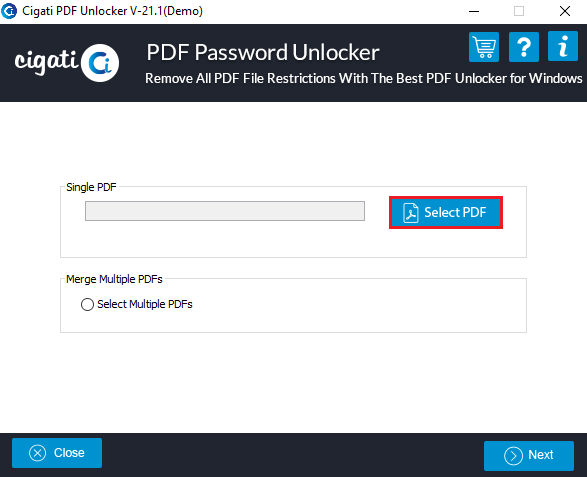
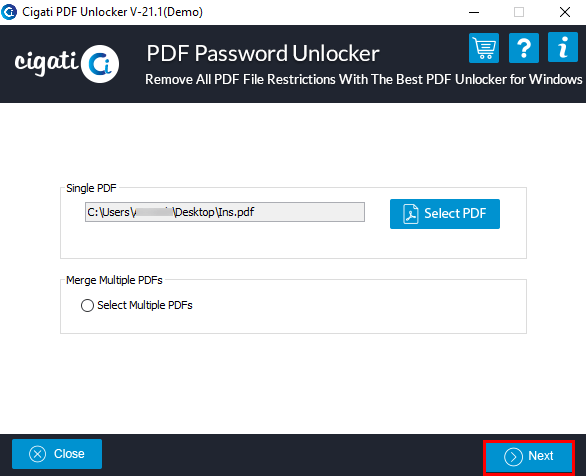
Click on the Select PDF button to add the PDF file.
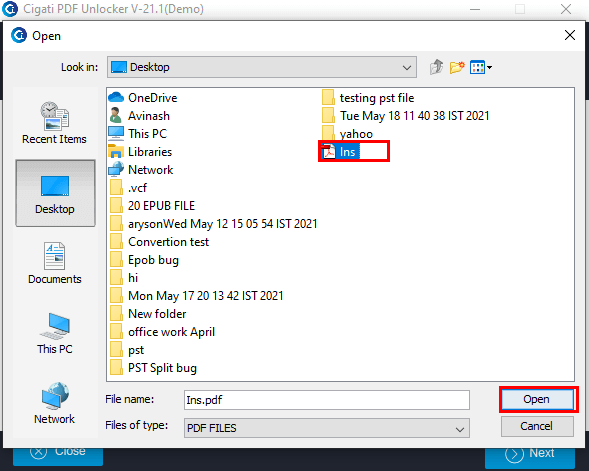
Now, choose the PDF file and tap on the Open button.
Enter the password and click on the OK button.
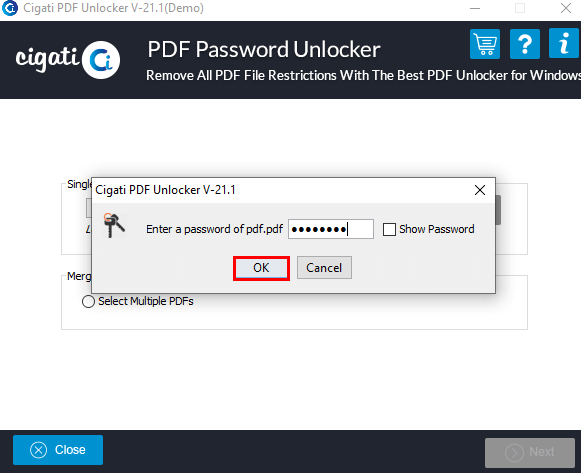
After that, click on the Next button to execute the full procedures.
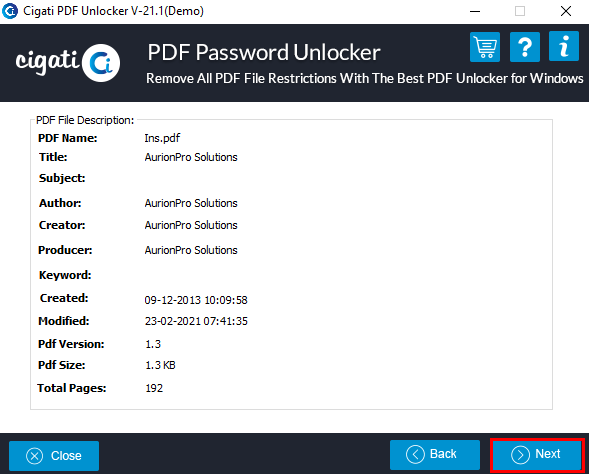
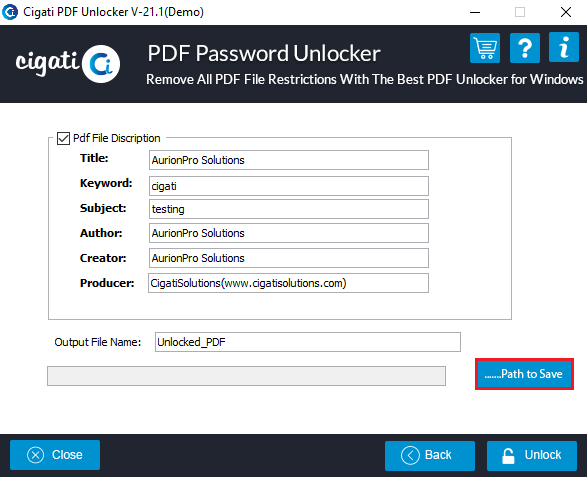
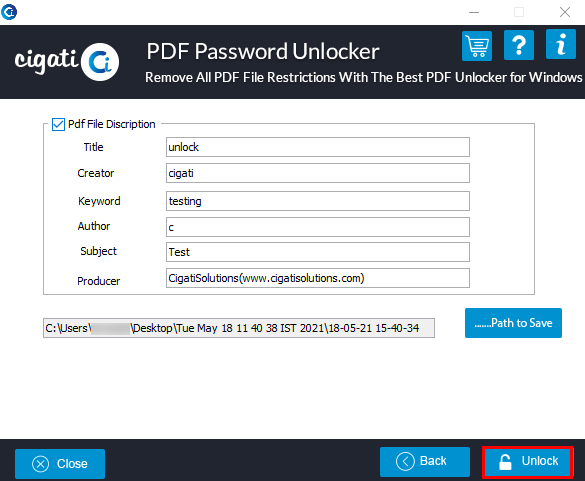
Here, the software will display the description of the selected PDF file. Tap on the Next button to begin the process.
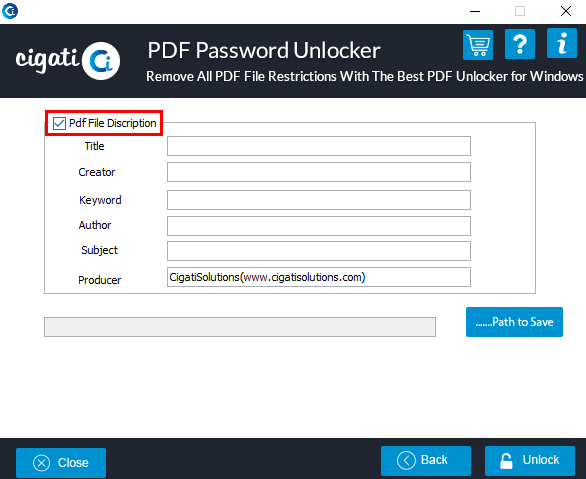
Check the feature PDF file description feature.

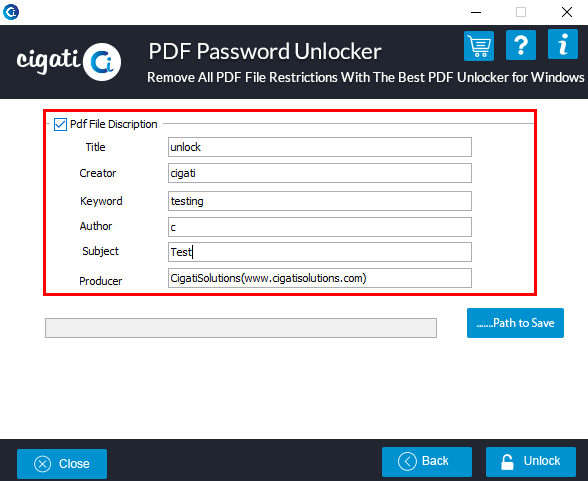
Enter the required description as per your choice.

Now, if you need to change the PDF file name, you can opt for the Output file name.
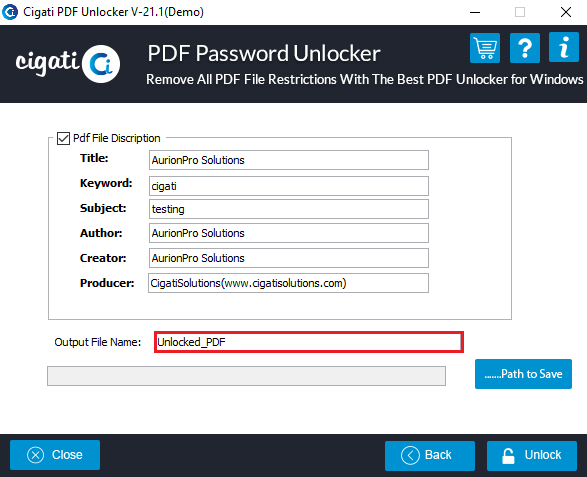
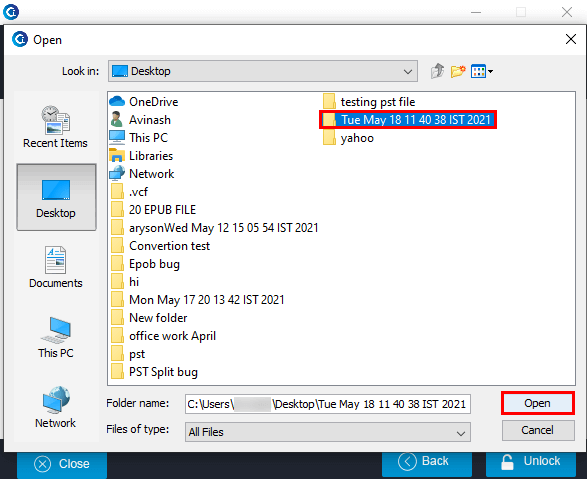
Click on the Path to save button to choose the saving location.
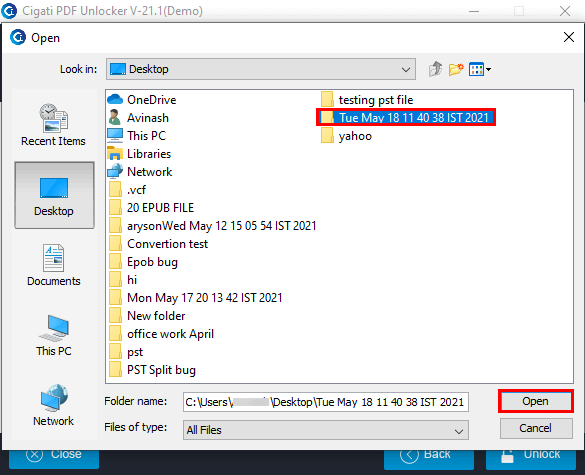
Select your preferred location (File/Folder) and click on the Open button to set the Path to save feature.
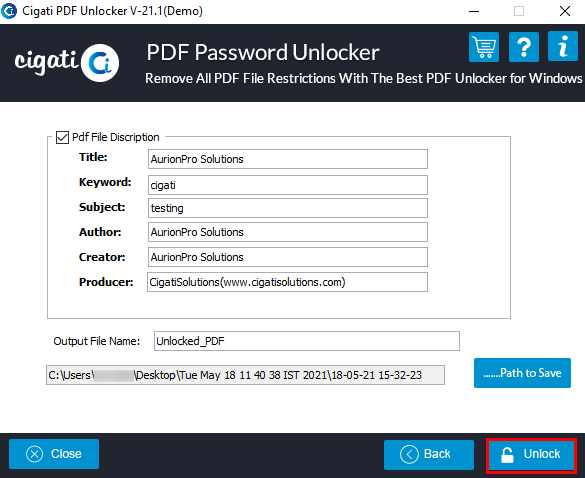
After that, tap on the Unlock button to remove the password from the selected PDF file.
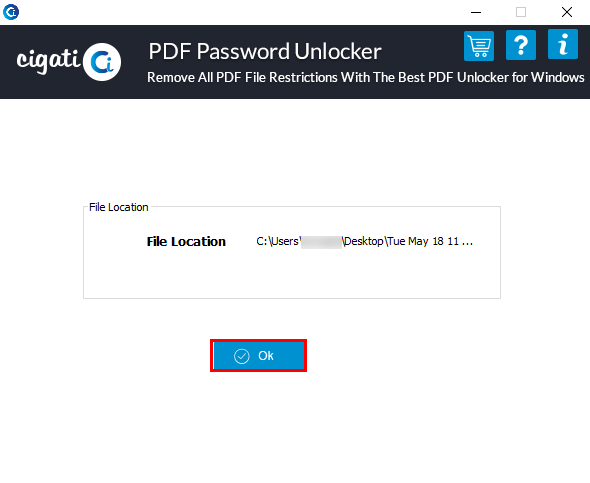
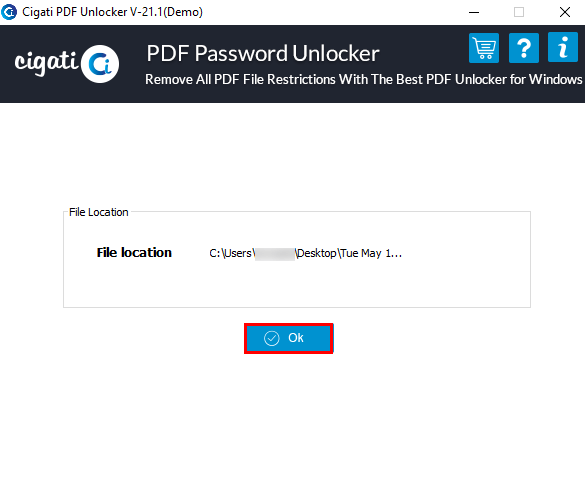
Here, you have removed the password from the PDF file and saved it at your selected path. Click ok end the process.
Install and Run the Cigati PDF Password Unlocker Tool as Administrator.
Check the option Select files and click on the Next button.
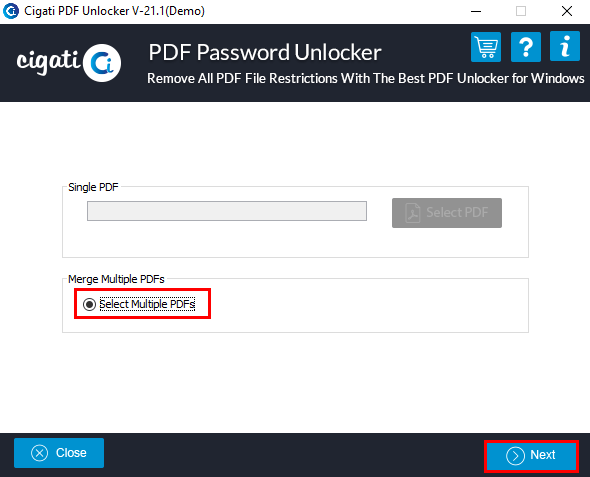
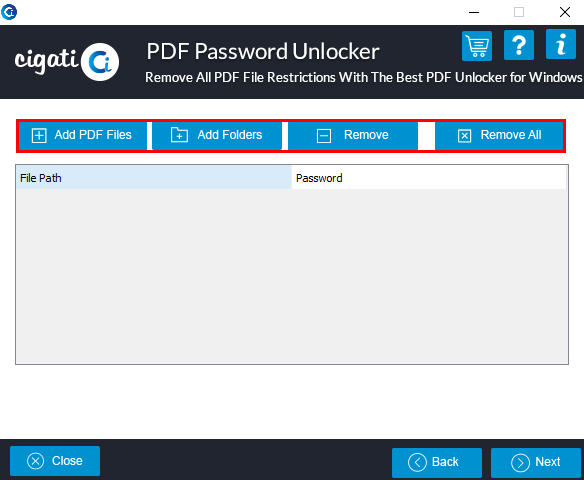
Here, you will have the options as Add PDF Files, Add Folder, Remove & Remove All.
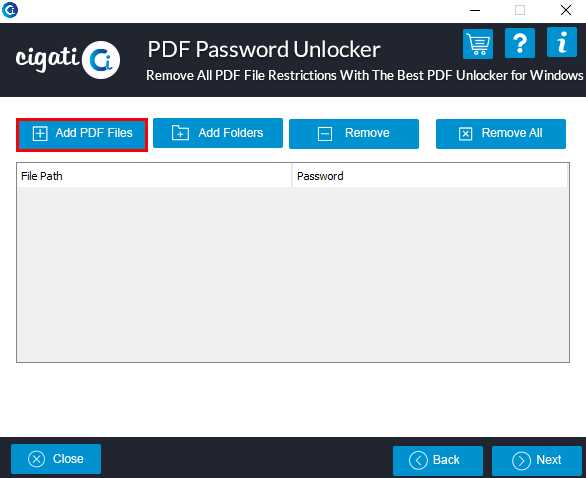
Now, click on Add PDF files option. (You can also select Add folder option to add PDF files)
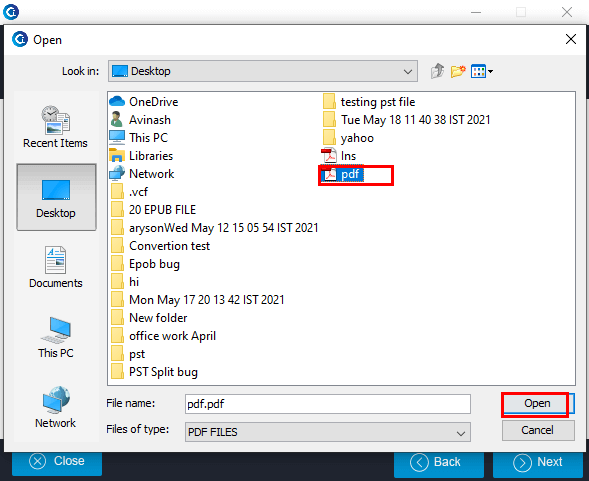
Select the PDF file that you need to unlock.
Enter the password of that particular PDF file and tap Ok.
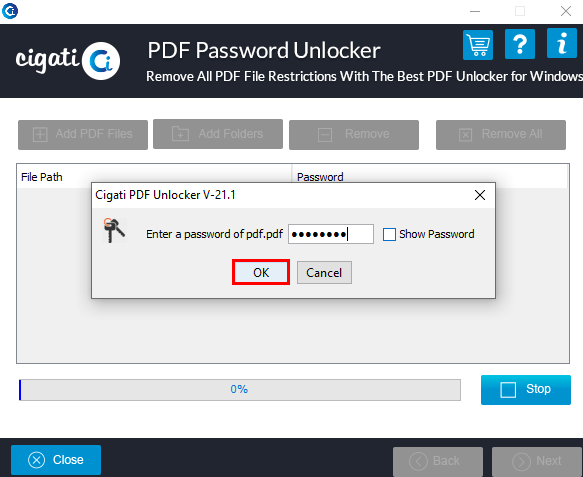
Here, after adding the PDF file click on the Next button.
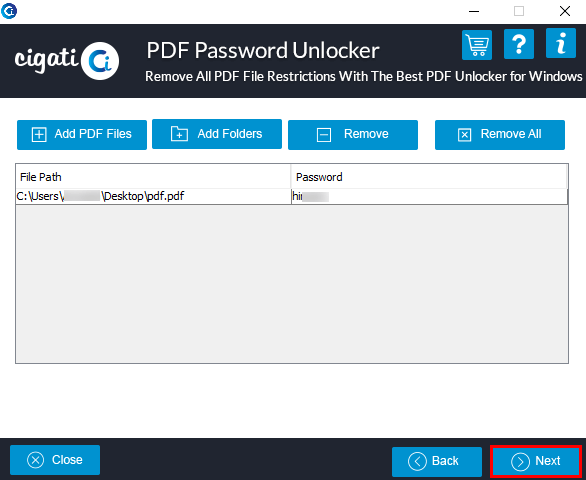
Check the PDF file description checkbox.
Fill in the details of PDF files according to your needs.
After that, click on the Path to save button.

Choose the Saving folder and click on the Open button to confirm the path to save.
At last, tap on the Unlock button to remove the restriction from the PDF file.
Finally, you have unlocked the PDF file and saved it. Click Ok to finish the procedures.