PST Merge Tool
4.9
A user-friendly application with an intuitive design for beginners to navigate effortlessly.
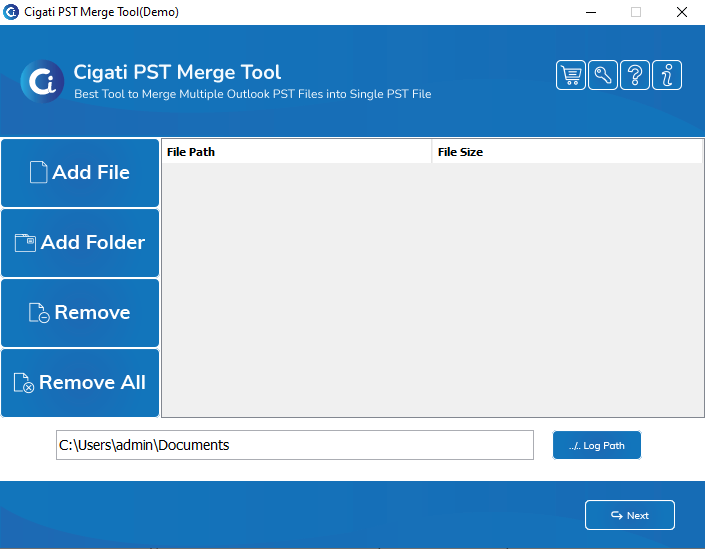
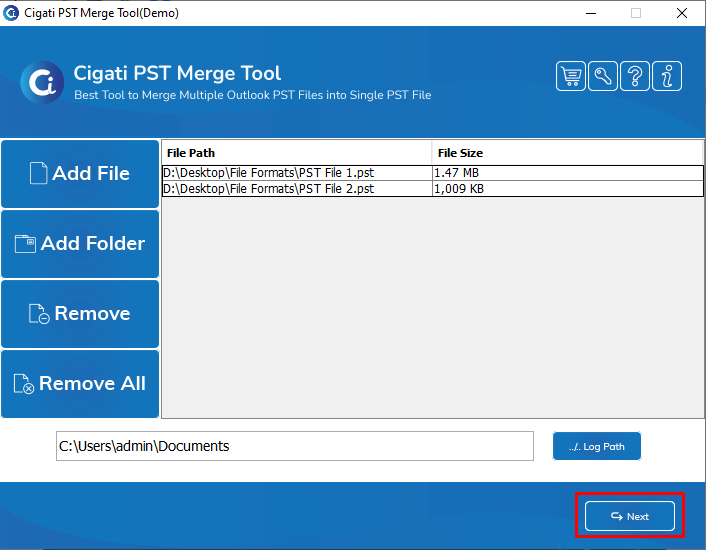
Download and install the Cigati PST Merge Tool and run it as an administrator.
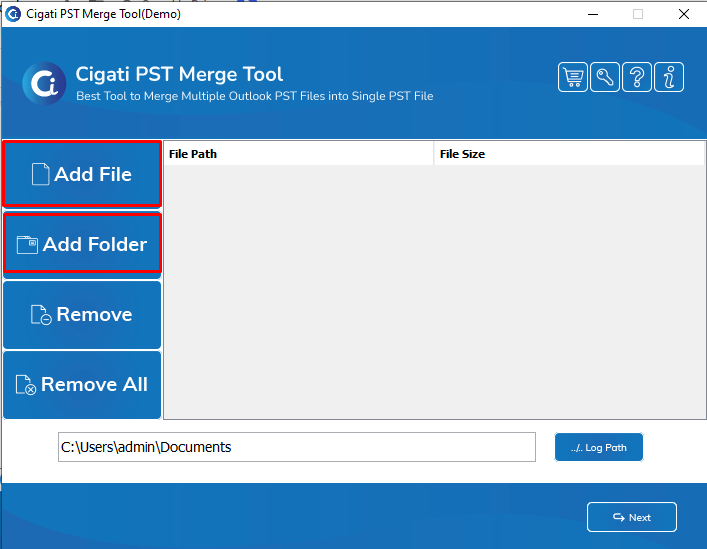
Click on the Add File or Add Folder option to import a PST file or folder from your system for merging.
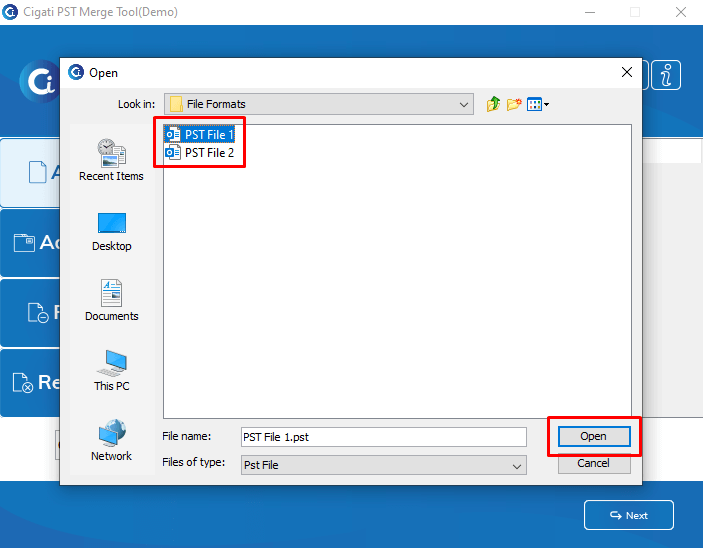
Select the PST file from your system and click the Open button to add it.
Note: To merge files, you must add more than one PST file (at least two are required).
Now, click the Next button to proceed.
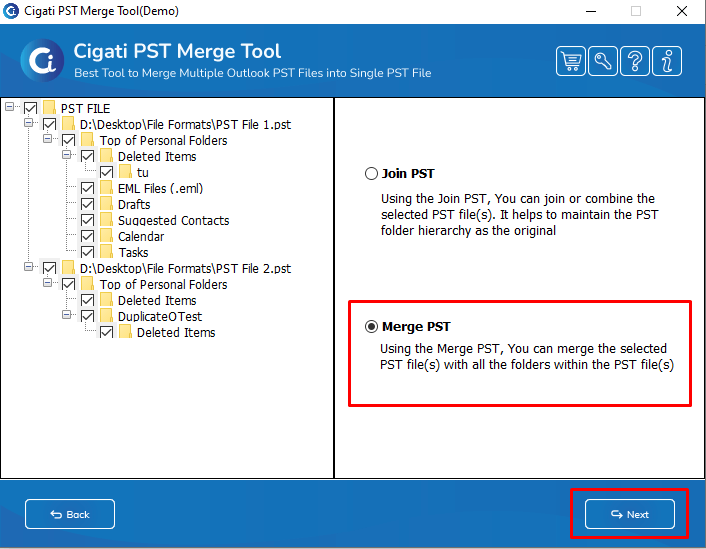
Select the folders to merge, choose either the Join PST or Merge PST option, and click Next.
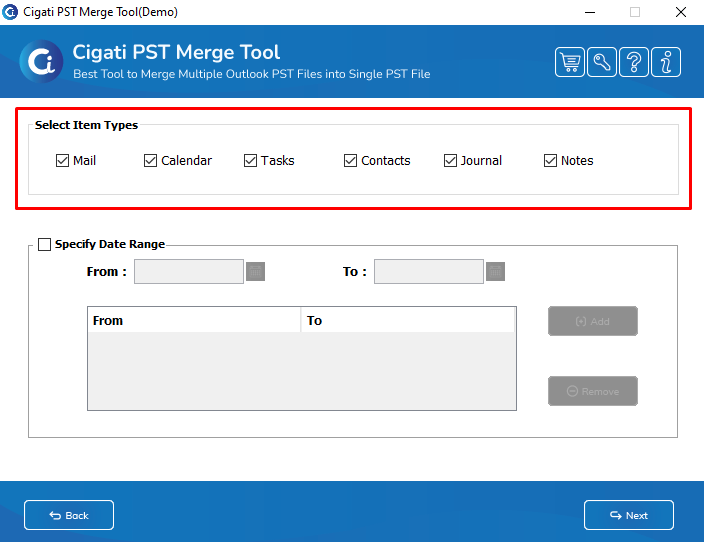
Select the specific PST items you want to include, such as Mail, Calendar, Tasks, Contacts, Journal, Notes, and others, by ticking the corresponding checkboxes.
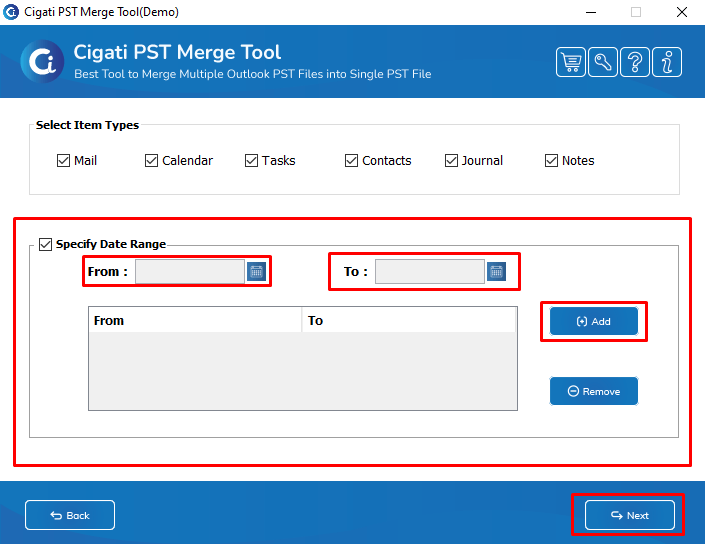
Enable the Specify Date Range feature to filter and include emails within a specific date range by selecting the From and To fields. Once configured, click Next to proceed.
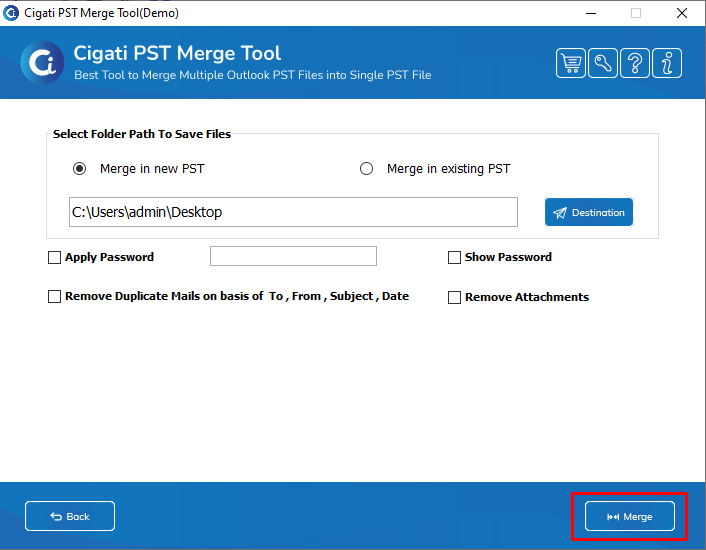
Choose either the Merge in New PST or Merge in Existing PST option.
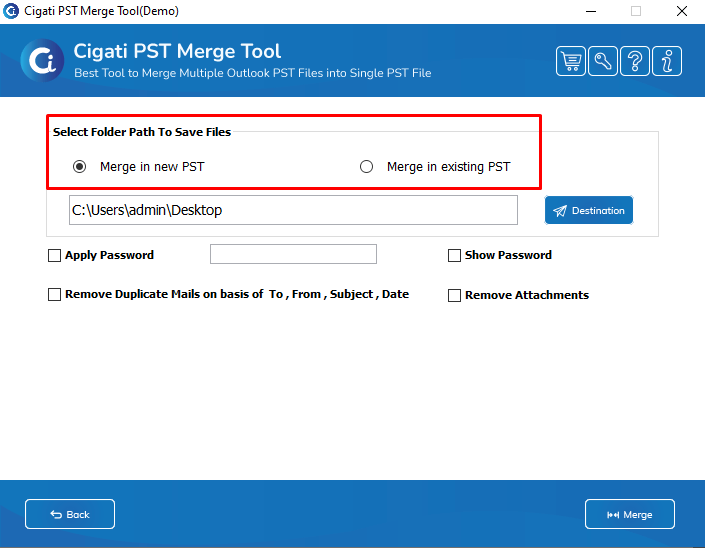
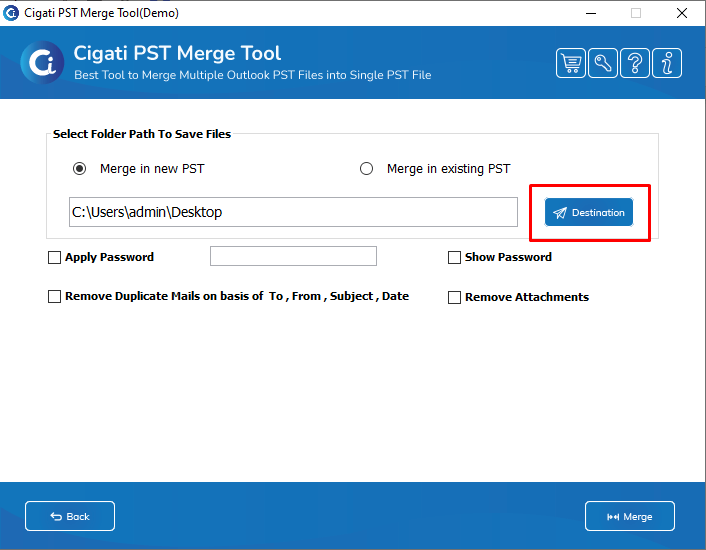
Click the Destination button to select the desired location for saving the output PST file.
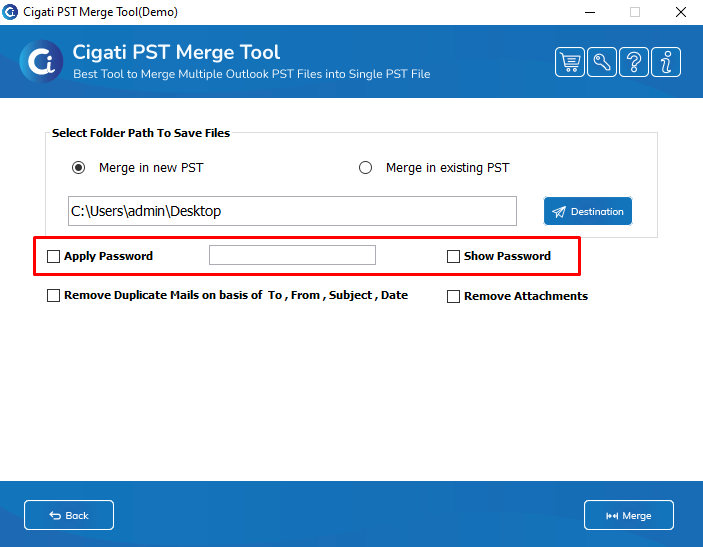
Enable the Apply Password option to secure your merged PST file with a password.
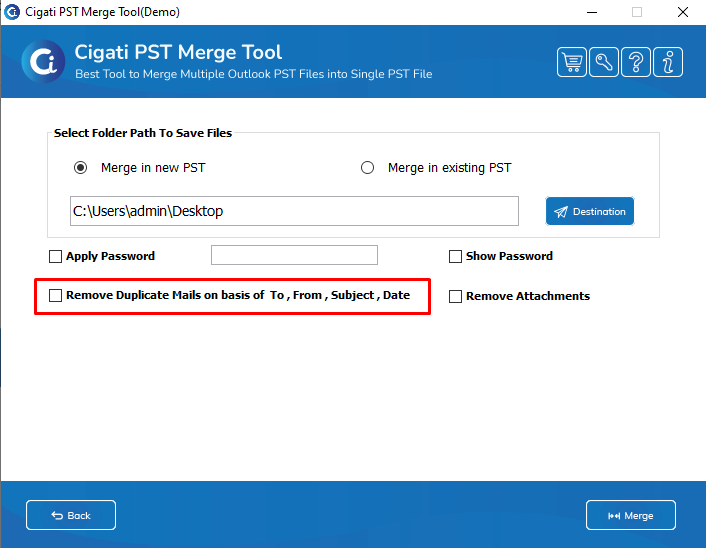
Enable the Remove Duplicate Mails option to remove duplicate emails by filtering them based on criteria such as To, From, Subject, and Date.
Tick the Remove Attachments option to merge the PST files without including their attachments.
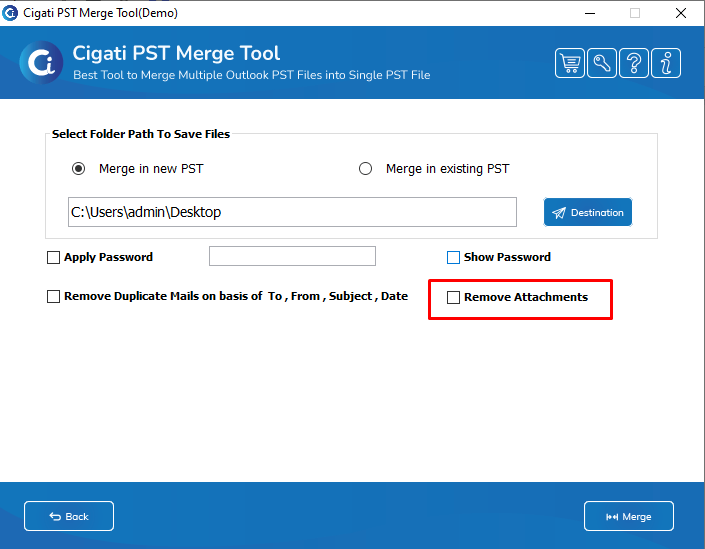
Finally, click the Merge button to initiate the PST file merging process.