OST Splitter Tool
4.8
A user-friendly application with an intuitive design for beginners to navigate effortlessly.
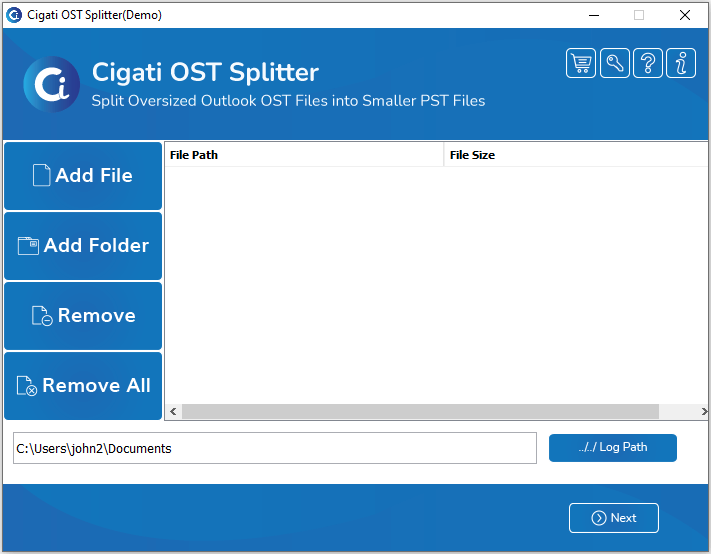
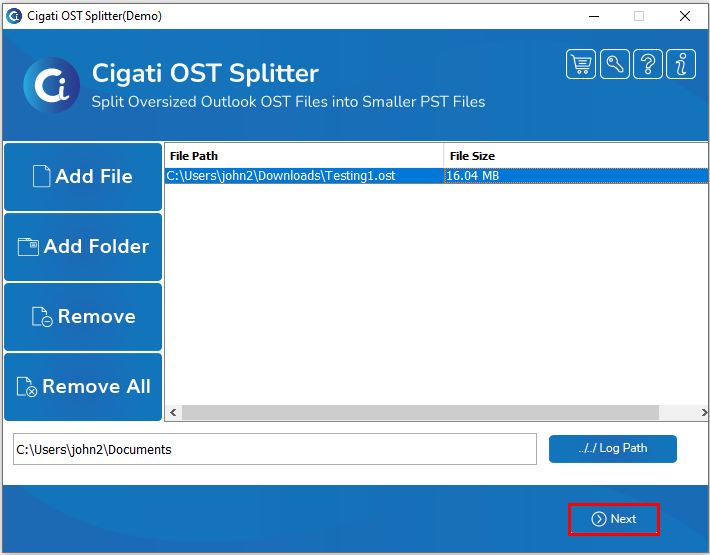
Download and Install the Cigati OST Splitter Tool and Run as Administrator.
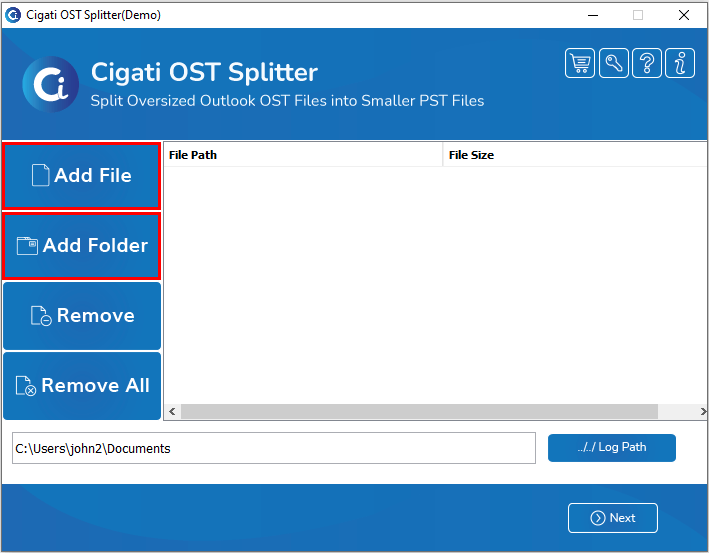
Now, click on the Add File or Add Folder option to add a single large-sized OST file or a folder containing multiple OST files.
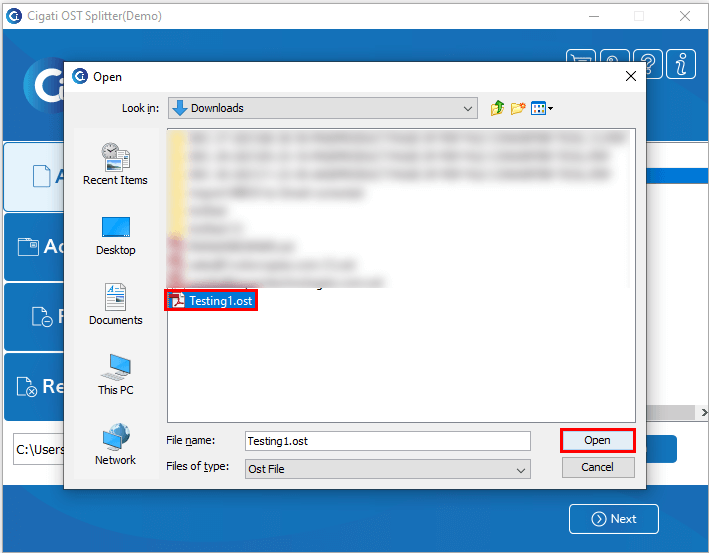
Then, browse the oversized OST file or folder and click the Open button to add the files.
Then, click the Next button to proceed with the process.
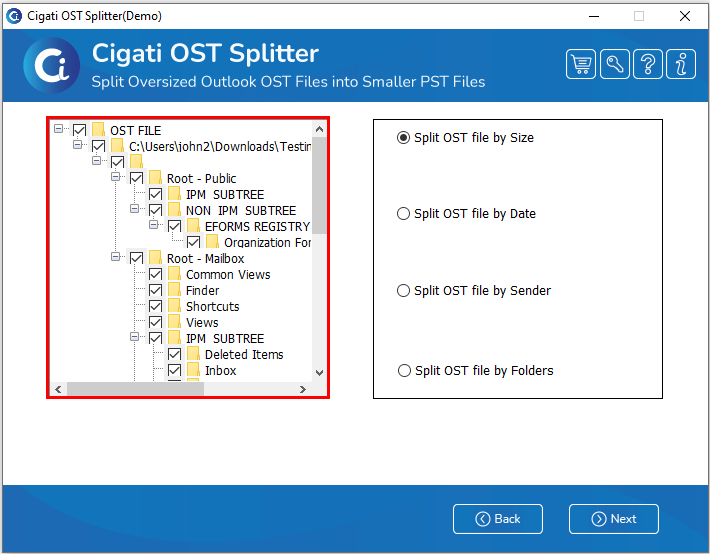
From the left panel, check the displayed folder to specify the folder you want to split.
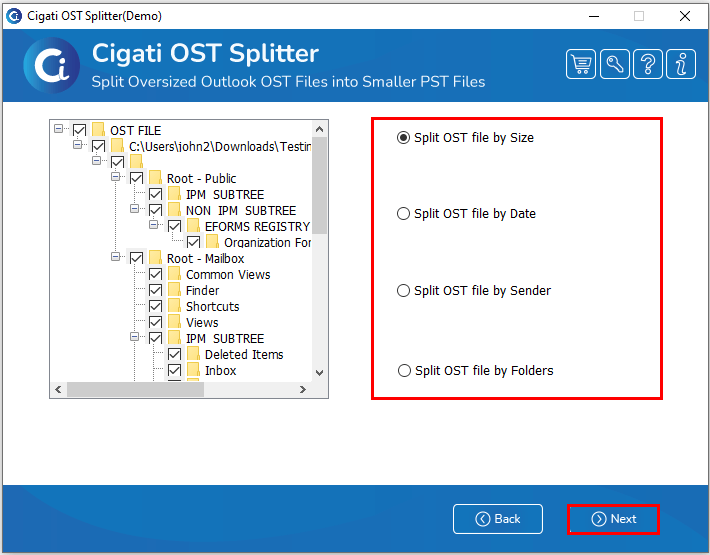
Now, select the option based on which you want to split the OST file, and click the Next button. You can split the OST file using one of the following options:
In the next wizard, enter the PST file size to define the size of the resultant files.
Note: Please note that the resultant file will be in PST format, as OST is an auto-generated Outlook Offline Storage file.
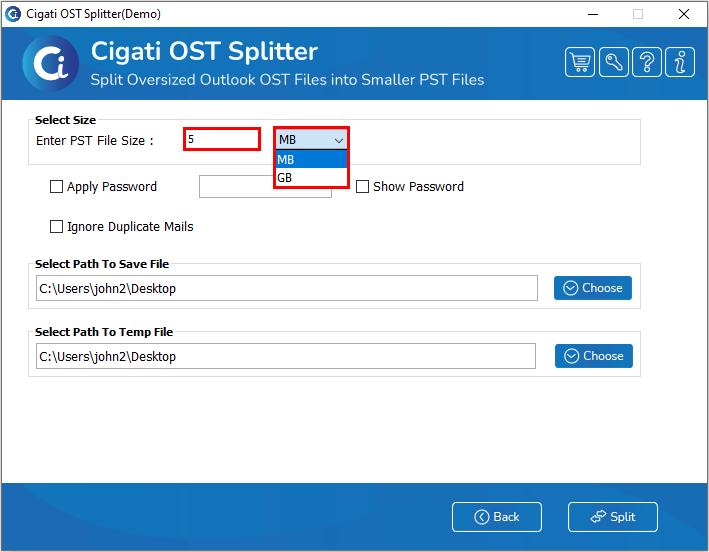
Now, apply a password to the resultant PST files to enhance data security. You can also check the option to ignore duplicate emails to prevent multiple splits of the same file.
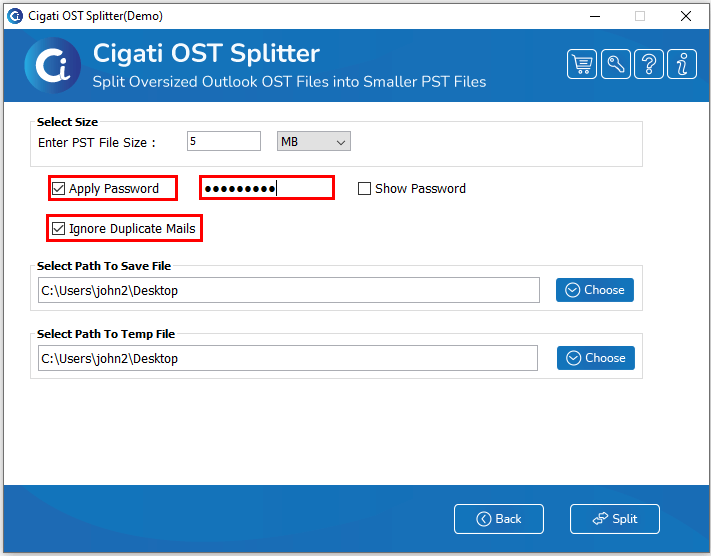
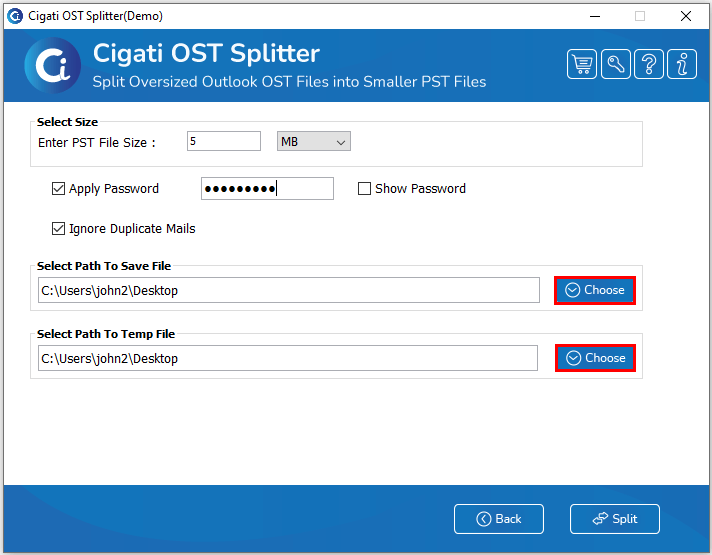
From the Choose option, select the path to save the file to specify the location for the resultant PST files. Additionally, you can select the path for the temporary file from this wizard.
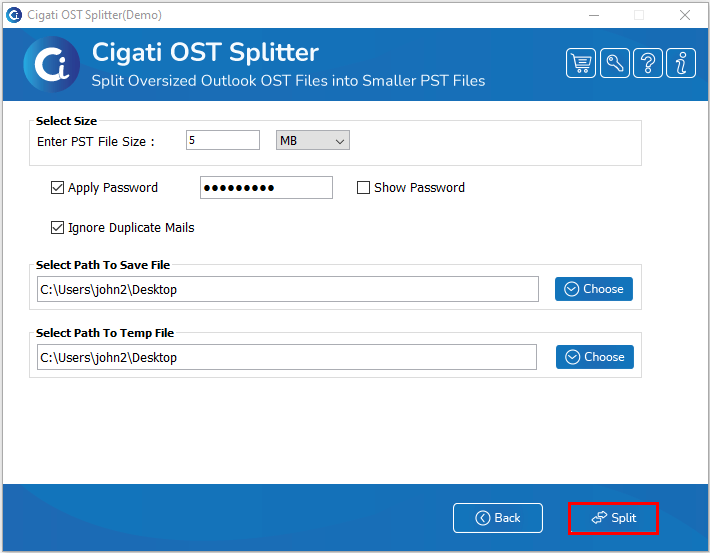
Click the Split button to start the splitting process.
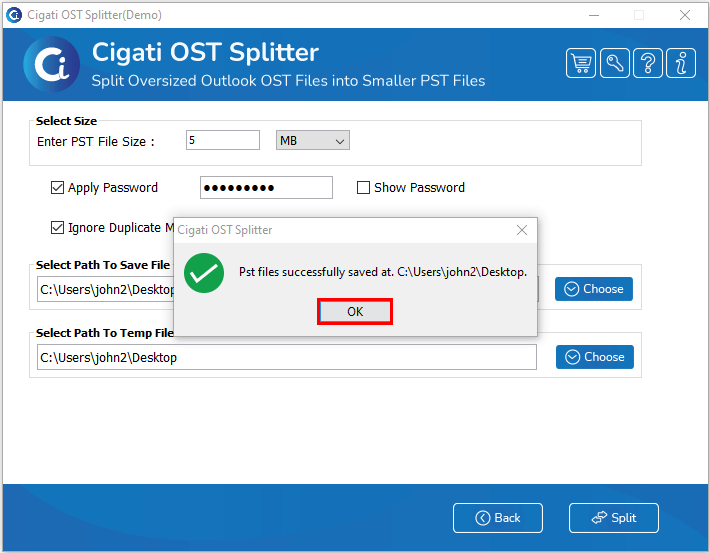
In the end, a pop-up will appear, indicating that the files have been successfully saved in your defined location. Click OK to finish the process.