
PST Splitter Tool
4.7
How to Split Outlook PST Files
A user-friendly application with an intuitive design for beginners to navigate effortlessly.
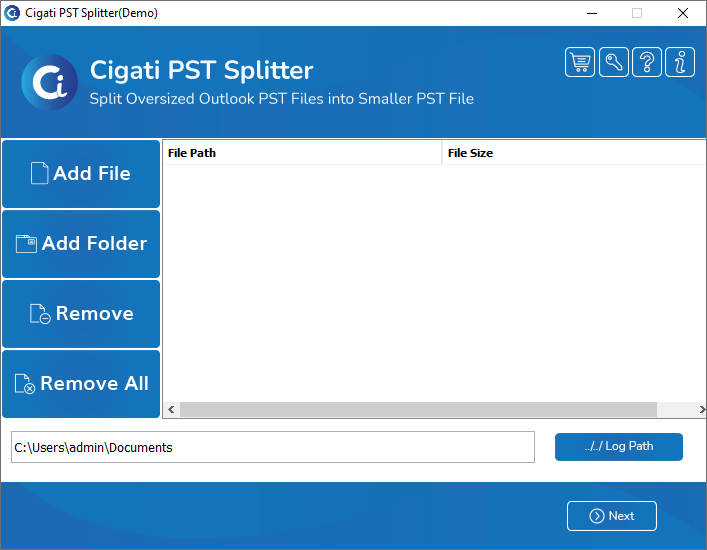
Install Cigati PST Splitter and Run as Administrator.
Now, click on the Add files option to choose the PST file.
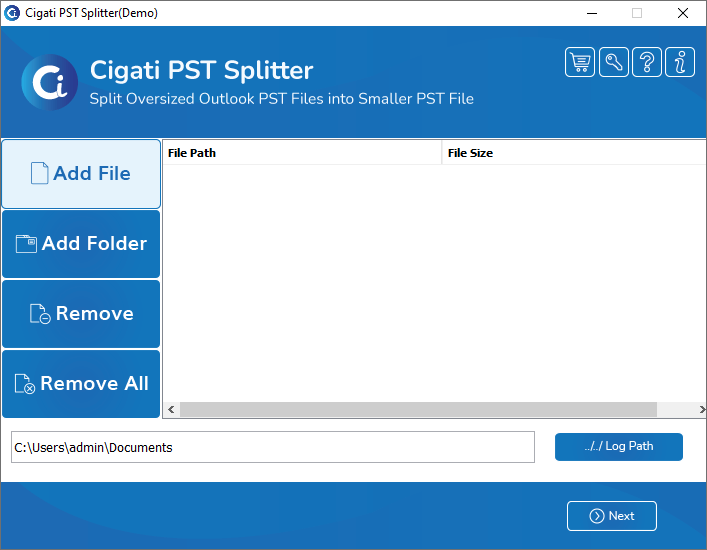
Choose the PST file and tap open.
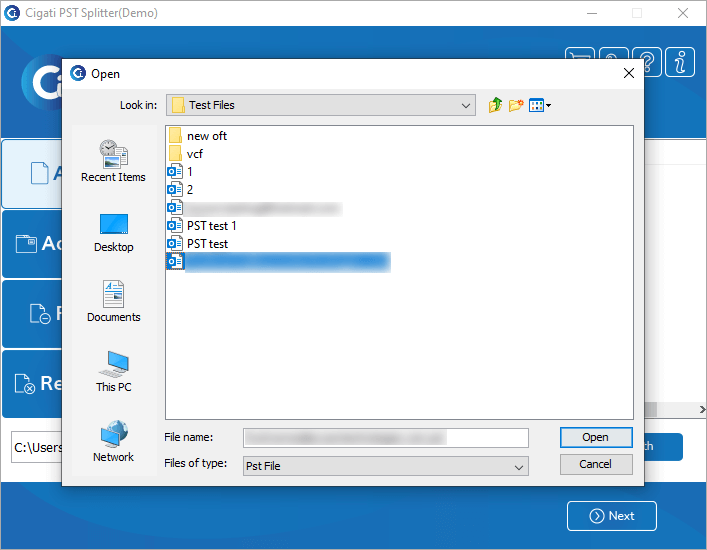
Here, you can view the selected file and click on Next.
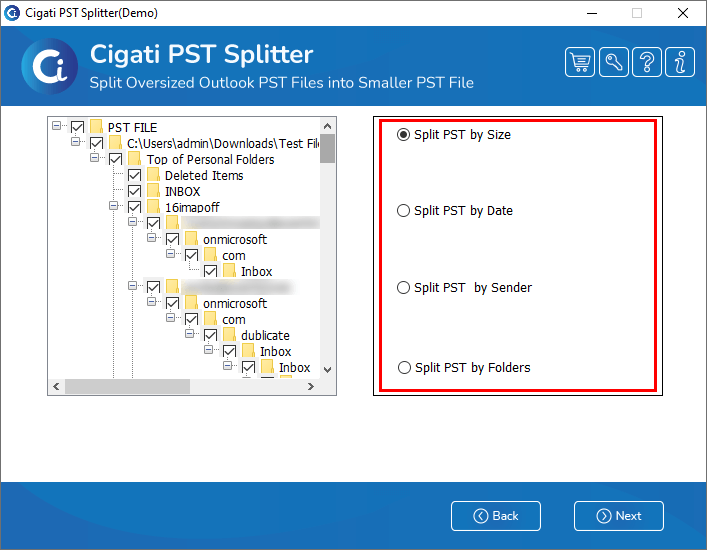
After that, check the folder from the tree structure.
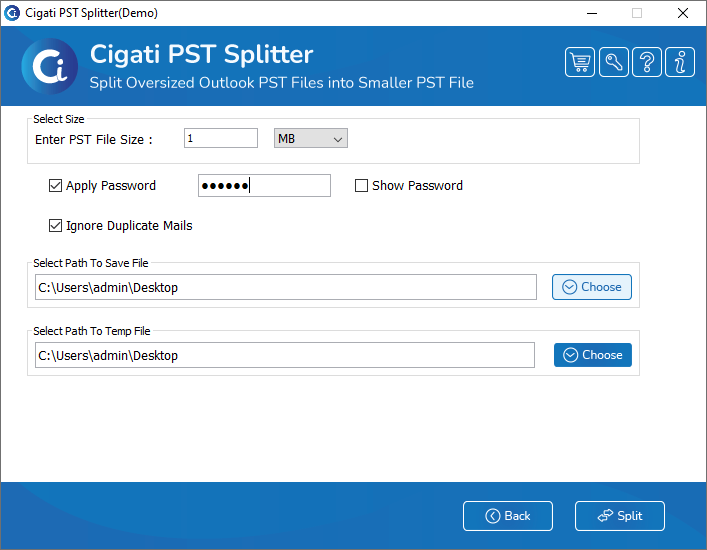
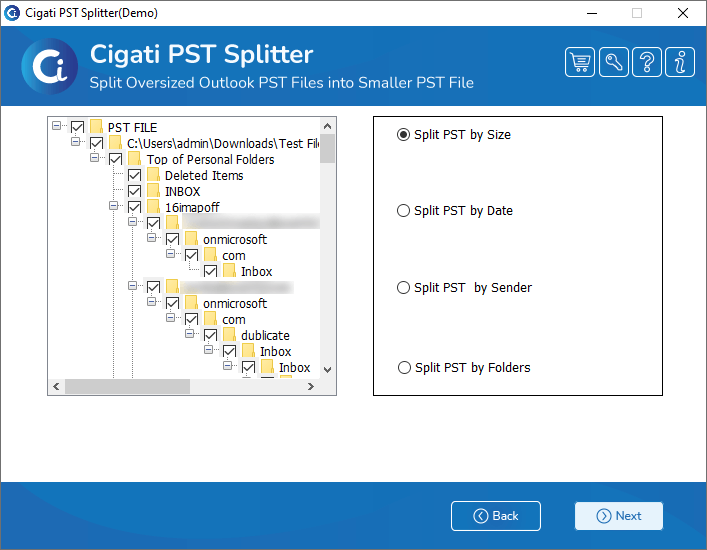
You can select the split option as per your requirements and click on the Next button.
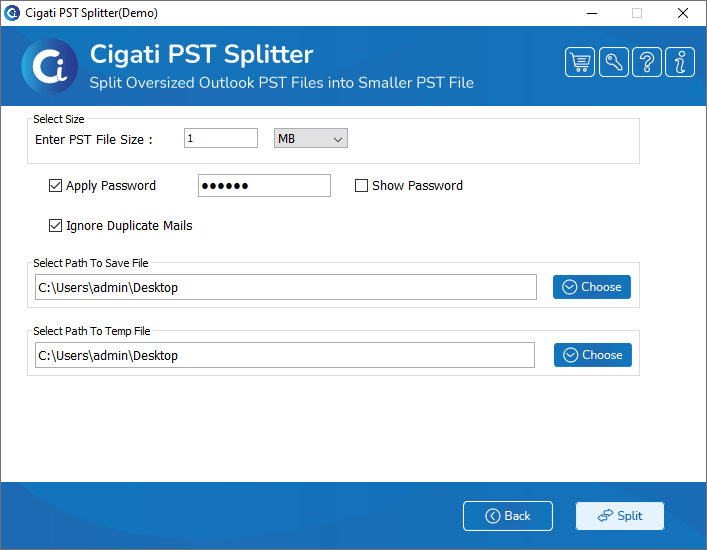
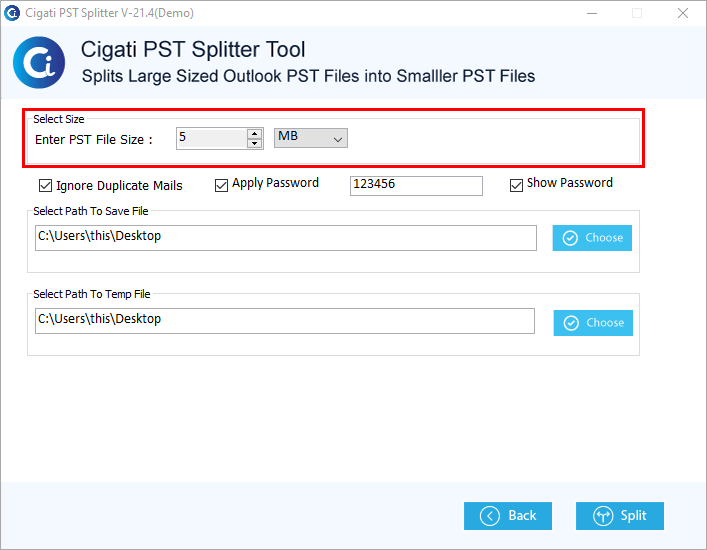
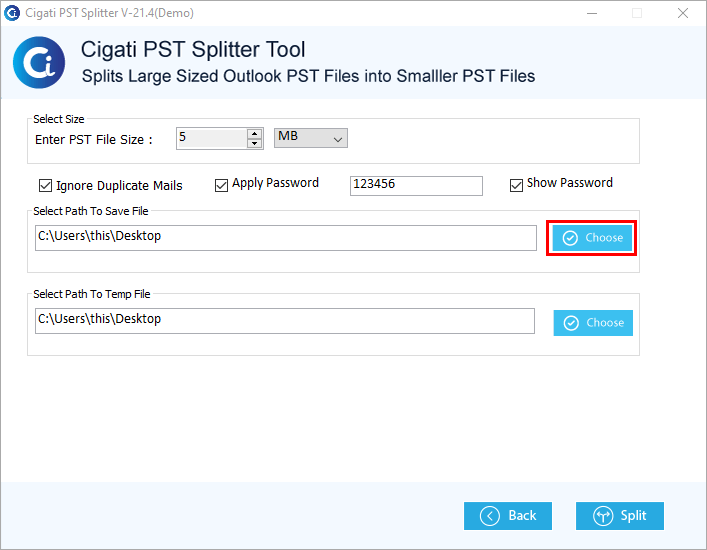
Now, enter the size of the PST file as you want to split.
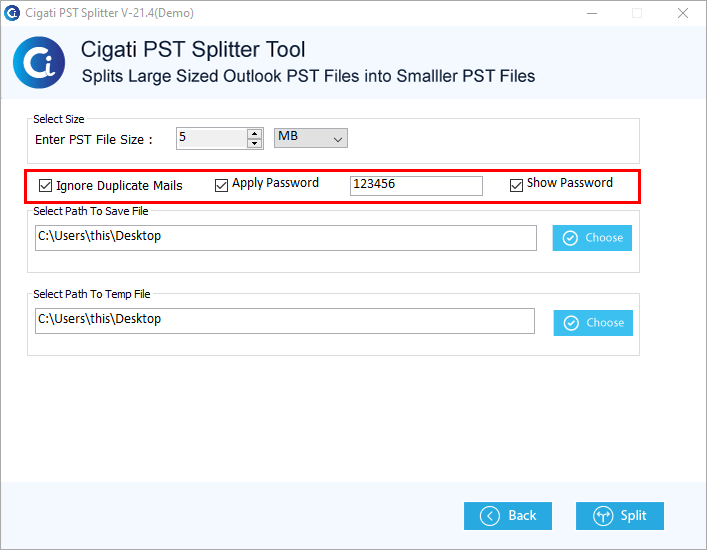
If you need to ignore duplicate emails then check the option. Additionally, you can opt to apply a password.
Click on the choose button to locate a path to save the PST files.
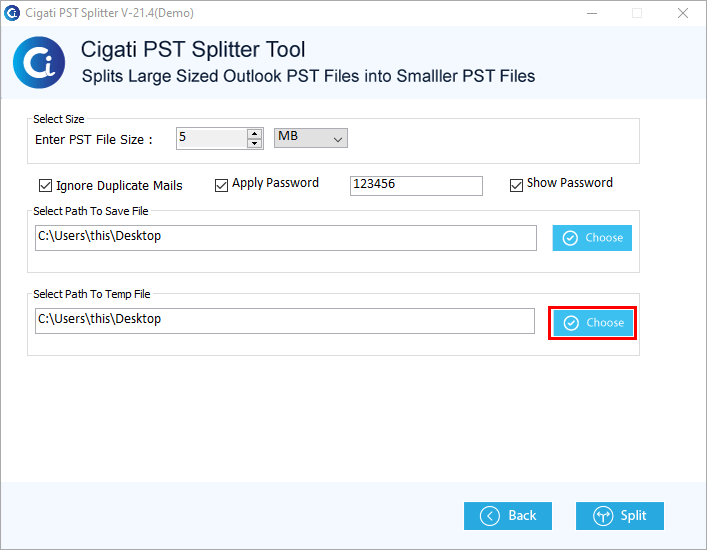
If you want to change the temp file path, then click on the choose button.
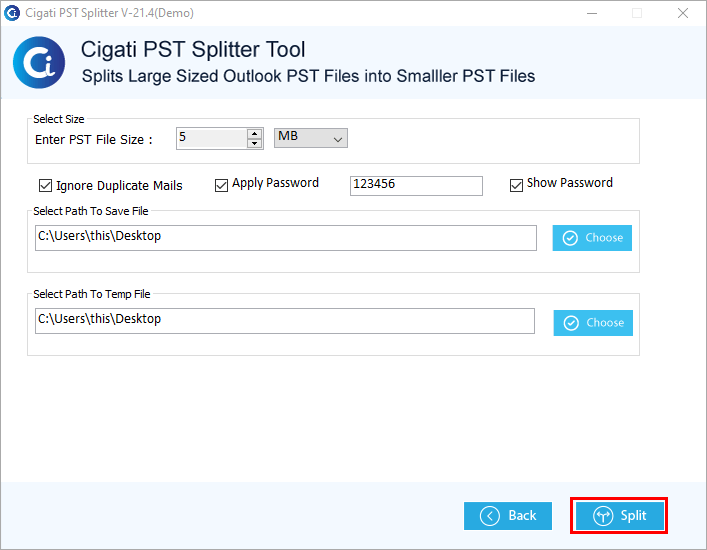
Now, tap on the Split button to execute the process.
Install Cigati PST Splitter and Run as Administrator.
Click on the Add folder button to add the PST folder.
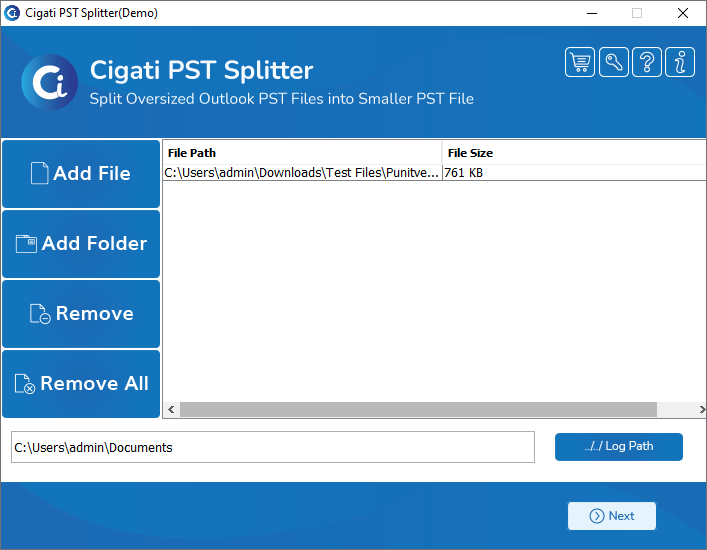
Choose the PST folder and tap on the Open button.
Here, you can view the selected file and click on Next.
After that, check the folder from the tree structure.
You can select the split option as per your requirements and click on the Next button.
Now, enter the size of the PST file as you want to split.
If you need to ignore duplicate emails then check the option. Additionally, you can opt to apply a password.
Click on the choose button to locate a path to save the PST files.
If you want to change the temp file path, then click on the choose button.
Now, tap on the Split button to execute the process.