vCard Duplicate Remover
4.7
A user-friendly application with an intuitive design for beginners to navigate effortlessly.
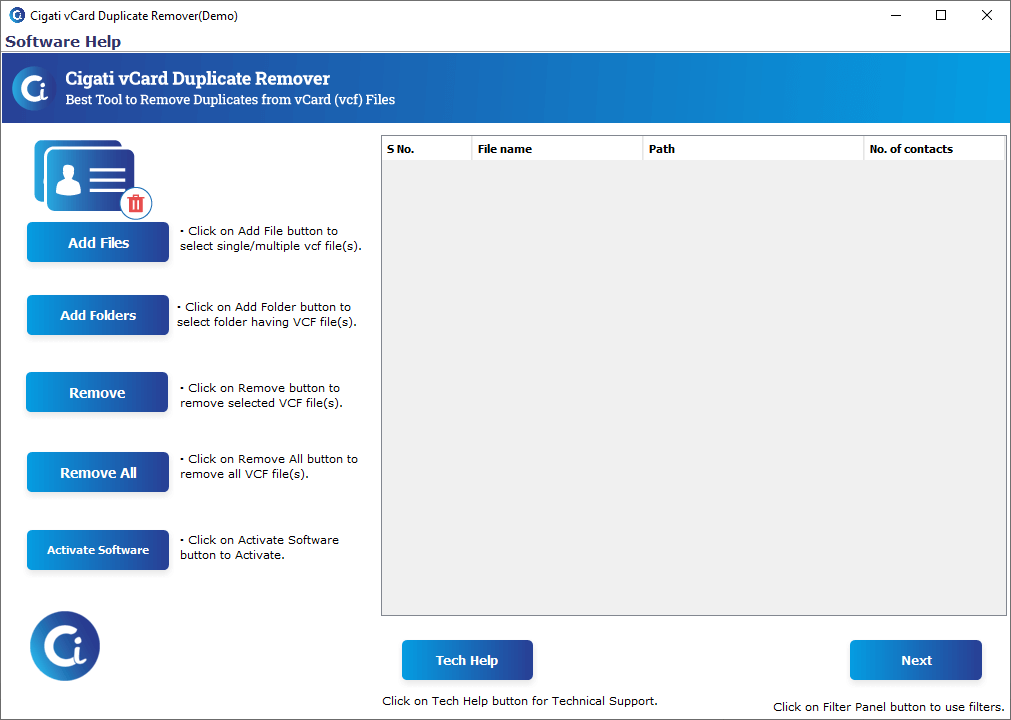
Download the Cigati vCard Duplicate Remover and run it as an administrator..
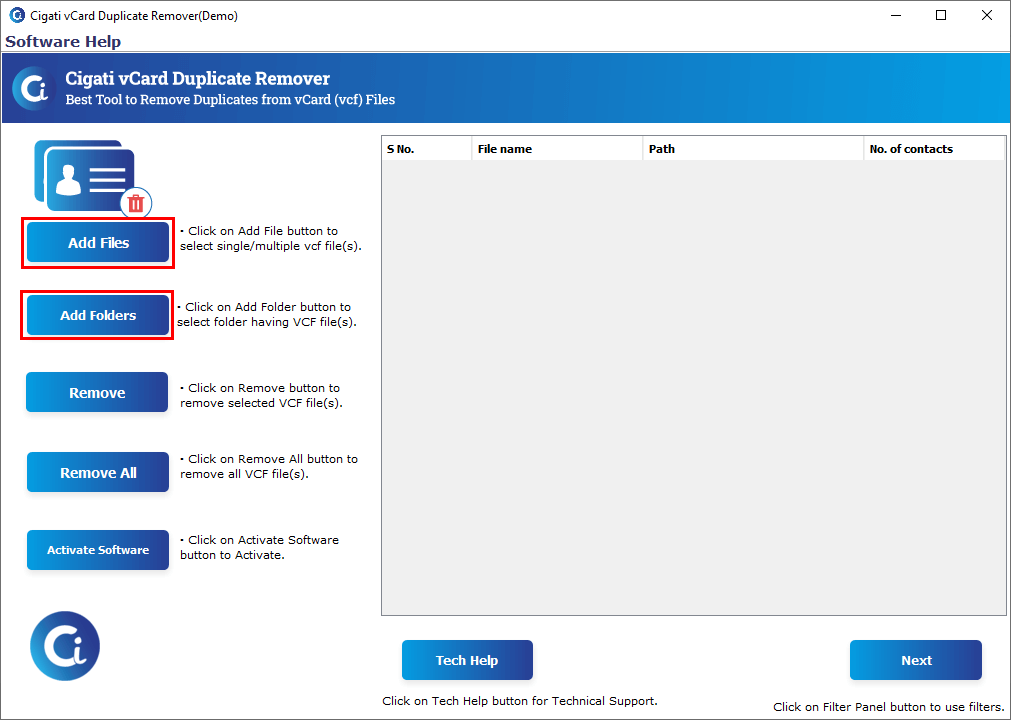
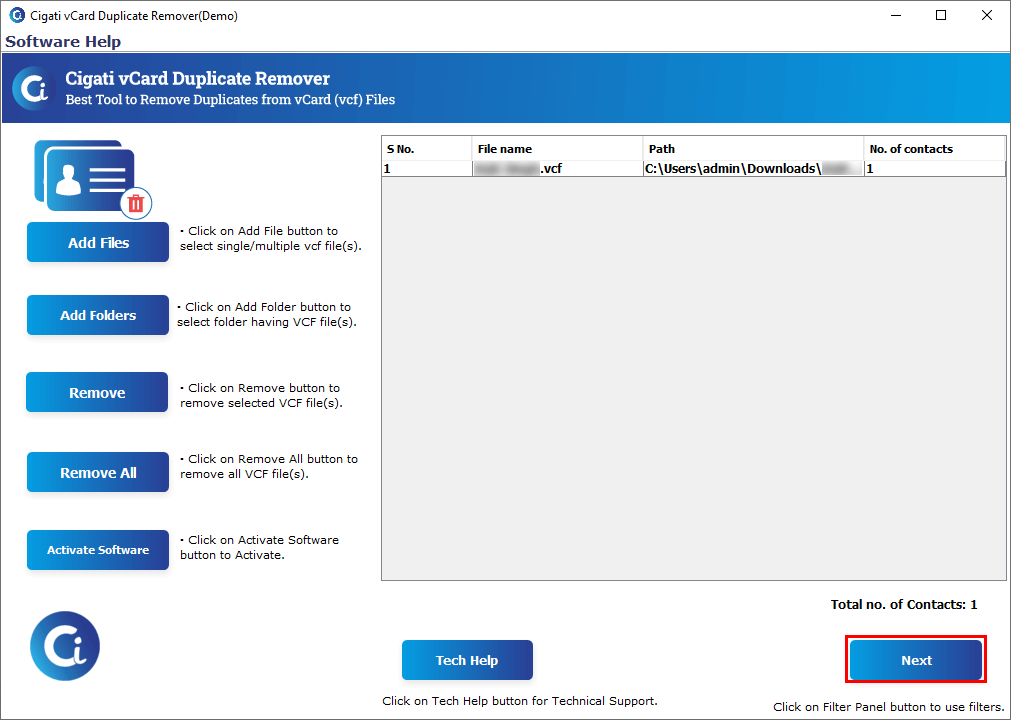
Click the Add Files or Add Folders button to browse for the vCard (VCF) file(s).
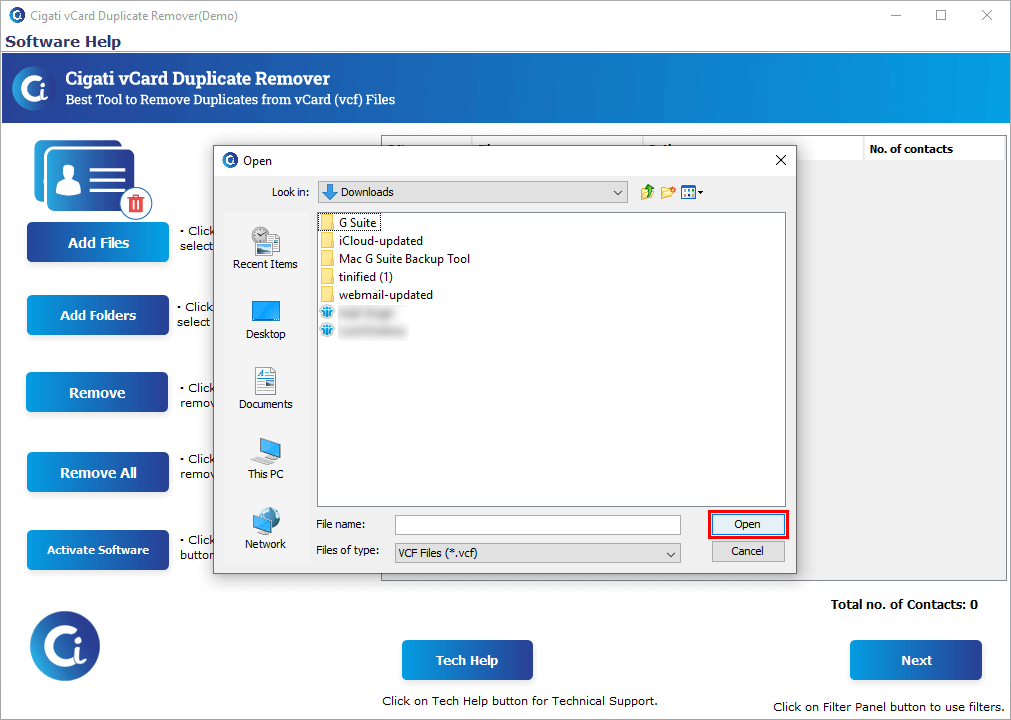
Select the VCF file and click the Open button.
After selecting the VCF files, click the Next button to proceed..
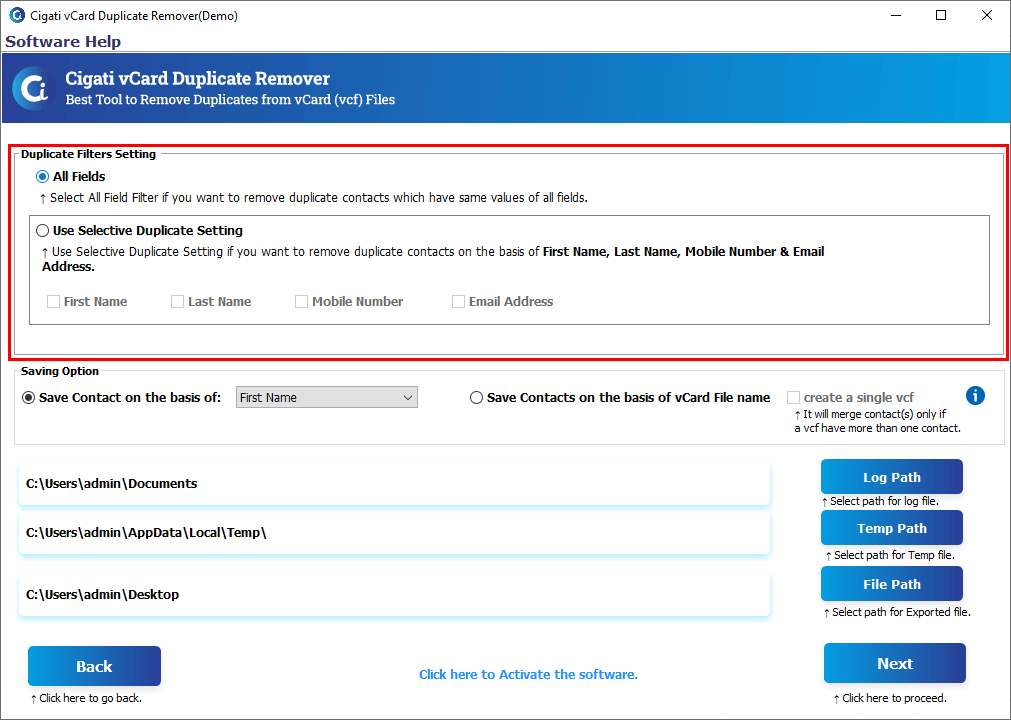
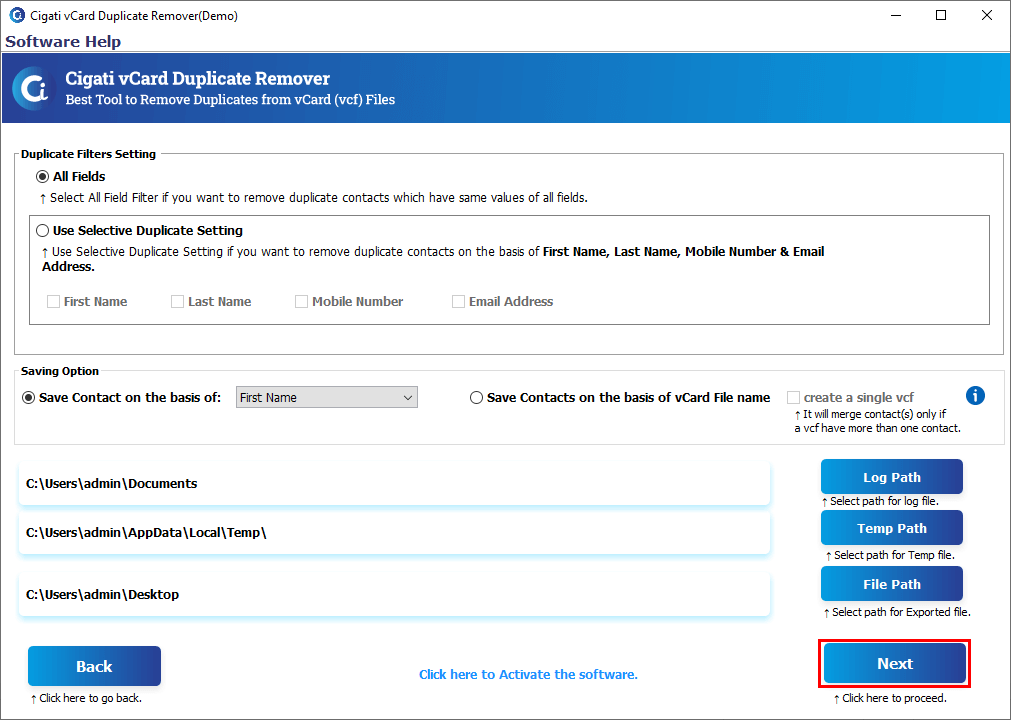
Filter your results using the Duplicate Filters settings:.
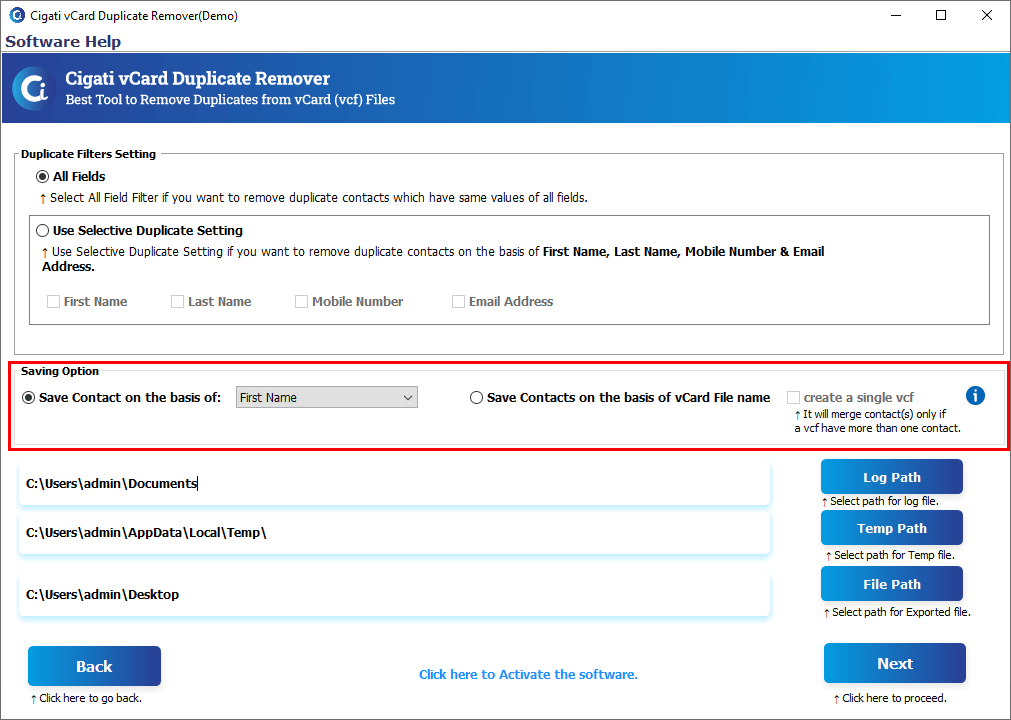
Choose the appropriate saving option:
Note: If you choose to save contacts based on the First Name or any other field, and your selected file contains contacts without that specific field, the software will save those contacts using the vCard file name.
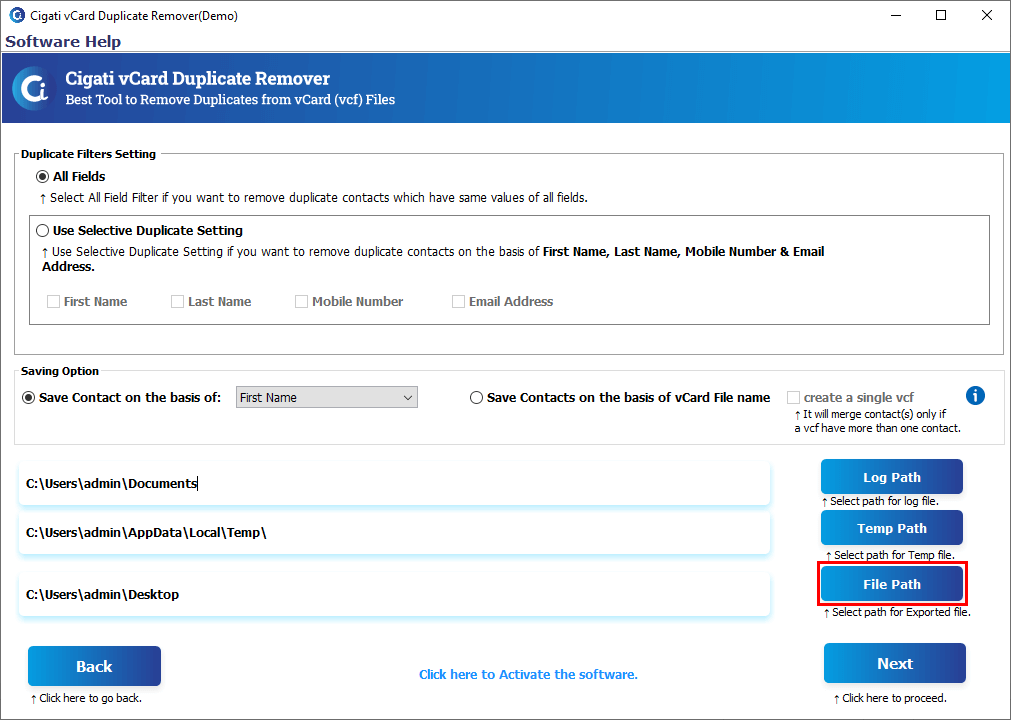
Define the Log Path and Temp Path, then click the File Path to set the output file's location.
Click the Next button to begin the removal process for duplicate contacts.
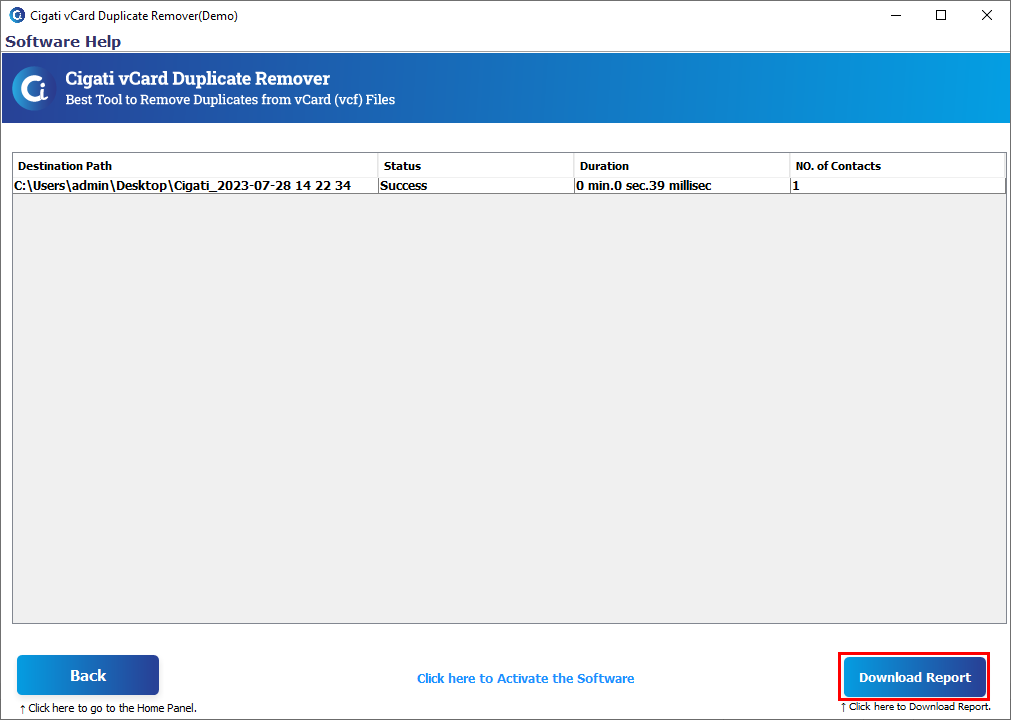
Finally, click the Download Report button to review the process.