VCF to CSV Converter Tool
4.7
A user-friendly application with an intuitive design for beginners to navigate effortlessly.
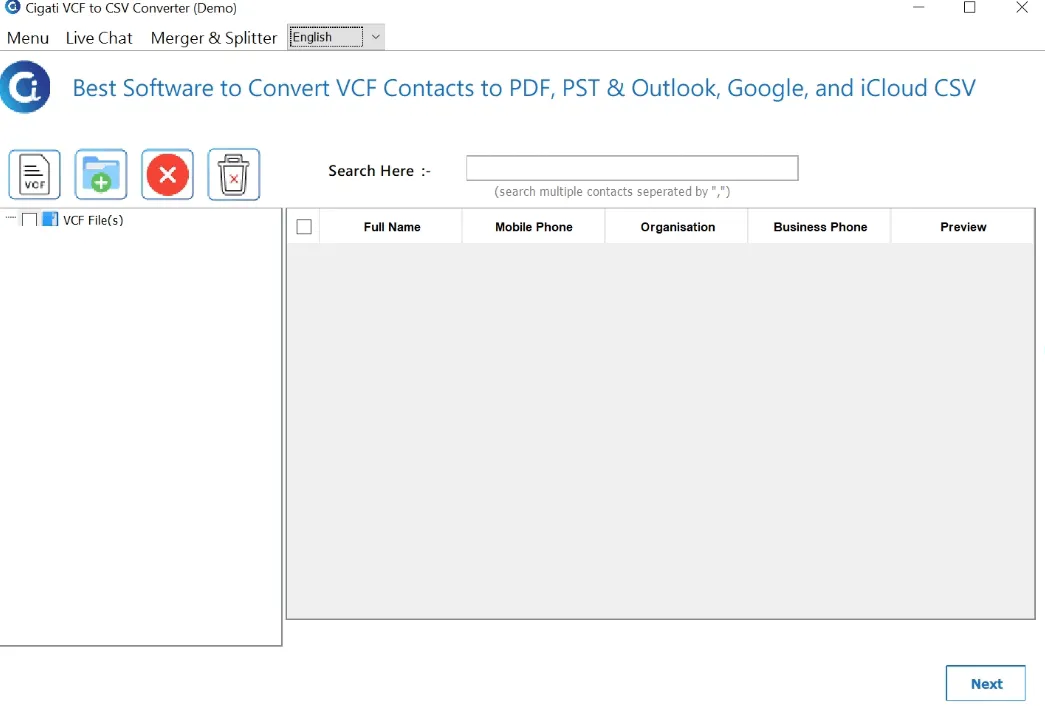
Install the Cigati VCF to CSV Converter software and run it as an administrator.
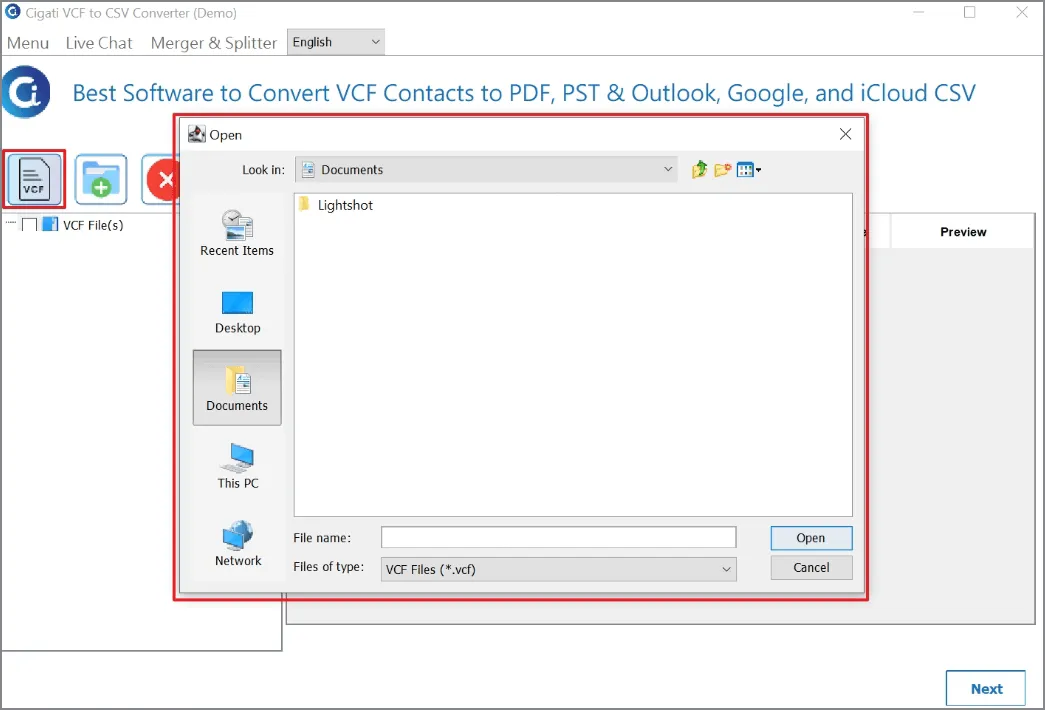
Click the VCF icon and choose VCF files to convert. Click the Open button to add all selected VCFs.
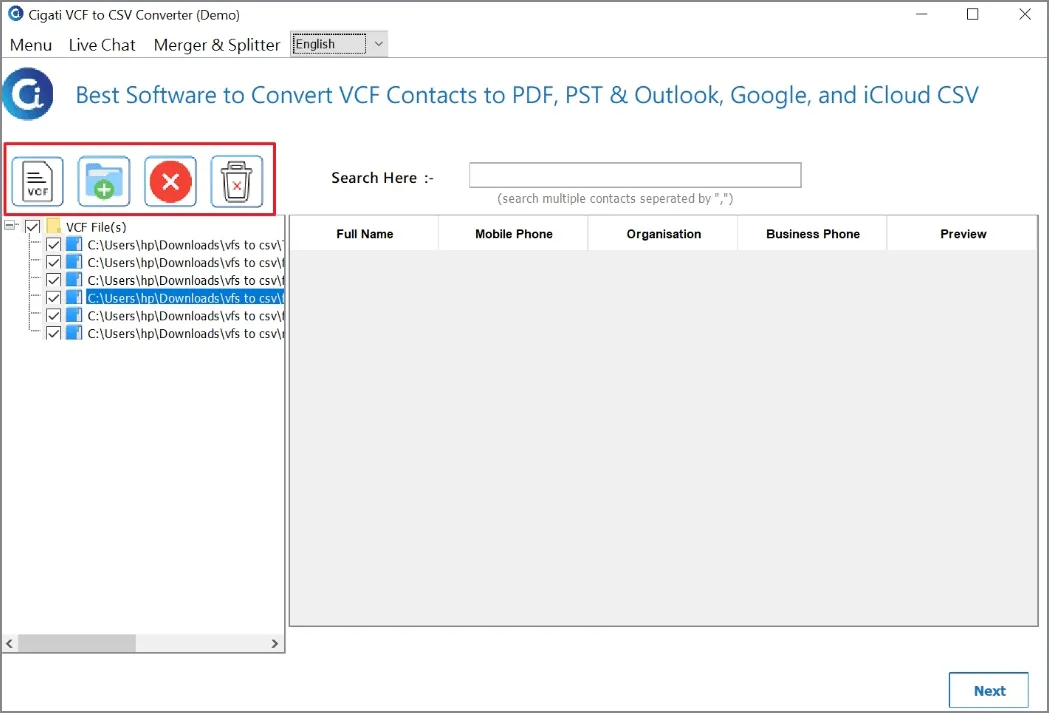
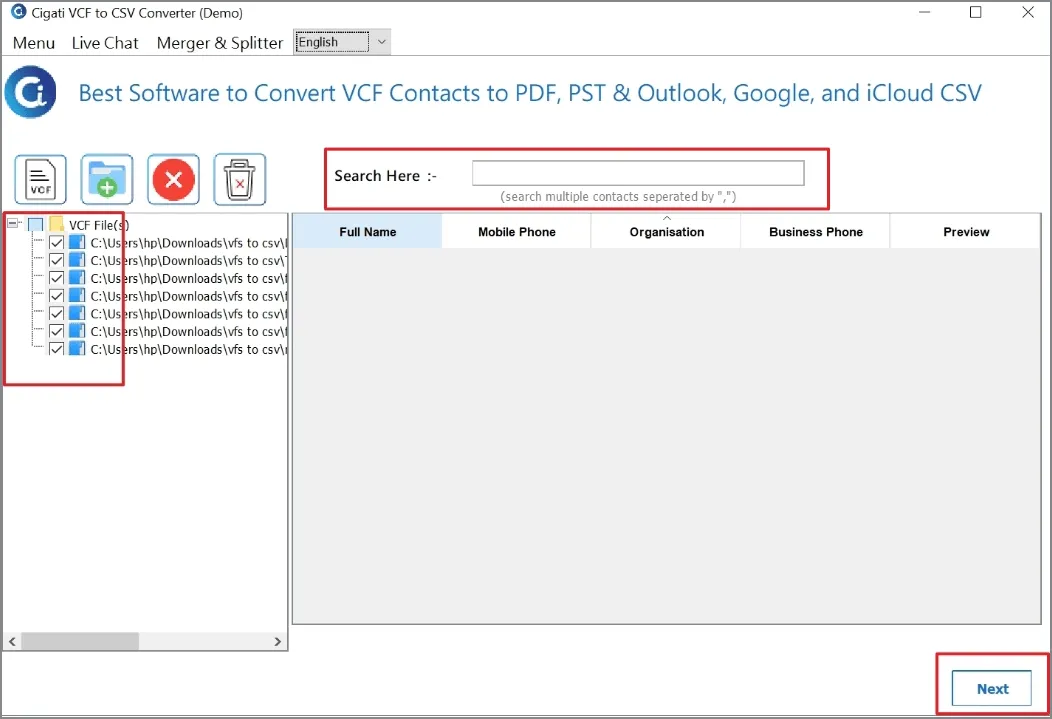
Pick contacts from the tree-structured list and click Next. Or use the Search Box to find them by name, phone, or email.
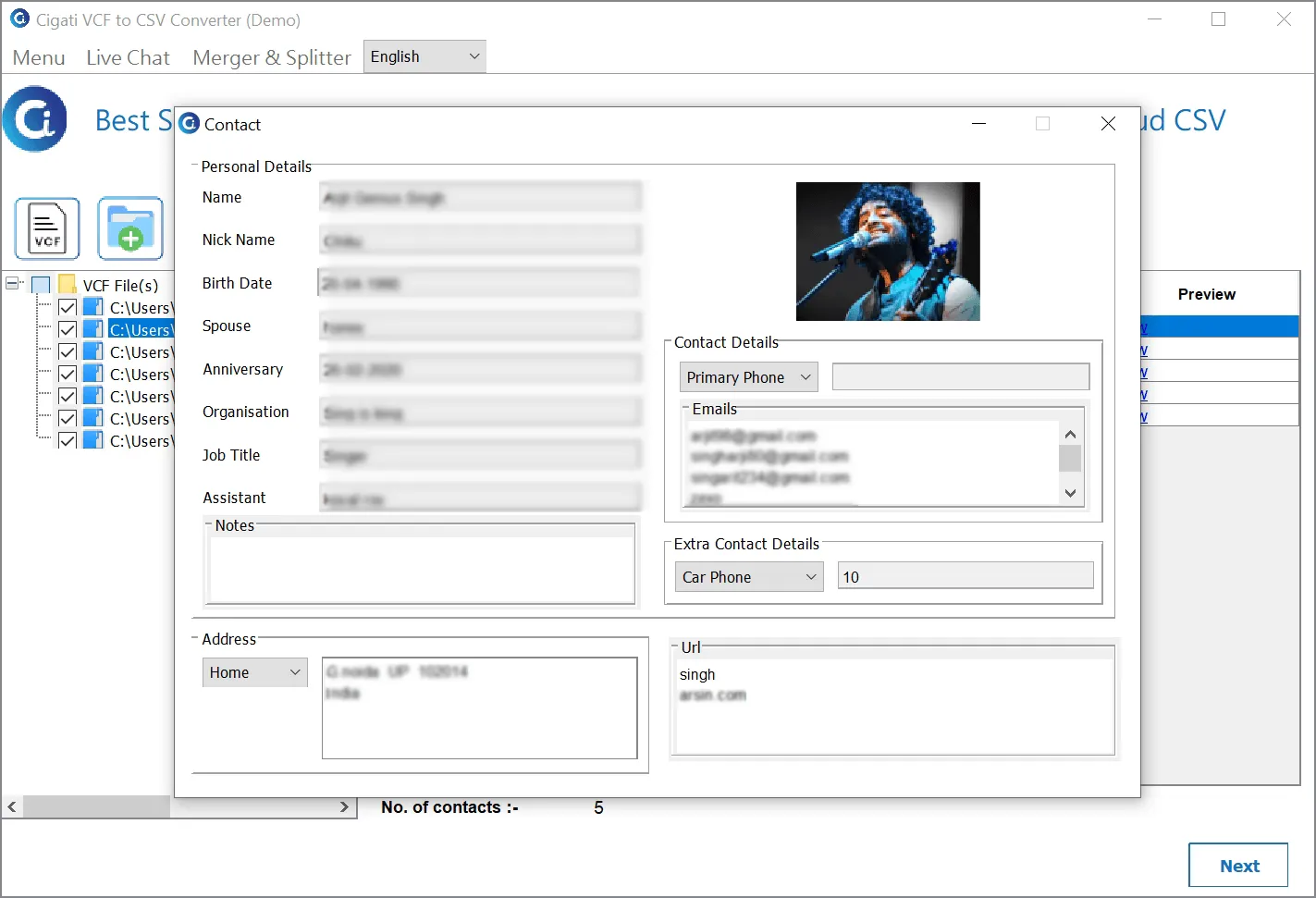
Double-click a contact to see all VCF entries. Go to Preview, then click on View for contact details.
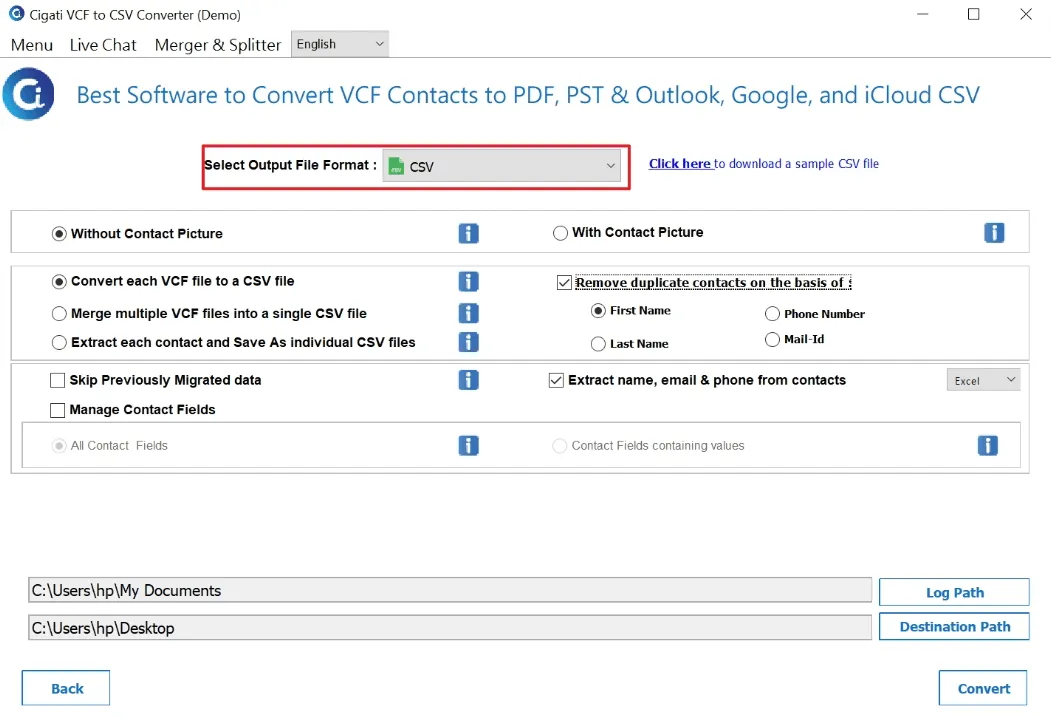
Next, select the CSV format from the Output drop-down menu.
Choosing With Contact Picture will convert and save contacts in CSV with profile photo for easy recognition. Selecting Without Contact Picture excludes saving the profile photo in CSV.
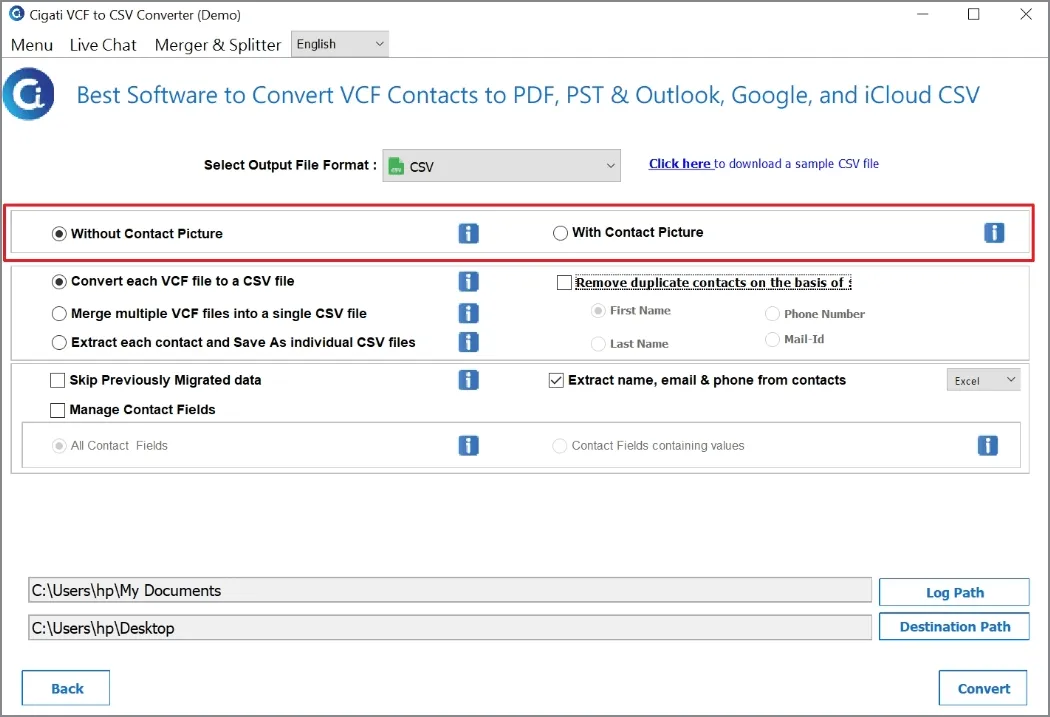
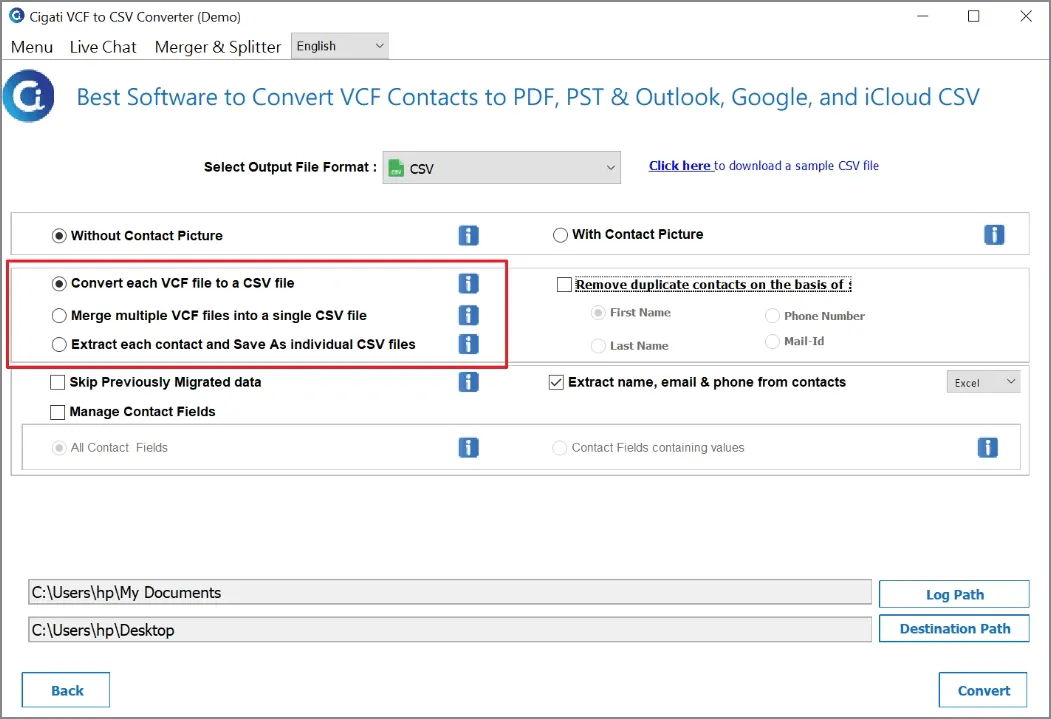
Choose an Option
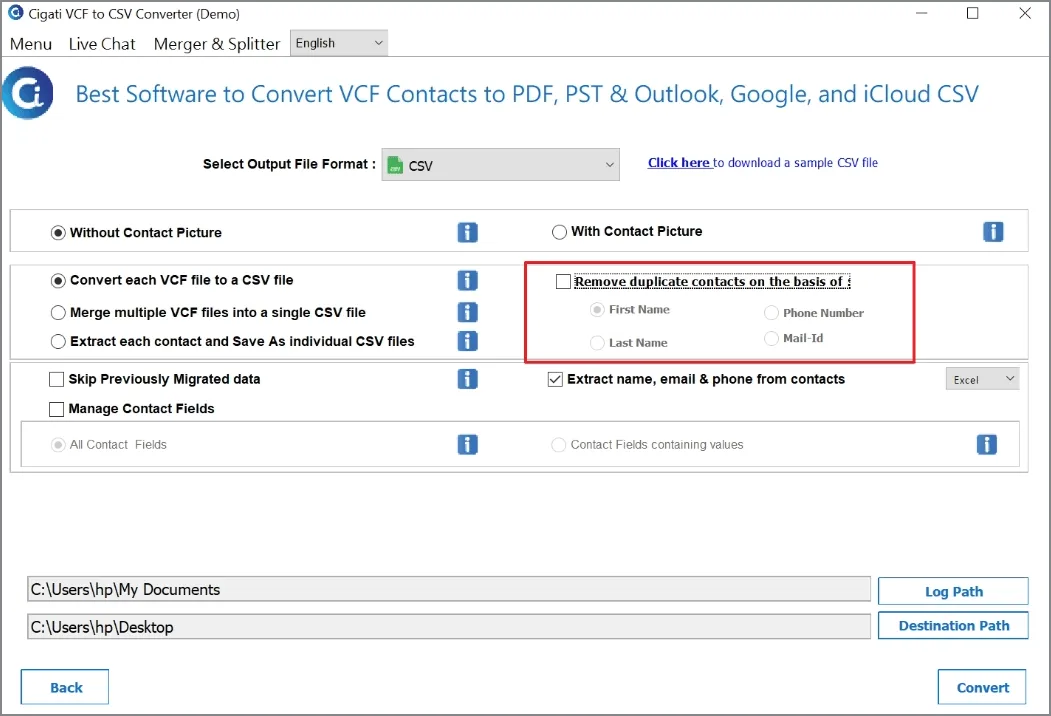
Choose the option Remove Duplicate Contacts On The Basis Of to convert only unique contacts:
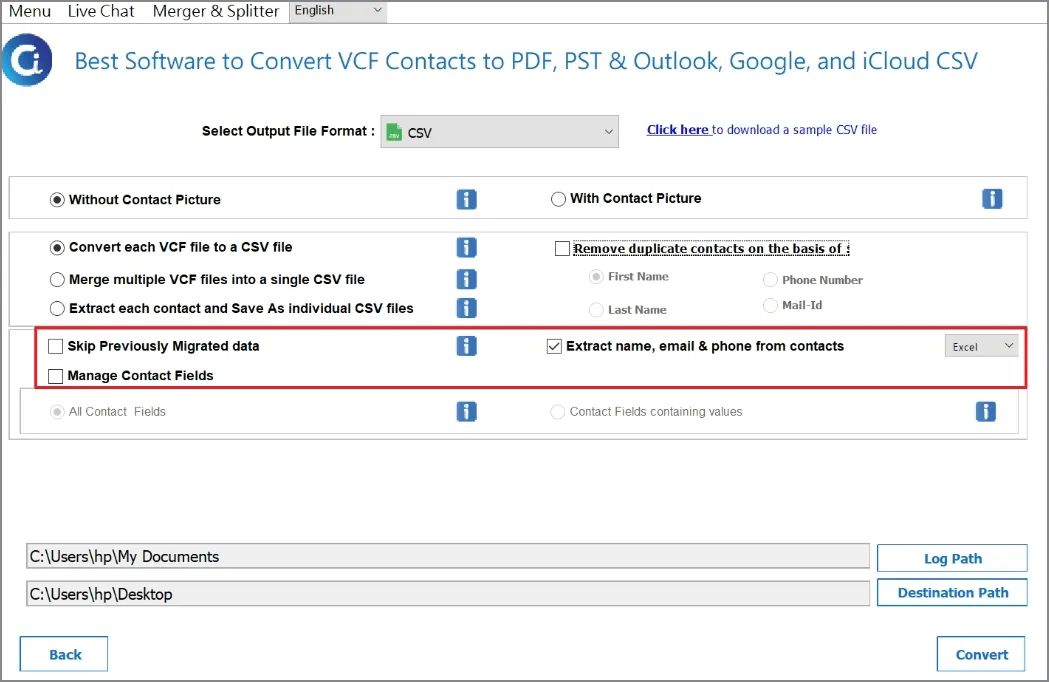
Use Advanced Features:
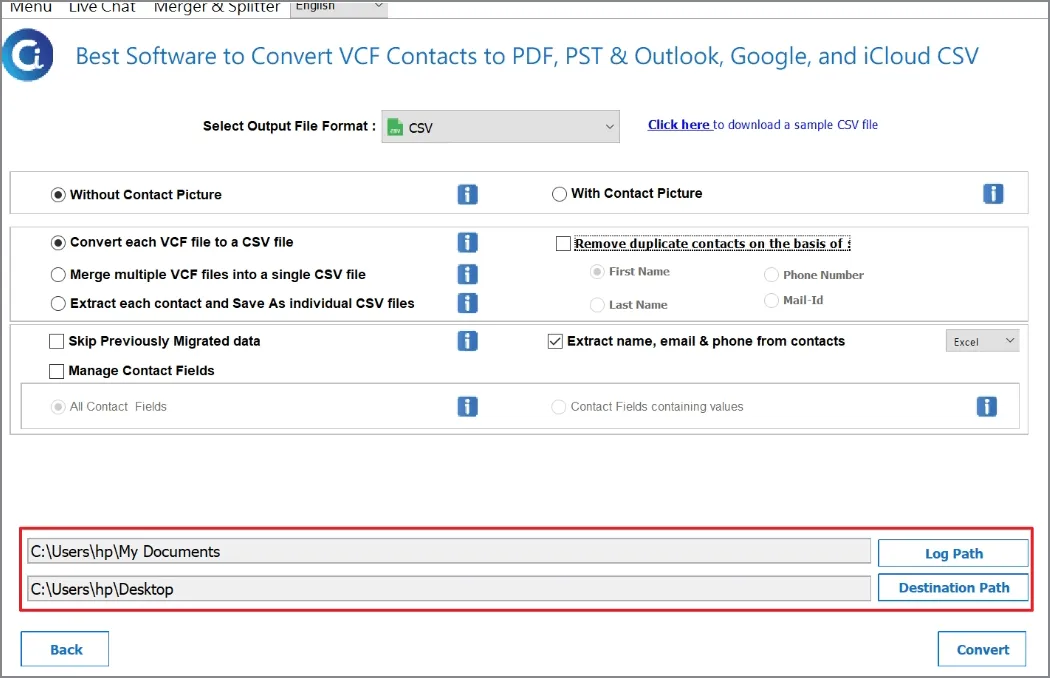
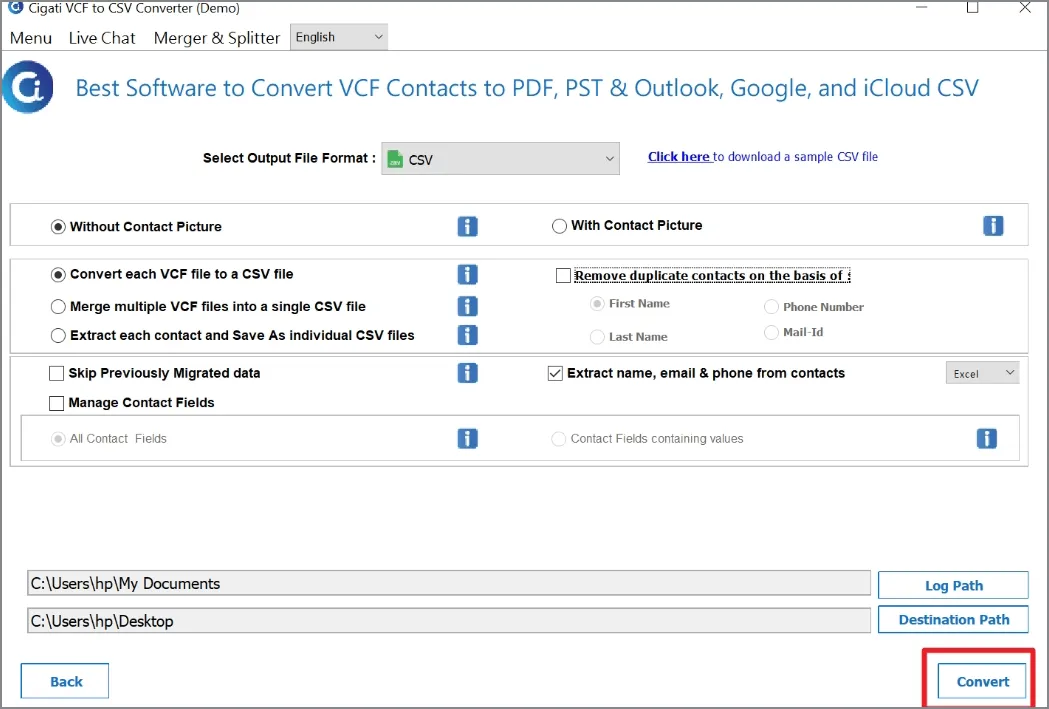
Click the Convert button to begin the conversion process.
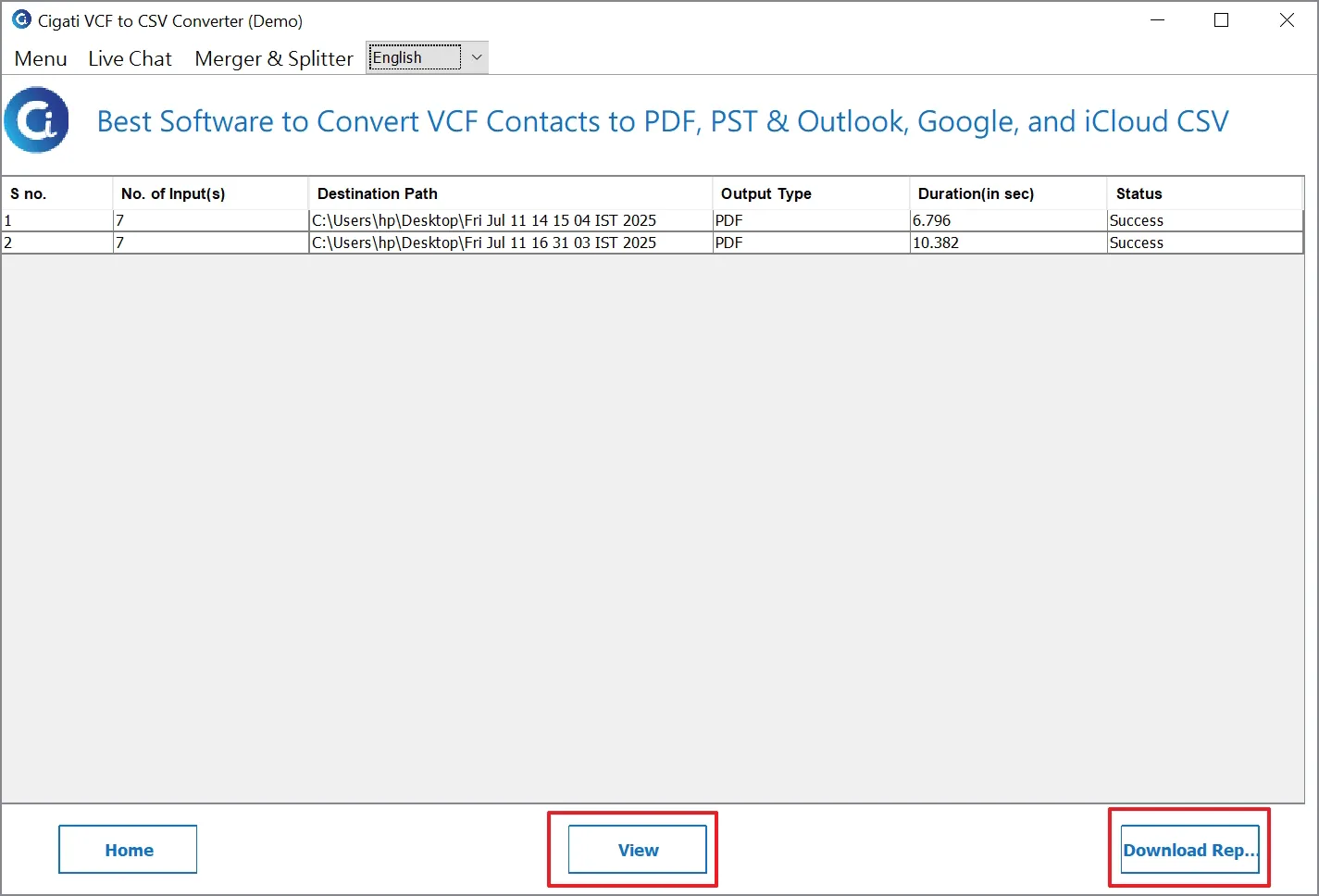
You can see CSV files saved on your PC by clicking on “ View ”. Download the conversion report with the “Download Report” option.
Download and launch the Cigati EML Converter on your local system.
Choose between the Single File, Multiple Files, or Select Folder options to add an EML file.
Select Files or Select Folder to choose an EML file, then click Open to add it/them.
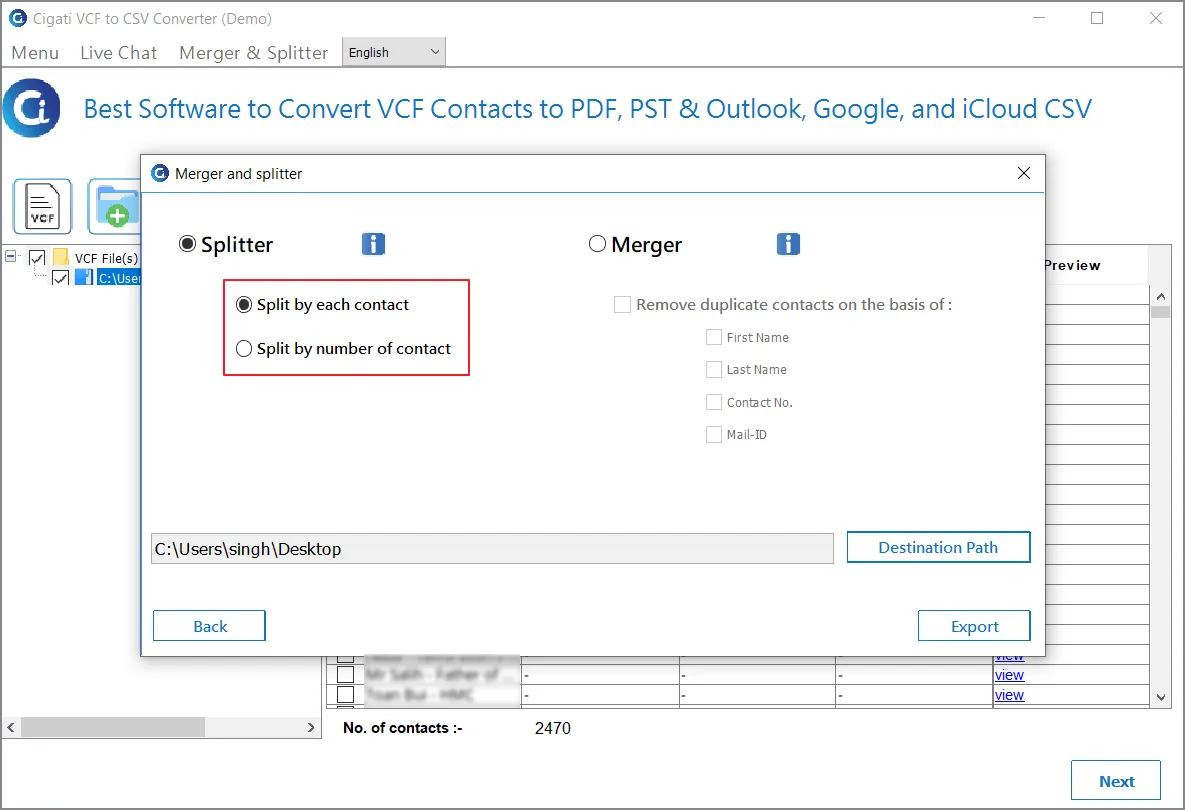
You will now see the added EML file in the list. Click Next to continue.
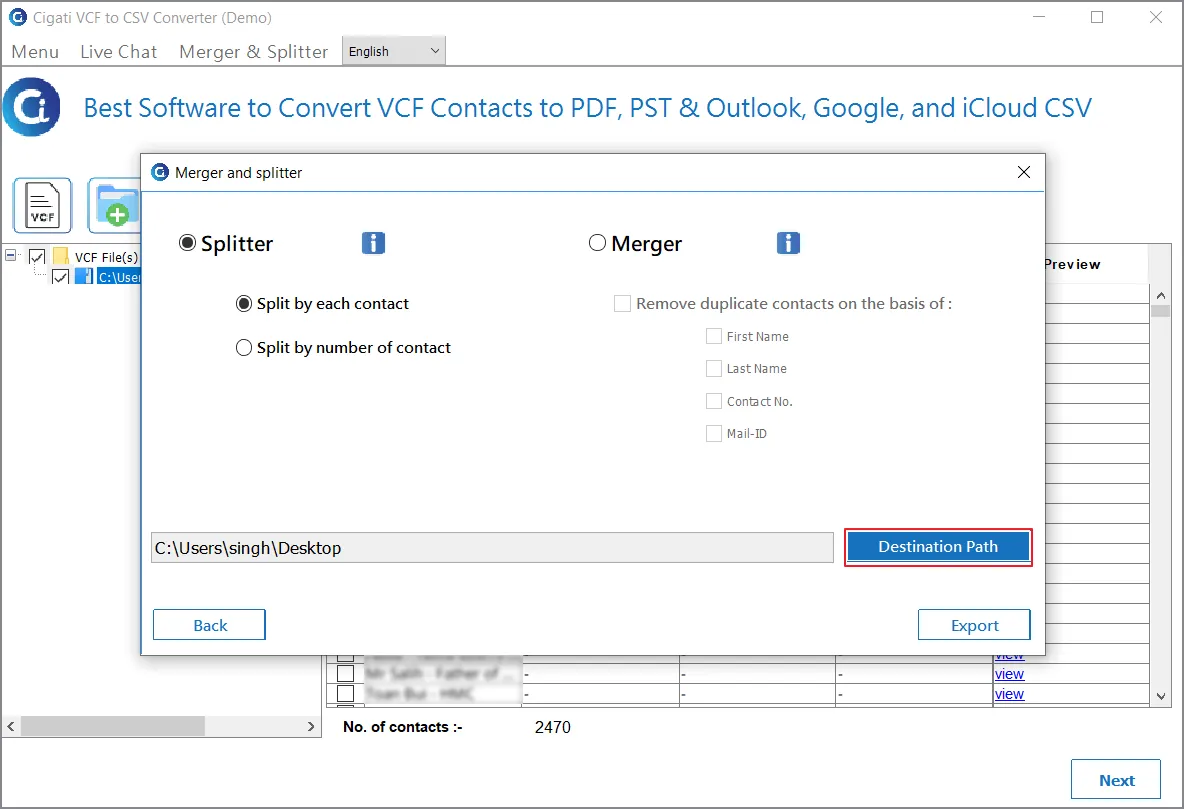
Choose the desired EML files you want to import and click the Next button.
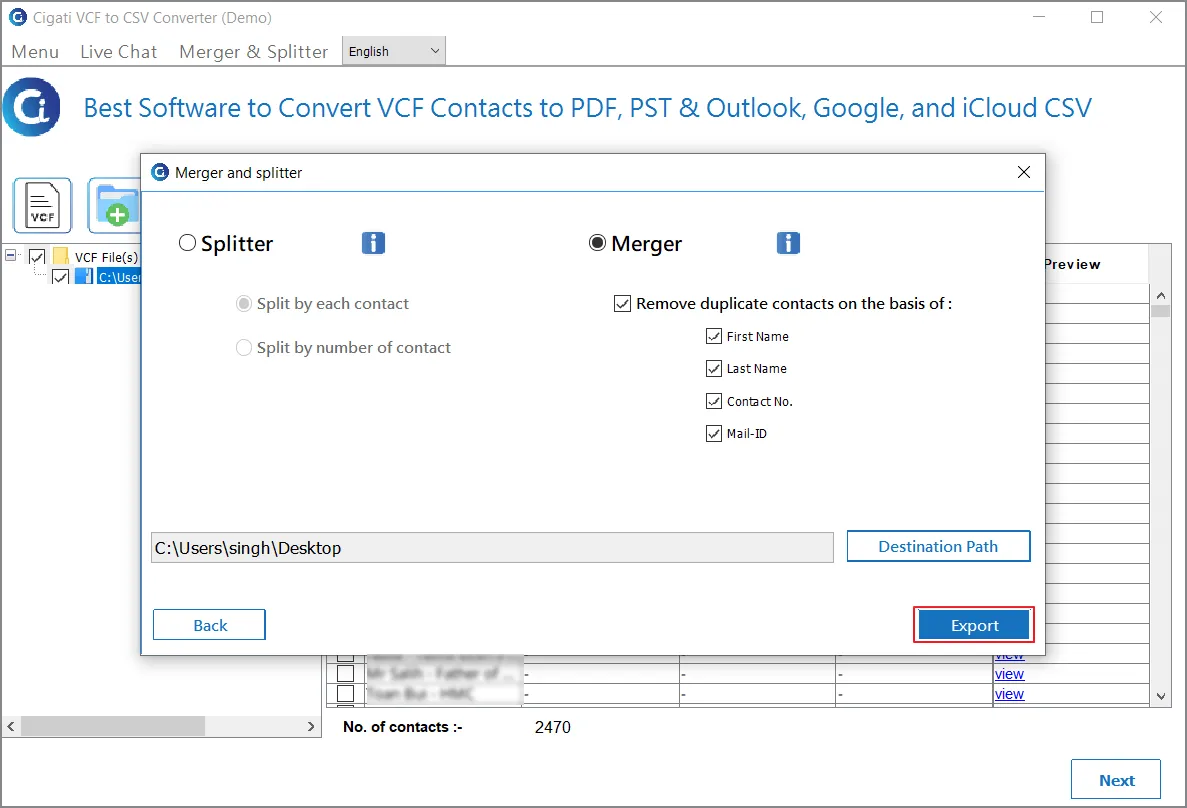
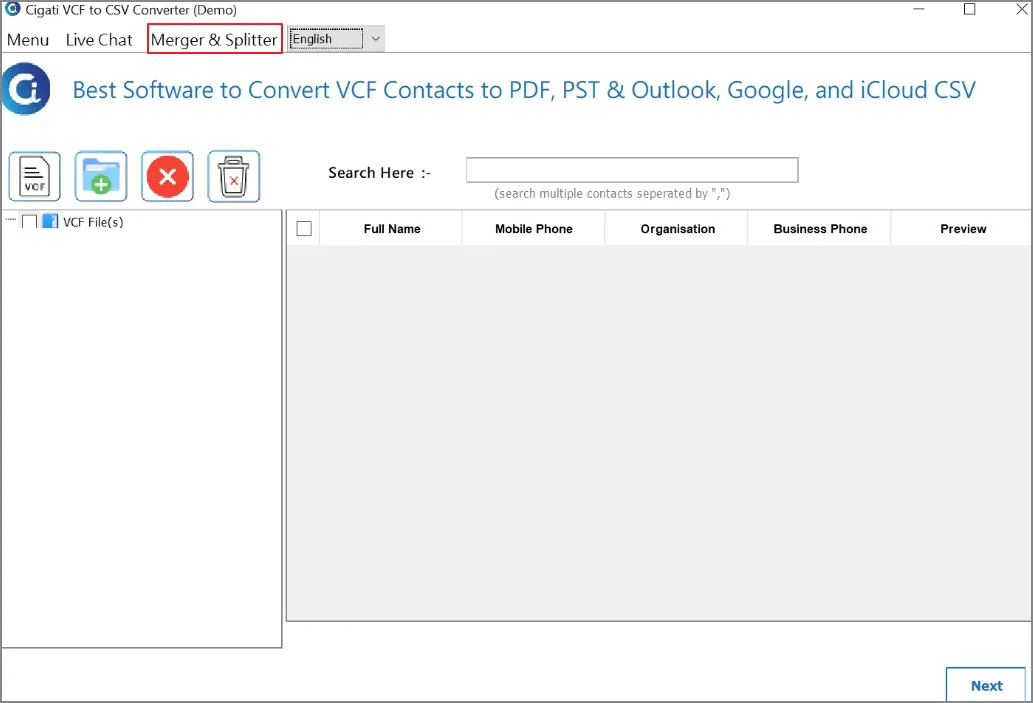
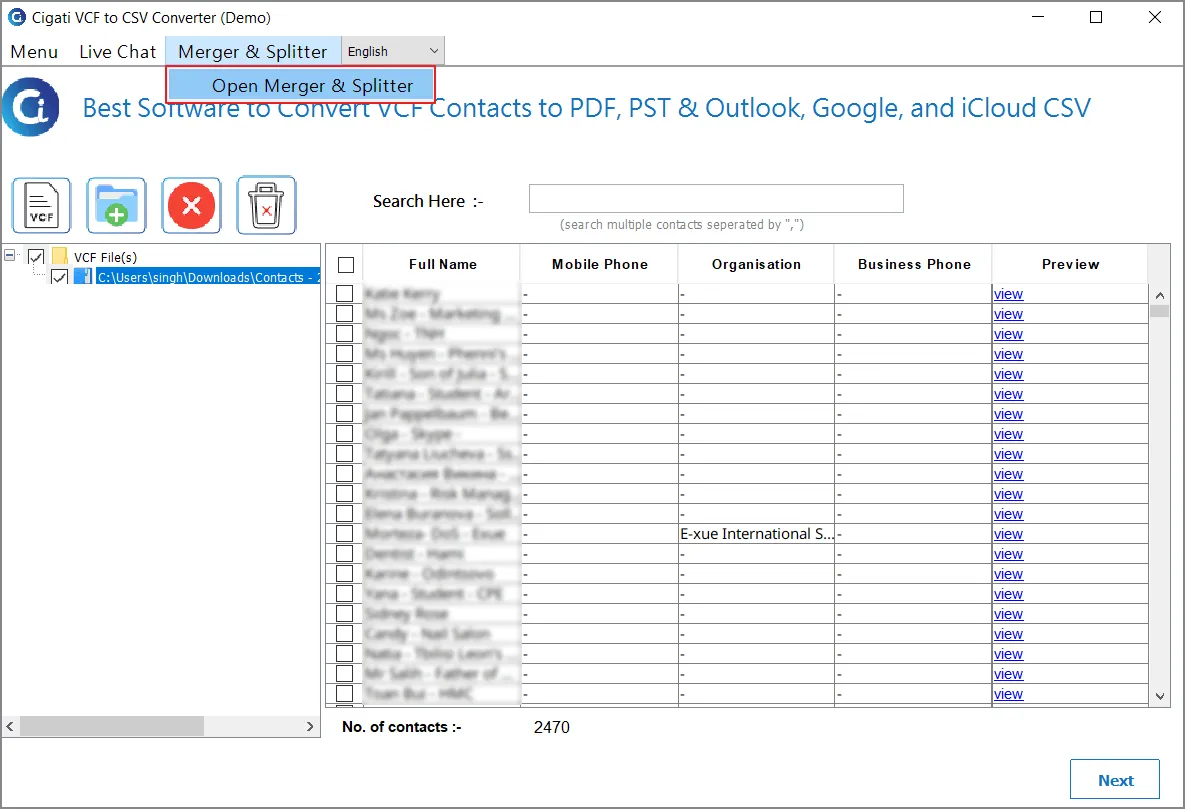
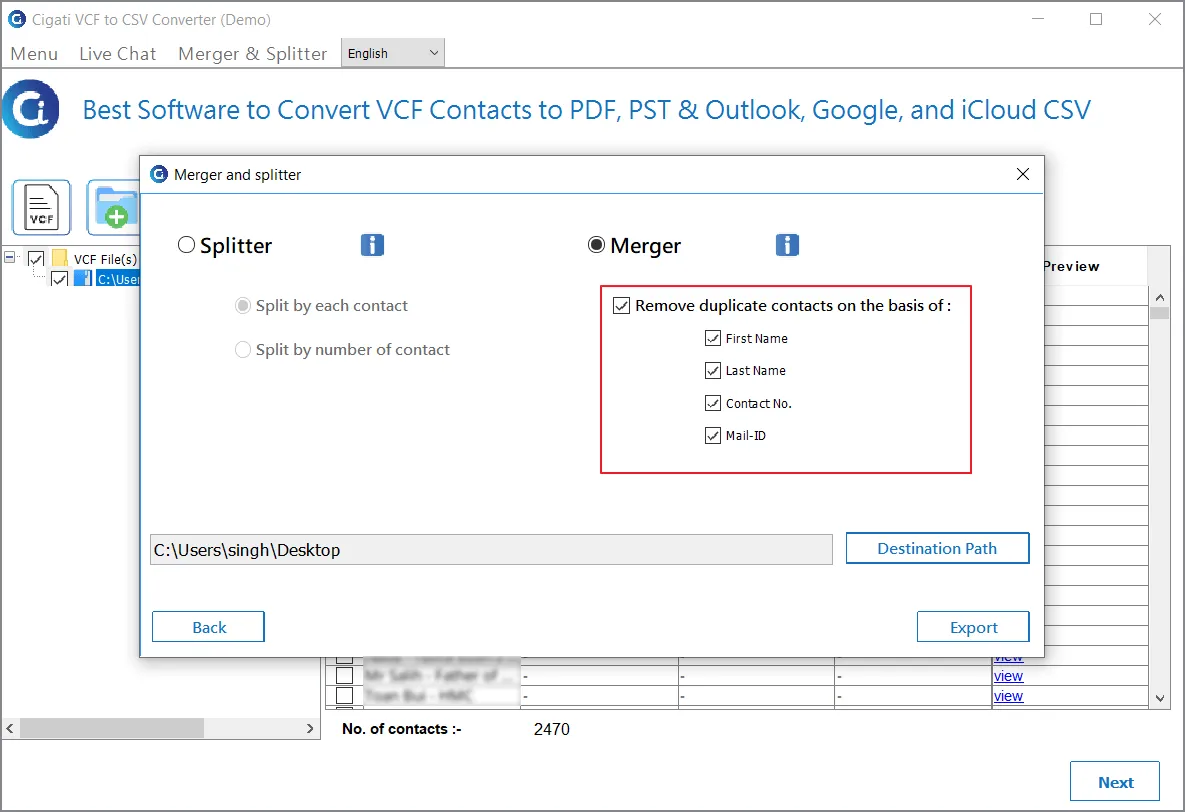
After opening the Merger & Splitter window, select the Merger radio button.
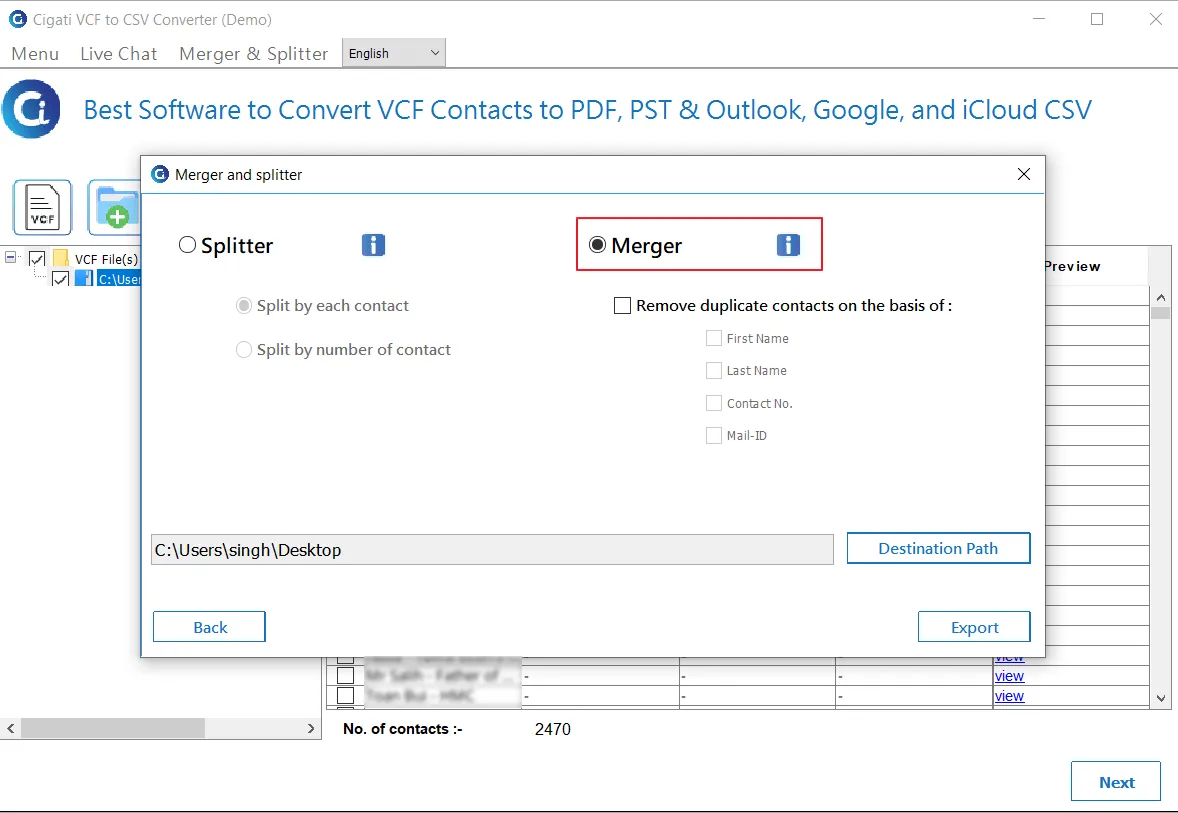
If needed, enable the “Remove Duplicate Contacts based on” option to eliminate duplicates. Select the criteria for identifying duplicate contacts, such as First Name, Last Name, Contact Number, and Mail ID.
Click the Destination Path button and choose the location to save the merged VCF file.
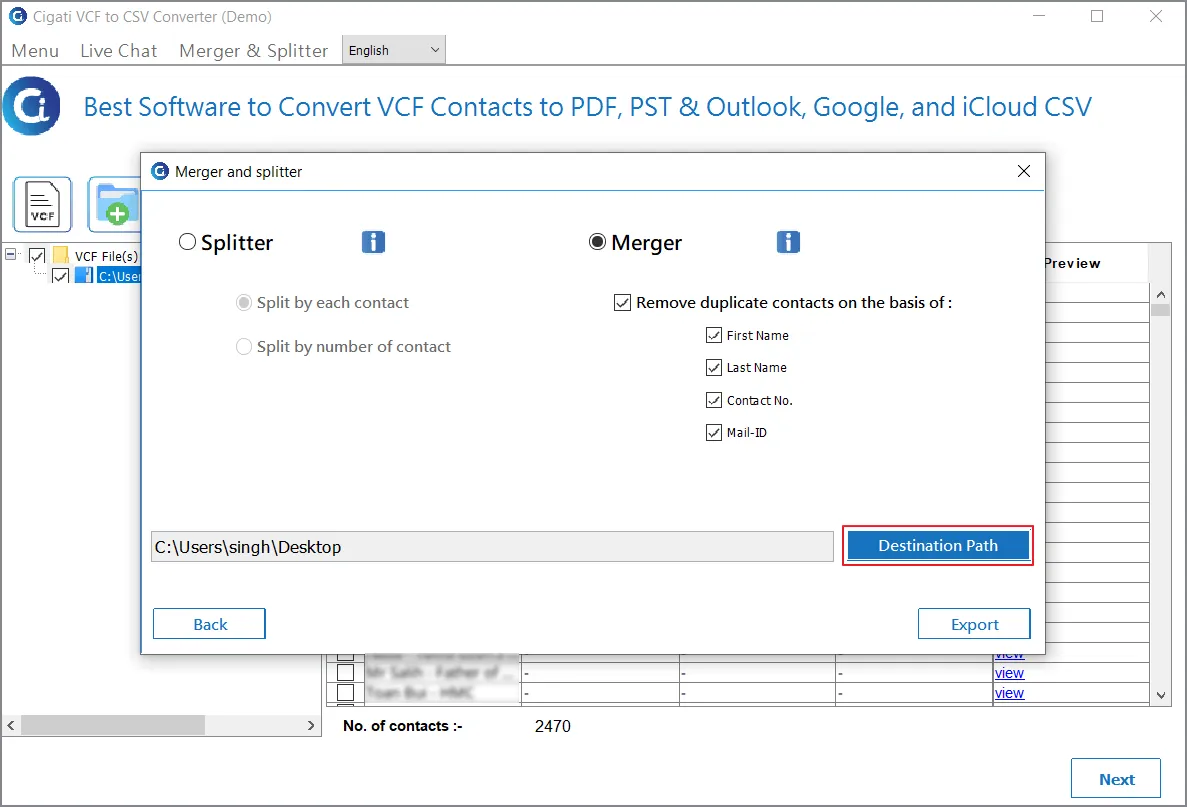
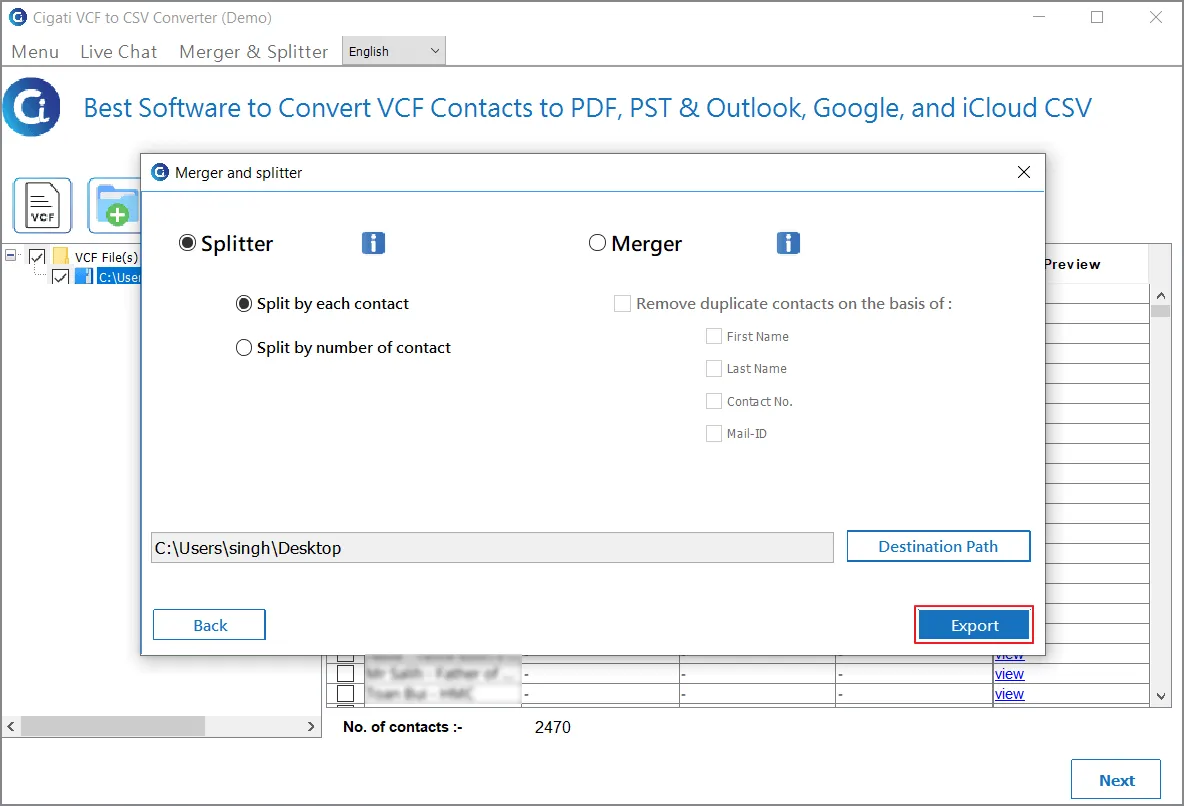
Finally, click Export to start the merging process for the VCF files added to the tool.