VHD Recovery Tool
4.7
A user-friendly application with an intuitive design for beginners to navigate effortlessly.
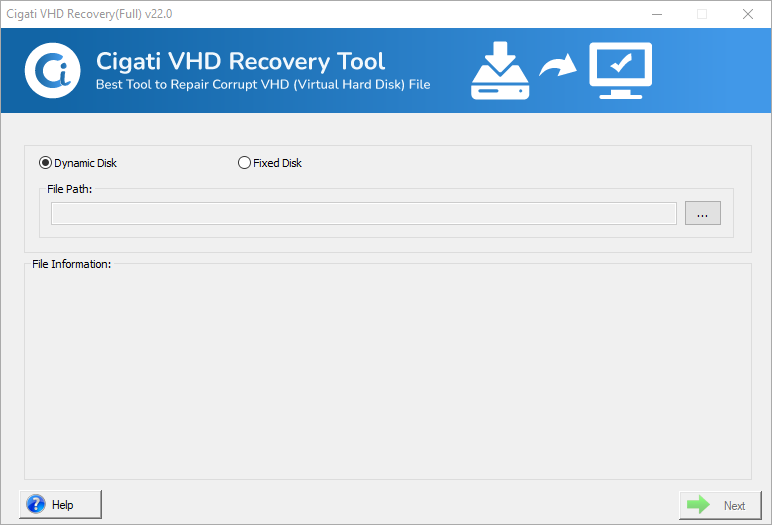
Download and Launch the VHD Recovery Tool on your system.
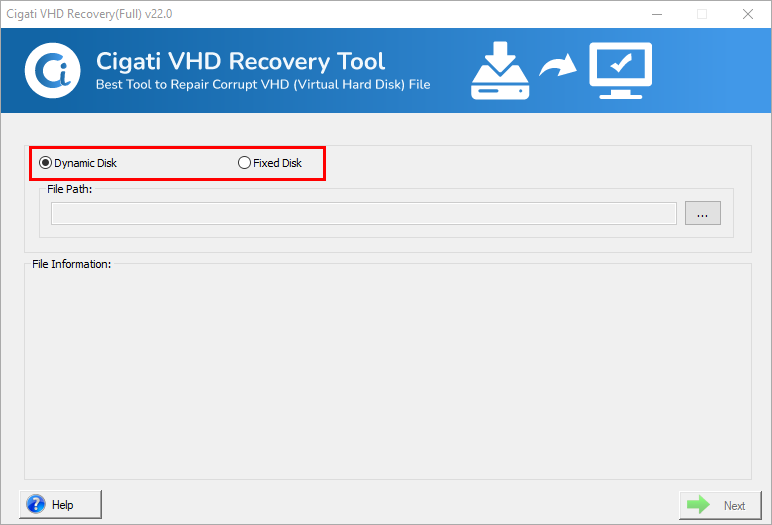
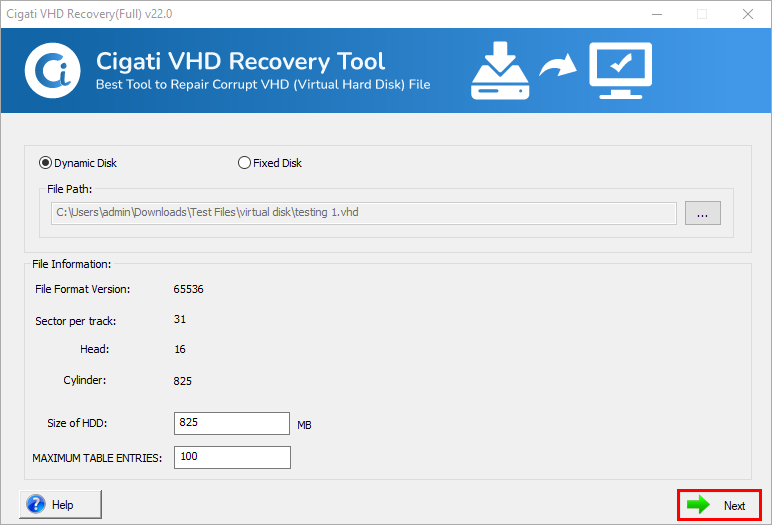
Now, you have to select the Disk Type between Fixed or Dynamic Disk.
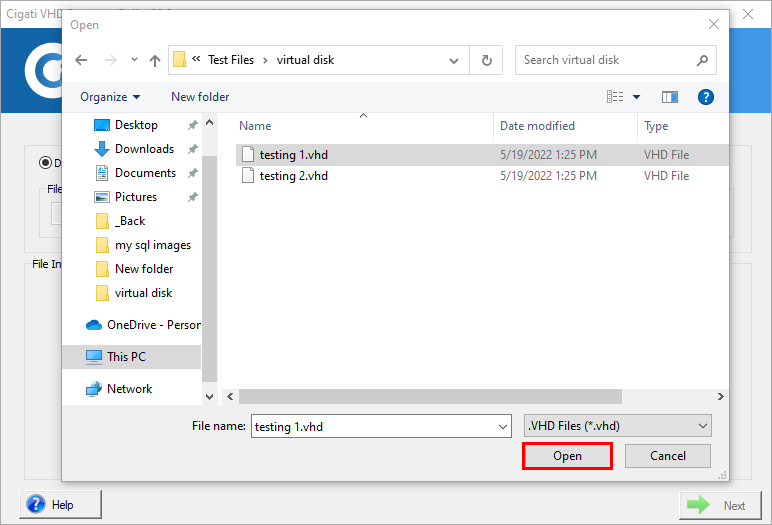
Click on the Browse button to select the VHD file and press the Open button.
Here you can view the File Information and then press the Next button.
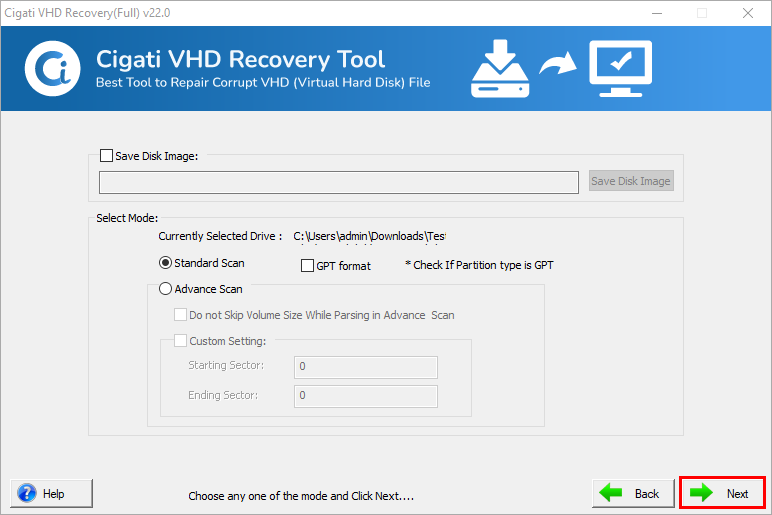
Choose the scanning mode either Standard or Advance and hit the Next button.
(Note: You can also opt for the GPT option to specify the GUID partition table)
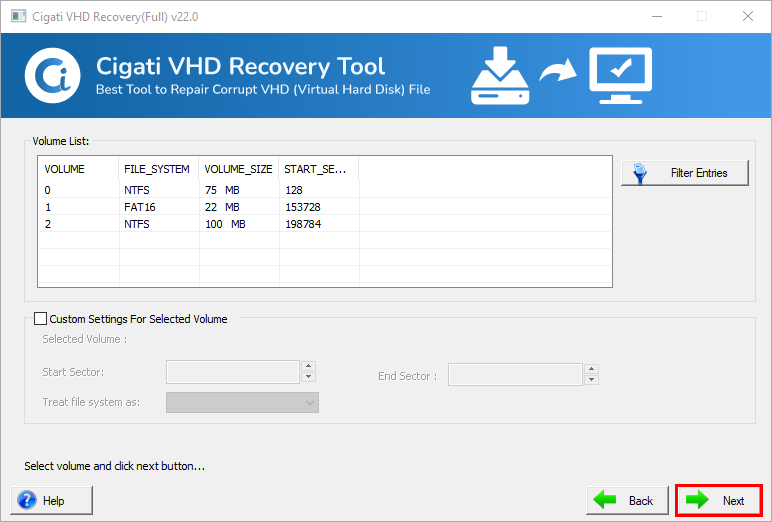
Then, select the Volume List from which you want to recover the data.
(Note: Compatible with all the file formats like FAT, FAT16, FAT32, FAT64, HSF+, NTFS, RAW)
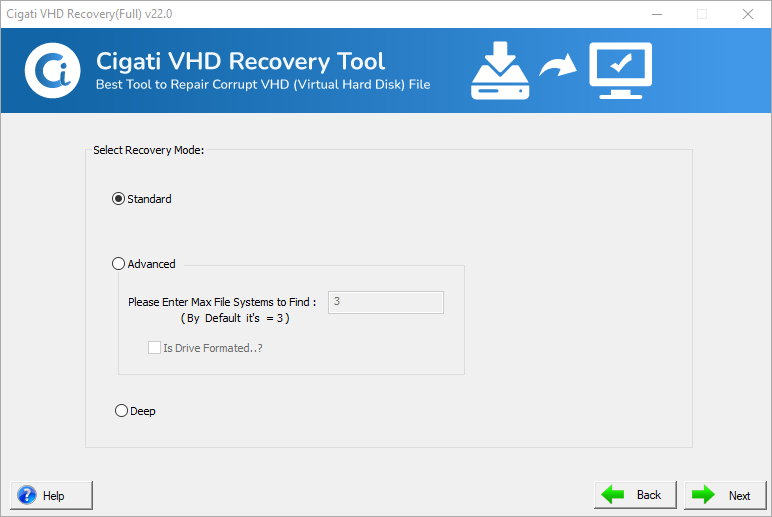
After this, opt the desired Recovery Modes. (Standard, Advanced & Deep)
Now, the scanning process is completed, tap the Ok button.
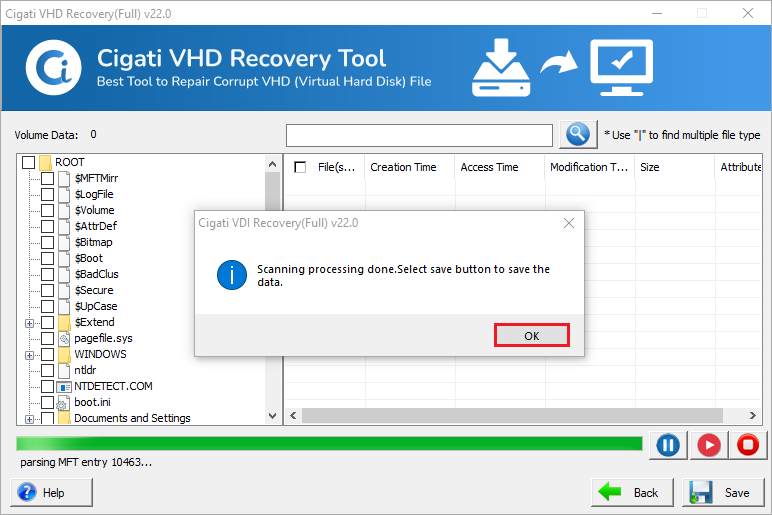
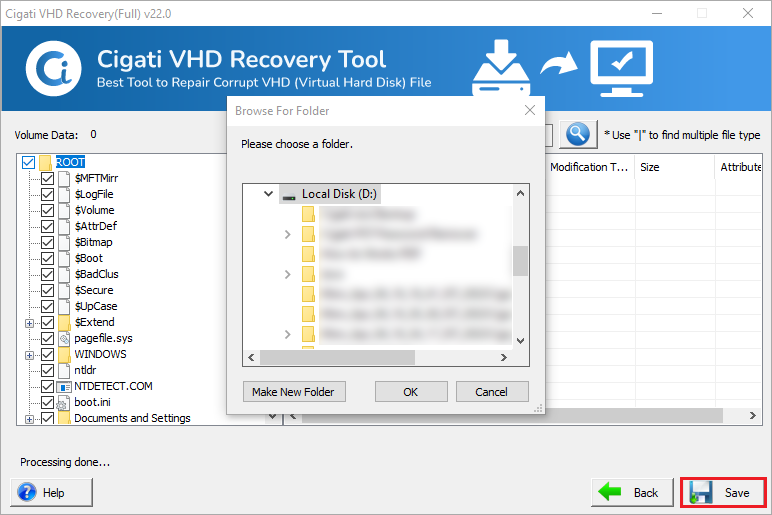
Here the software will display a Tree Structure in which Preview the VHD file data.
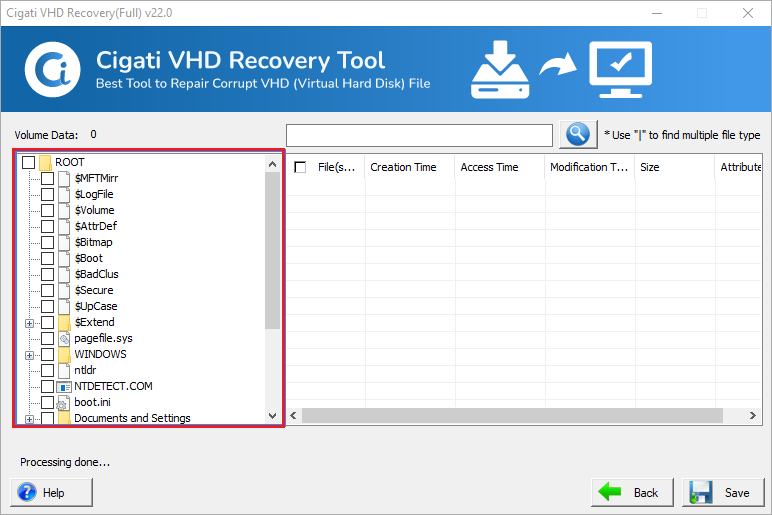
Finally, choose the Folder that you need to save and hit the Save button.