CSV to vCard Converter Tool
4.9
A user-friendly application with an intuitive design for beginners to navigate effortlessly.
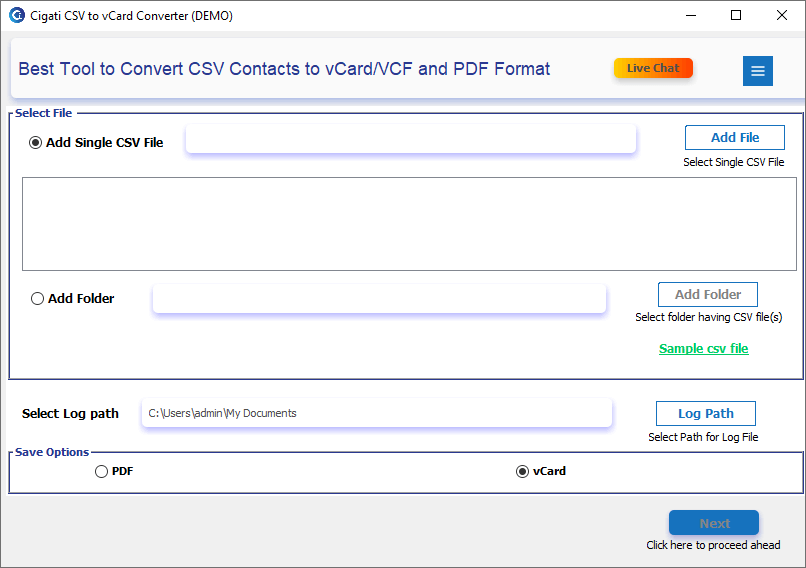
Download and launch the Cigati CSV to vCard Converter on your system.
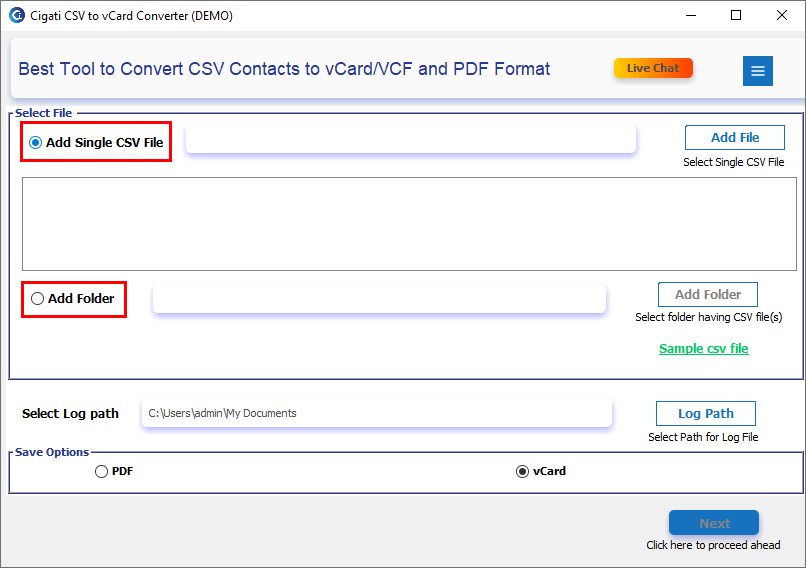
Click on the Add Single CSV File or Add Folder options to pick single or multiple CSV files.
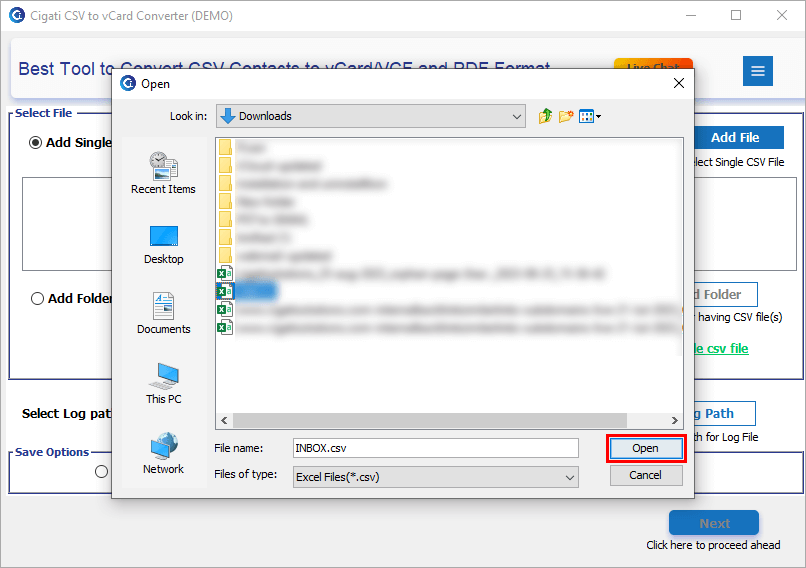
Click the Add File button to select the CSV file and open it.
After opening the CSV file, the data will be displayed.
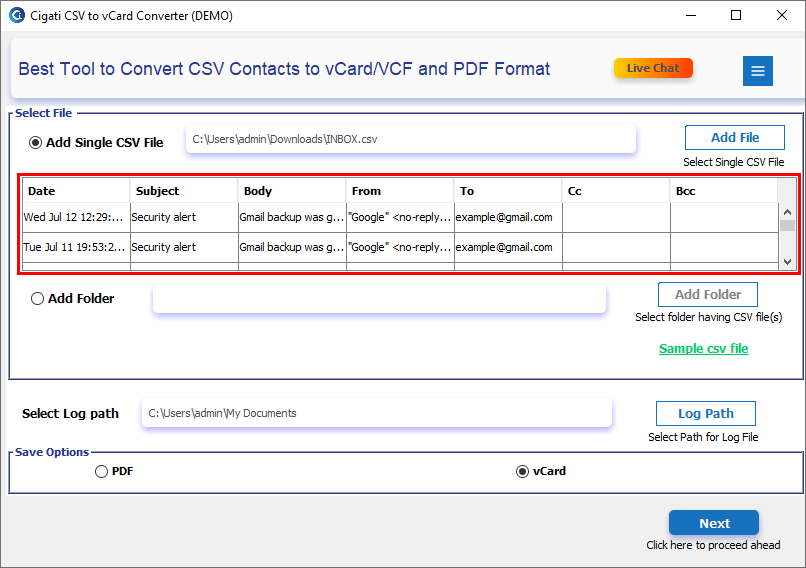
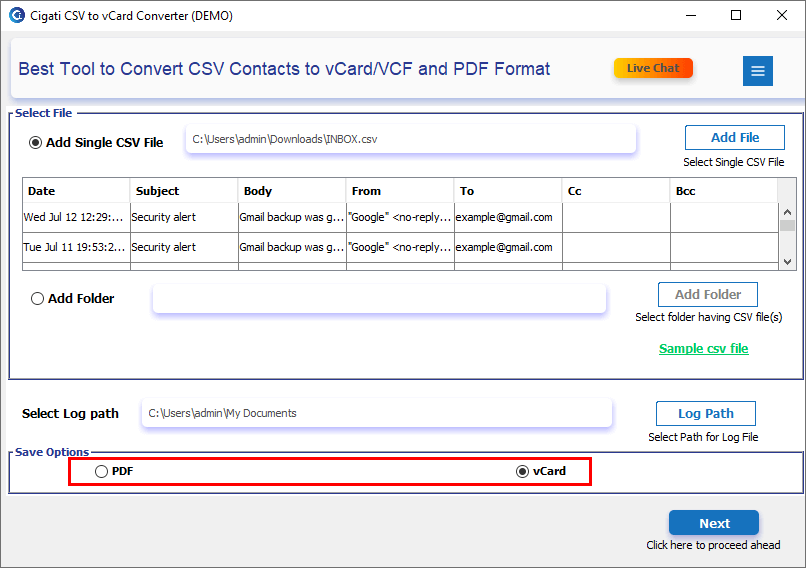
Select the vCard file format from the saving options.
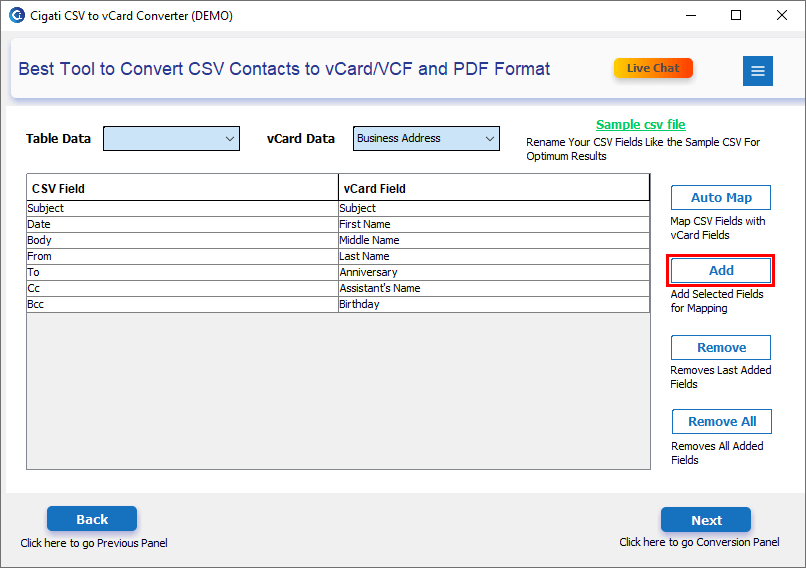
Click the Add button to map the CSV and vCard fields.
Note: You can map the data between the CSV table and the vCard fields for a single CSV file.
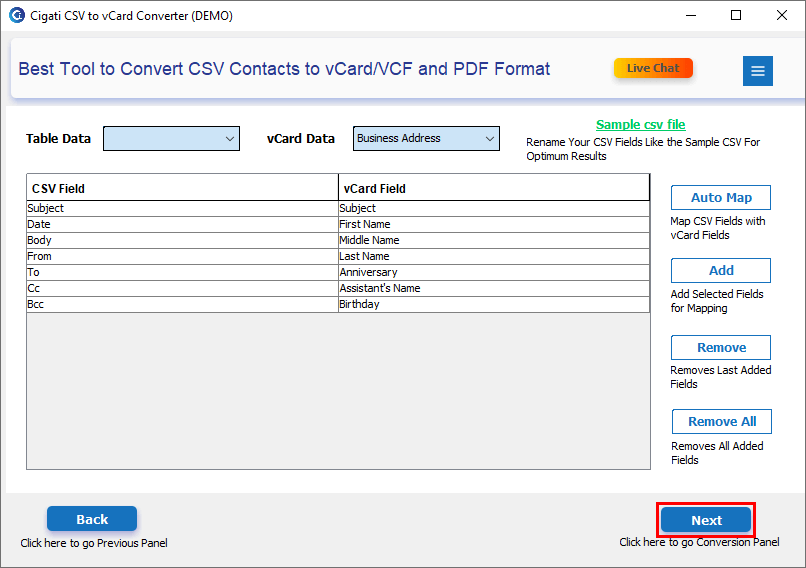
Click on the Next button.
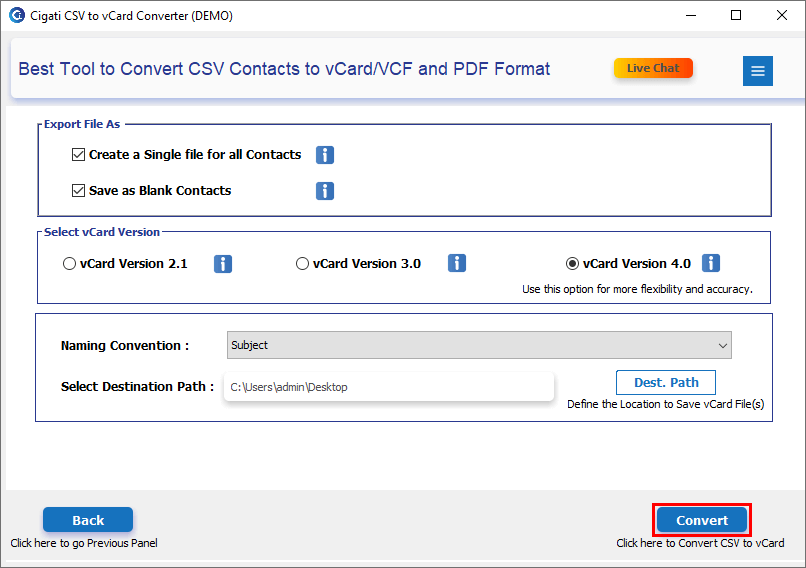
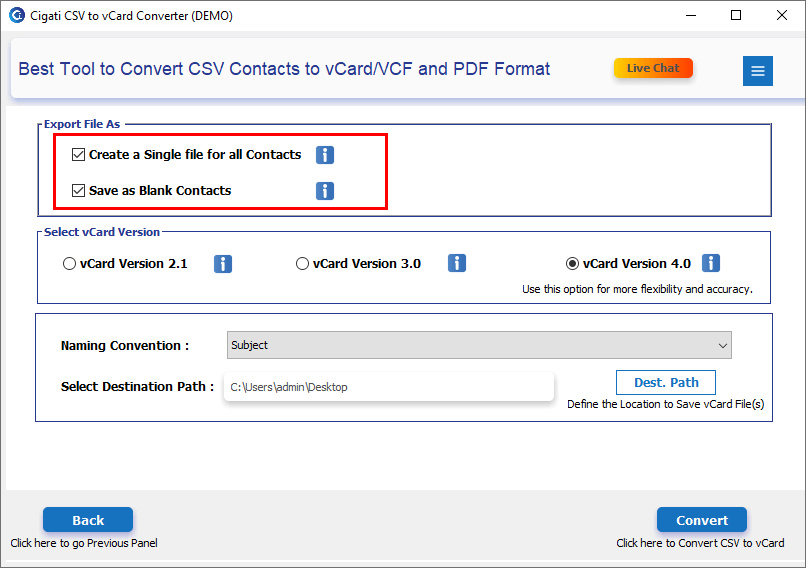
Check the Create a Single File for All Contacts option to save all CSV file data in one place. You can also check the Save as Blank Contacts option to create a blank vCard file.
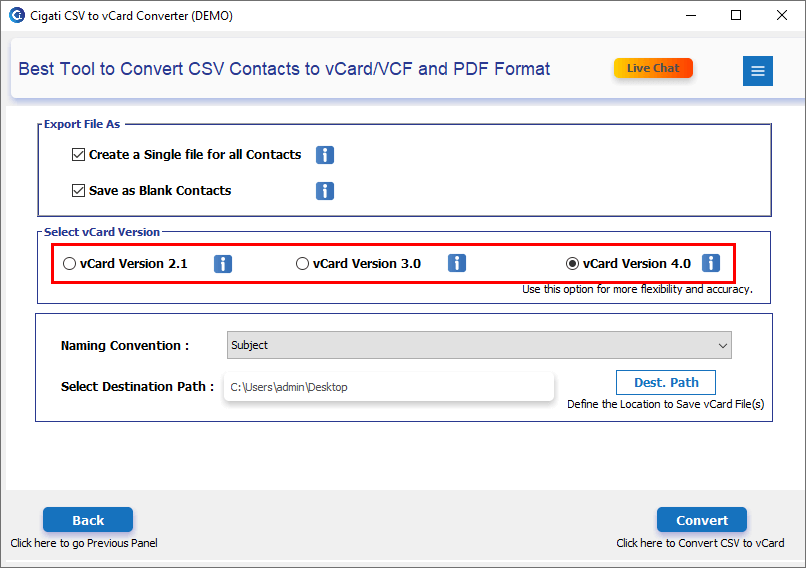
Select the desired vCard version (2.1, 3.0, or 4.0).
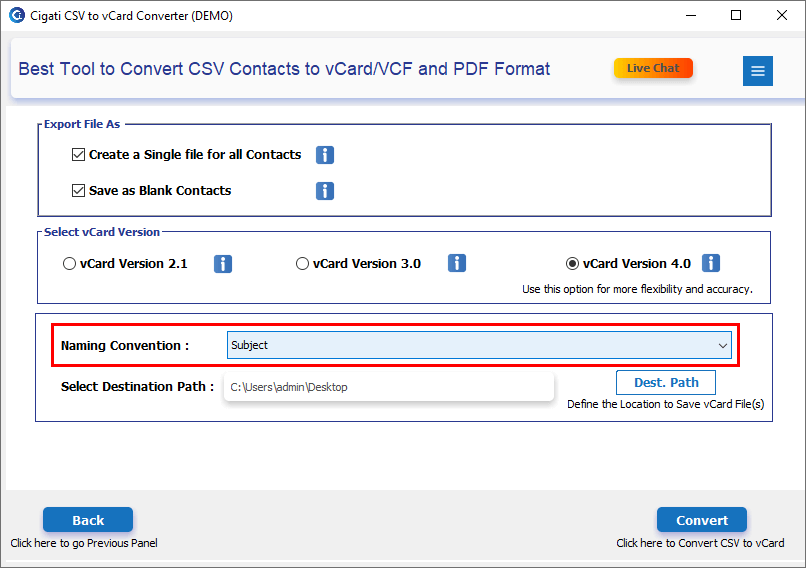
Choose the Name Conversion option to save the CSV file accordingly.
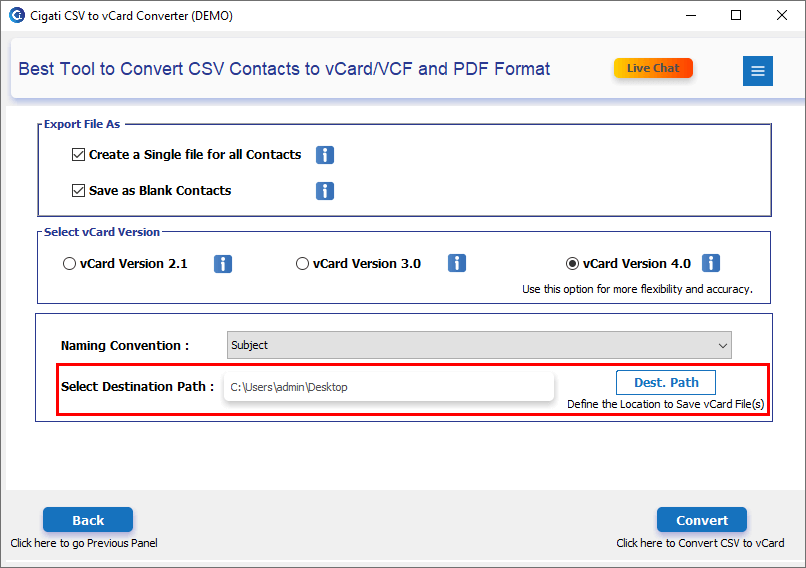
Define the destination path to save the resultant vCard file.
Click the Convert button to start converting the CSV files into vCard format.