ICS Converter
4.8
A user-friendly application with an intuitive design for beginners to navigate effortlessly.
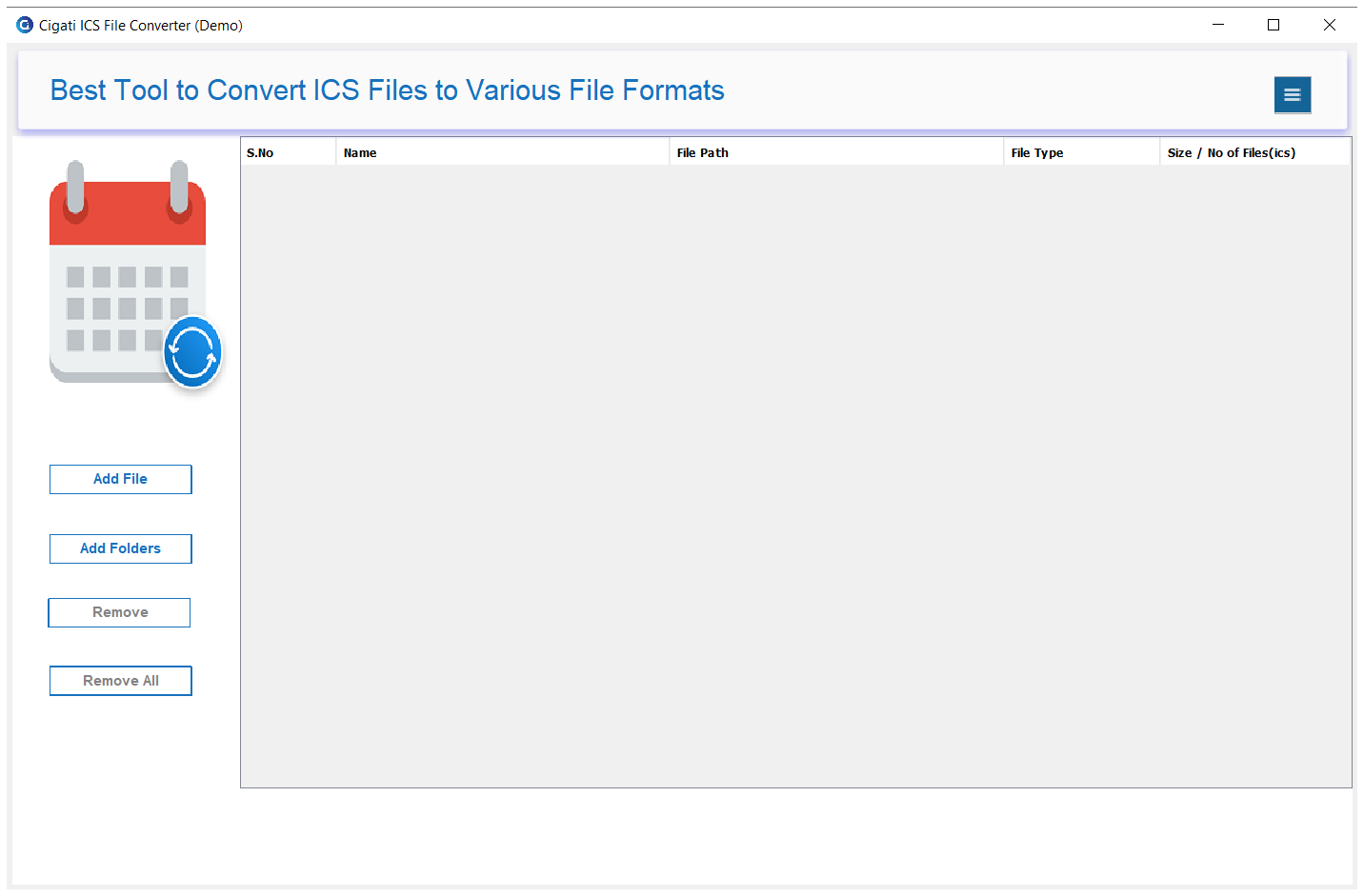
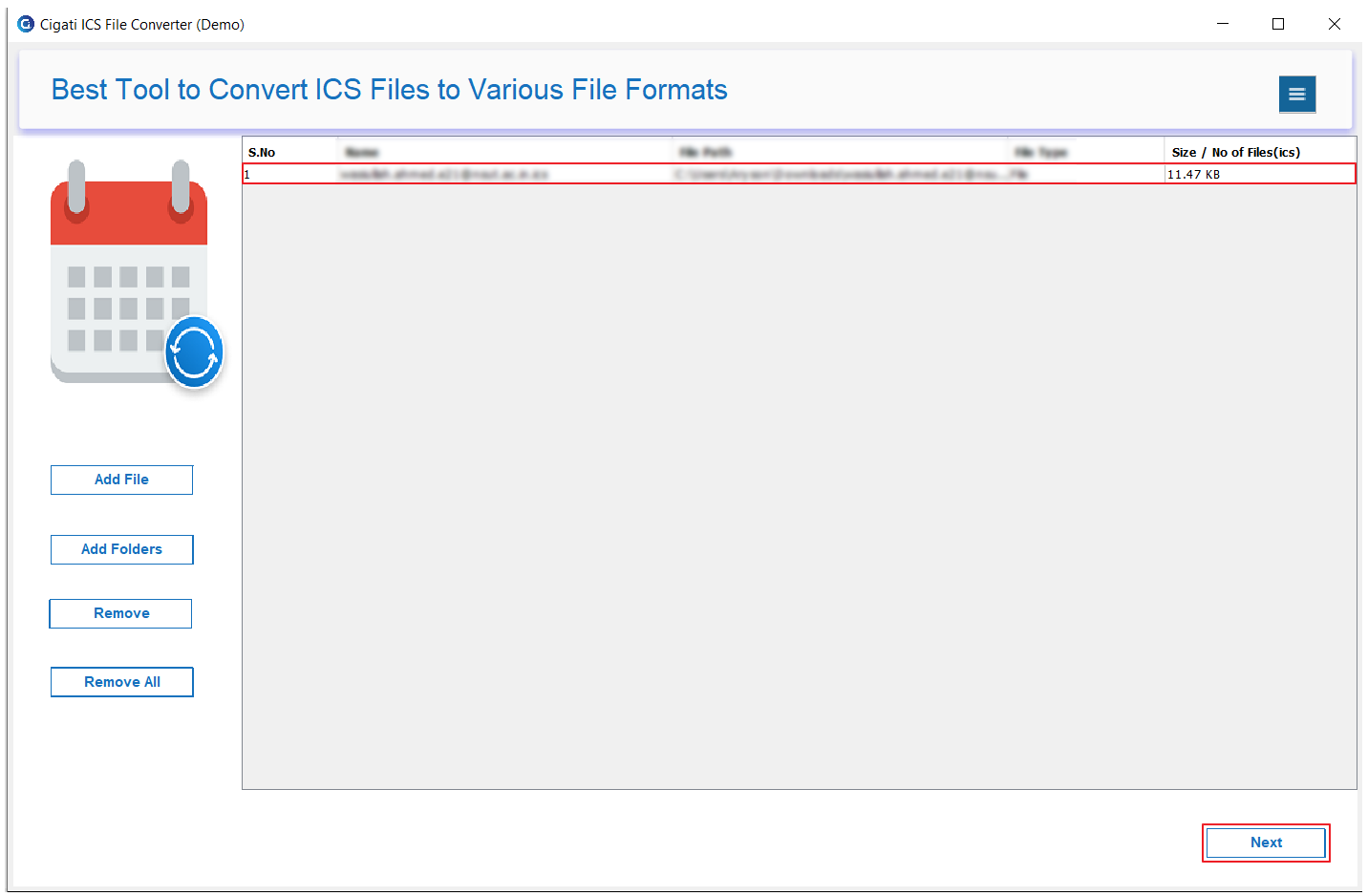
Download and launch the Cigati ICS Converter on your system.
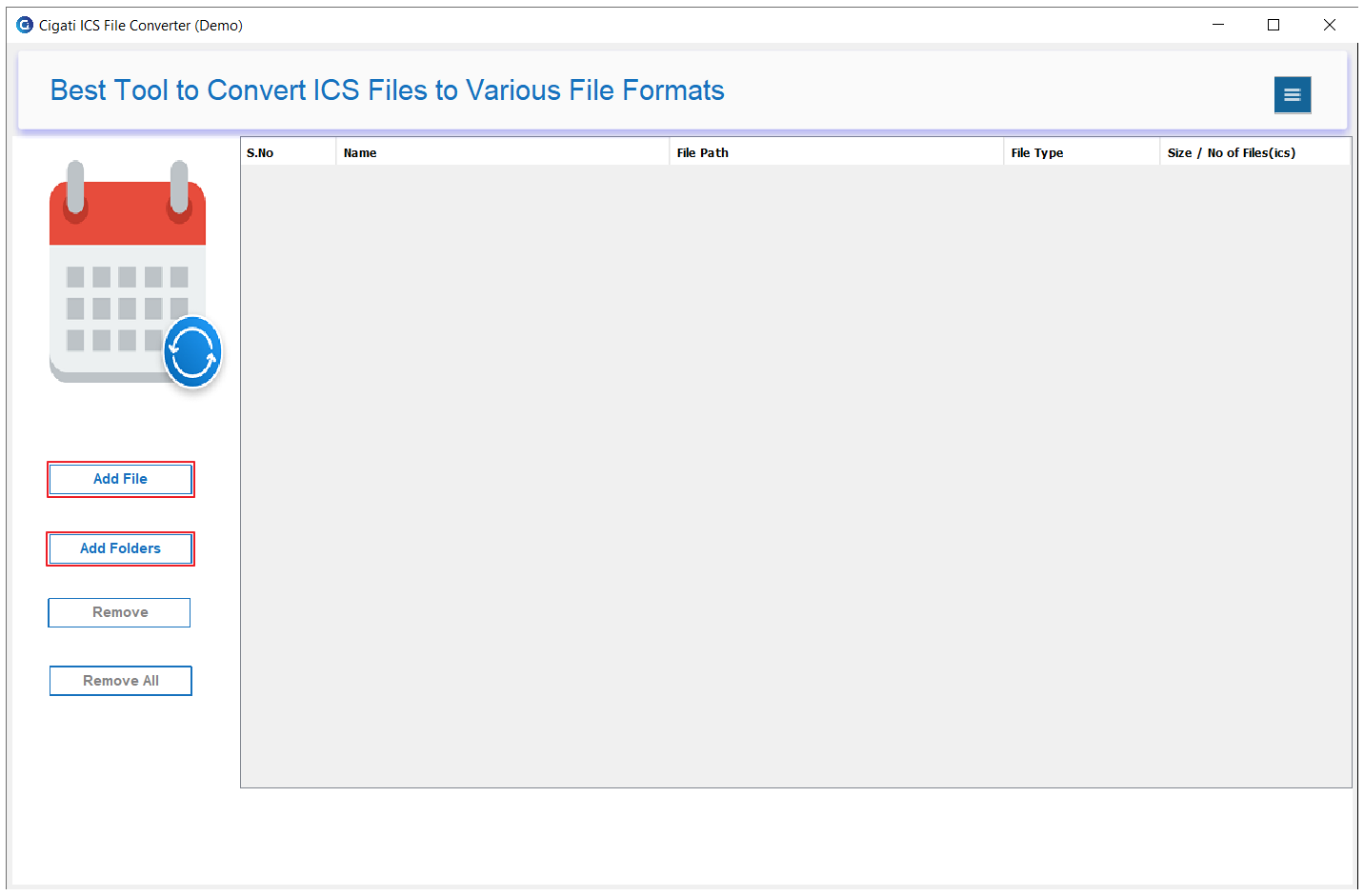
To add an ICS file, click either the Add File or Add Folder button.
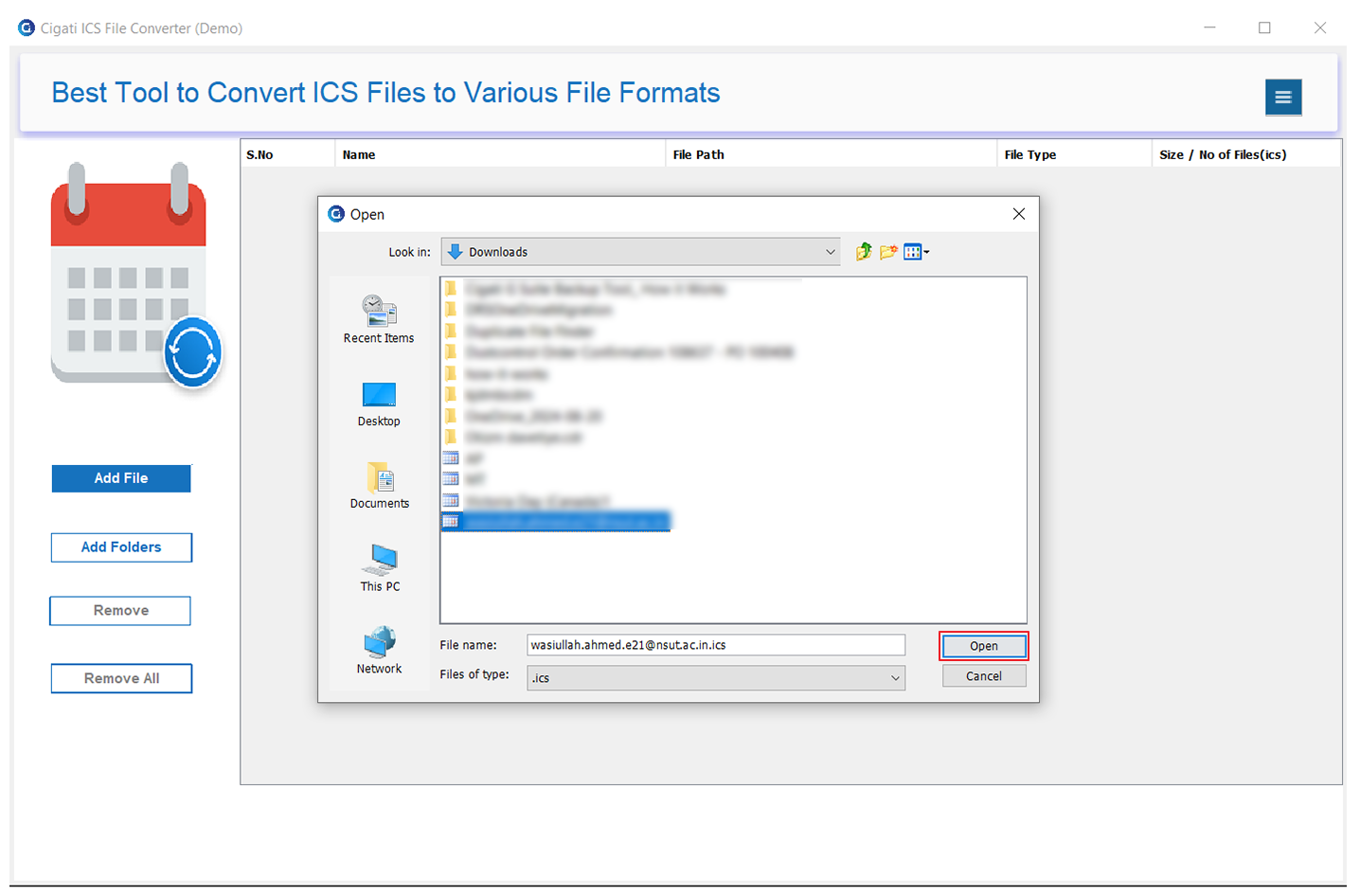
Locate and select the ICS file you want to add, then click Open.
The added ICS file(s) will be displayed in the list. Click Next to continue.
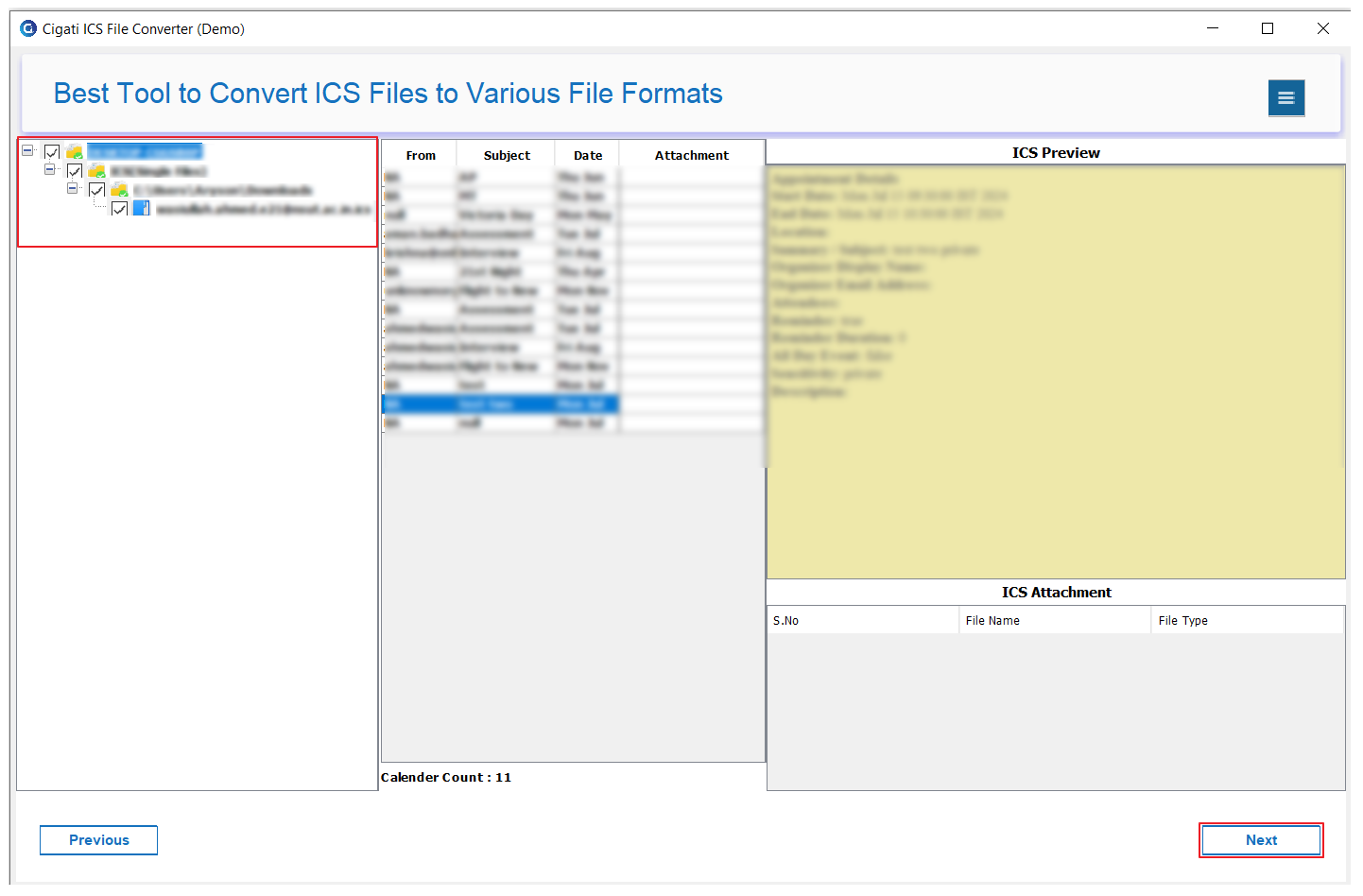
Select the folders you want to convert, then click Next.
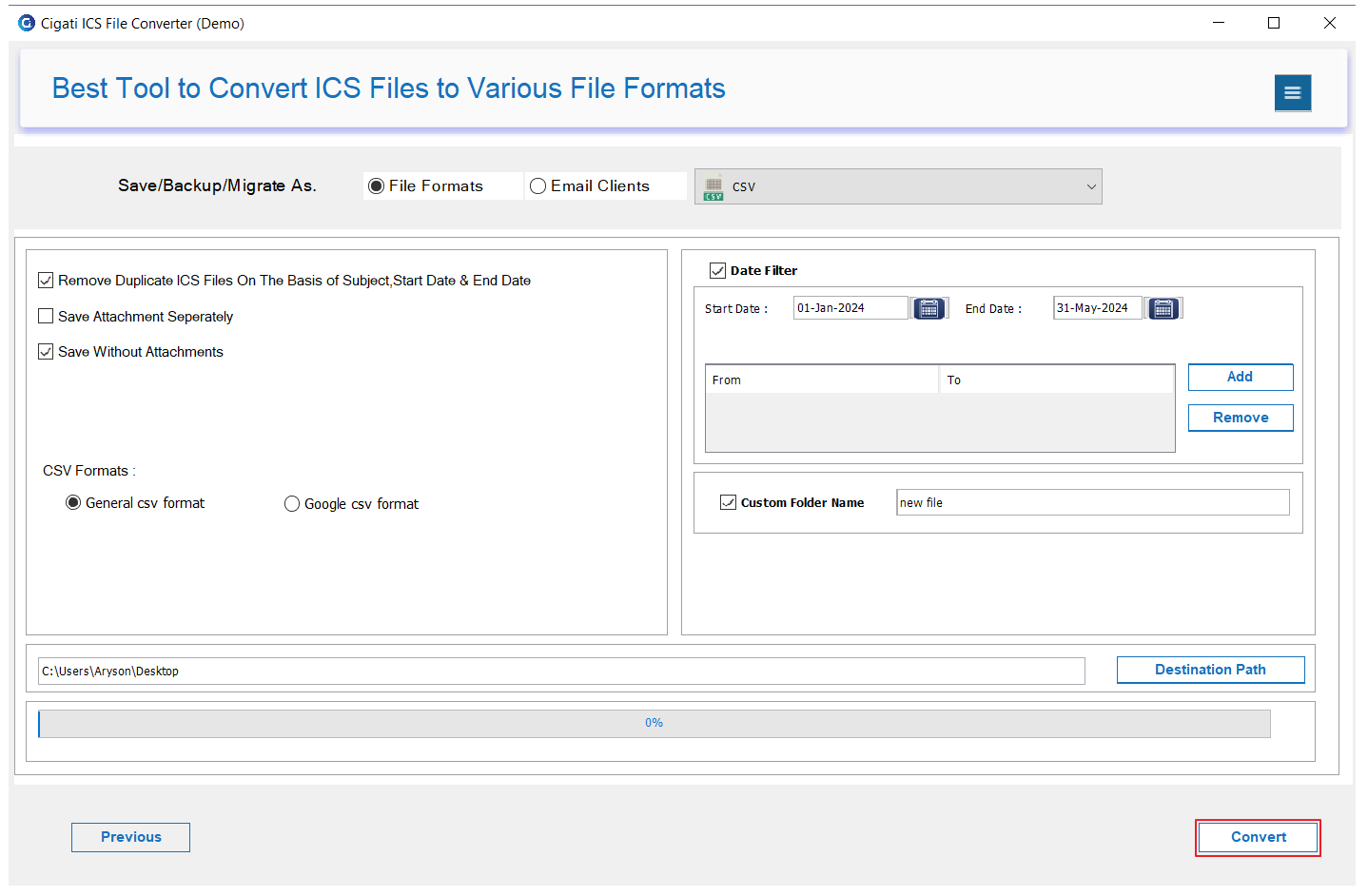
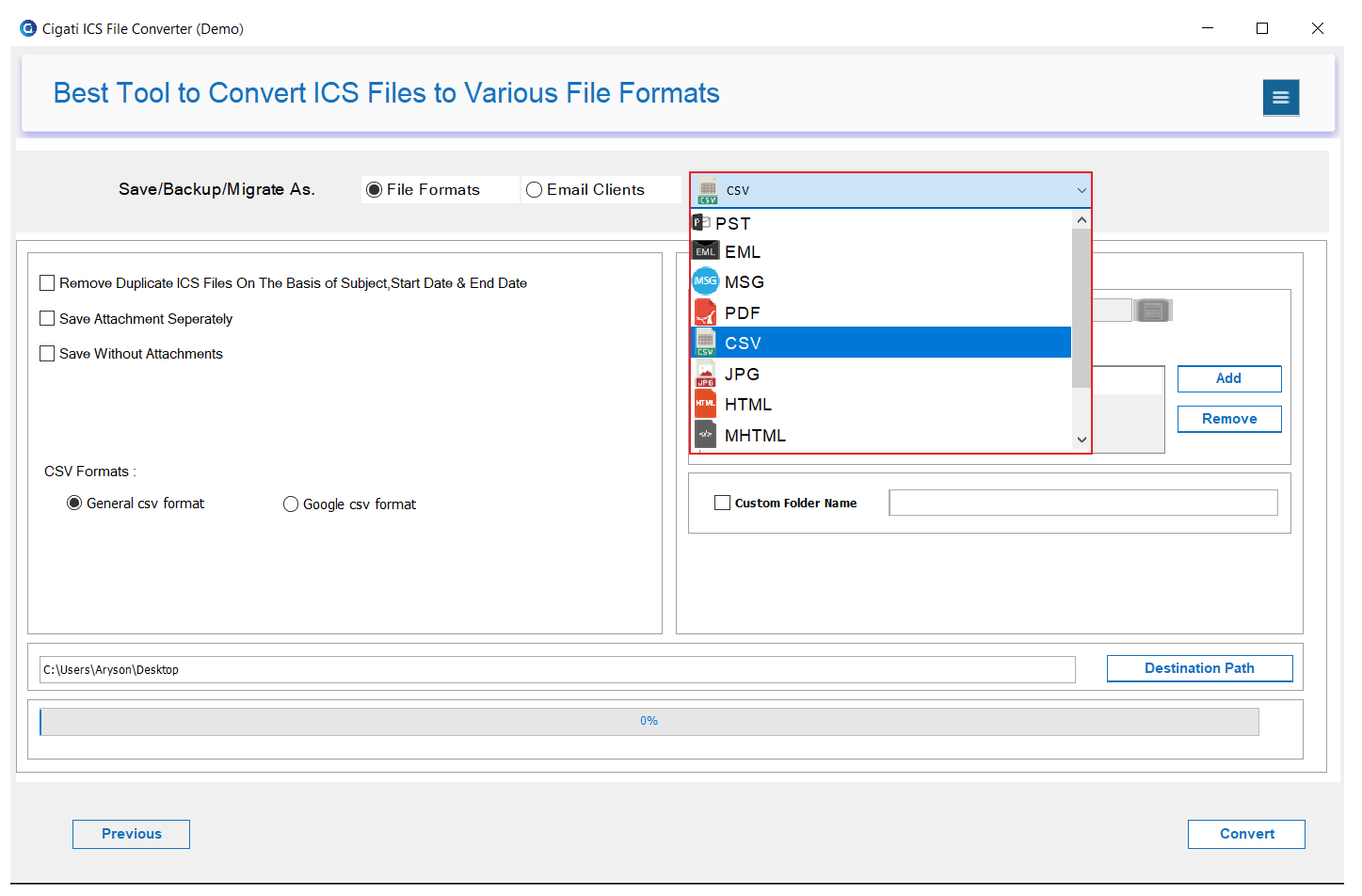
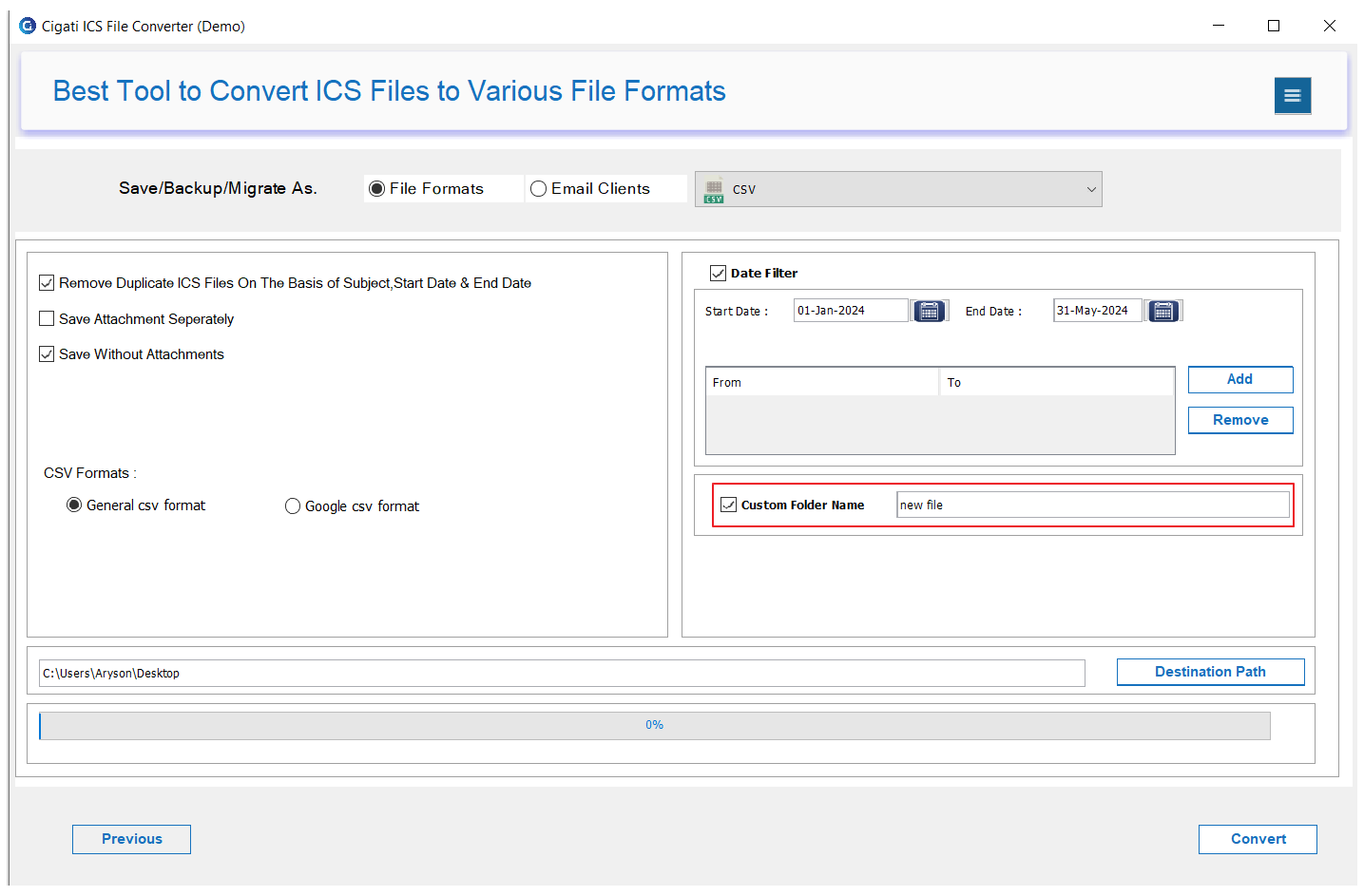
Choose CSV as the file format for saving the converted data.
Enable the Remove Duplicate ICS Files option to filter emails by Subject, Start Date, and End Date.
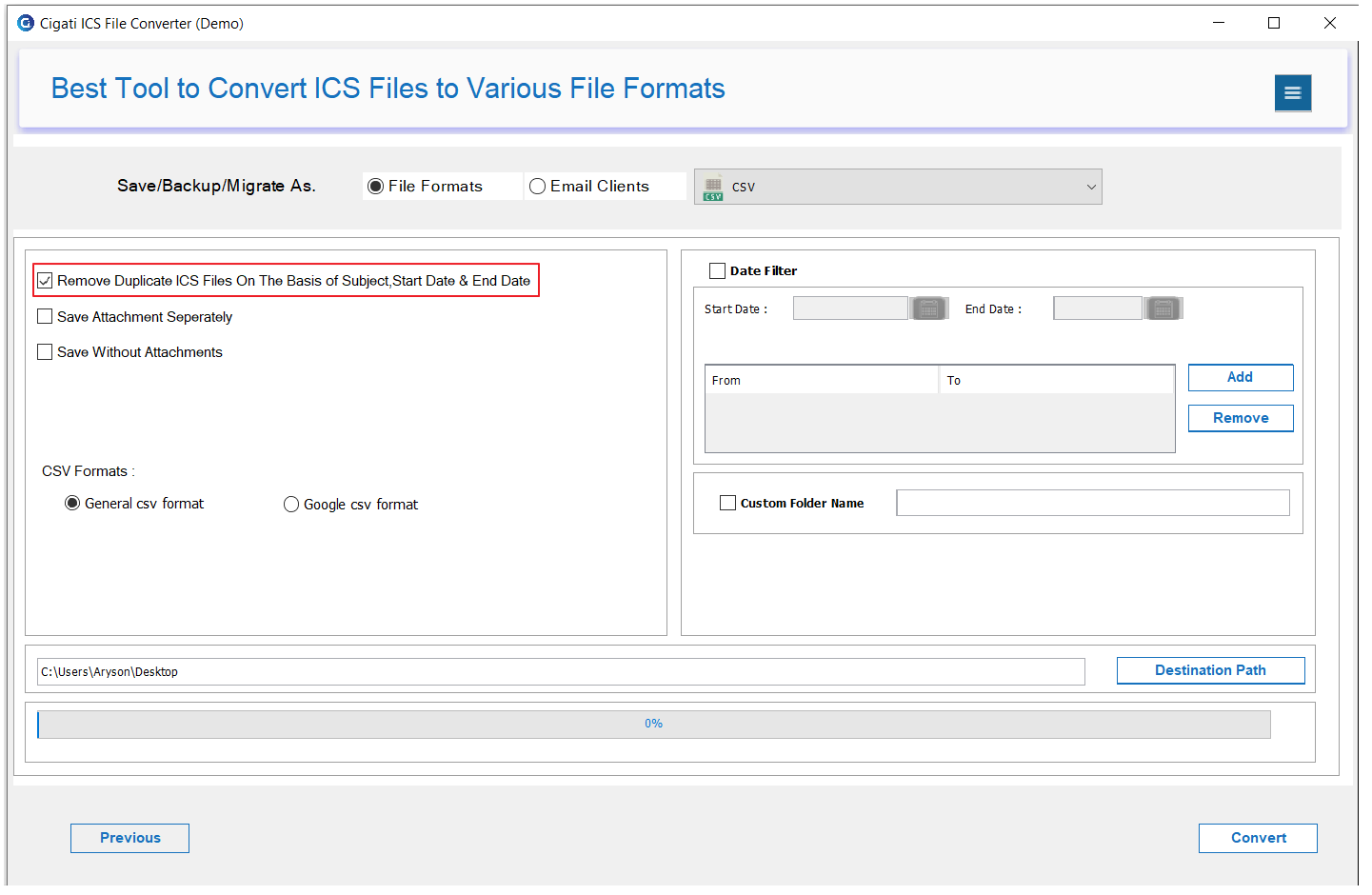
Tick the Save Attachments Separately option to store email attachments in separate folders.
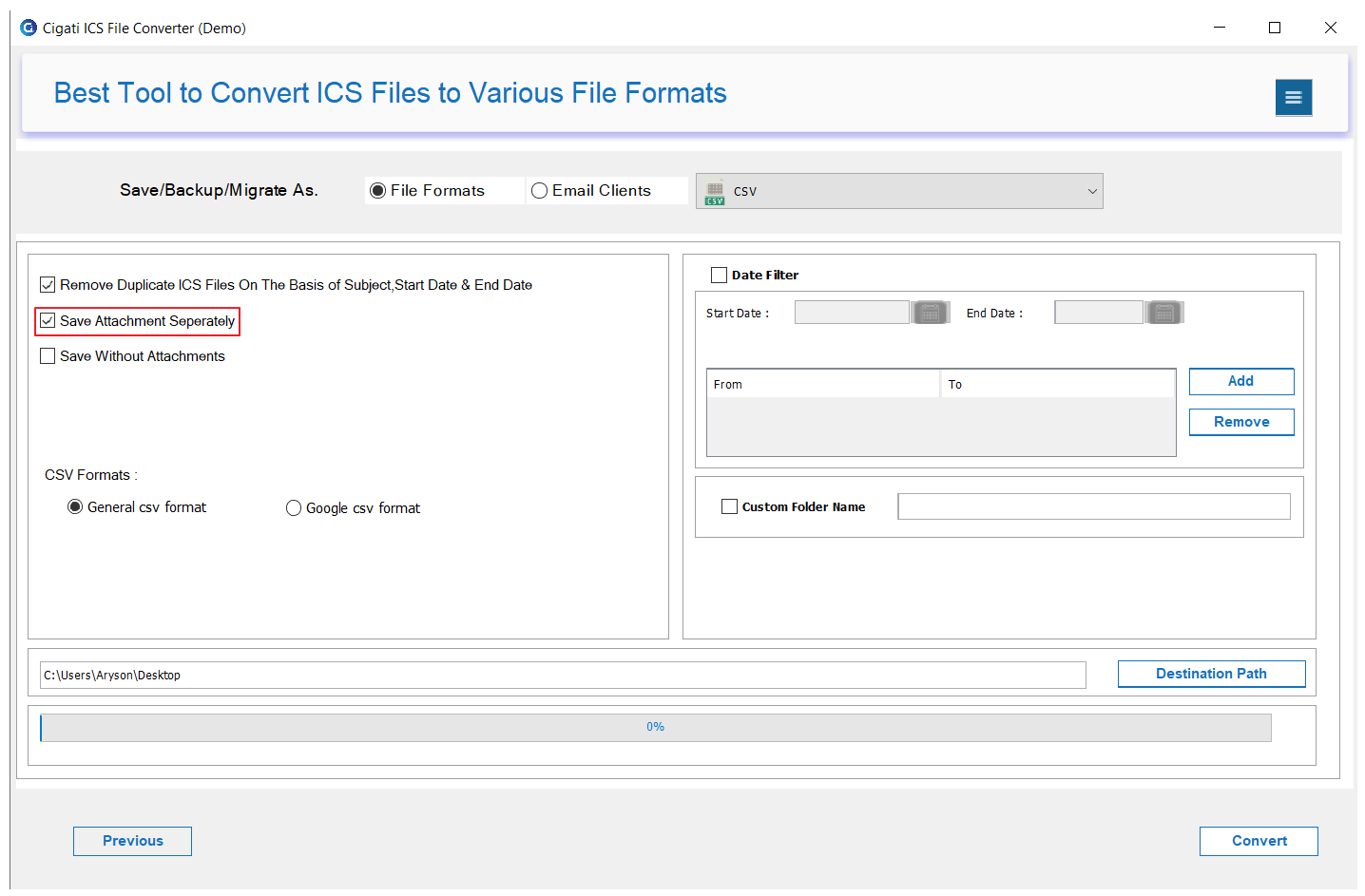
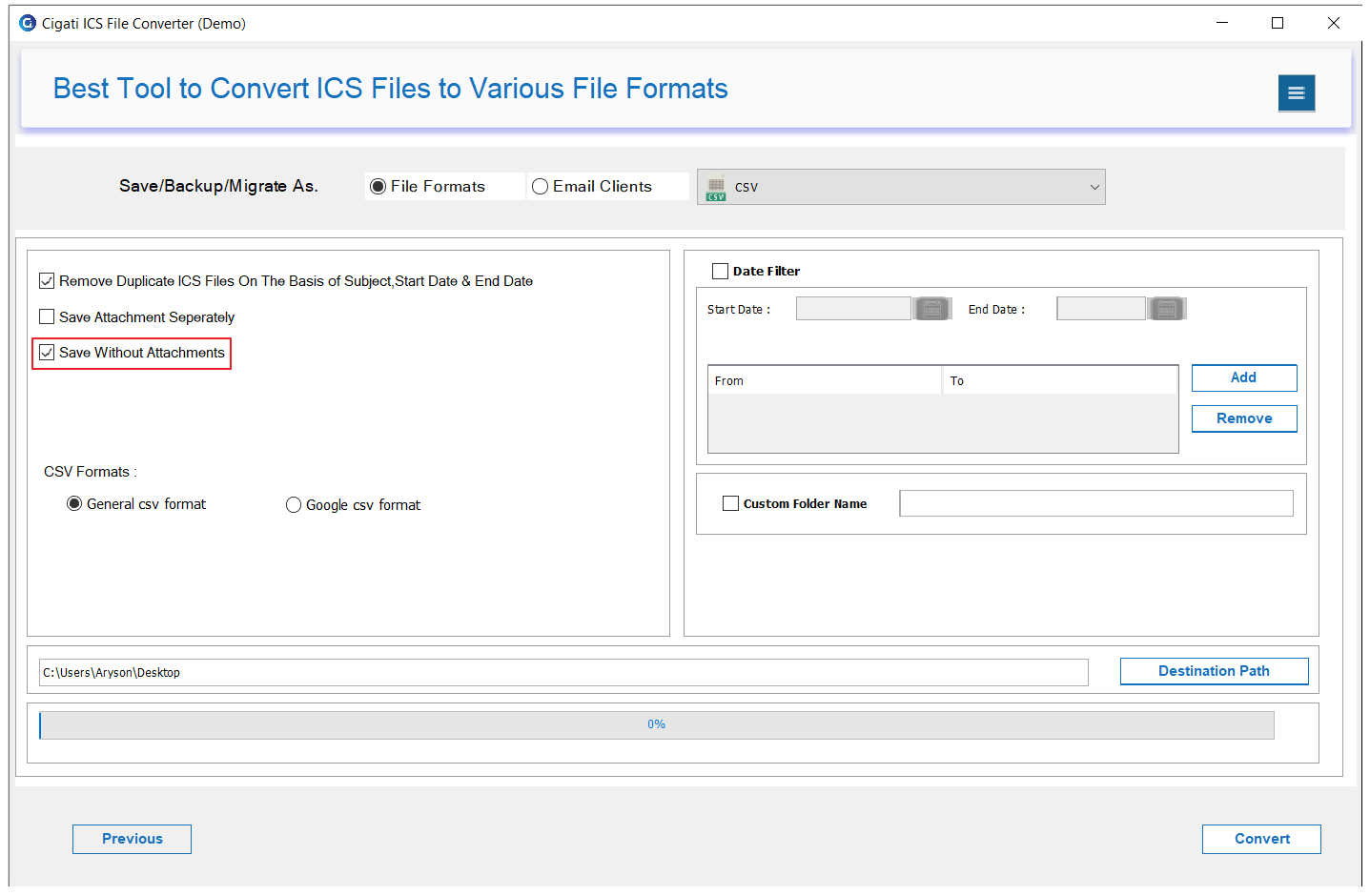
Select Save without Attachment if you wish to exclude attachments from the conversion.
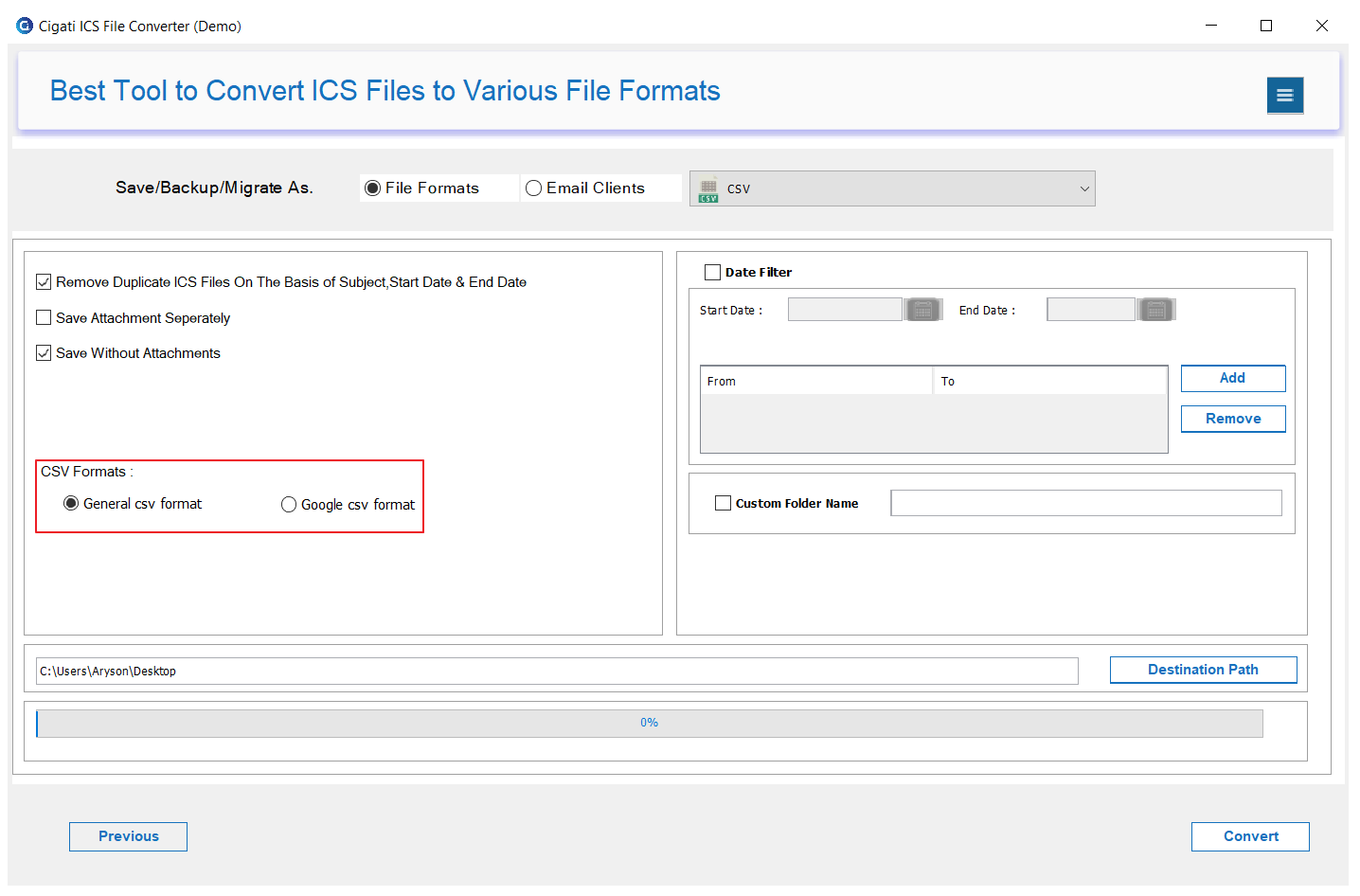
Choose the CSV format type: General CSV Format or Google CSV Format.
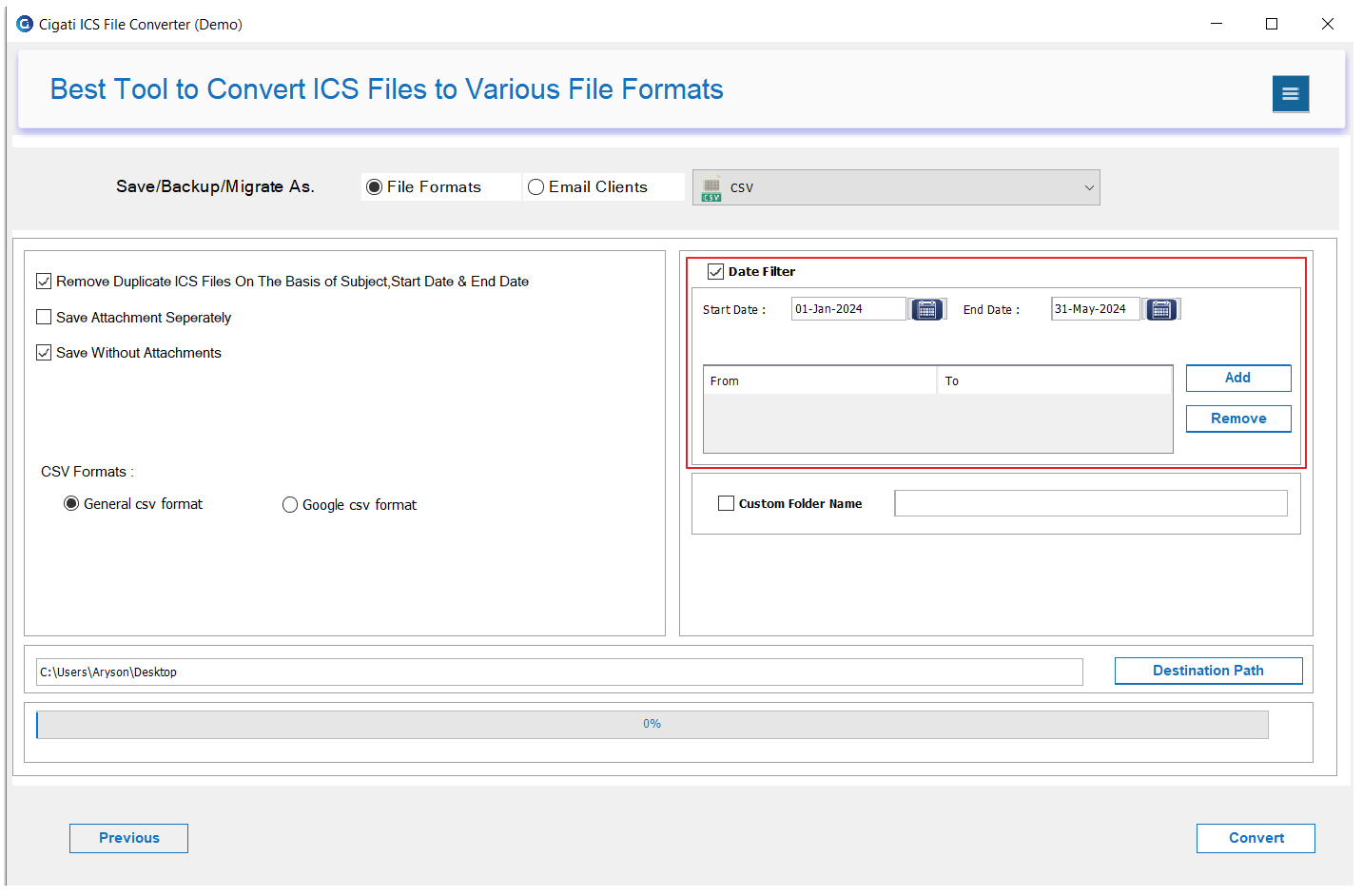
Use the Date Filter to specify a date range for selective conversion.
Utilize the Custom Folder Name option to assign a specific name to the output folder.
Set the destination for saving the output by clicking the Destination Path button.
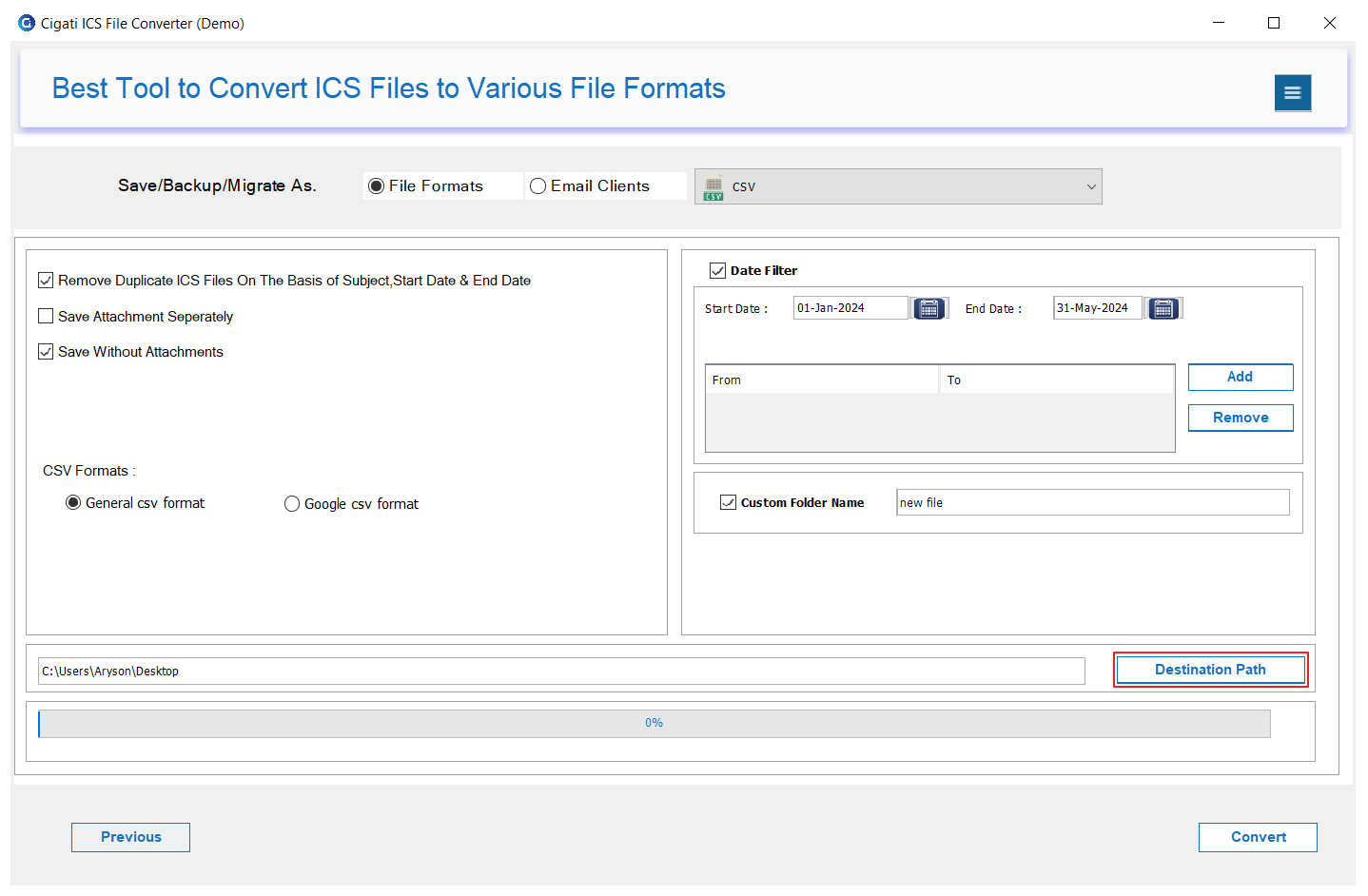
Finally, click Convert to begin the conversion process.