Cigati OneDrive Duplicate Finder & Remover

Cigati OneDrive Duplicate Finder & Remover automatically finds duplicates, manages multiple OneDrive accounts, and gives a complete storage overview.

(Average Rating 4.7 Based on 567 Reviews)

Benefits of

The Best OneDrive Duplicate Remover

  • Declutter OneDrive and optimize storage by removing duplicate files.
  • Manages files directly in the cloud, avoiding local downloads.
  • Auto Remove feature - Smart, one-click solution to declutter your storage.
  • Facilitates duplicate file removal across both personal and business accounts.
  • With Assign Impersonation, handle duplicates from multiple OneDrive accounts.
  • Displays storage summary chart featuring account details and file timestamps.
  • OneDrive Duplicate File Finder supports comprehensive scanning across all folders.
  • Advanced filtering feature to scan and display all duplicate files in OneDrive.
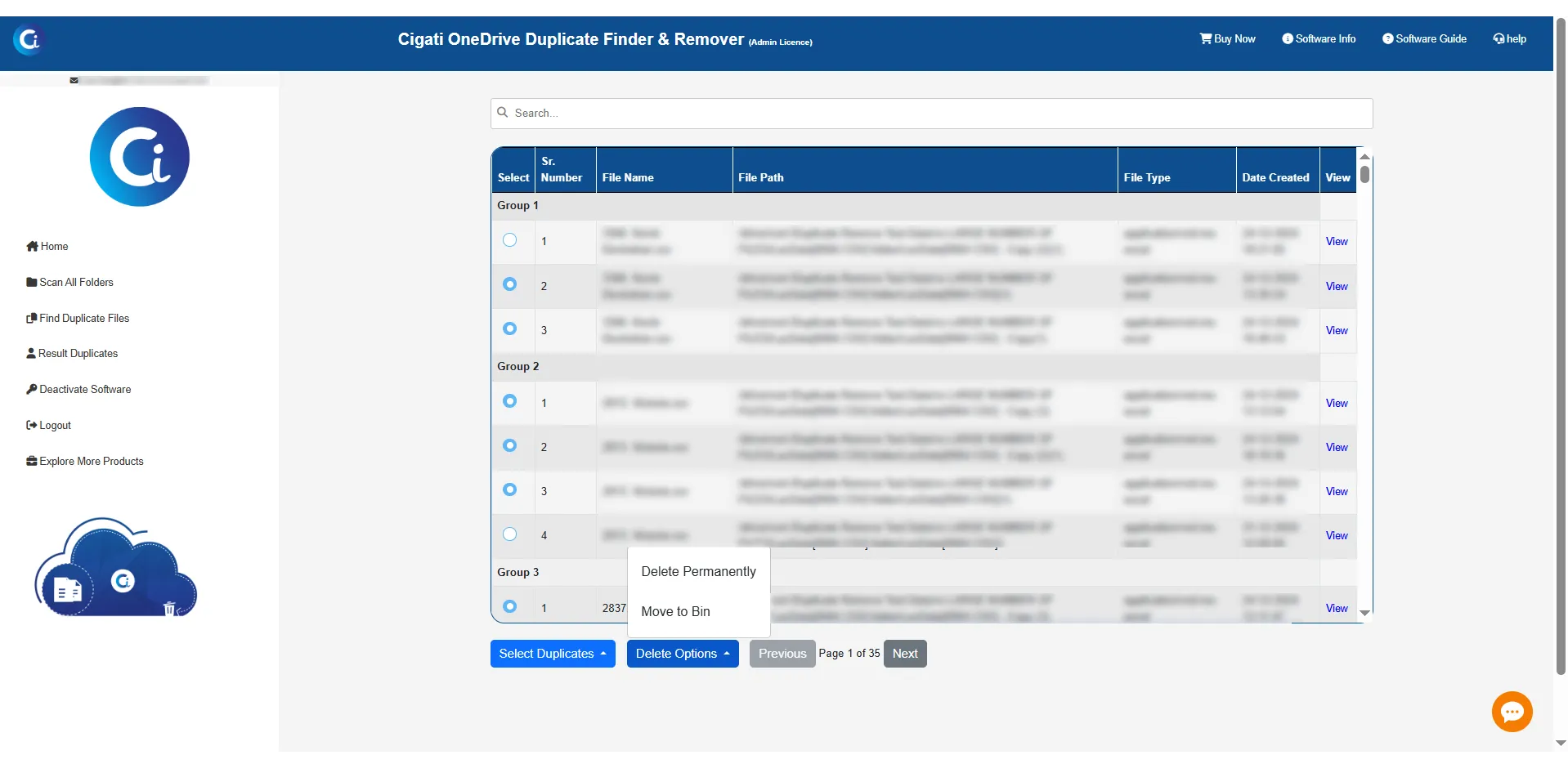
  • The View feature to preview duplicate files before deletion or move-to-bin action.
  • Supports both permanent deletion and Move to Bin to handle duplicate files.
  • Selectively remove duplicate files from the list of all identified duplicates.
benefit-img

Exclusive Features

OneDrive Duplicate Finder & Remover

Auto-Scan Duplicates in OneDrive

Auto-Scan Duplicates in OneDrive

Downloading and deleting duplicate files in OneDrive takes a lot of time. OneDrive Duplicate File Finder simplifies the process by scanning the duplicate files in the cloud once signed in to personal and business accounts. It lists all the duplicate files detected.

Handle Several OneDrive Accounts

Handle Several OneDrive Accounts

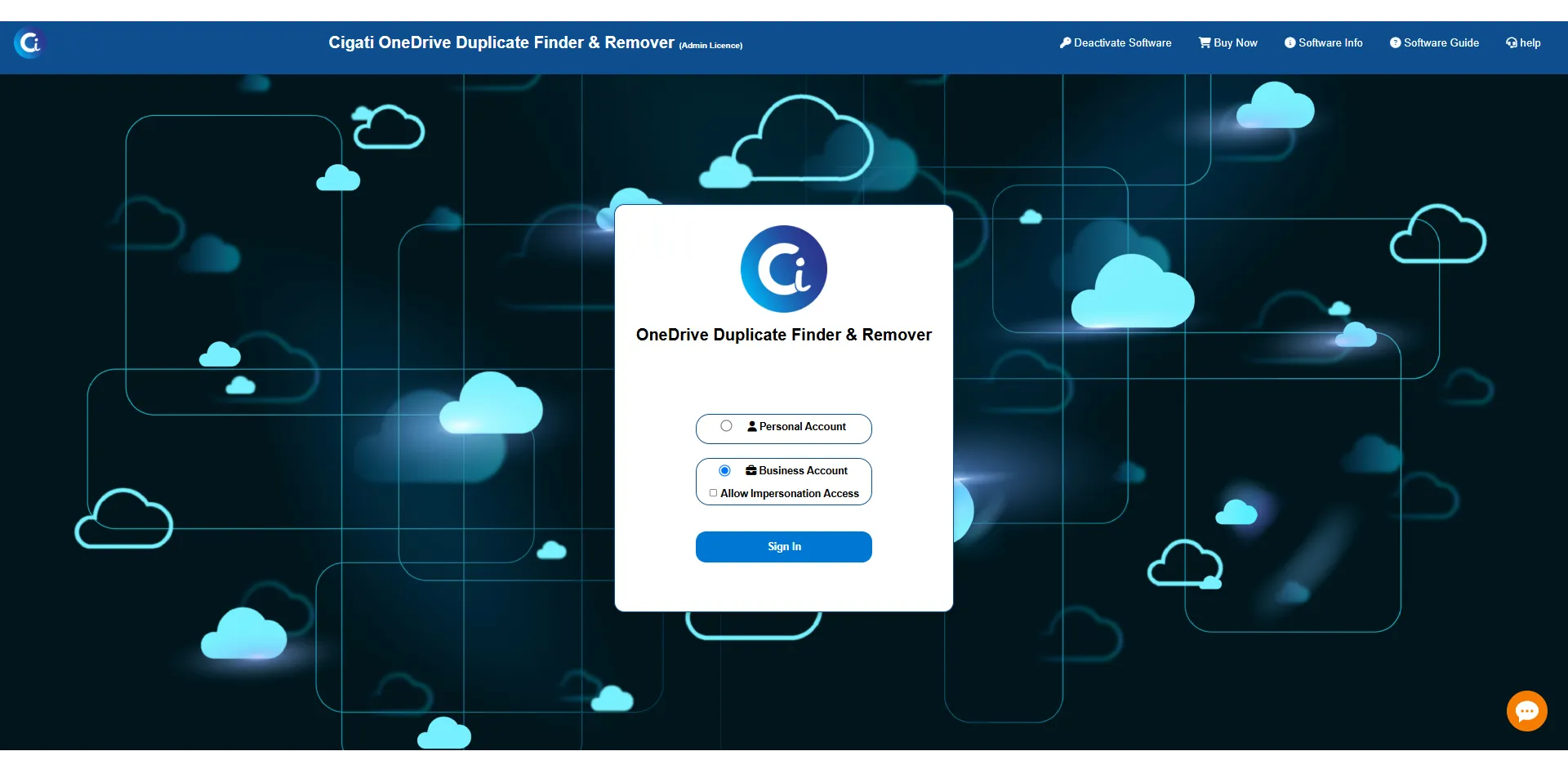
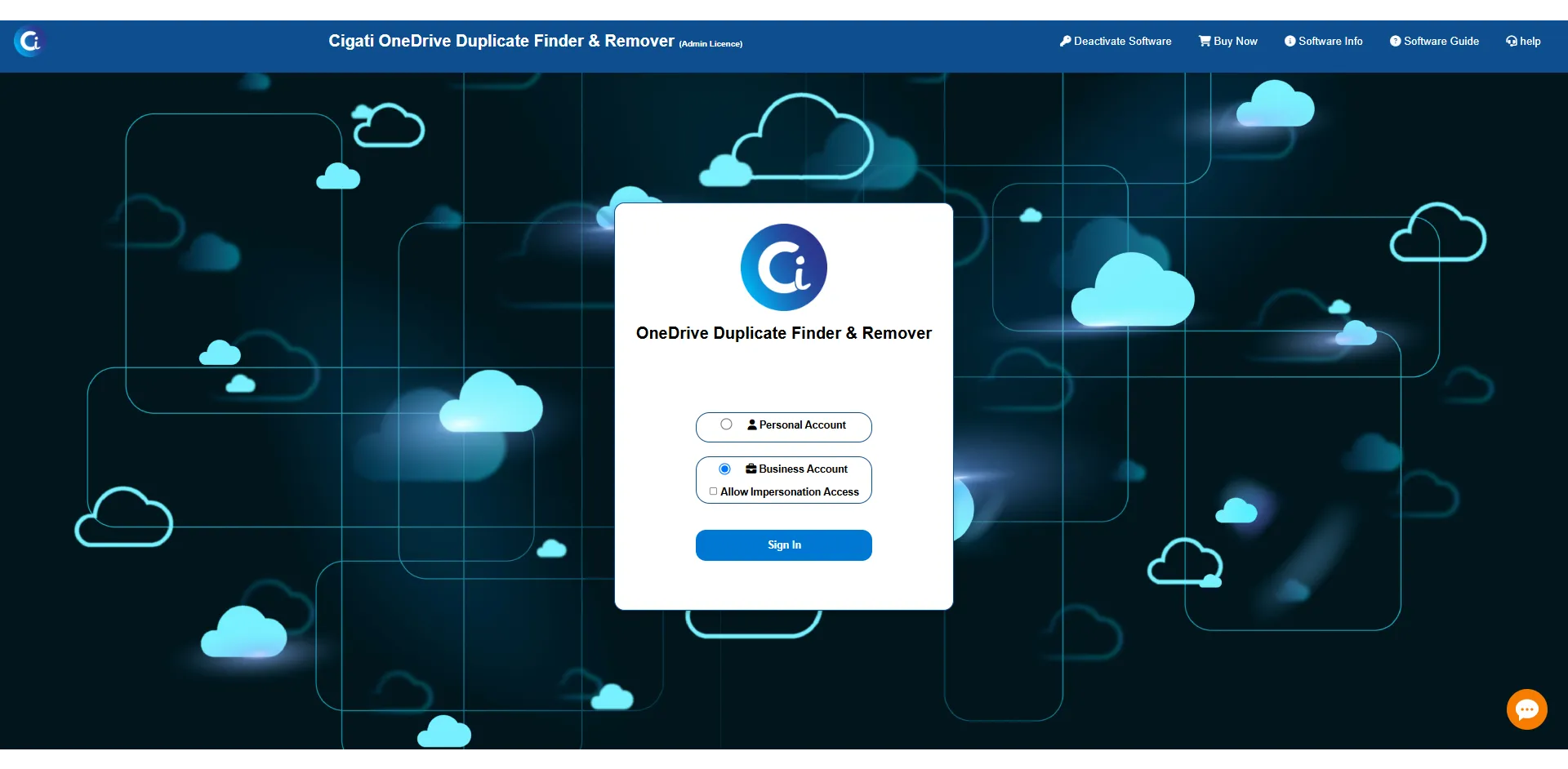
The software offers dedicated modes for both personal and business OneDrive accounts. Easily scan for duplicate files in personal accounts or multiple users via a business account. No manual methods can perform with this much flexibility.

In-Depth Scanning Process

In-Depth Scanning Process

The Duplicate File Finder for OneDrive offers advanced scanning capabilities that analyze OneDrive accounts to detect the exact and near-duplicate files. Once the scanning process is done, a list of all duplicate files across accounts is displayed to decide what to delete and what to keep.

Assign Impersonation Feature

Assign Impersonation Feature

When signed in with a business account, the OneDrive Duplicate Finder enables the Assign Impersonation feature. This grants administrative rights to manage duplicate files across multiple user profiles within a business or organizational OneDrive setup.

Hassle-Free Automatic Deletion

Hassle-Free Automatic Deletion

Automatically eliminate unnecessary duplicate files using the Duplicate File Remover, “Auto Remove” feature. The user has to Set Retention Criteria and Select Deletion Mode. Once the user sets the preferences, the tool quickly removes the duplicate files, minimizing the manual effort of scanning or reviewing them.

Handle Restricted Files with Skip Feature

Handle Restricted Files with Skip Feature

No more interruptions during the deletion operation. The “Skip Feature” efficiently deals with system-level restrictions. It automatically bypasses them, logs them for review, and pops a notification once the session gets completed. Now, the user can either delete or keep the skipped files. It ensures smooth file removal without interruptions.

Displays Summary of OneDrive Storage

Displays Summary of OneDrive Storage

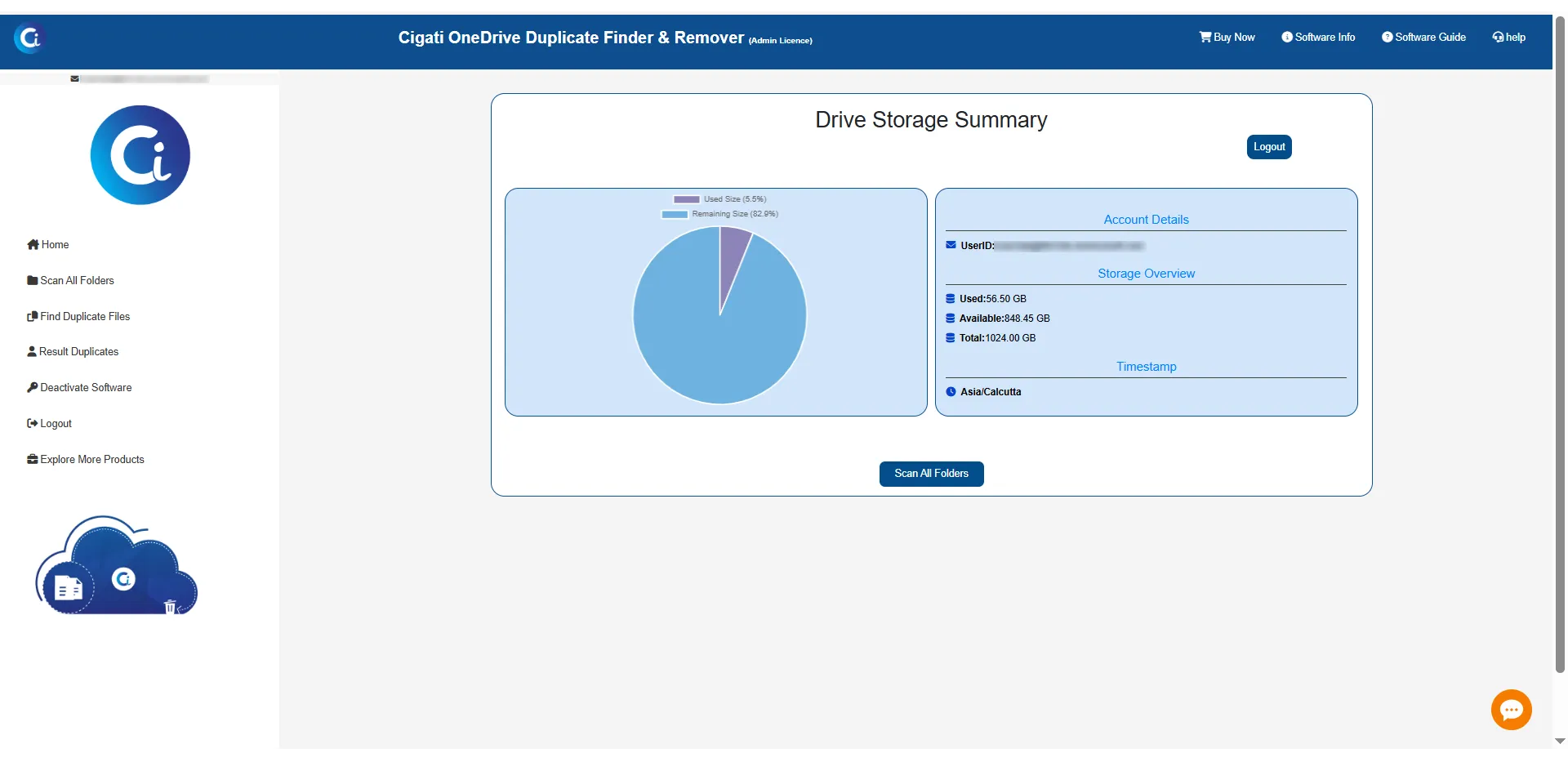
Once signed into the OneDrive account, the software generates a storage chart of OneDrive. It also presents account details, used and available space, and timestamps. This helps to evaluate the overall storage space and identify the space taken up by the duplicate files.

Delete Permanently or Move to Bin Option

Delete Permanently or Move to Bin Option

The Best OneDrive Duplicate File Remover offers two ways to manage duplicates: delete permanently or move to the bin. Delete permanently removes the duplicates forever, while the moving to the bin option lets the users restore them if required.

Compatible with Windows OS

Compatible with Windows OS

The OneDrive Duplicate File Finder and Remover is fully compatible with all versions of Windows OS. It performs reliably and runs efficiently across all Windows versions. It’s simple and easy to understand graphical interface ensures a smoother user experience.

Free OneDrive Duplicate Finder

Free OneDrive Duplicate Finder

Cigati software offers a demo version to explore its features and evaluate its core features before buying. It lets the users view duplicate files but does not support deletion and Assign Impersonation. It is made just for evaluation purposes.

Technical Specification

Software Prerequisites & Recommendations

Software Name: Cigati OneDrive Duplicate Finder and Remover
Version Support: Windows 11 & below versions
Size: 158 MB
Version: 25.11
License: S/A/T/E
Download Link: Download
box
processor-img

Processor:

Hard Disk:

Memory:

Operating System:

trial-img

Trial limitation:

The Best OneDrive Duplicate Finder and Remover Tool is an exceptional solution for efficiently finding duplicate files and removing them. This software's free or Demo trial version allows users to detect duplicate files. The only limitation is that it excludes the deletion and assign impersonation feature for a demo.

faq-img

FAQ:

Important Notice for Users with Antivirus Software

  • If you have an antivirus program installed on your system, please disable the antivirus temporarily before running the OneDrive Duplicate Remover.
  • Antivirus applications may interfere with the tool’s operations.
  • Such interference can cause unexpected slowdowns, false alerts, or interruptions in the duplicate removal process.
  • Once the duplicate removal task is completed, you may safely re-enable your antivirus protection.
  • This step ensures smooth execution and prevents unwanted hiccups during scanning and removal.

How the Tool Detects Duplicates:

Our OneDrive Duplicate Remover identifies duplicate files by checking their digital fingerprint. This means even if two files have the same name or look alike, the tool compares their unique fingerprint to confirm whether they are truly identical. This ensures accurate detection and prevents accidental removal of different files.

Comprasion Table

Table of Free And Paid Version

Software Features Free Version Full Version
Eliminates Duplicates from OneDrive Accounts Only Scan and View Duplicate Files Delete Duplicates
Duplicate File Finder for OneDrive to Detect and Preview Duplicate Files
Show Storage Summary of OneDrive Accounts
OneDrive: Find Duplicate Files from Personal and Business Accounts
Assign Impersonation Feature for Multi-user Deduplication Access Not Allowed Allowed
Permanently Delete Duplicates Only Scan and View
Move Duplicates to Bin Only Scan and View
Compatibility with Windows OS
Download and Purchase Download Purchase

FAQ

Frequently Asked Questions

Follow these steps to find and delete duplicate files:

  • First, download and install the software.
  • Open the application and choose from scanning your Personal account or Business account.
  • Then, log in using your OneDrive account credentials. Now, a screen will open up that displays your storage and account info.
  • Click on Scan Folder after reviewing the storage summary.
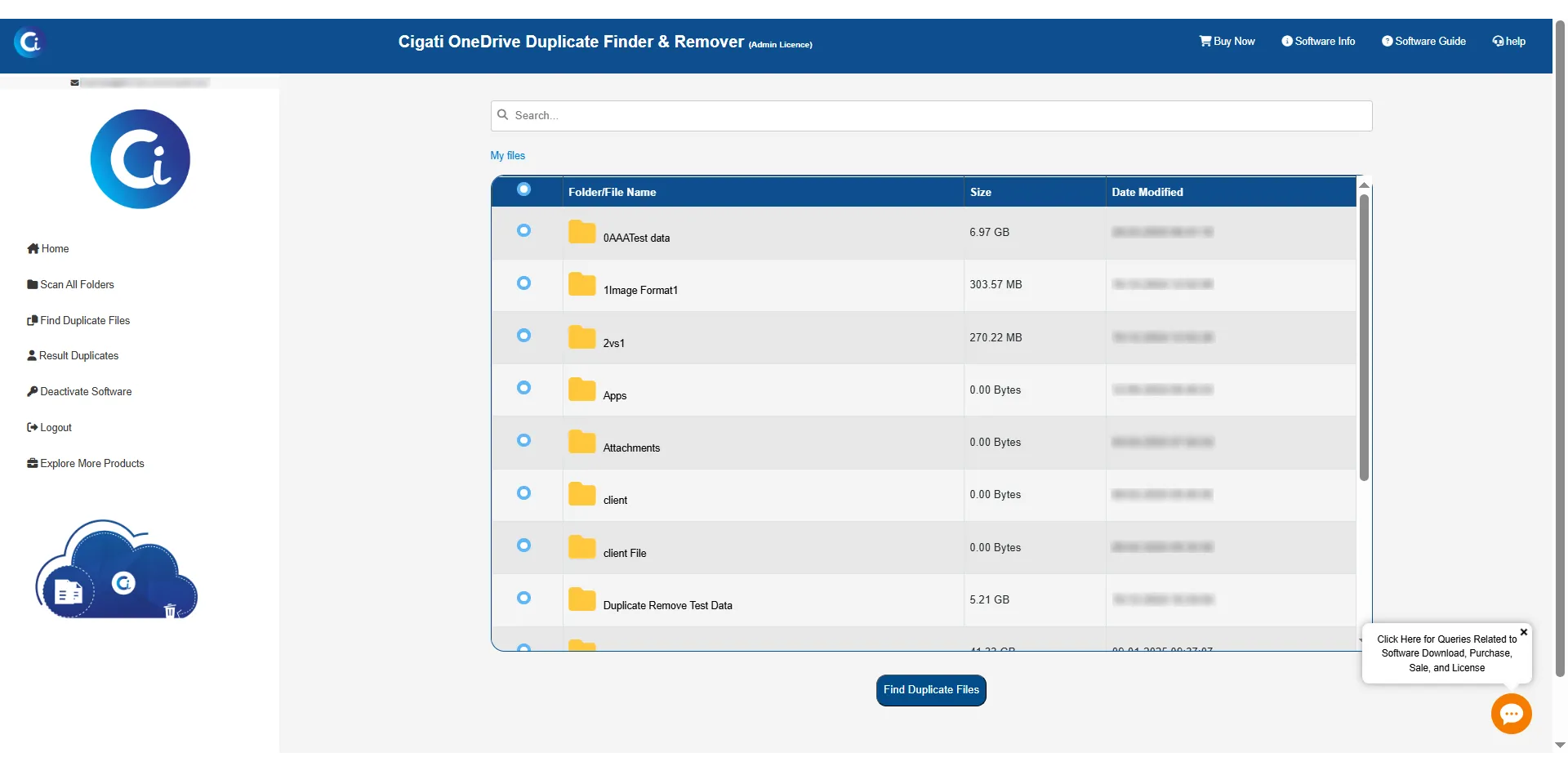
  • Pick the OneDrive folder that you want to scan for duplicates and then click Duplicate Files.
  • After the scanning process is completed, it will display the list of all the identified duplicate files.
  • You can either permanently delete them or move them to the bin to recover them later.
  • Once it is done, view the report showing deleted or moved duplicate files with the storage space status.

Manually identifying and eliminating duplicate files can be complex, time-consuming, and inefficient. Cigati OneDrive Duplicate File Finder and Remover does it easily. It allows users to access Business accounts and scan and remove duplicates with the Assign Impersonation feature.

Yes. The tool has an advanced scanning feature that automatically scans your OneDrive storage to detect duplicates. Once the scanning is done, it displays the list of identified duplicates by default. It also gives you the option of how to manage them.

No. The Cigati OneDrive Duplicate Finder & Remover is primarily designed to identify and remove only duplicate files. It does not delete any unique files, they are completely safe. Also, for safety purposes, it is recommended to move duplicates to the recycle bin instead of deleting them permanently. This allows you to recover them if they are mistakenly deleted.

The OneDrive delete duplicates software provides two ways to manage the detected duplicates: Delete Permanently or Move to Bin. The Delete Permanently option removes them entirely from OneDrive. The Move to Bin option stores them in OneDrive trash to restore them later if required.

Yes. The OneDrive Duplicate File Finder is compatible with all Windows versions, from older Windows 7 to the latest Windows 11.

The trial version of OneDrive Duplicate Finder & Remover allows users to have a basic overview of the software before buying. However, there are a few restrictions:

  • Scanning Duplicates: The demo version scans and displays the duplicate files but disables the file deletion option.
  • Assign Impersonation Feature: This functionality is excluded from the trial version and is only available in the full version.

The user must have an active account and a valid license, like Microsoft 365 E3 or E5. If they are using a third-party app, the admin needs to give permission. Also, the user must follow any security rules set by the company, like multi-factor authentication (MFA) or other login conditions.

If you are unable to log in to your OneDrive Business account, this usually means that admin consent has not been granted for the tool’s application in the Microsoft Admin Portal. For OneDrive Business accounts, Microsoft requires administrator approval before any third-party or migration-related application can access user data. To resolve this issue Go the Microsoft admin portal → Azure Active Directory (Entra ID) → Enterprise Applications or App Registrations → Locate the app "OneDrive Migration" → Grant Admin Consent. After granting admin consent retry log in.

Steps to Grant Admin Consent:

  • Sign in to the Microsoft Entra Admin Center: Visit: https://entra.microsoft.com
    Log in with an administrator account (Global Administrator, Cloud Application Administrator, or Privileged Role Administrator).
  • Open Enterprise Applications: From the left navigation menu, go to: Identity → Enterprise applications
  • Select the Application: Click All applications -> Search for OneDrive Migration -> Click on the application name
  • Review API Permissions: In the left panel, select Permissions -> Review the requested Microsoft Graph permissions
  • Grant Admin Consent: Click Grant admin consent for "Your Organization Name" -> Confirm by clicking Yes
  • Verify Status: After successful approval refresh the page, the permission status will display:
    Granted for "Your Organization Name"

Client Review

A Glimpse into Client Experiences

Thousands of satisfied customers have chosen our software and praised its reliability and performance. They have shared positive stories about how the OneDrive Duplicate File Finder and Remover has helped them manage their files efficiently.

Cigati’s OneDrive Duplicate Finder has made the whole cleanup process effortless and accurate. The scan results were accurate, and the interface was easy to navigate. One of the best features is the flexibility to either delete the duplicates or move them to the bin to recover them later if needed.

Emiley J | Mexico

As an IT admin, I was amazed by the Assign Impersonation feature. Within a few minutes, the OneDrive Duplicate Finder and Remover scanned my entire OneDrive and displayed a list of all the detected duplicate files. It has helped me free up my storage space by deleting them in bulk.

Luca Carter | Russia

The preview before deleting duplicate files was a lifesaver in Cigati OneDrive Duplicate File Remover. I had full control over everything. From deleting the file permanently to moving them to the bin for later review, this has helped me prevent the deletion of duplicate files by mistake.

Sophia H | UK