Benefits of
| Source | Destination | Account Types |
|---|---|---|
| OneDrive Personal Account | OneDrive Account | Both Personal & Business Accounts |
| OneDrive for Business | Google Drive Account | |
| OneDrive Tenant Account | Local Drive |
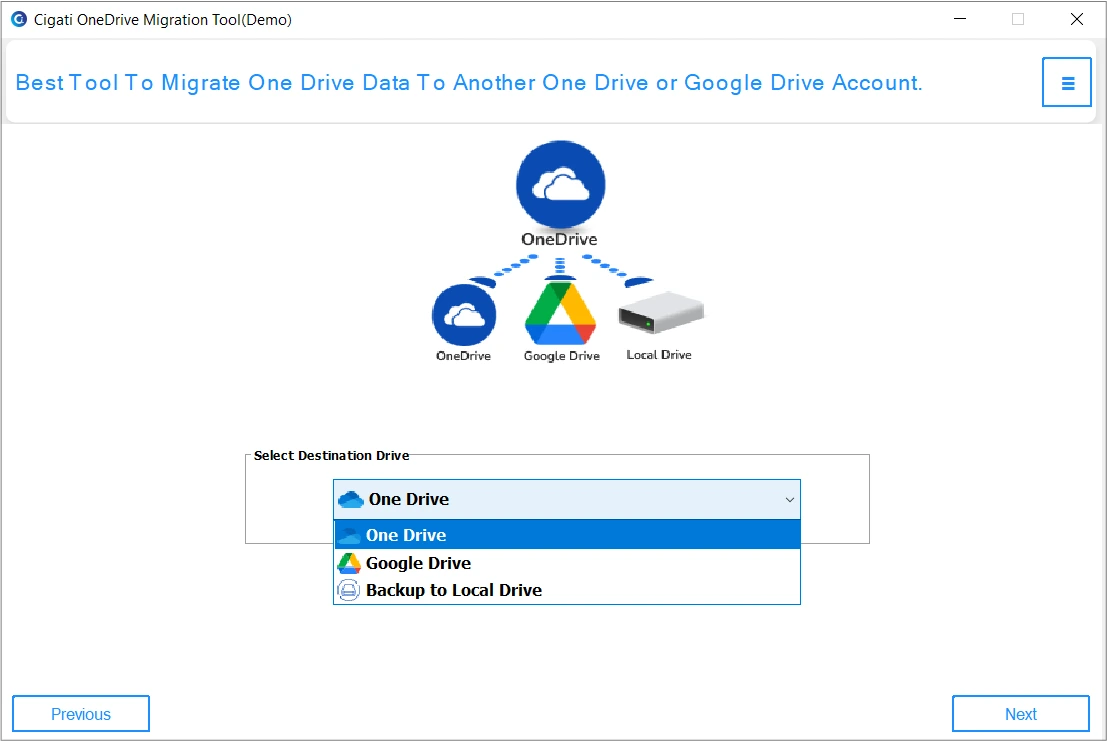
Note: It's important to log in to both Source & Destination accounts (OneDrive & Google Drive) on your default browser.
Significant Features of
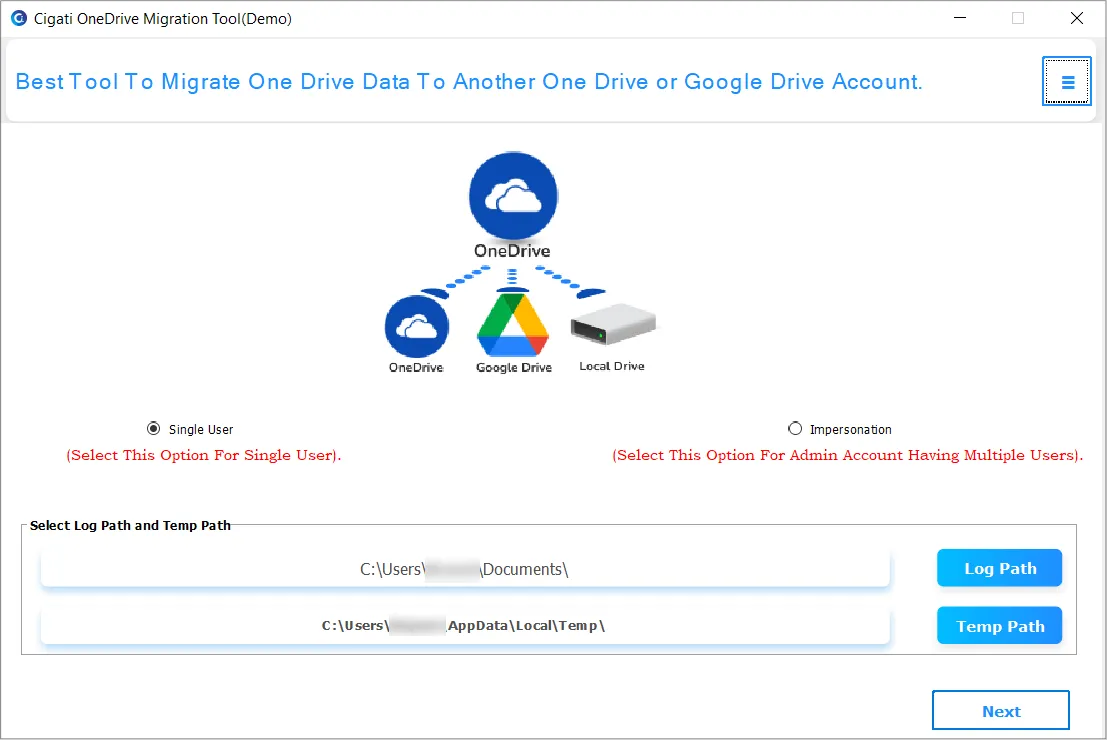
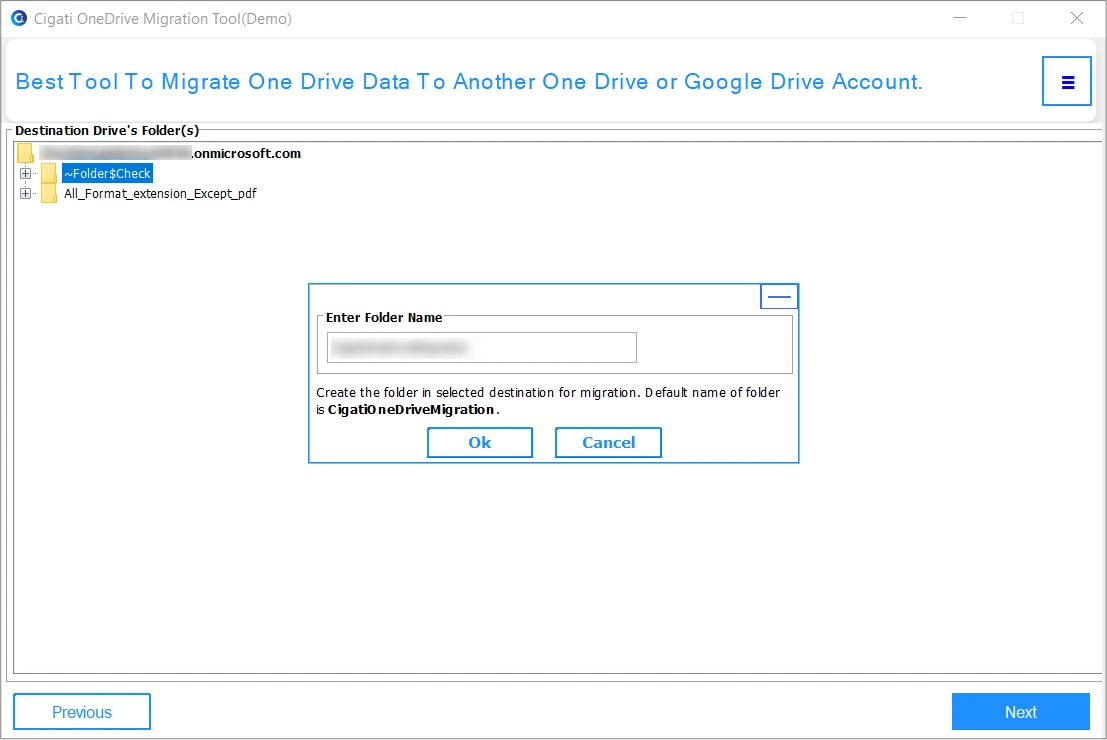
OneDrive Migrator lets users easily transfer files and folders between OneDrive accounts. The software ensures a smooth and hassle-free migration, ensuring all file structure and folder hierarchy are preserved. Moreover, supports both OneDrive Personal and Business accounts data migration.
With the Cigati software, users can also migrate OneDrive files directly to Google Drive. This includes data saved in documents, photos, videos, audio, and email file formats. The software maintains data accuracy, permissions, and structure, ensuring a safe and efficient cloud-to-cloud migration.
Especially designed for IT admins and business users, this multi-user migration tool allows you to migrate multiple OneDrive accounts sequentially. Whether you manage sub-user or admin accounts, the software streamlines the entire process efficiently. Moreover, the processing speed remains unaffected.
Cigati OneDrive for Business Migration Tool supports both Personal and Business OneDrive accounts. Hence, users can migrate from OneDrive Personal to Business, or vice versa, without any manual configuration. It’s an ideal solution for individuals and organizations upgrading or consolidating their OneDrive accounts.
Besides migrating OneDrive data to other drives, this software also works for local backup. It lets you download and backup OneDrive data to local storage, including your PC, external drive, or any custom path. This ensures your data is more secure, having an offline copy of important files.
![]()
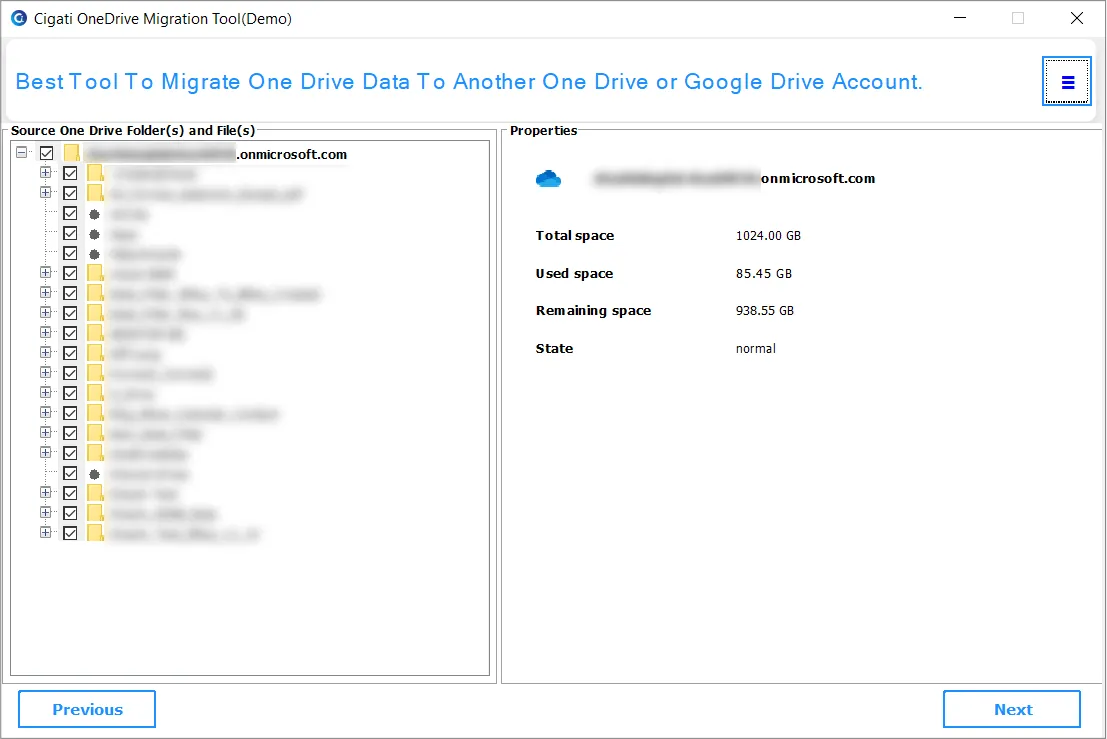
Once you have configured your OneDrive account, the OneDrive Data Migration Tool scans your OneDrive account. It displays all data in a clear tree-structure view. This allows users to preview folders and files before migration, ensuring complete transparency and control over the data transfer.
The Cigati OneDrive Migration Tool offers an advanced Full Scan (Eager loading)and Quick Start (Lazy loading) option to fetch and display your complete OneDrive folder structure in real time. Users can instantly preview files and folders, navigate smoothly through data. You can thus verify content before starting the migration in depth and ensure a faster workflow.
If you need to migrate only certain file types, the software lets you do that, too. The tool includes a Select File Extension feature that allows you to filter and migrate files by extension (like .pdf, .docx, .pst, etc.) from OneDrive. You can enter multiple extensions separated by commas, then click Add Extension. This saves time and space by excluding unnecessary data.
The Select Date(s) filter lets you migrate OneDrive files based on a specific time period. You can choose files using either Created Date (created within a selected date range) or Modified Date (updated within a selected date range). Simply select a Start Date and End Date, click Add Date, and the tool will list your applied date filters. You can also remove individual dates or clear all dates anytime.
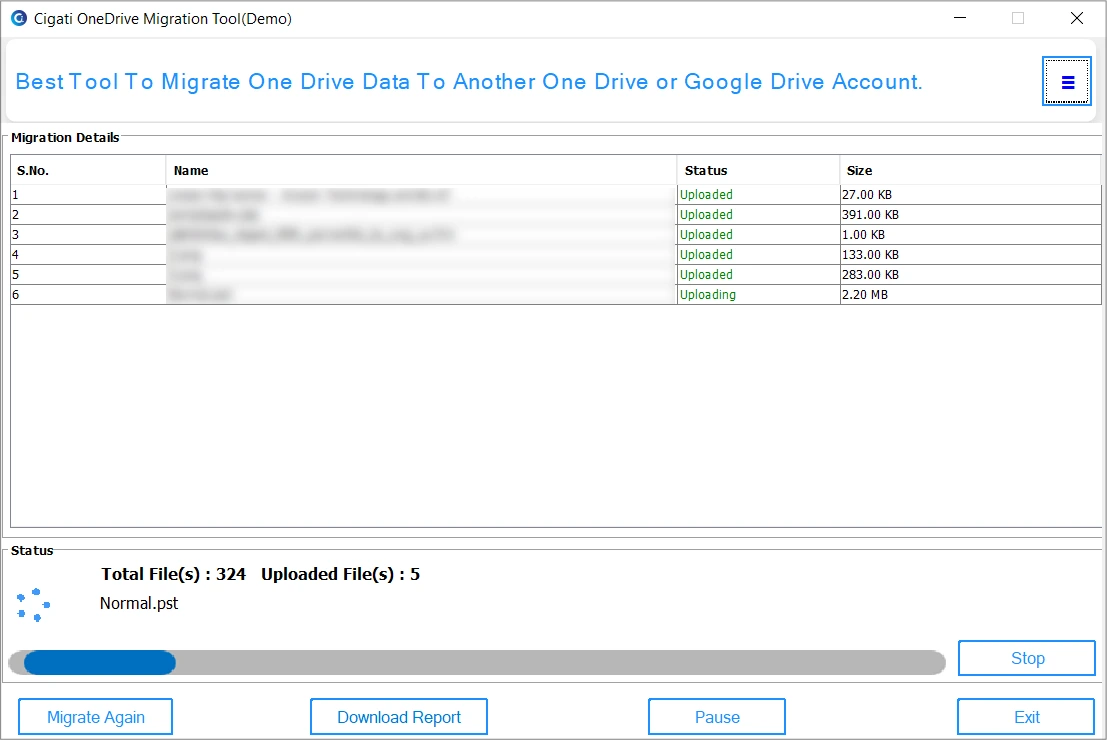
If duplicates are cluttering important space, choose to avoid migrating them. Microsoft OneDrive Migration Tool includes smart handling options such as Allow Duplicate Files, which lets you migrate data even if the same files already exist at the destination, and unselect the option to prevent duplicates. Skip 0 KB Files lets you automatically ignore empty files to improve migration speed.
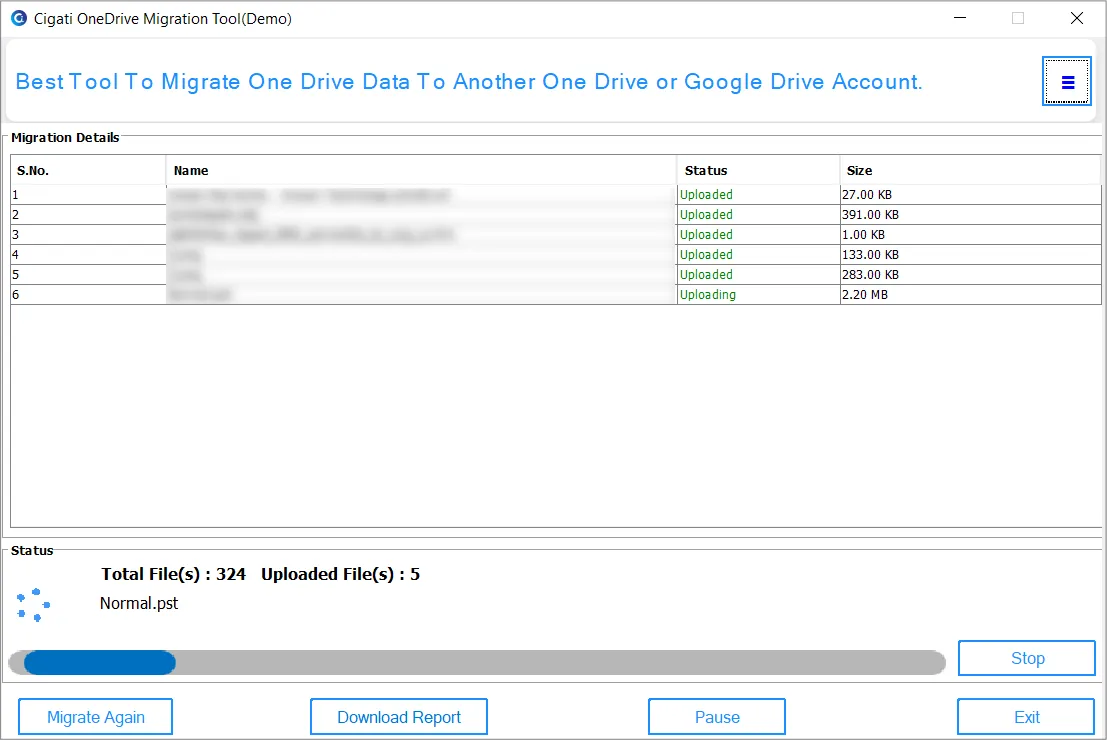
There are additional migration filters, like Skip Previous Migration, that prevent re-transferring files that have already been migrated earlier. Other features include Free Up Server Space, which automatically clears processed data from the server after successful migration to maintain optimal performance and storage efficiency.
![]()
The software is highly compatible with all versions of macOS. You can run the software at the same processing speed on all versions, including the latest version, macOS 26 Tahoe. Moreover, it has a user-friendly GUI, which is why all users, are tech-savvy or a newbie, can operate it smoothly.
Technical Specification
| Software Name: | Cigati OneDrive Migration Tool |
| Version Support: | Window 11 and its below version |
| Size: | Size 144 MB |
| Version: | 25.12 |
| License: | S/A/T/E |
| Download Link: | Download |
Processor:
Hard Disk:
Memory:
Operating System:
Trial limitation:
The Cigati OneDrive Migration Tool is an all-in-one solution to transfer OneDrive data files, including documents, images, and videos, accurately. Download the free demo version to explore all its features. It allows migration or download of files up to 20MB only. To migrate larger files or complete data, simply upgrade to the licensed version for unrestricted access.
FAQ:
Comprasion Table
| Software Features | Free Version | Full Version |
|---|---|---|
| Securely transfer OneDrive Data Files such as audio, videos, files, PDFs, etc. | File Size up to 20 MB | No Limit |
| Migrate OneDrive to Another OneDrive Account | File Size up to 20 MB | No Limit |
| Migrate OneDrive for personal to OneDrive for Business Account | File Size up to 20 MB | No Limit |
| Allows OneDrive for Business to OneDrive Personal Account | File Size up to 20 MB | No Limit |
| Transfer OneDrive to Google Drive | File Size up to 20 MB | No Limit |
| Backup OneDrive Storage to Local Storage | File Size up to 20 MB | No Limit |
| Open and visit the source file path from the software interface | ||
| See OneDrive data and source account details | ||
| Date Range Filter for selective file transfer | ||
| Migrate or backup only selected file extensions | ||
| Allow or prevent duplicate emails | ||
| Skip 0 KB files | ||
| 24*7 Tech Support & 100% Secure | ||
| High Compatibility with all Windows Versions | ||
| Download and Purchase | Download | Purchase |
FAQ
Follow the quick procedure to migrate data from the OneDrive account:
Full Scan and Quick Start are two data loading modes designed for different migration needs:
This usually does not happen, but if you are facing such a problem, try using Full Scan loading. It thoroughly scans your OneDrive account and makes sure all data is visible.
Hence, you can safely resume your migration without any risk of duplication or data loss.