-
Written By Rohit Singh
-
Updated on August 13th, 2026
Import PST File to Shared Mailbox Office 365 [Easy Method]
Fact-checked and reviewed in accordance with our
Editorial Policy
| User Query: I’m an IT administrator responsible for migrating old Outlook PST archives into Shared Mailboxes in Microsoft 365. I need a solution that supports bulk migration, preserves folder structure, and avoids duplicate emails. Is Microsoft Purview enough for this, or should I use a third-party migration tool? |
Microsoft 365 Shared Mailboxes let teams manage & view emails from one common mailbox without needing separate login details. Many organizations, including enterprises, store important emails in PST files that must be moved into a shared mailbox for proper communication & record keeping. Native method take a lot of time and need the correct permissions. This article explains how to import PST to Shared Mailbox using the free conventional method or the Cigati PST to Office 365 Migration Tool, ensuring zero data loss.
When Should You Import PST to Office 365 shared mailbox?
- Centralizing team communication: Departments often import PST files when multiple employees need shared access to the same historical emails.
- Onboarding new shared mailbox setups: Newly created shared mailboxes require imported PST data to reflect prior communication history.
- Meeting compliance or audit requirements: Regulatory reviews may require archived PST data to be accessible within a centralized shared mailbox.
- Consolidating data after offboarding: Departing employee mailbox data is frequently imported into a shared mailbox to retain institutional knowledge.
- Migrating from individual to shared workflows: Organizations shifting from individual mailboxes to shared collaboration often import existing PST archives during this transition.
How to Import PST to Shared Mailbox?
There are three reliable ways to transfer the PST to Shared Mailbox Office 365, depending on your technical expertise & your migration requirements.
- Microsoft Outlook for individual users with Full Access permission to the shared mailbox.
- Using Microsoft Purview (Network Upload) for administrators performing enterprise or bulk PST imports.
- Using the PST to Office 365 Migration Tool for individuals & businesses that need a faster migration with zero data loss and advanced features.
The following sections explain each method step by step.
Way 01: Import PST to Shared Mailbox Using Microsoft Outlook
This approach is suitable for users who want to transfer a single PST file into an Office 365 Shared Mailbox. Before you start, ensure your Microsoft 365 account has Full Access permission to the shared mailbox.
- First, open MS Outlook & sign in to your Microsoft 365 account.
- Next, verify that the Shared Mailbox is added to your Outlook profile. If it doesn’t appear automatically, add it manually by navigating to File >> Account Settings >> Change >> More Settings >> Advanced >> Add.
- After that, click File >> Open & Export >> Import/Export.
- Then, select Import from another program or file and tap Next.
- Now, choose Outlook Data File (.pst) & browse to select the PST file you want to import.
- After selecting the file, choose Import items into the current folder or complete the import into your Outlook profile.
- Once the import is complete, drag & drop or move the imported folders and emails from the PST into the target Shared Mailbox.
- Finally, wait for Outlook to synchronize all mailbox data with Microsoft 365.
Once the sync is complete, verify that all emails and folders have been successfully imported into the Shared Mailbox.
Way 2: Import PST to Shared Mailbox Office 365 Using Microsoft Purview (Network Upload)
This method is recommended for Microsoft 365 administrators who need to import one or multiple PST files into shared mailboxes across an organization.
- First, sign in to the Microsoft Purview compliance portal using an administrator account.
- Next, navigate to Solutions > Data lifecycle management > Import (or the relevant Import section based on your Microsoft 365 tenant).
- Then, create a new PST Import Job.
- After that, download and install the AzCopy utility provided by Microsoft.
- Now, upload the PST files to the temporary Azure Storage location generated during the import job.
- Next, download the sample CSV mapping file and update it with required details such as:
- PST file path
- Target Shared Mailbox email address
- Import settings
- After completing this, upload the updated CSV mapping file to the Import Job.
- Then, validate the mapping file and start the import process.
- Finally, monitor the import status from the Microsoft Purview portal until the job is successfully completed.
Drawbacks of the Manual Methods:
- Outlook requires Full Access permission to the Shared Mailbox.
- MS Outlook cannot directly import PST files into a Shared Mailbox; mailbox items must be moved manually after import.
- Microsoft Purview requires administrator privileges and technical knowledge.
- Network upload involves multiple steps, including AzCopy and CSV mapping.
- Large PST files can significantly increase import time.
- There is a higher chance of interruptions during manual migration.
- Neither method offers advanced options like duplicate removal, date filters, or selective folder migration.
Way 03: Expert Solution to Import PST to Shared Mailbox
Cigati PST to Office 365 Migration Tool makes it easy to upload PST files directly into a shared mailbox in Office 365. It can move multiple PST files at once and helps avoid duplicate emails during the transfer. The tool also supports mail filtering so users can migrate only selected data. It works smoothly on both old and new Windows operating systems.
Quick Steps to Upload PST to Office 365 Shared Mailbox:
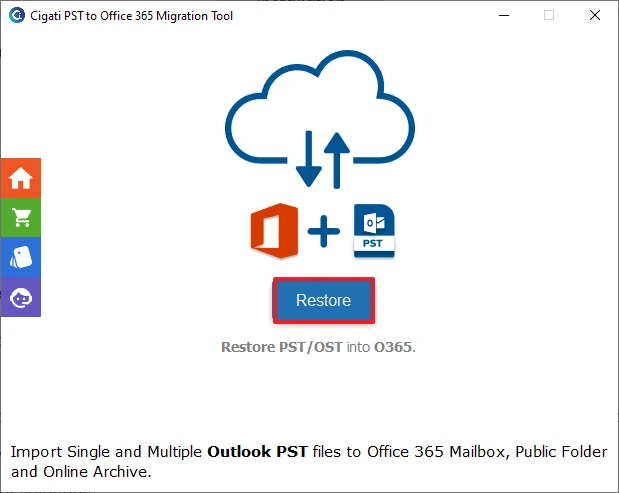
- Download & launch the PST to Office 365 Migration Tool on your computer >> tap Restore.
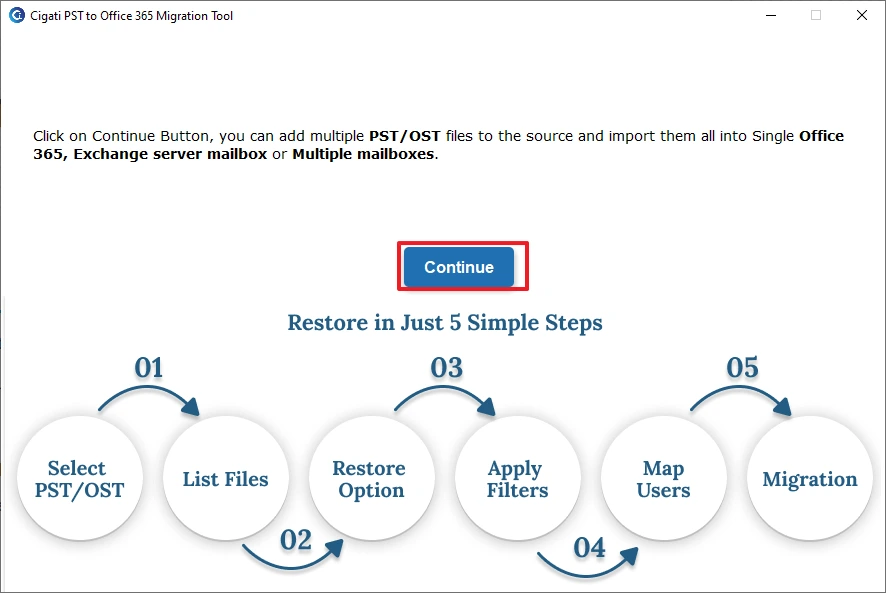
- After that, click on the Continue to proceed further.
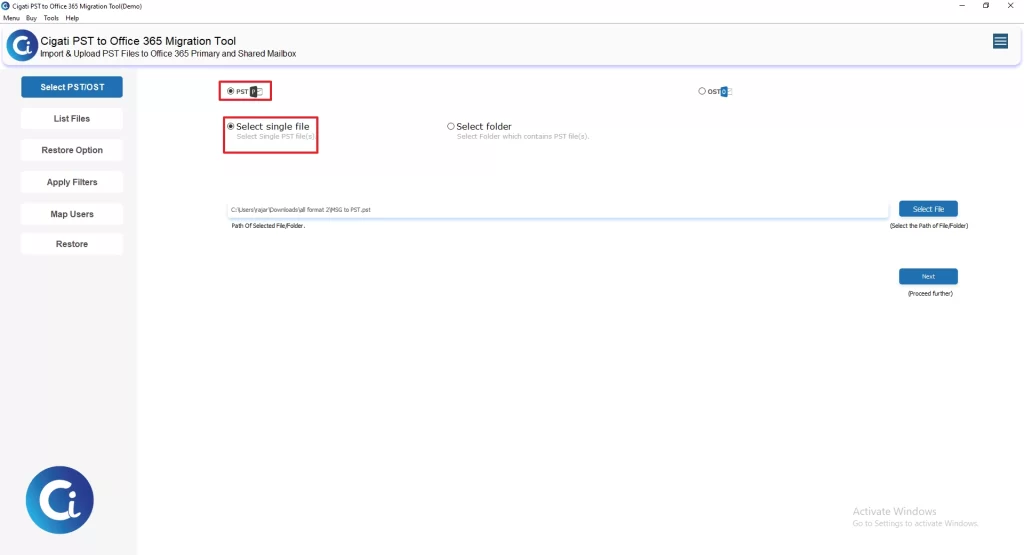
- Then, choose PST and select either Select Single File or Select Folder based on your requirement >> Next.
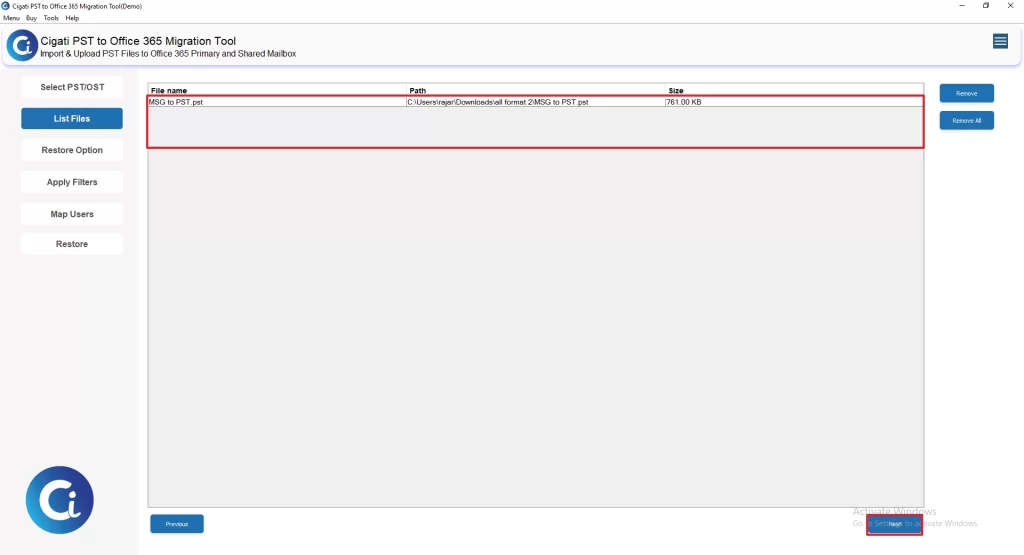
- Review the added PST file(s), verify the file details >> tap Next to continue.
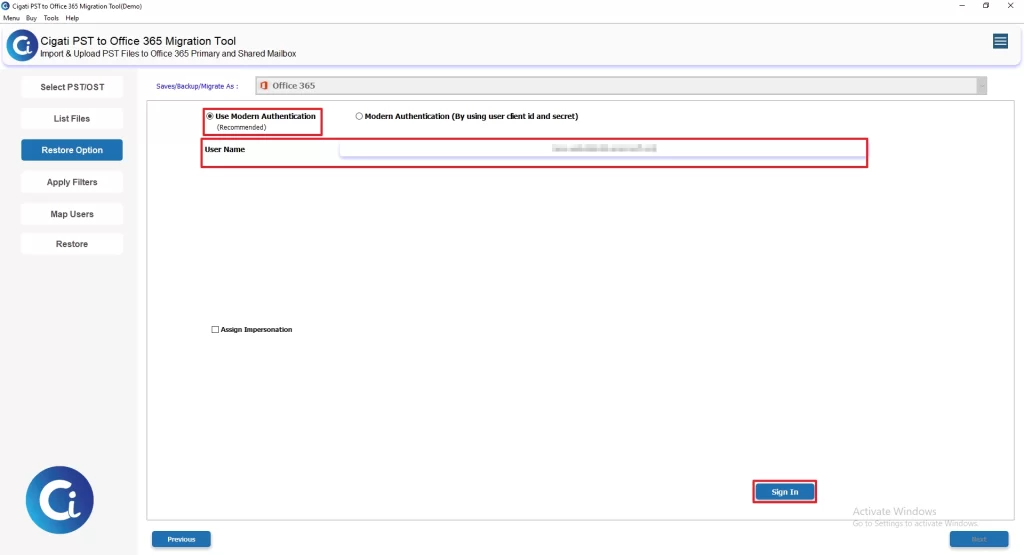
- Then, provide Office 365 credentials to sign in.
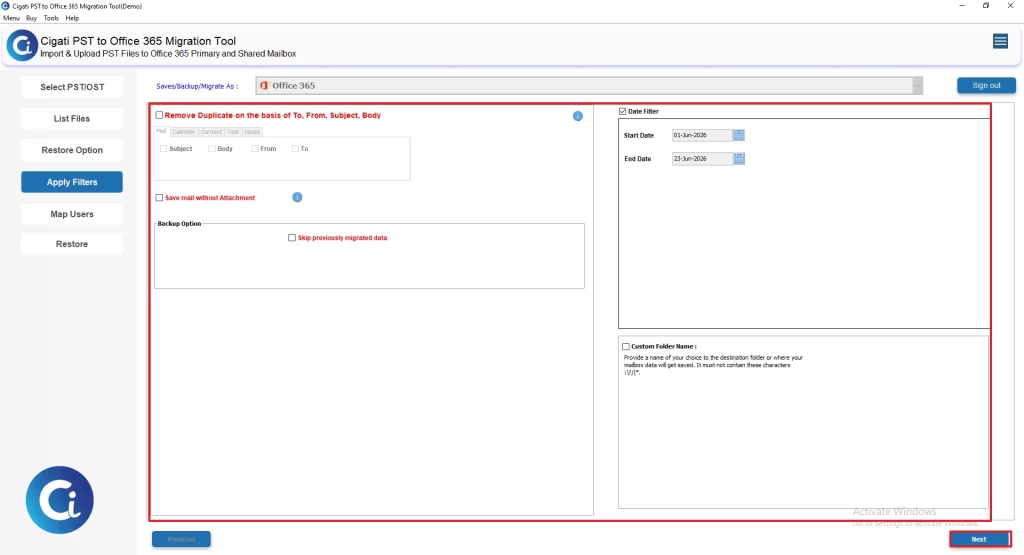
- Now apply filters/features of your choice and click on Next.
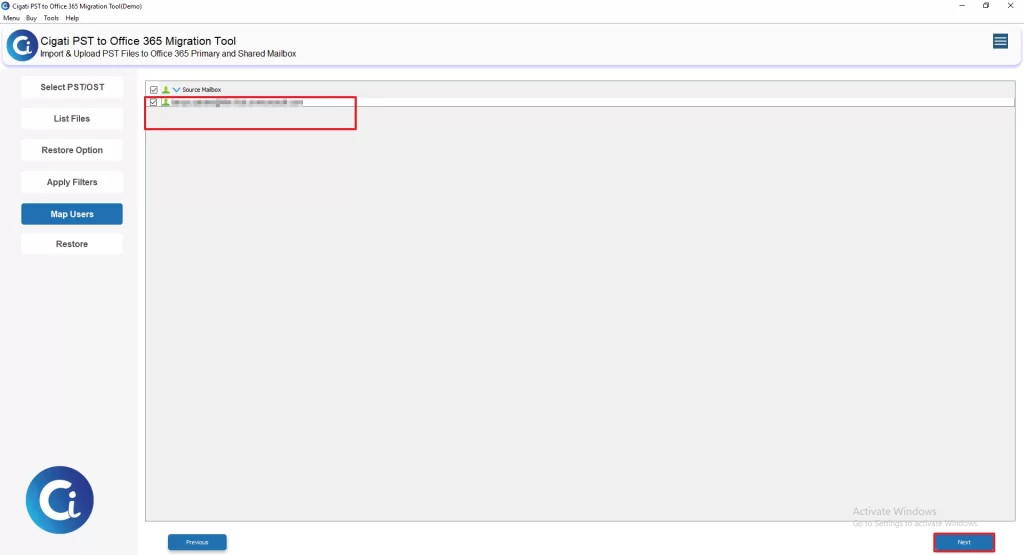
- Select the destination Office 365 Shared Mailbox, then press Next to Proceed.
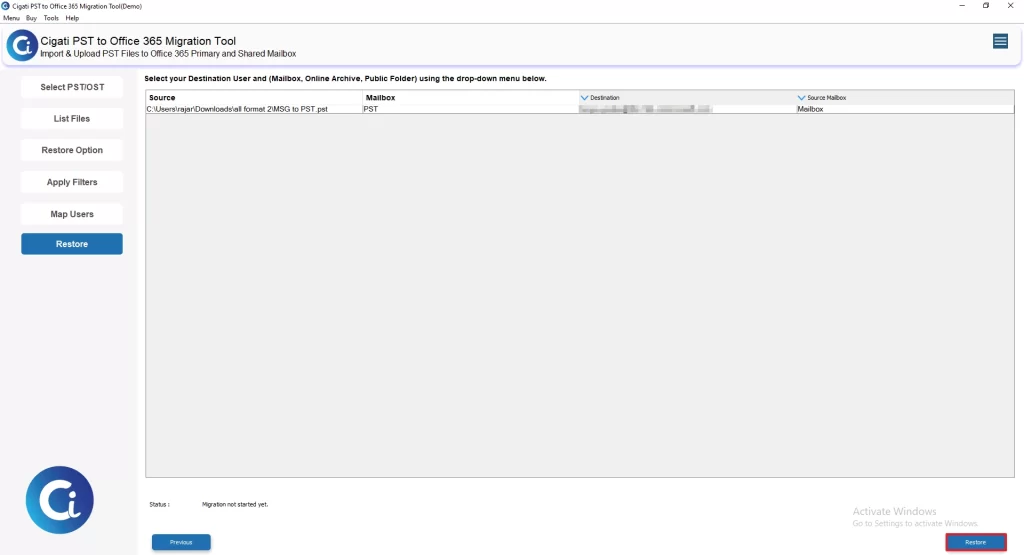
- At last, tap on the Restore button to start the migration.
| Success Story A legal consulting company needed to import hundreds of PST files into Office 365 Shared Mailboxes after moving from individual employee mailboxes to a team-based support system. The manual approach through Outlook was slow, required repeated effort, and made it difficult to maintain the original mailbox structure during migration. After switching to the Cigati PST to Office 365 Migration Tool, the IT team imported all PST files in bulk into the required shared mailboxes. The tool preserved the complete folder hierarchy, and email metadata, completing the migration with zero data loss and minimal downtime. |
Final Conclusion
In this blog, we discussed manual methods to import PST to shared mailbox, but they often require technical skills and extra time. These approaches can be complicated. PST to Office 365 Migration Tool helps automate the process, supports bulk migration, reduces errors, and keeps email data safe & intact.
You May Also Read: Import PST to Archive Mailbox Office 365
Frequently Asked Questions
Q1. How does the PST to Office 365 Migration Tool help in importing PST to a Shared Mailbox?
Ans. The tool automates the entire process of importing PST files directly into a Shared Mailbox in Office 365. It removes manual steps, supports bulk migration, and ensures smooth data transfer without technical complexity.
Q2. Can the PST to Office 365 Migration Tool handle large or multiple PST files?
Ans. Yes, the tool is designed for bulk migration. It allows users to import multiple PST files at once into shared mailboxes, making it ideal for enterprise-level data transfer without performance issues.
Q3. Does the tool maintain email structure and data integrity during migration?
Ans. Yes, it preserves the original folder hierarchy, attachments, metadata, and email formatting. The tool ensures secure migration with zero data loss throughout the process.
Q4. Do I need Outlook or Microsoft Purview when using this tool?
Ans. No, the PST to Office 365 Migration Tool works independently. It does not require Outlook installation or complex Microsoft Purview configuration, making the process simpler and faster.
Q5. Is the migration process secure using this tool?
Ans. Yes, the tool follows a secure migration process and ensures that all mailbox data is transferred safely without modification or corruption, making it suitable for enterprise environments.
About The Author:

Rohit Singh is a technology professional with 7+ years of experience specializing in email systems, Exchange Server, Office 365, MS Outlook, and data migration solutions. He creates clear, practical, and solution-oriented content to help users and IT professionals resolve complex technical challenges efficiently.
Related Post