Key Benefits of
Explained Features of
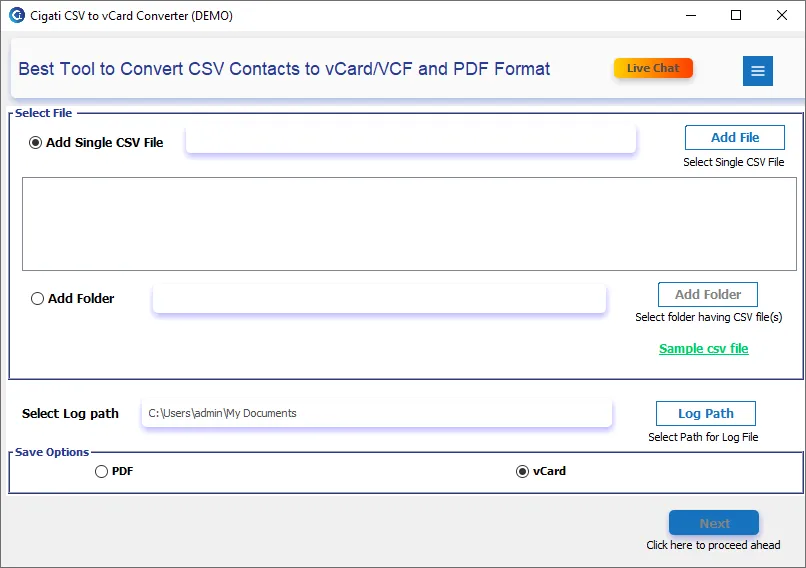
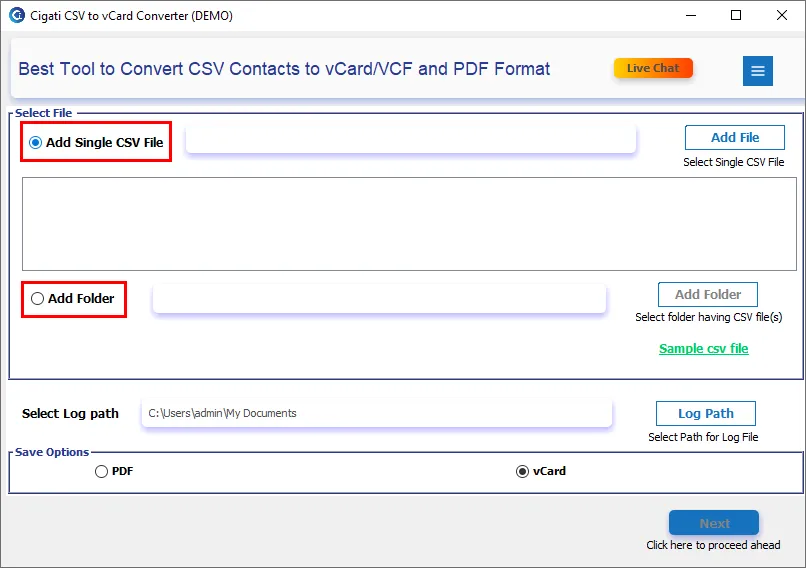
The Cigati Software is the best one to convert CSV to VCF without affecting important data. The software allows adding a single CSV or an entire folder of CSV files at once. This helps users convert hundreds of contacts in one processing cycle, making bulk CSV to vCard conversion fast and efficient.
Often, CSV files contain a large number of contact details, making files larger and sometimes oversized. Manually converting a large file is risky to corruption; however, Cigati CSV File to VCF Converter makes it easy. It supports the conversion of all sizes of CSV, and there is no chance of data loss or error.
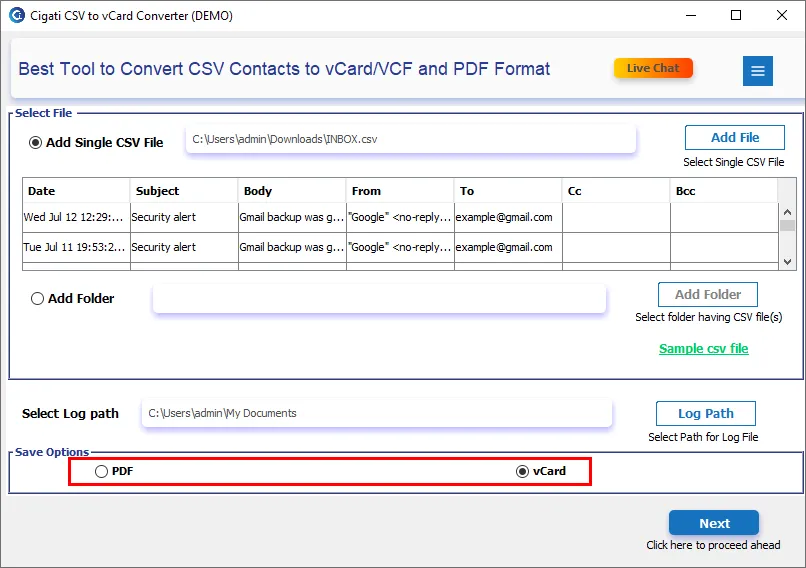
Besides vCard conversion, the Cigati CSV to VCF Tool also exports CSV contacts into PDF format. Users can choose Portrait or Landscape orientation of the page. Moreover, users can apply a Password to output PDF, adding protection for confidential contact lists. This ensures easy sharing and quick accessibility across all platforms.
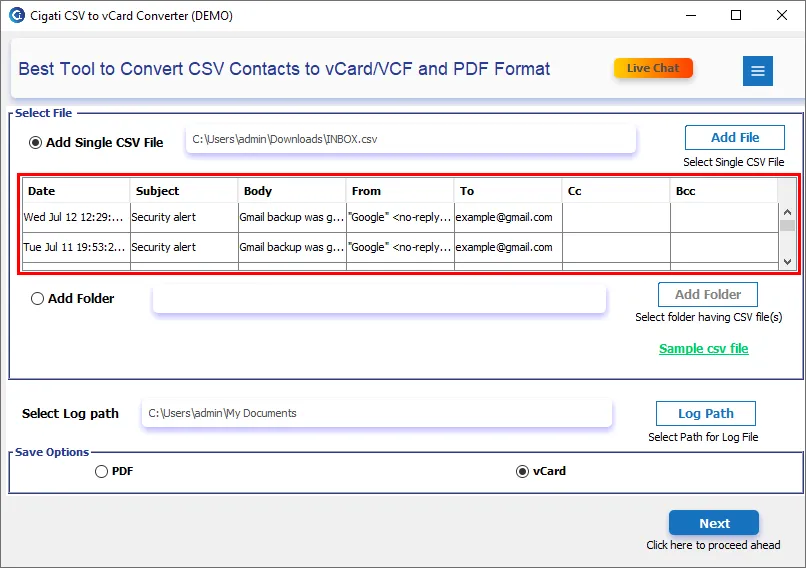
Once you upload a CSV file to the Cigati CSV to VCF File Converter, the tool thoroughly scans and displays all rows and columns. This preview feature ensures users can validate contact fields, formatting, and data accuracy before starting the conversion. Also, the preview is only available when you add one CSV, and not a complete folder.
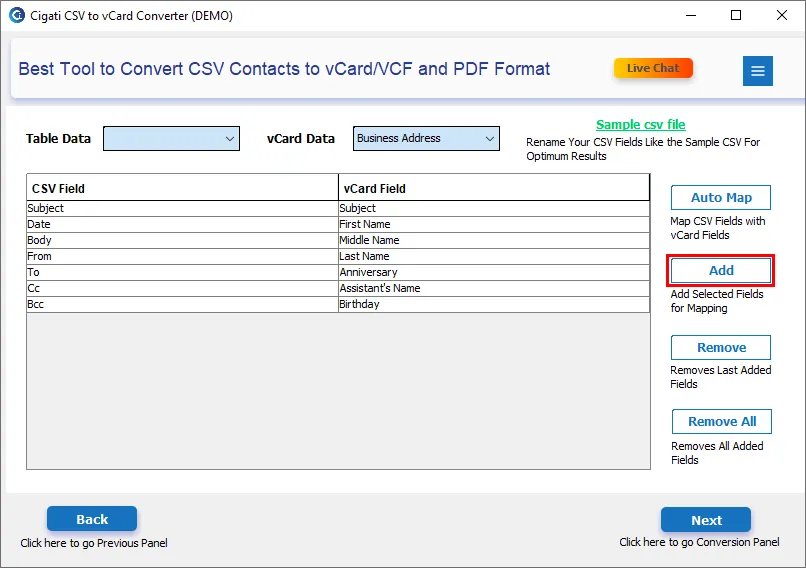
An exclusive feature of the software is dual mapping functionality: Auto-mapping and manual mapping. Auto-map automatically pairs CSV columns with corresponding vCard fields, while in manual map, users can manually match fields to customize output. This ensures flawless data alignment during Excel CSV to vCard conversion.
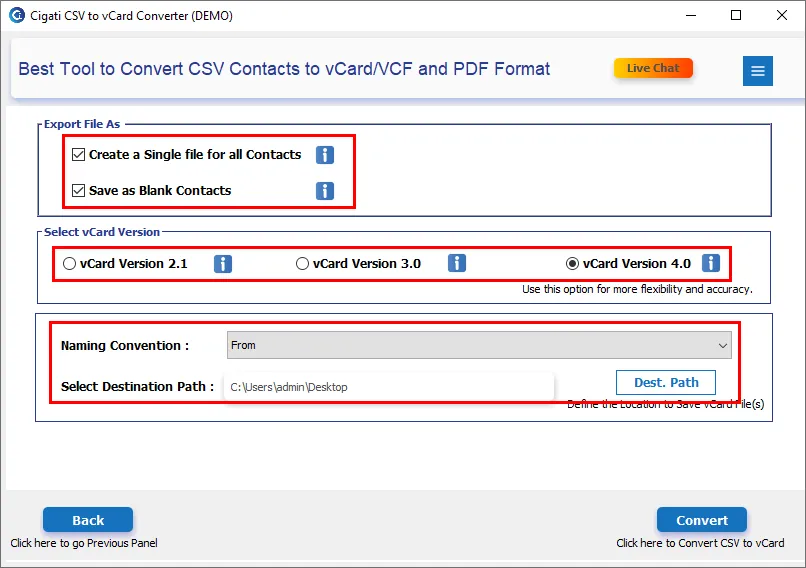
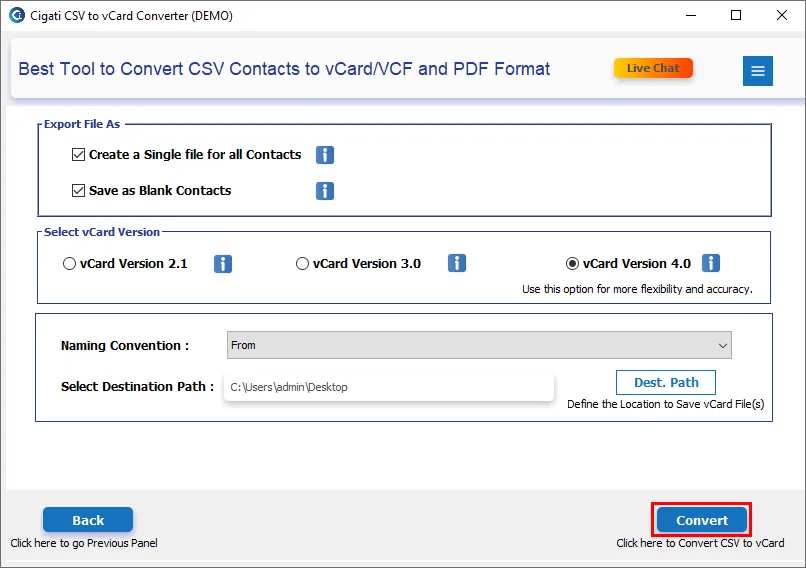
You can manage contacts in VCF in two ways. ‘Create a Single vCard File for All Contacts’ instead of generating separate VCF files for every contact. This simplifies importing contacts into phones, email clients, CRM systems, and address books. The “Save as Blank Contacts” feature lets users generate empty vCard files, useful for creating templates or placeholder entries.
The Cigati CSV to VCF File Converter software supports saving CSV contacts in these vCard versions. Users can choose the required version based on their application or device needs.
The conversion of CSV is not limited by which platform it was created on. Besides converting Excel CSV, it also supports other platforms. The software supports CSV files generated from: Google Sheets, OpenOffice/LibreOffice, Apple Numbers, Text Editors, CRMs, and Email Clients. Moreover, irrespective of any platform, contact formatting and structure remain the same after conversion.
Cigati Software believes in earning users' trust. So, we offer a free trial software to let users test each and every functionality before purchase. However, CSV contacts conversion limits are set. You can only convert the first 50 rows and output a VCF that contains the ‘Demo’ watermark. Upgrade to the premium tool for limitless conversion.
Cigati CSV to vCard Converter is highly recommended by professionals and industry experts. It is compatible with all versions of Windows, both old and new. Additionally, it requires minimal system resources to run smoothly. Whether you have the latest Windows 11 or an older Windows 8, the processing and smoothness remain universal.
Technical Specification
| Software Name: | Cigati CSV to vCard Converter Tool |
| Version Support: | Window 11 and its below version |
| Size: | 64 MB |
| Version: | 23.9 |
| License: | S/A/T/E |
| Download Link: | Download |
Processor:
Hard Disk:
Memory:
Operating System:
Trial limitation:
The free demo version of the Cigati CSV to vCard Converter allows users to convert only the first 50 rows of a CSV file. Also, the output contains a “Demo” watermark to indicate trial usage. To unlock full functionality and perform unrestricted CSV to VCF or PDF conversions, upgrade to the licensed version.
FAQ:
Comprasion Table
| Software Features | Free Version | Full Version |
|---|---|---|
| Convert CSV to vCard (VCF) | First 50 rows with “Demo” watermark | |
| Export CSV to PDF Format | First 50 rows with “Demo” watermark | |
| Convert Single & Multiple CSV Files | ||
| Preview CSV Contact Details (Only while converting a single CSV) | ||
| Auto-Map and Manual Field Mapping Feature | ||
| Export File as: ‘Create a Single vCard File for All Contacts’ and ‘Save as Blank Contact.’ | ||
| Save CSV Contacts in vCard Versions 2.1, 3.0, or 4.0 | ||
| Support CSV from Excel, Google Sheets, Apple Numbers, etc. | ||
| Convert Large & Oversized CSV Files | ||
| No Row Limitations During Conversion | ||
| Apply Password to Resultant PDF File | ||
| Choose PDF Page Orientation: Portrait or Landscape | ||
| 24*7 Tech Support & 100% Secure | ||
| Windows OS Compatibility | ||
| Download and Purchase | Download | Purchase |
FAQ
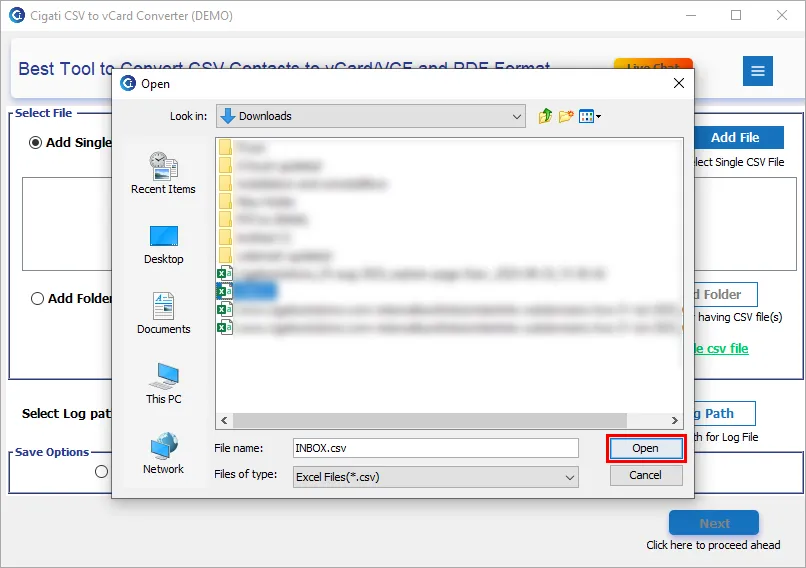
Download the Best CSV to VCF Converter and follow the process below:
Yes. The ‘Create a Single File for All Contacts’ feature allows you to generate one consolidated VCF file for all CSV contacts.
The Cigati Software supports batch CSV conversion. You can add an entire folder full of CSVs and convert all of them at once. Additionally, it has no size restriction.
Yes. The CSV File to VCF Converter software is designed to retain Unicode characters, long text fields, multiple numbers, and special symbols. Also, it causes no truncation or corruption. It ensures all contact attributes remain intact in the final vCard file.
If you face import issues, try switching to another vCard version:
Choosing the right version usually resolves compatibility problems.
Not at all. The Cigati CSV to VCF Converter tool works in read-only mode. This ensures your original CSV file remains untouched and completely safe.
Yes. Even if your CSV columns are not aligned or labeled properly, the software lets you map each column to the correct vCard field. You can do it manually or use Auto-Map if the headers are partially correct. This ensures 100% accurate data placement during conversion.
Yes, you can download the DMG file from the official website. Make sure you are downloading the right software file.