-
Written By Rohit Singh
-
Updated on January 19th, 2026
Migrate Google Docs to Office 365 Account: Easy Transfer Guide
Fact-checked and reviewed in accordance with our
Editorial Policy
Is your Google Drive bulked and refusing to add a single file? Then you have two options in this case, either delete the extra data or transfer the data to a securest place like O365. Data transfer to any trustworthy source is wiser than deletion, which is the stupidest course of action. So in this article, we will provide you with three approaches to migrate Google Docs to Office 365. Let us elaborate on each method in detail.
Also Read: Migrate Google Drive to OneDrive
Transfer Google Docs to Office 365 using 2 Manual Approach
Follow the below steps systematically for each method, and if possible make a copy of your data. So, if you fail to perform these methods, you have the option to retrieve your data.
Method 1: Using Microsoft 365 Migration App
This method is tricky and divided into several stages. Below is the description of each stage of installing the M365 Migration App in the Google Workspace environment.
- Stage 1: Install the M365 Migration App.
- Stage 2: Scan Your Devices and Start Migration.
Let us elaborate on each stage in detail to migrate from Google Docs to Office 365.
Stage 1: Install the M365 Migration App
- Access your O365 account and search for SharePoint Admin Center. Sign in with this account.
- After signing in with the SharePoint Admin Center, choose Migration.
- On the Migration page, select Get Started under the Google Workspace section.
- Following, choose Connect to Google Workspace in the Google Workspace content to Microsoft 365 page.
- Choose the Install and Authorize page option.
- Now sign in with your Google Workspace admin credentials. Click Done.
- Return to the Install the Migration app page and Sign in with your Google Workspace account. Click Finish.
Once your M365 migration app installs, select the drives you want to migrate and scan them to copy to Microsoft 365.
Stage 2: Scan Your Devices and Start Migration
- Choose Google Drive you want to copy to Office 365.
- Select Copy to Migration under the Scan button.
- Decide the destination for the Drive under the Migration tab.
- Choose the drives you want to migrate, and then select Migrate.
Following the above points will start to Migrate Google Docs to Office 365. Additionally, you can not migrate Calendar, Contacts, etc. If this method is too tricky for you, choose the following workaround.
Method 2: Move Google Sheets from Google Drive to OneDrive
This method is again bifurcated into two stages.
- Stage 1: Create a zip file of the Google Doc Folder.
- Stage 2: Upload in OneDrive.
Execute each stage to Convert Google Docs to Microsoft 365.
Stage 1: Create a zip file of the Google Doc Folder
- Access your Google Drive and select the documents you want to migrate.
- Right-click on these documents and select the Download option.
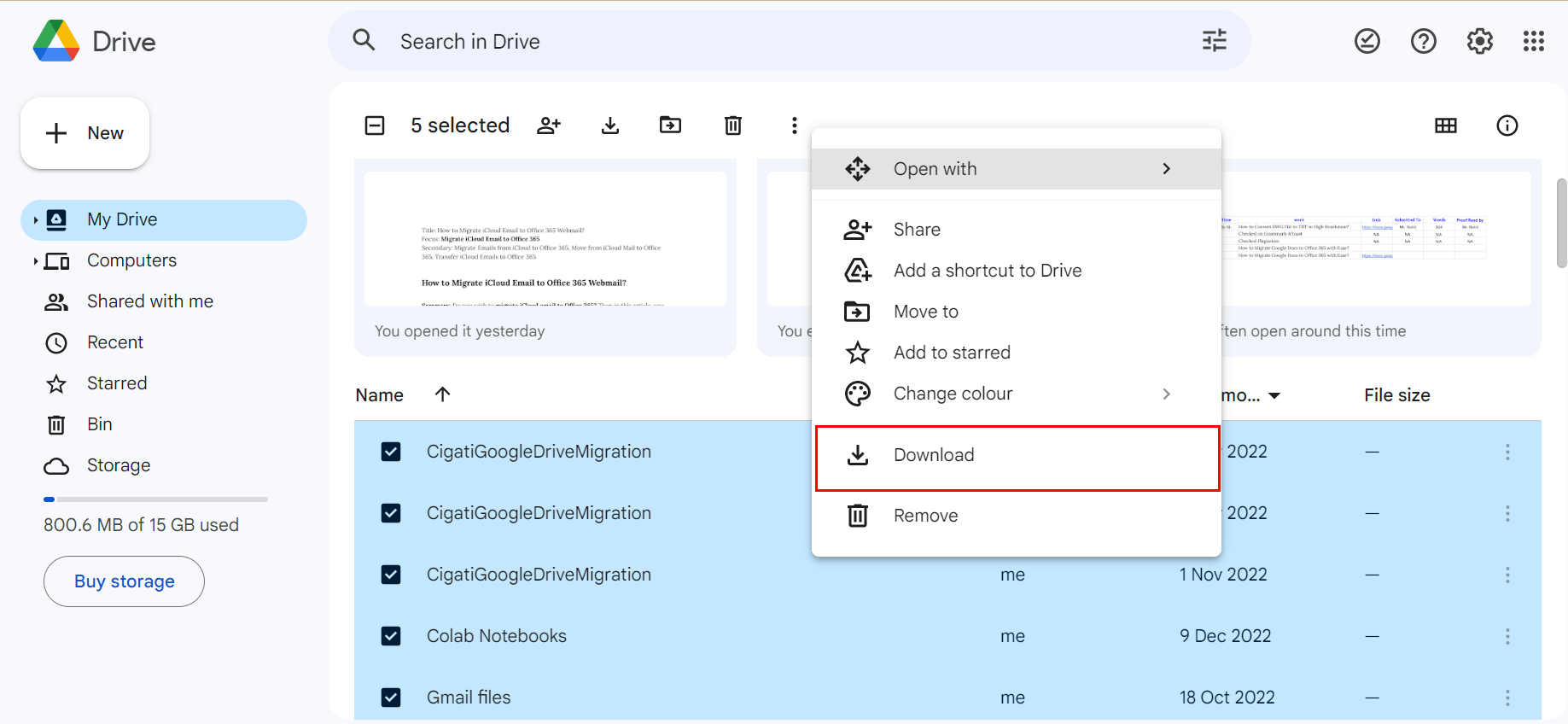
- It starts creating a zip file of your selected documents.
Once the zip file is created, start the process to Migrate Google Docs to Office 365.
Stage 2: Upload in OneDrive
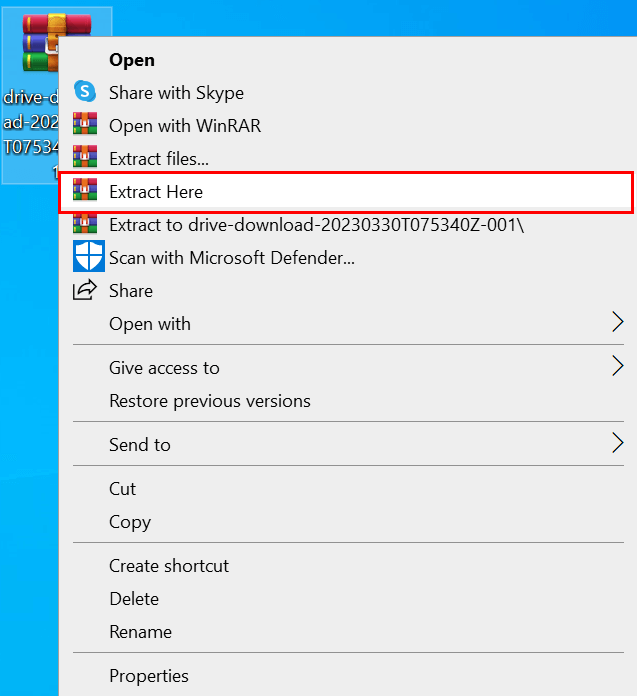
- Move to the location where you saved your zip file and extract all the zip files.
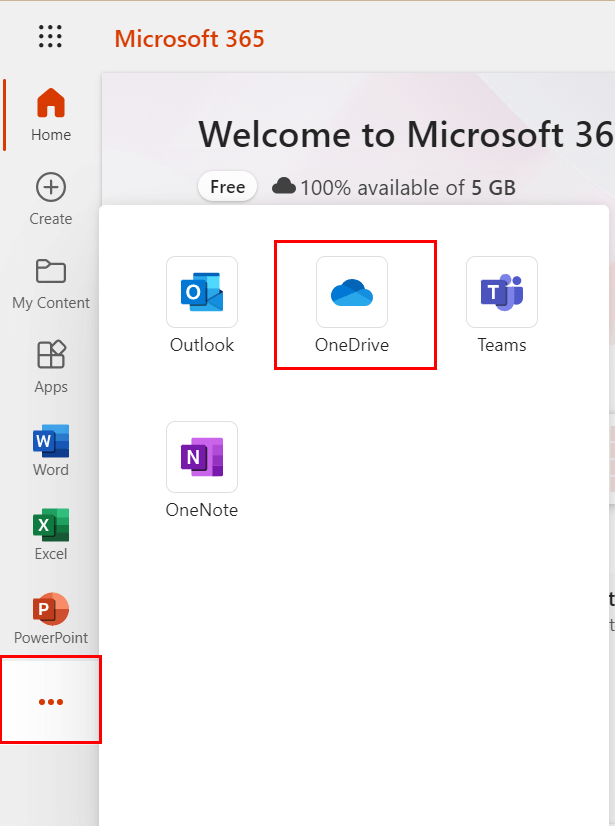
- Access the O365 account and move to OneDrive.
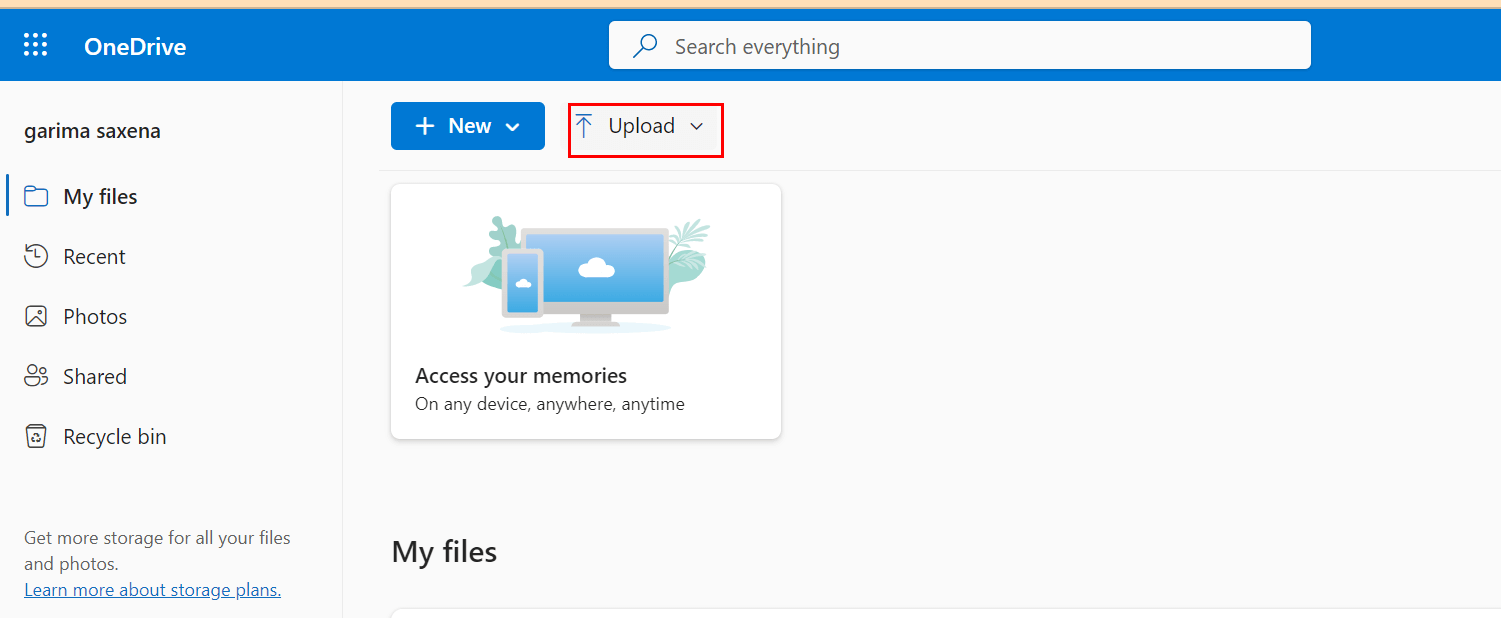
- Go to the upload button and choose Google Docs from computer.
- That’s how your Google Drive documents will start reflecting in your M365 account. But sometimes, OneDrive refuses to upload the document because of invalid syntax.
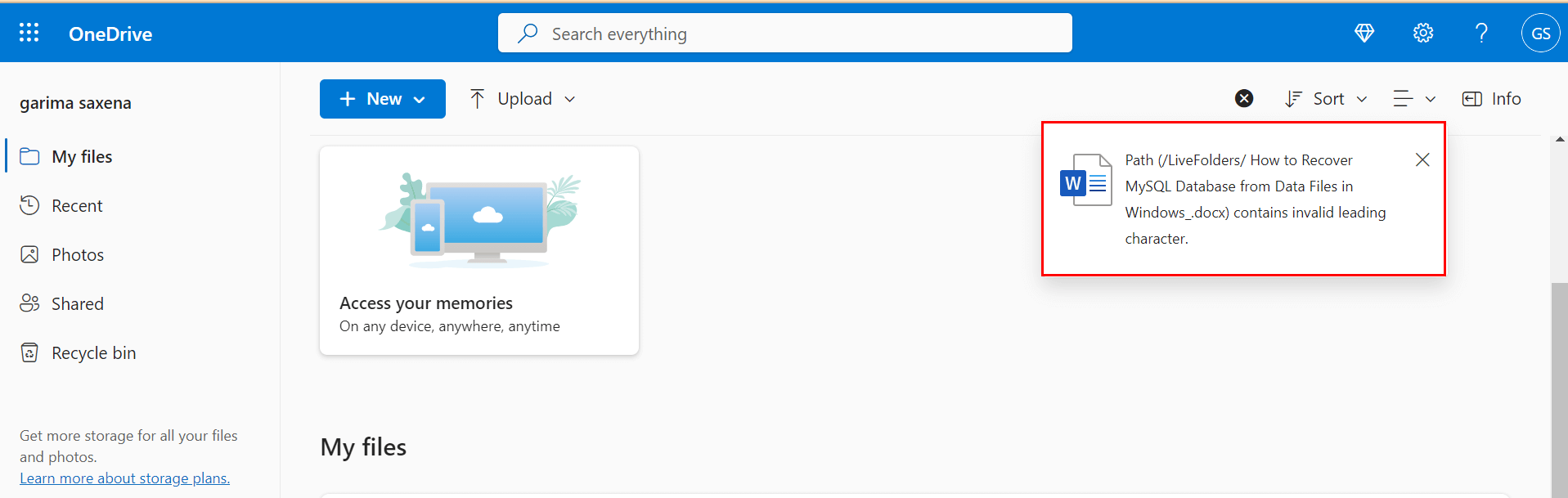
In this situation, you can not upload all the Google Docs documents to O365. However, if you wish to put all these issues to trash, you can opt for an automated solution to Transfer Google Docs to Office 365. Let us understand how to accomplish this task.
Instantly Migrate Google Docs to Office 365 without Hassle
The Cigati Google Workspace to Office 365 Migration Tool simplifies the process by moving your Google Docs to Office 365. This migration tool supports bulk migration at once and also allows the selective transfer of the chosen files. It also easily backs up the Google Workspace data to Office 365 Tenant and Admin accounts. With smart features like removing duplicate emails, skipping already migrated data, migrating emails without attachments, and more.
Simplified steps to migrate Google Docs to Office 365:
- Start by downloading and launching the tool on your system.
- Now, enter the Google Workspace sign-in credentials and press the Sign In button.
- After signing in, select the desired User Email Address to migrate data from and click Next.
- Then, pick the Drive option and click Next to proceed further.
- Next, opt for the additional filters and tap Next to continue.
- Choose between Login with Admin Account and Login with Single Account.
- Furthermore, click on the Sign In button and then press the Backup button to start the migration.
Conclusion
The above article offers you different ways to migrate Google Docs to Office 365. There are some traditional methods available but they demand technical expertise and in some cases, you are in the stage to lose your data. Additionally, you require extra time and concentration to run these highly technical methods. On the contrary, a professional tool, the Cigati Google Workspace to Office 365 Migration Tool, is loaded with various features and allows you to migrate data from a Google Workspace account to your Office 365 account.
You May Also Read: Migrate Google Drive to Office 365
Frequently Asked Questions
Q: How do I transfer a Google Doc to Office 365?
Ans: To manually transfer a Google Doc to Office 365, you need to first download the document from Google Drive locally. Then, upload this to your OneDrive account manually. Alternatively, you can use a professional tool that automates the entire process and also ensures data integrity.
Q: How do I migrate Google files to Microsoft 365 for business?
Ans: For businesses, migrating Google files to Microsoft 365 is a challenging task. Manually migrating them individually will be a time-consuming process. Therefore, with the help of a professional tool, they can securely migrate their Google Docs to Office 365.
About The Author:

Rohit Singh is a technology professional with 7+ years of experience specializing in email systems, Exchange Server, Office 365, MS Outlook, and data migration solutions. He creates clear, practical, and solution-oriented content to help users and IT professionals resolve complex technical challenges efficiently.
Related Post