-
Written By Rohit Singh
-
Updated on June 9th, 2026
BT Mail to Office 365 Migration: The Simplest Way to Switch
Fact-checked and reviewed in accordance with our
Editorial Policy
User Query: We are a London-based law firm with over 40 mailboxes in BT Mail, but planning to switch to Office 365. What is the safe and reliable way to carry out the process?
BT Mail works fine for personal use, but it was never built for business-grade collaboration. Teams switching to Office 365 need emails, folder structure, and attachments to be moved across without anything left behind. Manual IMAP migration handles the basics but stalls on larger mailboxes and drops data without warning. For a complete and reliable BT Mail to Office 365 migration, this blog covers one manual method and the Cigati IMAP to Office 365 Migration Tool as the direct solution.
Quick Answer
How do I migrate BT Mailbox emails to Office 365 without losing folder structure or attachments?
Manual IMAP configuration moves emails but drops attachments and breaks folder structure on larger mailboxes. Cigati IMAP Backup Tool connects directly to BT Mail via IMAP and moves complete mailbox data into Office 365 in one run. Folder hierarchy lands intact, and attachments transfer without detaching at any point.
Pre-Migration Checklist: Checks to Do Before You Begin
Sort these out before starting the BT Mail to Office 365 migration:
- Back up all BT Mail data before touching any migration step.
- Confirm BT Mail runs on IMAP — POP3 accounts need separate handling.
- Keep BT Mail and Office 365 login credentials written down and accessible.
- Stable internet with consistent bandwidth is needed throughout the migration.
- Create target Office 365 mailboxes and assign licenses before migration starts.
What Is The DIY Way To Migrate BT Email to Office 365?
Three free routes exist here, and each one suits a different setup. Read through all three before picking the one that matches what you have installed and configured right now.
Method 1: Configure BT Mail in Outlook and Export to PST
This route pulls BT Mail into Outlook first and then exports everything as a PST file for later import. Follow the given steps below:
- Open Microsoft Outlook and go to File > Add Account.
- Enter your BT Mail address and select Manual Setup from the options shown.
- Now enter the IMAP configuration details below:
- IMAP Server: mail.btinternet.com
- Port: 993 with SSL enabled
- Let Outlook finish the setup and sync your full BT mailbox across.
- Once sync completes, head to File > Open and Export > Import/Export.
- Then select Export to a File and pick Outlook Data File (.pst) from the list.
- Choose the BT Mail folders you need and set a save location on your system.
- As the last step, click Finish, and Outlook saves everything into a PST file at the chosen location.
Method 2: Use a PST File to Move Emails into Office 365
With the PST file available on your system, you can upload it to Office 365 using the Network Upload method.
Here is the step-by-step working procedure of this method:
- Sign in to the Microsoft 365 Admin Center using global admin credentials.
- From there, navigate to the Network Upload Service inside the compliance section.
- Download and install the AzCopy tool on your local machine before continuing.
- Copy the SAS URL provided and use AzCopy to upload the PST file to Azure storage.
- Now go back to the Admin Center and map the PST data to the destination Office 365 mailbox.
- Create the import job and click Start to begin pushing BT Mail data into Office 365.
- Monitor the import job status and wait for it to show completed before closing anything.
Method 3: Using Exchange Admin Center for Migration
In this method, you will not need a PST file, as this directly moves BT mail to Office 365 using an IMAP migration batch.
Follow the step-by-step manual of this method to migrate emails from BT Mail to Office 365:
- Log in to Exchange Admin Center and go to Recipients > Migration.
- Click New and select IMAP Migration from the migration type options.
- Enter the BT Mail IMAP server details below when prompted:
- IMAP Server: mail.btinternet.com
- Port: 993 with SSL enabled
- After that, add user credentials for each BT Mail account being migrated.
- Moving ahead, map each BT mailbox to the corresponding Office 365 destination mailbox carefully.
- Meanwhile, click Next and create the migration batch when all mappings look correct.
- In the end, start the batch, and you can track progress from the migration dashboard.
You can opt out of any of these free methods to migrate BT Mail emails to Office 365 manually. However, these methods are not very successful in the case of large data files and enterprise-level migration. Also, there are many pain points that we have covered in the section below.
What Are The Pain Points of The Manual Approach?
- PST export and import add extra steps that slow down the whole migration process.
- AzCopy setup and SAS URL configuration trips up most non-technical users immediately.
- IMAP migration batch skips contacts and calendars as only emails move across.
- Larger BT mailboxes time out during IMAP sync without completing the job.
- One wrong mailbox mapping in the CSV breaks the entire import job silently.
- No duplicate detection means repeat attempts pile identical emails into Office 365.
Simplest Way For BT Mail to Office 365 Migration
Even though manual methods exist for migration, they don’t work well at scale. Cigati IMAP Backup Tool connects directly to BT Mail via IMAP and moves your entire mailbox into Office 365 in one session. Emails, contacts, folder hierarchy, and attachments all transfer without needing a separate PST export or Azure storage. You can process multiple BT Mail accounts together using CSV batch import, without repeating the setup for each account individually.
Procedure To Migrate BT Email to Office 365:
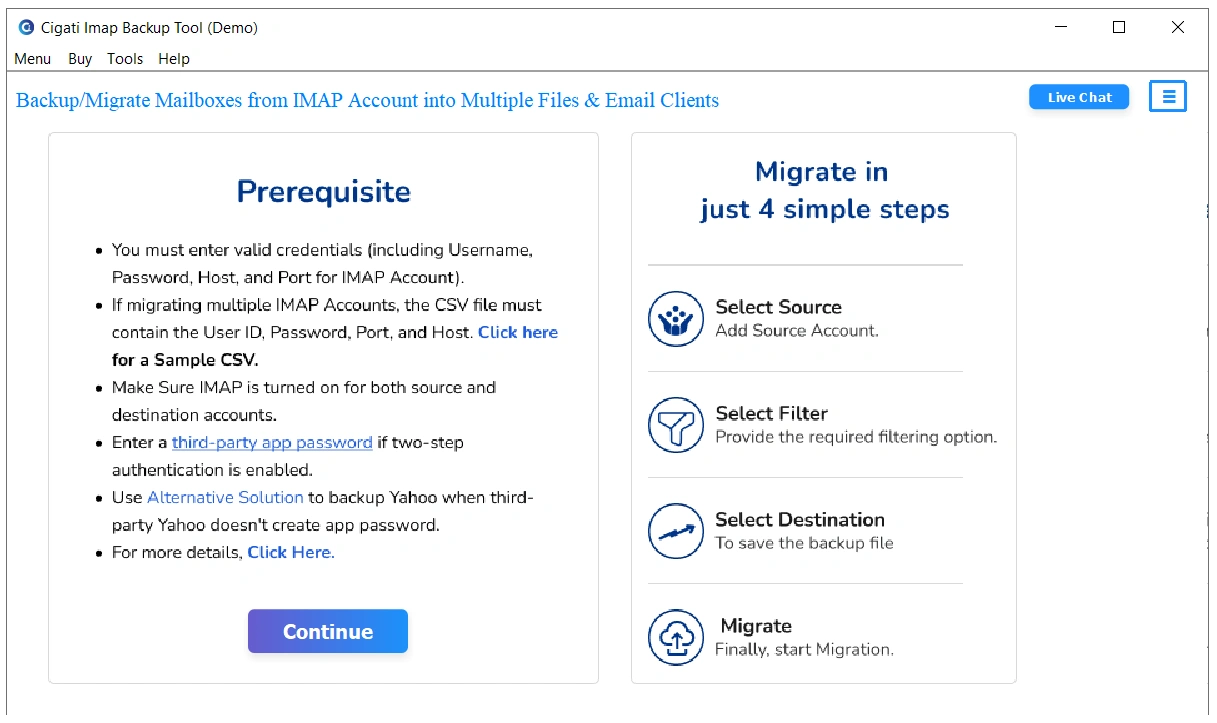
- To start, install and launch the IMAP Backup software and hit Continue.
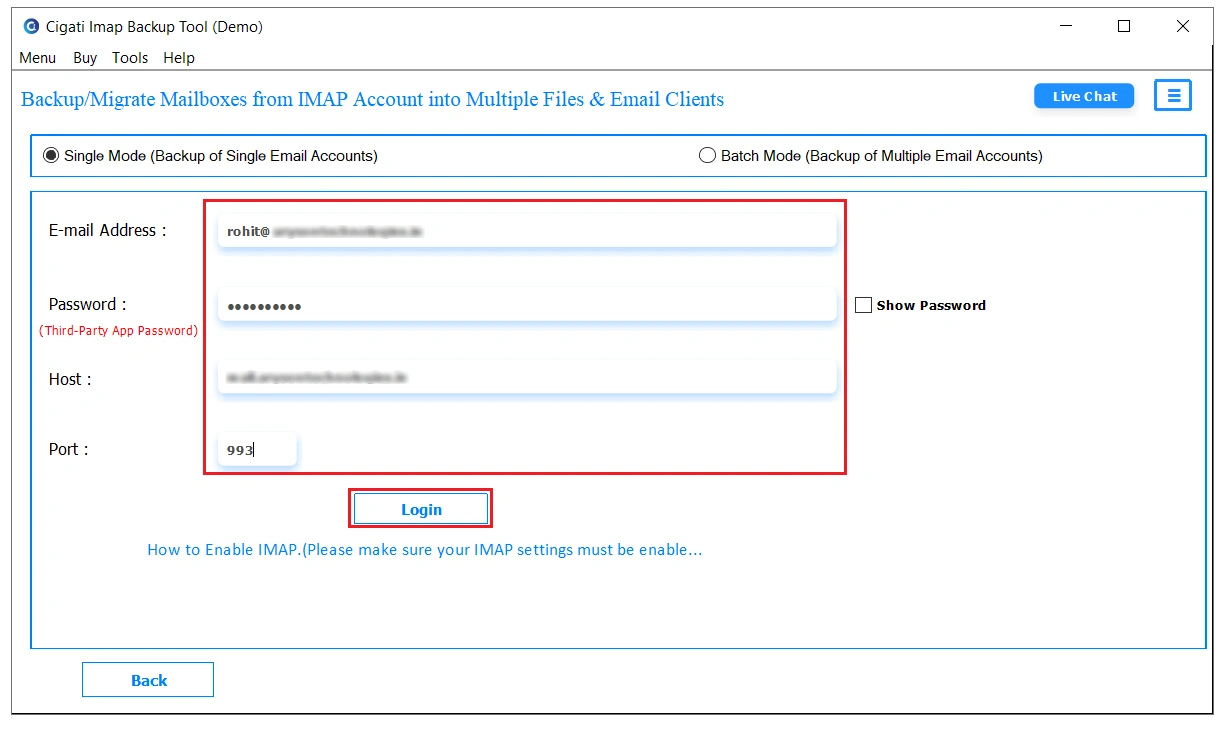
- After that, fill in your BT mailbox account details and click on the Login button. You can also import CSV in case of a bulk account transfer.
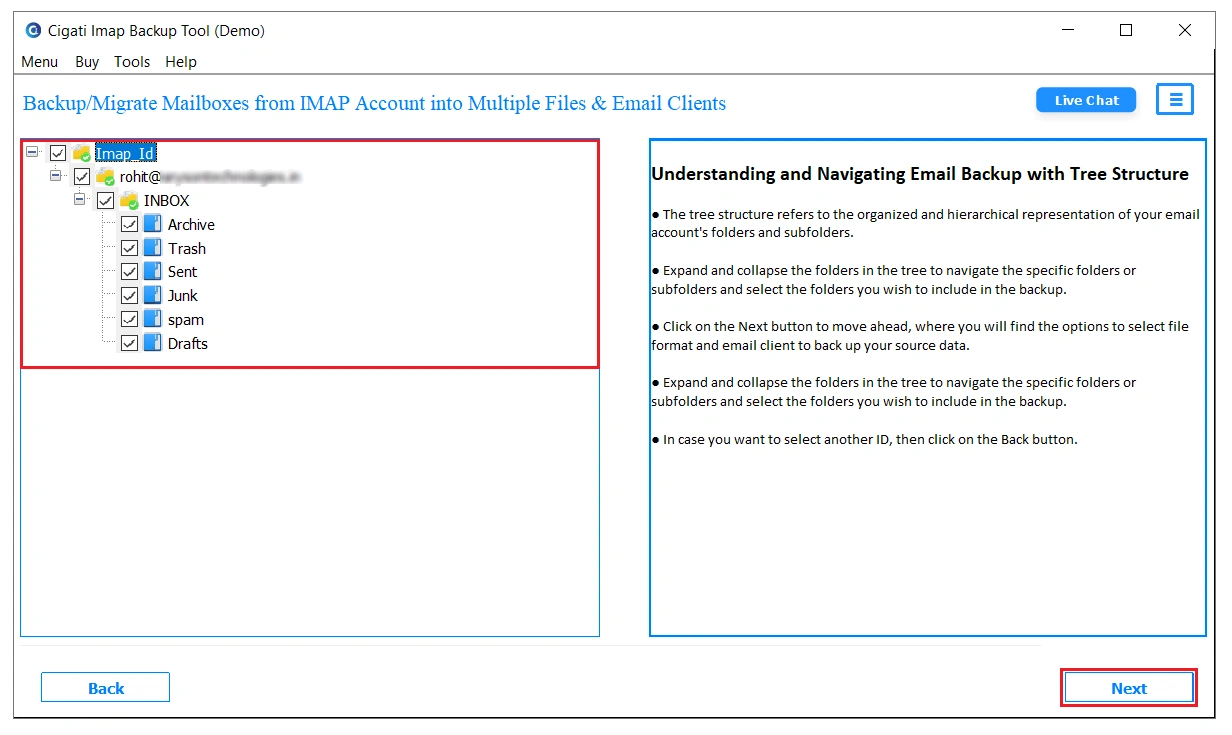
- Moving on to the next panel, you can preview the metadata and select the files and folders to move.
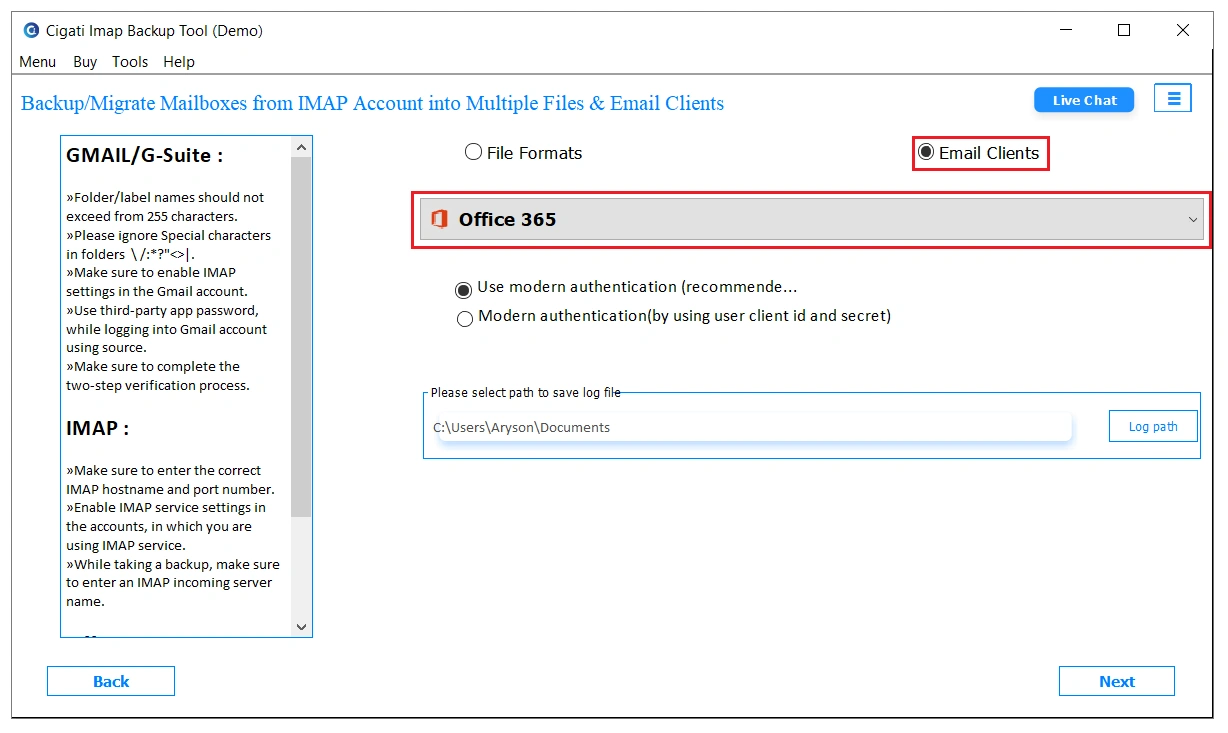
- Further, choose Office 365 from the drop-down menu and authenticate with the correct credentials.
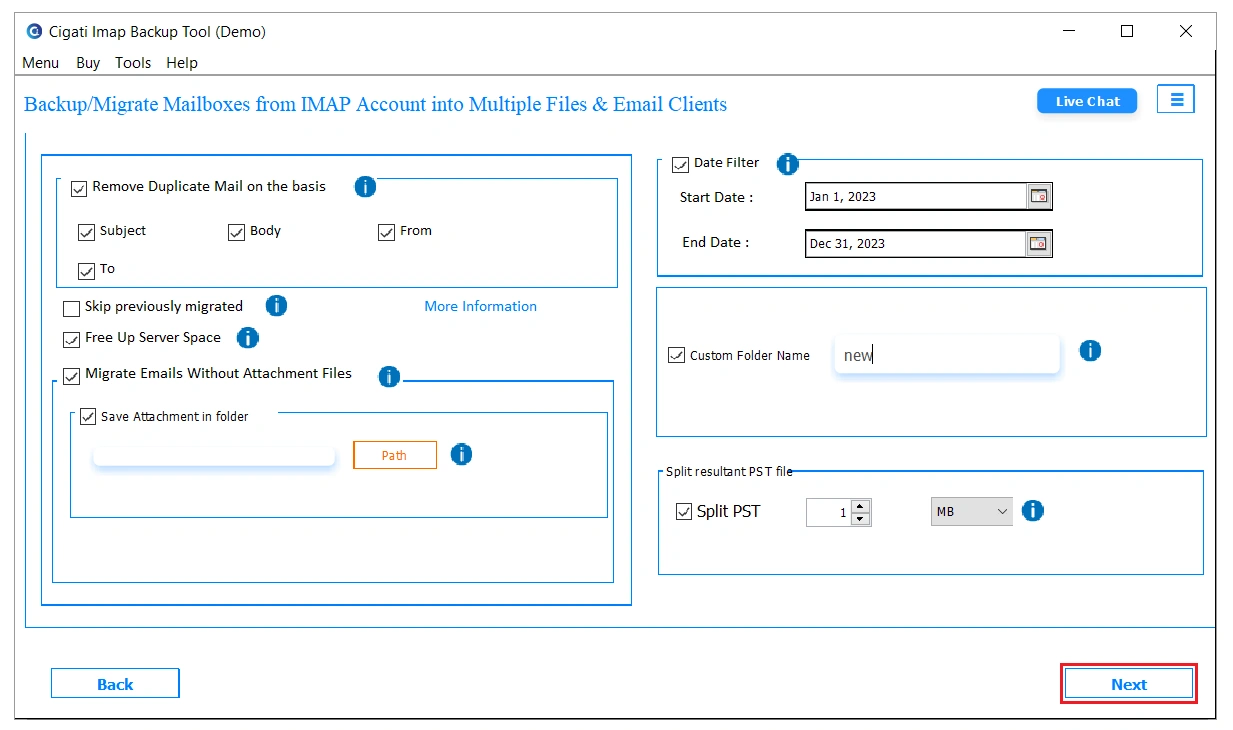
- Lastly, apply the required filters and tap on the Next button to initiate the migration.
Why Businesses Prefer This Tool?
- No PST export needed as the tool reads BT Mail directly via IMAP.
- Emails, contacts, and folders all move into Office 365 in one go.
- You can import a CSV file and migrate multiple accounts together.
- Pick a date range, and only those specific emails get transferred.
- Identical emails get filtered out before anything lands in Office 365.
- BT Mail data clears off the server once migration finishes successfully.
When Manual Migration Nearly Cost a Business Its Data
A property management firm in Leeds was moving 45 BT Mail accounts to Office 365 before a lease management system upgrade. AzCopy kept failing on larger PST files, and the IMAP batch skipped contacts entirely across every account. Two weeks in, and barely 12 accounts had migrated cleanly. Cigati IMAP Backup Utility processed all 45 accounts in one session. Every email, contact, and folder was migrated to Office 365 with complete data integrity intact before the upgrade deadline.
Final Remarks
Manual BT Mail migration has too many moving parts and too many places where data quietly disappears. Contacts never come across, server timeouts hit larger mailboxes, and CSV mapping errors restart the whole process. Teams with real deadlines cannot afford that kind of unreliability. Cigati IMAP Backup Tool takes the entire BT Mail to Office 365 migration off the manual checklist. The data can be transferred in one session for multiple accounts with zero data loss.
You May Also Read: Migrate SquirrelMail to Office 365
Frequently Asked Questions
Q1. Can I migrate BT Mail directly to Office 365 without creating PST files?
Ans. Yes. The Cigati IMAP Backup Tool allows you to migrate BT Mail mailboxes directly to Office 365 using valid account credentials. This eliminates the need for manual PST exports and imports, making the migration process more efficient.
Q2. How can I preserve mailbox folders during migration?
Ans. Use the specifically designed tool from Cigati, as it maintains the original folder hierarchy and mailbox structure while migrating emails from BT Mail to Office 365. This ensures users can access their data in the same organized format after migration.
Q3. Can I migrate multiple BT Mail accounts to Microsoft 365 simultaneously?
Ans. Yes. The Cigati IMAP Backup Tool supports bulk mailbox migration, allowing administrators to transfer multiple BT Mail accounts to Office 365 in a single operation. This feature is particularly beneficial for business and enterprise environments.
Q4. How does the Cigati IMAP Backup Tool handle large BT Mail mailboxes?
Ans. The tool is designed to migrate large mailboxes efficiently and can process substantial amounts of email data while maintaining data integrity and folder structure throughout the migration.
Q5. Can the Cigati IMAP Backup Tool migrate contacts and calendars from BT Mail?
Ans. Since BT Mail uses IMAP, the migration primarily covers email data. Contacts and calendar items should be exported separately and imported into Microsoft 365 to ensure a complete mailbox transition.
Q6. What should I do if some emails are missing after the BT Mail migration?
Ans. Before starting the migration, review your BT Mail account, including Spam and Junk folders. Important emails stored in these folders should be moved to regular mailbox folders so they can be included during the migration process.
About The Author:

Rohit Singh is a technology professional with 7+ years of experience specializing in email systems, Exchange Server, Office 365, MS Outlook, and data migration solutions. He creates clear, practical, and solution-oriented content to help users and IT professionals resolve complex technical challenges efficiently.
Related Post