

-
Written By Rohit Singh
-
Updated on January 7th, 2026
The Complete Guide to Migrate Gmail Calendar to Office 365 in 2026
Summary: In this article, you’ll learn how to migrate Gmail calendar to Office 365. If you’re looking for a solution to the same problem. Then you are on the right page. In this guide, you will learn the best ways to migrate Google Calendar to Office 365.
If you work in a profession, you undoubtedly have a list of calendars. You can manage these calendars in Gmail and Office 365. You can access your Google calendar with internet connectivity. But more often, it creates a mess if it has a huge list of appointments. In contrast, Outlook lets you use a number of its applications in offline mode and enables you to change who owns an event by first deleting it and then recreating it. Therefore, we will discover how to export Google Calendar to Office 365 in the section that follows.
Also Read: Migrate Contacts from Gmail to Office 365
Migrate Gmail Calendar to Office 365 With 2 Methods
To migrate Google Calendar, use the import/export strategy. Here are the steps to follow.
Step 1: Export Gmail Calendar Locally
- Open Gmail or Google Search Engine.
- Navigate to the Calendars from the list of preferences.
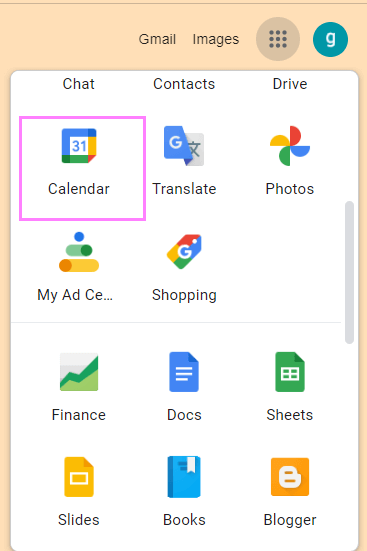
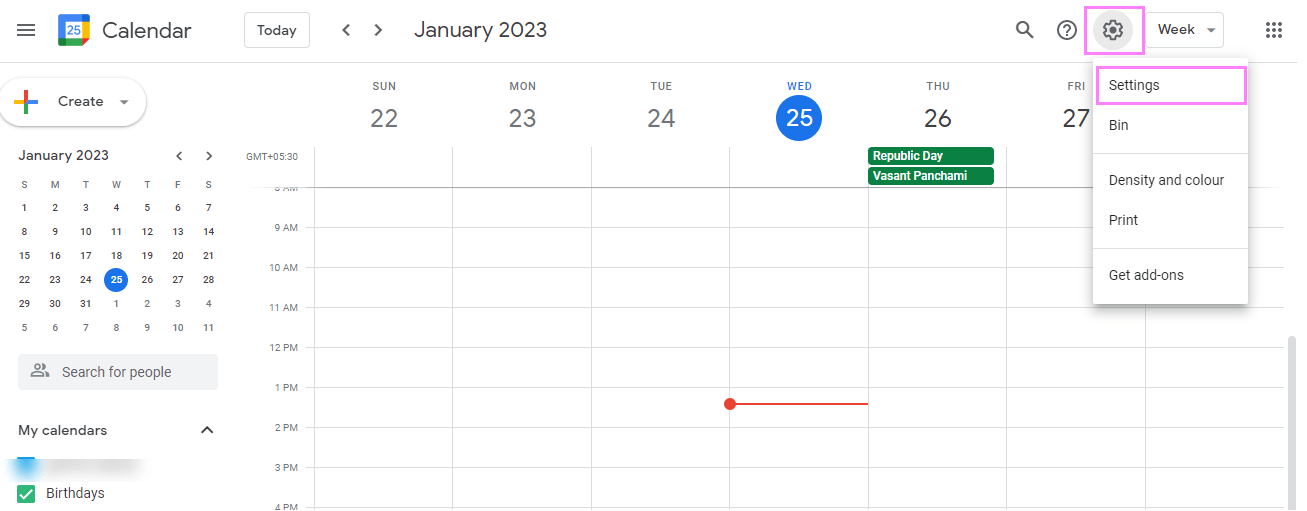
- Steer to the gear icon > Settings.
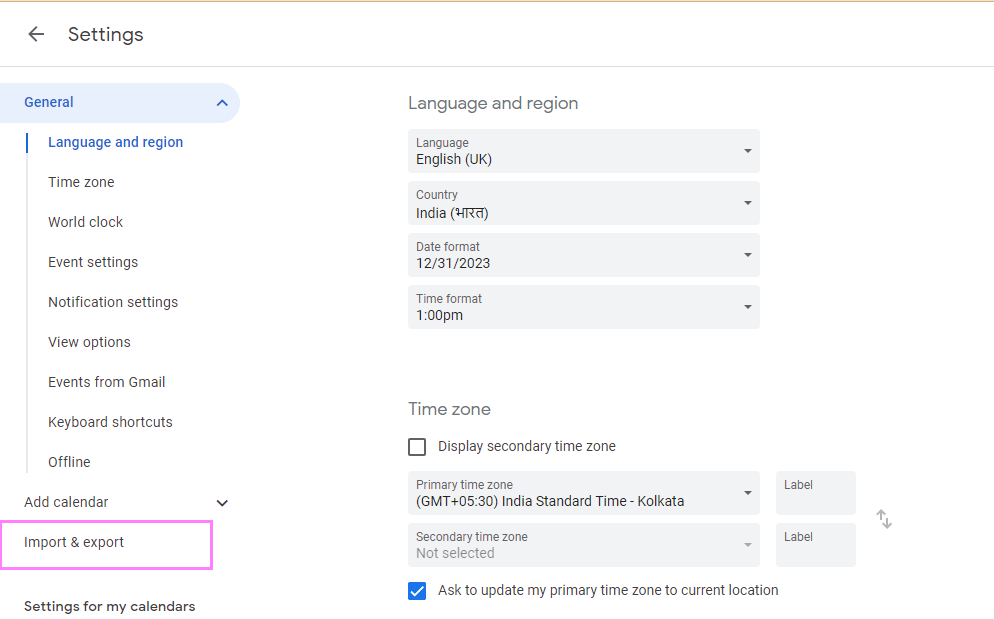
- The last step will take you to the Import/Export Wizard.
- Choose the calendar content you want to migrate. Click the Export button.
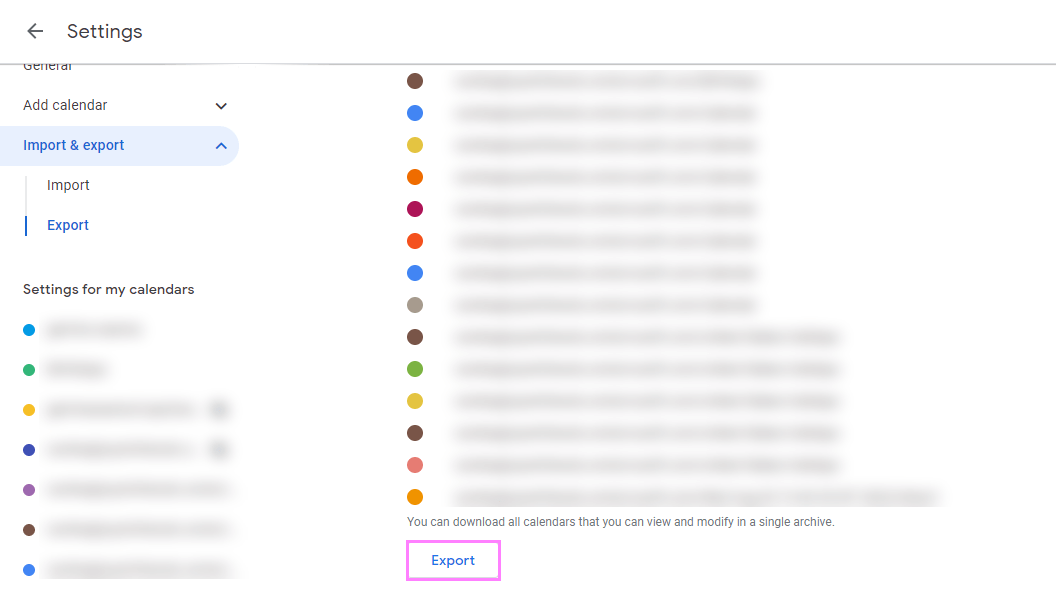
- Once you export all the items, it will create a zip file of the chosen calendar content. You can save it locally at your convenience.
Execute the next stage, to accomplish the task of migrating Google Calendar.
Step 2: Import Google Calendar into Outlook 365
- Open Outlook Application in your existing system.
- Go to the File tab.
- Select Open & Export in the new wizard.
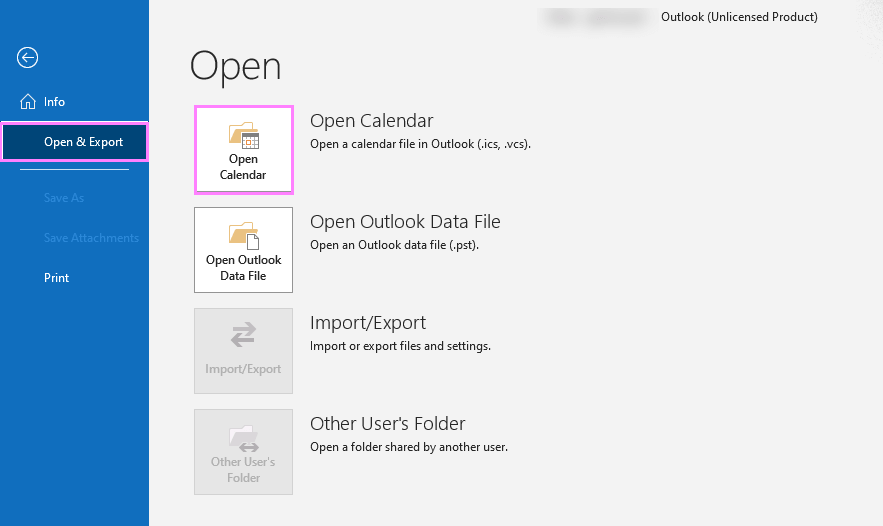
- Choose an Open Calendar.
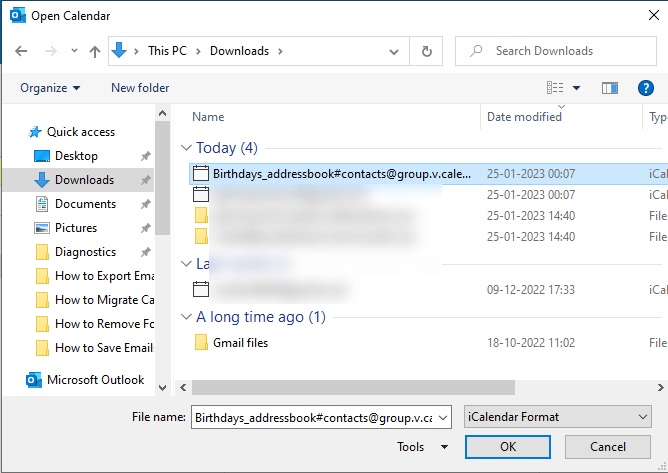
- Browse the location of the Google contacts you recently migrated.
- Following, it grants permission to import calendars. Allow it.
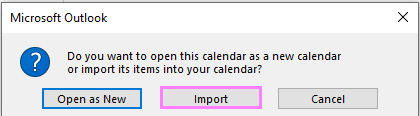
- The above steps will start reflecting Google Calendar in the Outlook account.
This method can be used to migrate a Gmail calendar to Office 365. Calendars can be imported into Outlook offline using the method mentioned above. But the aforementioned techniques will only sometimes be successful. As a result, you have another option for transferring Google Calendar.
Step 3: Upload ICS File to Microsoft 365
To upload a Gmail calendar in Outlook Web App. You need to accomplish the below steps to migrate Google Calendar to Office 365.
- Access Office 365 account.
- Choose Calendar from the App Section.
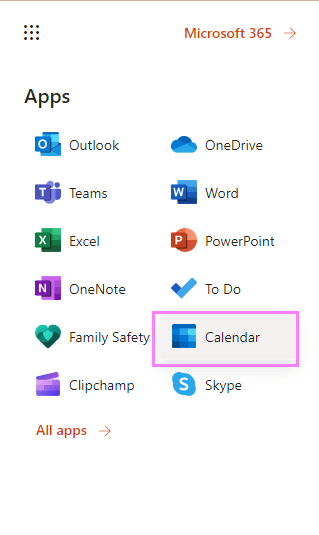
- Navigate to the Add Calendar.
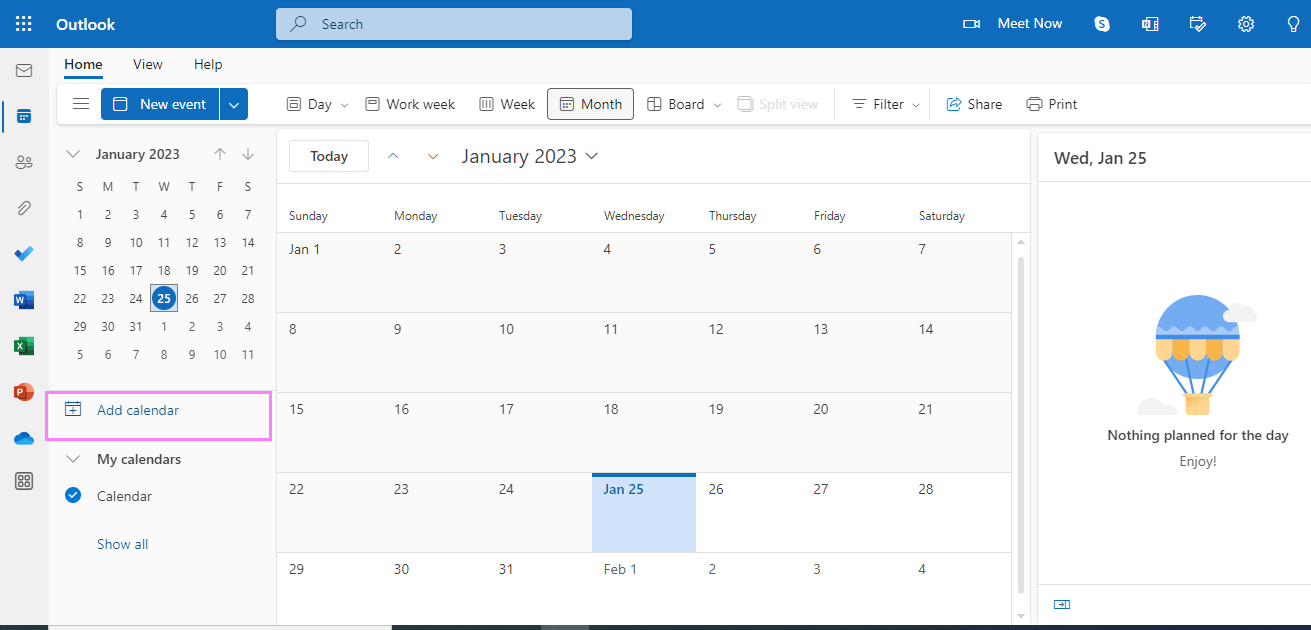
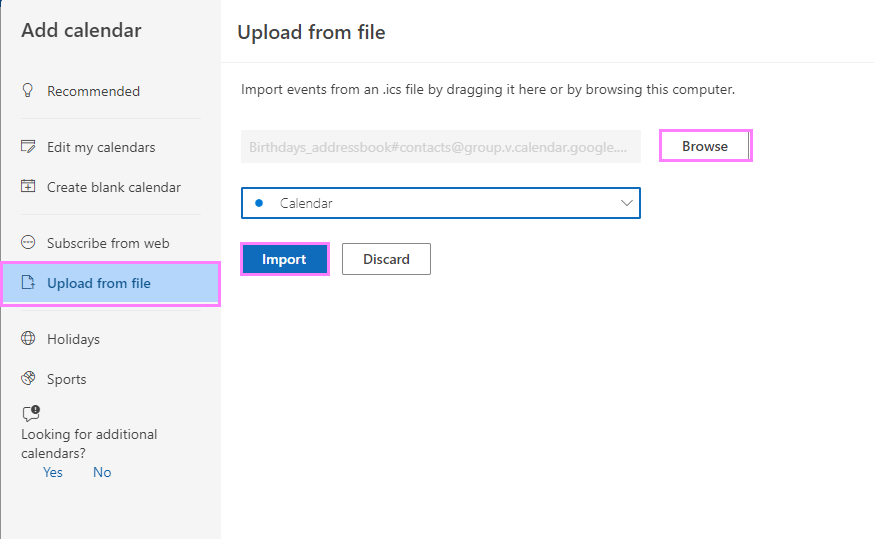
- In the new wizard, Browse the location of Google Calendar. Hit the Import button.
- Finally, You can view Google Calendar in M365.
The manual methods listed here can help you export Google Calendar to Office 365. Though this technique is quite lengthy and demands technical expertise. In addition, you need to pay extra attention when you execute this method. And a single incorrect execution will result in data loss, and if you have multiple events, you must upload them one by one, which is among the tiresome tasks. So, if you want to avoid these issues, go with an automated solution.
Quickly Download Gmail Calendar to Computer or Locally
The Cigati Gmail Backup Tool is a full-featured utility that downloads Google Calendar locally. But if you wish to migrate Gmail Calendar to Office 365, then use the above method. In addition, this smart tool is highly capable to save Google Drive, Contacts, and Photos to the local drive. Also, it migrates Gmail emails to various file formats and email clients. Moreover, the best feature of the utility is that you don’t need technical knowledge to use it.
After downloading your Google calendar locally, you have to import ICS file to Microsoft 365. Follow the Step 3 as mentioned above.
Conclusion
By systematically following the write-up, you can easily migrate Gmail calendar to Office 365 in manual and professional ways. Although the manual technique is time-consuming, intricate, and requires technical knowledge. While the professional tool is easy to use and offers you several advanced features. The best part of the tool is that you should not possess the technical know-how to run it. Additionally, you can save your Calendar, Contacts, Mail, and Drive in a variety of file formats and with Office 365.
You May Also Read: Import Contacts from one Gmail Account to Another
Frequently Asked Questions
Q: What is the fastest way to move my personal Gmail calendar to Office 365?
Ans: The most direct manual method is to export your Google Calendar as an ICS file and import it into Outlook.
– Google Calendar: Go to Settings > Import & Export > Export to download a .zip file containing your calendar data.
– Outlook Web: Open Outlook Calendar, select Add Calendar > Upload from file, and select your extracted .ics file.
Q: How do I migrate calendars for an entire organization (Google Workspace)?
Ans: Admins should use the Automated Batch Migration tool in the Microsoft 365 Admin Center.
– This tool transfers mail, contacts, and calendars in batches.
– It requires setting up a Google Service Account and a JSON key to authorize Microsoft to access Workspace data.
About The Author:

Rohit Singh is an Email Backup, Recovery & Migration Consultant and is associated with Software Company from the last 3 years. He writes technical updates and their features related to MS Outlook, Exchange Server, Office 365, and many other Email Clients & Servers.
Related Post





