-
Written By Khushboo Maurya
-
Updated on September 2nd, 2026
Microsoft 365 Tenant-to-Tenant Migration: How to Move Data Between Tenants
Fact-checked and reviewed in accordance with our
Editorial Policy
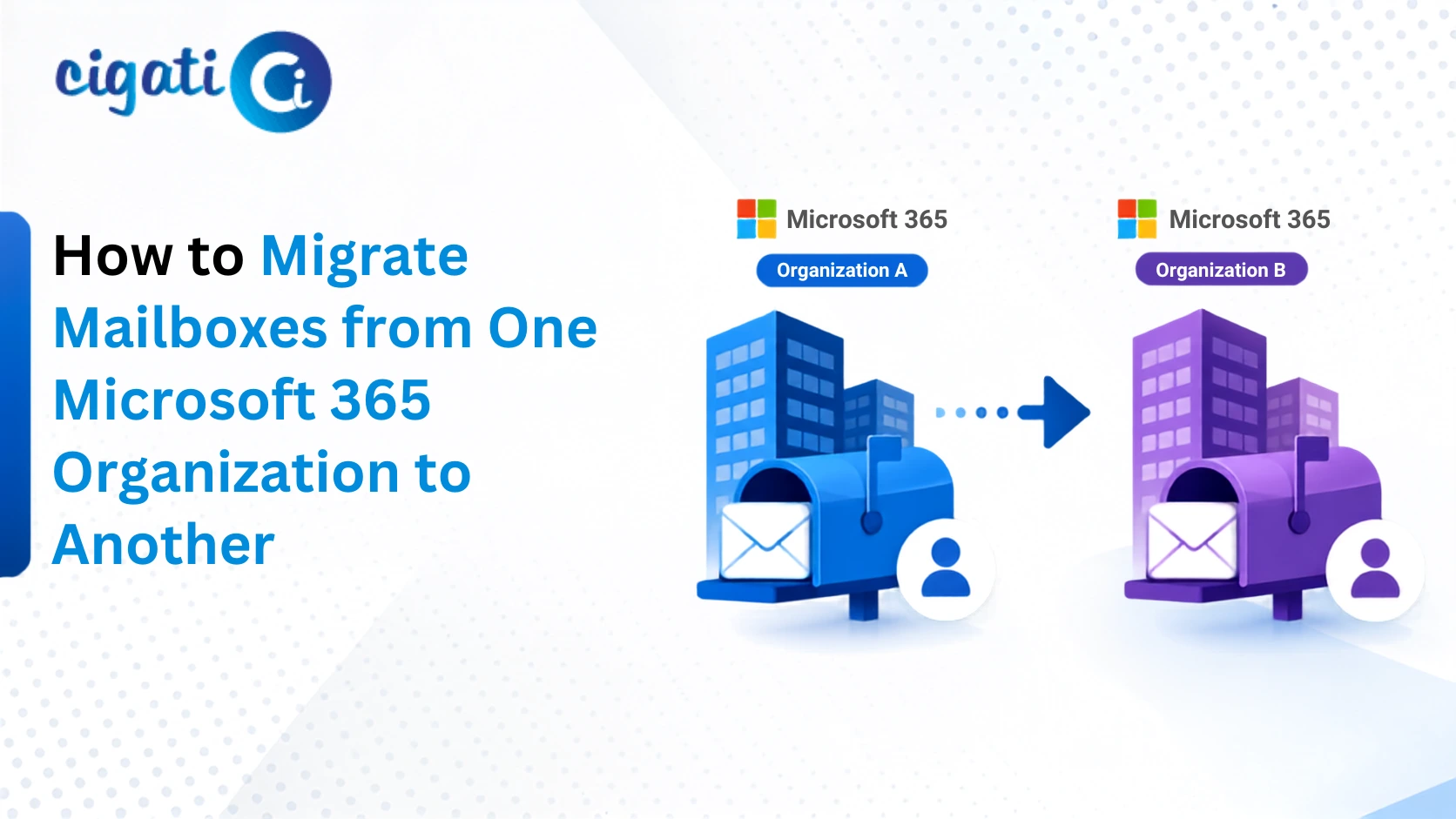
Organizations change their structure more often than the Microsoft 365 environment was originally designed for. A merger, an acquisition, a divestiture, & a rebrand can all require moving an entire Microsoft 365 environment. This process is also known as Microsoft 365 tenant-to-tenant migration, which will migrate emails, files, and other data at once. That’s why it requires proper planning rather than a single weekend of effort.
This article walks you through what a Microsoft 365 tenant-to-tenant migration involves & how the Cigati Microsoft 365 Tenant to Tenant Migration Tool can support the process.
Key Insights
- Microsoft 365 does not include a single built-in tool that migrates every workload between tenants.
- Organizations rely on Microsoft’s cross-tenant features together with dedicated migration platforms.
- A complete migration spans Exchange Online mailboxes, OneDrive, SharePoint content, & Teams data.
- Migrations that succeed tend to invest early in inventory, identity mapping, & communication rather than treating those steps as formalities.
Understand Microsoft Tenant-to-Tenant Migration
It is the process of relocating users, mailboxes, files, & other Microsoft workloads from one Microsoft Entra ID tenant to a separate tenant. Moreover, it is distinct from migrating between different email platforms; both the source & destination remain within the Microsoft ecosystem. But they exist as two independent tenants with their own identity boundaries and configurations. [Microsoft Learn]
This type of migration is most frequently triggered by:
- Mergers and acquisitions
- Divestitures
- Corporate rebranding or restructuring
- Consolidation
Because Microsoft does not offer one native tool that covers every workload, IT teams prefer a third-party migration tool to handle the full scope of the project.
What does Microsoft 365 tenant-to-tenant migration include?
| Exchange Online Mailboxes: It includes primary mailboxes, shared mailboxes, and in-place archives. | OneDrive for Business content: It covers personal files, folder structures, & sharing permissions. |
| SharePoint Online sites: Includes document libraries, lists, and site permissions. | Microsoft Teams: It includes teams, channels, and associated files. |
How Long Does An M365 Tenant to Tenant Migration Take?
Time depends on the organization; with roughly 100 to 500 users, a full migration commonly takes between 4 & 12 weeks from start to finish. Small migrations limited to a single workload can be completed in 2 to 3 weeks. While large, multi-workload environments, or those with regulatory requirements, can extend to several months.
The volume of data being moved is rarely the main factor behind a longer timeline. The table below outlines a typical phase breakdown.
| Phase | Typical Duration | Description |
| Discovery & assessment | 1 – 2 Weeks | Taking stock of both tenants – workloads in use, mailbox counts, license types, and any existing application registrations that need tracking. |
| Planning & design | 1 – 2 Weeks | Mapping out how the move will happen, including the order in which user groups migrate and a fallback plan if something needs to be reversed. |
| Environment preparation | 1 – 2 Weeks | Setting up the new tenant, purchasing the required licenses, and putting baseline security settings in place before any data moves. |
| Coexistence setup | 3 – 5 days | Connecting the two tenants so mail can route correctly and calendar free/busy information stays visible across both environments. |
| Pilot migration | 3 – 5 days | Moving a small, representative set of users first to confirm the process works as expected before scaling up. |
| Production waves | 2 – 6 weeks | Rolling out mailbox, file, and Teams migrations in planned batches rather than all at once. |
| Domain cutover | 1 – 2 days | Detaching the domain from the original tenant and confirming it in the new one, usually the most time-sensitive part of the project. |
Common Challenges in Office 365 Tenant to Tenant Migrations
Most migration setbacks stem from organizational gaps rather than technical limitations. Mailbox and file transfers themselves generally proceed as expected. Difficulties tend to appear at the edges of the project, such as mailboxes that were never documented or a large number of devices that require re-enrollment after cutover.
| Challenge | Typical Cause | Recommended Approach |
| Incomplete discovery | Shared mailboxes, service accounts, and older app registrations go undocumented over time | Use automated inventory tools rather than relying solely on internal knowledge |
| Domain removal delays | Leftover references to the domain prevent it from being released | Run dependency checks well ahead of the cutover date |
| Licensing shortfalls | Licenses are purchased based on headcount rather than actual account inventory | Base license counts on the full discovery inventory, with a reasonable buffer |
| Device re-enrollment issues | Devices remain connected to the source tenant after cutover | Treat device migration as its own project with a dedicated timeline |
| Sign-in and authentication friction | Security policies differ between tenants, prompting repeated authentication requests | Test conditional access policies in the destination tenant before go-live |
| Application sign-in dependencies | Third-party applications reference the source tenant identifier directly | Contact application vendors early to update tenant references |
| Teams content gaps | Certain chat and channel data may not transfer completely | Set expectations in writing about what will and will not migrate |
| Coexistence gaps | Users across the two tenants cannot see each other’s availability during a multi-week migration | Configure cross-tenant mail flow and calendar sharing before migration begins |
| Permission mismatches | Incomplete identity mapping causes file and mailbox permissions to break | Build & verify a complete source-to-destination identity map before migrating |
| Communication gaps | Users encounter unexpected sign-in prompts or missing profiles | Send advance notice with clear instructions before each migration wave |
Best Practices for a Successful Migration
Planning and discovery
|
Design and preparation
|
Execution
|
Communication and post-migration
|
Cigati Microsoft 365 Tenant-to-Tenant Migration Tool
For large data migration, many organizations prefer dedicated migration software rather than managing every workload manually. The Cigati Microsoft 365 Tenant to Tenant Migration Tool is made specifically for this purpose. It offers a structured way to move mailboxes, OneDrive, SharePoint sites, & Teams data. Also, you can download this software from the Microsoft App Store.
Important Capabilities of this software:
- Selective migration of specific mailbox components, which include public and archive folders.
- Bulk migration support for organizations transferring large numbers of mailboxes and workloads in a single operation.
- Secure authentication through Microsoft’s official sign-in process, so credentials are not stored by the tool itself.
- Deduplication that identifies similar messages based on sender, recipient, subject, & content that helps to reduce redundant data in the destination tenant.
- Preview functionality that allows admins to review data before completing the migration.
- Centralized admin through a single authenticated session, reducing the need for repeated manual logins across accounts.
Have a look at how Cigati software performs the migration step-by-step.
Estimating the Cost of a Microsoft 365 Cross-Tenant Migration
Costs generally fall into three categories:
- Microsoft licensing for the migration itself, since cross-tenant migrations require a dedicated per-user license separate from standard Microsoft 365 subscriptions
- Migration tooling or professional services, which are often priced per mailbox in addition to a base fee
- The overlap cost of maintaining both tenants during the transition period
For mid-market & enterprise organizations, a reasonable planning range for a full migration is approximately $25,000 to $150,000, with single-workload projects at the lower end & complex, multi-workload consolidations at the higher end. Providers that offer a fixed price before completing discovery should generally be approached with some caution, since scope frequently changes once a full inventory is available.
Conclusion
A Microsoft 365 tenant-to-tenant migration is a multi-workload project that depends heavily on thorough discovery, a complete identity map, and clear communication with the business. Organizations that dedicate sufficient time for preparation and use appropriate tools such as the Cigati Microsoft 365 Tenant to Tenant Migration Tool for the technical transfer of mailboxes and files.
Frequently Asked Questions
1. Can Microsoft 365 tenant-to-tenant migration be performed without downtime?
Ans. Complete downtime avoidance is difficult because of the domain cutover step. This step creates a short window when the domain sits unclaimed. Pre-staging data ahead of time shortens the work required at cutover. Scheduled migration waves spread the workload across several manageable time periods. Coexistence configuration keeps mail flow and calendars active during the transition. Scheduling the cutover outside business hours further limits operational impact overall.
2. How are users mapped during a tenant-to-tenant migration?
Ans. User mapping links each source tenant account to its destination equivalent. This matched record connects both accounts throughout the entire migration process. Mailbox delegates and file permissions depend directly on accurate account mapping. Group memberships also rely on this mapping to transfer correctly afterward. Teams typically build this mapping early during the overall planning phase. Validation happens during the pilot migration before the full rollout begins.
3. Are Microsoft 365 licenses required in the target tenant?
Ans. Yes, appropriate licenses are required for every user in advance. Shared mailboxes and resource accounts also need matching licenses assigned. These licenses must exist before any related data begins migrating. License planning should follow the complete discovery inventory rather than headcount. Shared mailboxes & optional add-ons are frequently missed during initial planning.
4. Can OneDrive data be migrated between Microsoft 365 tenants?
Ans. Yes, OneDrive content can move between tenants during a migration project. Folder structures, file versions, and sharing permissions are generally preserved throughout. This outcome depends on completing identity mapping between both tenant accounts. Content typically migrates ahead of the scheduled cutover for each wave. Only recent changes then sync during the final transition window itself.
5. Can SharePoint sites be migrated between Microsoft 365 tenants?
Ans. Yes, SharePoint sites can be migrated between separate Microsoft 365 tenants. This process includes document libraries, lists, & associated site permissions. Accurate identity mapping remains essential for permissions to transfer properly. Site and file permissions depend on matching accounts in both tenants. New tenant equivalents must exist before migrated permissions apply correctly there.
6. How do you handle DNS during Microsoft 365 tenant-to-tenant migration?
Ans. DNS handling centers primarily around the domain cutover step itself. Record time-to-live values are lowered several days before the cutover. Lower values allow DNS changes to propagate more quickly once repointed. The domain is released from the source tenant and then verified. Records are repointed afterward, and mail flow is tested both directions.
7. How can organizations minimize data loss during tenant migration?
Ans. Data loss prevention starts with complete and accurate tenant discovery work. A validated identity map further supports accurate data transfer between tenants. Pre-staging content ahead of cutover reduces last-minute synchronization risks considerably. Pilot migrations reveal permission or configuration issues before full rollout begins. Post-migration validation confirms mailbox counts and file permissions afterward as well. These checks catch gaps before the source tenant is fully decommissioned.
About The Author:

Khushboo Maurya is a digital content and SEO professional focused on creating useful, search-friendly content that connects with the right audience. She specializes in content optimization, website growth, and practical SEO strategies that improve visibility, engagement, and organic reach.
Related Post