-
Written By Rohit Singh
-
Updated on May 28th, 2026
Complete Guide to Migrate IMAP Email Accounts to Office 365
Fact-checked and reviewed in accordance with our
Editorial Policy
User Query: An IT admin is planning to move several IMAP email accounts to Office 365, but manual migration feels complex and slow. Is there any simpler way to transfer IMAP data for multiple mailboxes without losing any data or format structure?
IMAP email accounts work well until a business outgrows them. Office 365 brings compliance tools, shared calendars, and enterprise-grade security that no IMAP server can match. Getting email data across without breaking folder hierarchy or losing attachments is where most migrations go wrong. Manual methods to migrate IMAP email to Office 365 handle small accounts but fall apart under bulk migration pipelines and multiple user accounts. This blog covers one manual method and the Cigati IMAP Backup Tool for smooth and safe migration.
Got Everything Ready Before the Migration Starts?
Run through this list before opening any tool or setting:
- IMAP host ID, port number, and account credentials are written down and accessible.
- Office 365 account active with enough mailbox storage for the full IMAP data volume.
- Global admin access to Office 365 must be confirmed upfront.
- Switch IMAP access on inside the source account settings first.
- Keep the internet stable, as one dropout breaks the migration completely.
Also Read: Backup IMAP Email Locally
How to Migrate From IMAP to Microsoft 365 Manually?
To bring IMAP mail into Office 365, you can use the Microsoft 365 Exchange Admin Center and Windows PowerShell. Follow the detailed steps listed below to carry out the migration process.
- Create user accounts in your Microsoft 365 tenant and assign Exchange Online licenses so each user has an active mailbox.
- In your IMAP environment, choose the mailbox data you want to move. Also, you have to ensure that your domain is verified in Microsoft 365.
- Log in to the IMAP server as an administrator and give full mailbox access to the accounts you plan to migrate.
- After that, open Windows PowerShell and test the connection:
| Test-MigrationServerAvailability -IMAP -RemoteServer [server] -Port [143/993] -Security [None/SSL/TLS] |
- Further, create a CSV file with column entries as Email Address, Username, and Password. Save it as:
| C:\Users\Administrator\Migration\users.csv. |
- Moving ahead, create a migration endpoint linking Office 365 to the IMAP server:
| New-MigrationEndpoint -IMAP -Name “IMAPEndpoint” -RemoteServer imap.yourserver.com -Port 993 -Security SSL |
- Meanwhile, verify the endpoint:
| Get-MigrationEndpoint | Format-List EndpointType, RemoteServer, Port, Security |
- Furthermore, create a migration batch to start the transfer:
| New-MigrationBatch -Name “IMAPMigrationBatch” -SourceEndpoint “IMAPEndpoint” -CSVData ([System.IO.File]::ReadAllBytes(“C:\Users\Administrator\Migration\users.csv”)) -AutoStart |
- After completion, check that emails and folders have moved correctly into Office 365.
- Update your domain’s DNS MX record so new mail goes to Office 365.
- When routing works, remove the batch:
| Remove-MigrationBatch -Identity “IMAPMigrationBatch” |
This covers the full PowerShell-based manual method to migrate email from IMAP to Office 365 through the Exchange Admin Center.
What Are The Major Issues With Manual Method?
- Not easy for non-technical users, PowerShell is required.
- One wrong CSV entry can stop the migration flow.
- Bigger mailboxes usually take a long time to move.
- Network drops can interrupt migration between.
- Fixing errors often needs IT-level troubleshooting skills.
What Is The Expert Way To Migrate IMAP Email to Office 365?
Manual migration can get messy when mailboxes are large or multiple users are involved. That’s where the Cigati IMAP to Office 365 Migration Software comes in to solve the issue. It removes the need for PowerShell steps and CSV handling, and keeps the whole process more direct. It also supports bulk accounts during migration, and the folder structure stays intact throughout the transfer process.
Follow The Steps To Migrate IMAP Mailbox to Office 365:
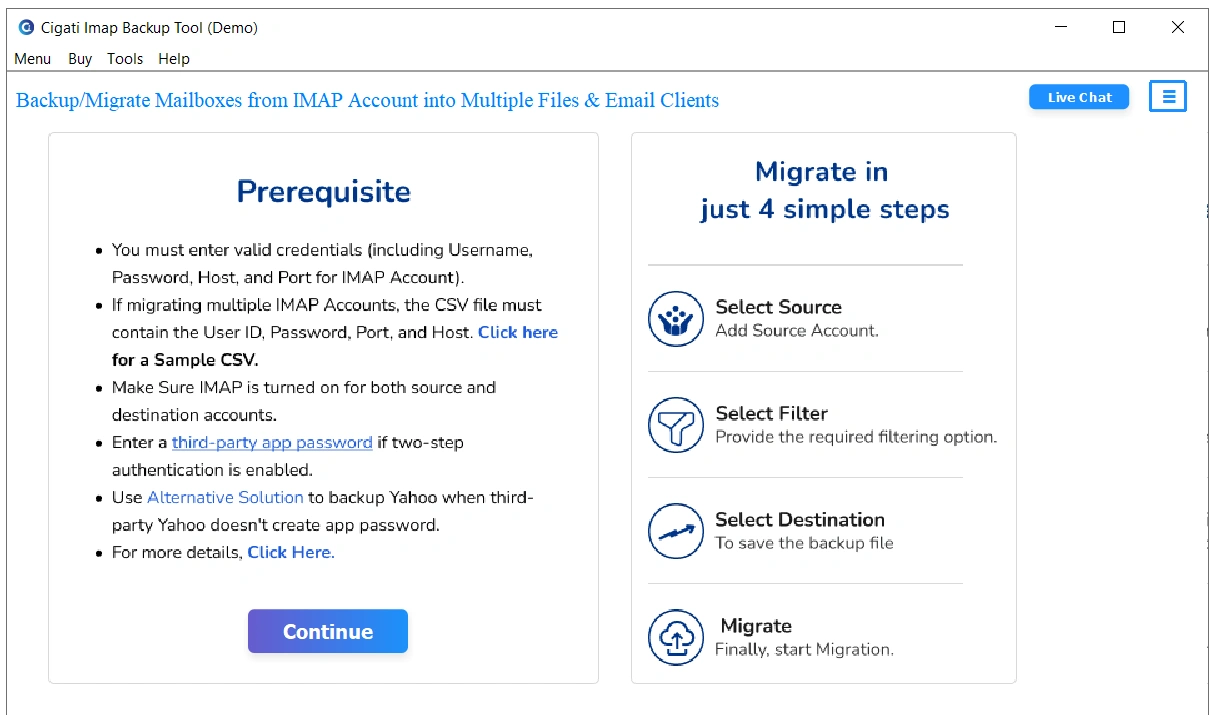
- At first, install and launch the IMAP to Office 365 Migration Wizard on your system.
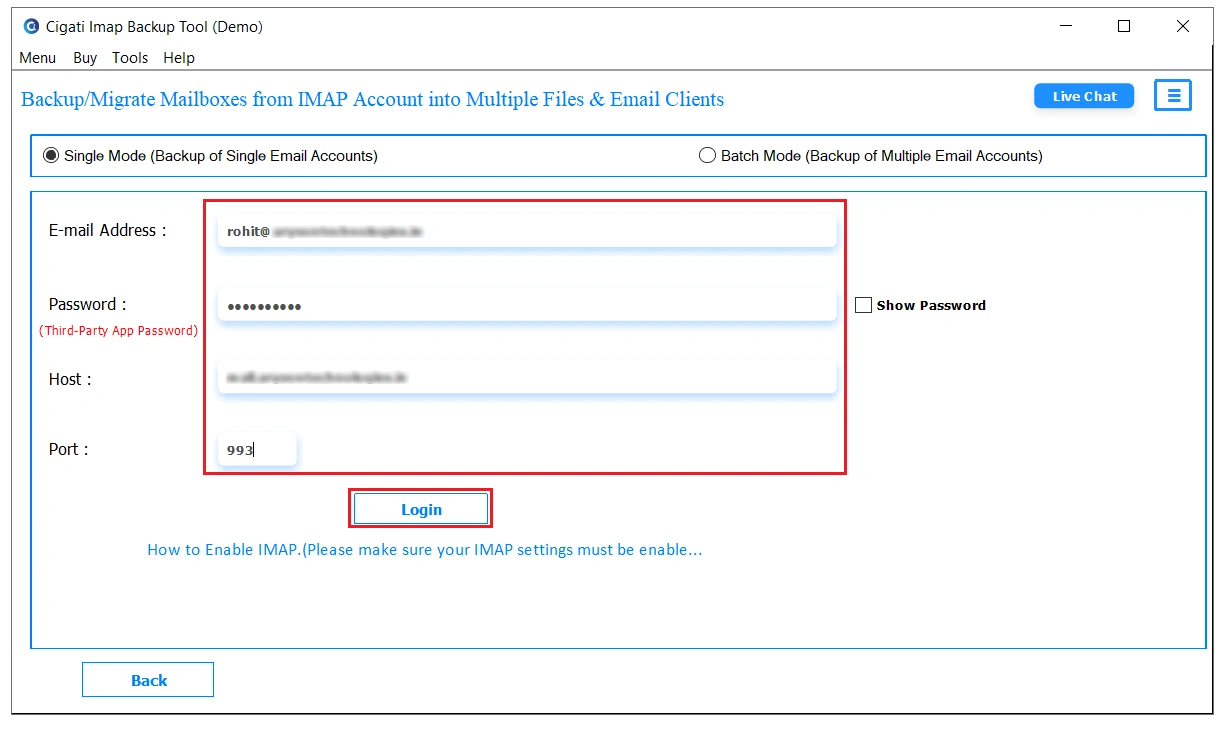
- After that, fill in the required login details and tap on the Login button.
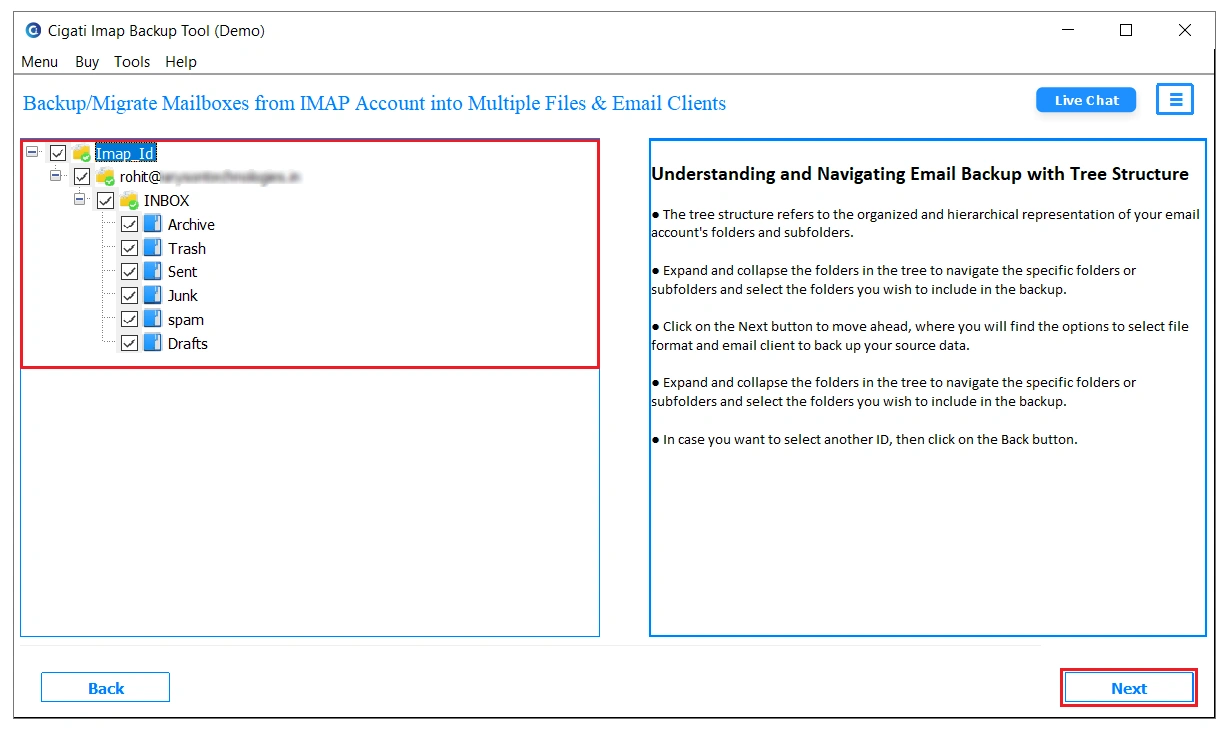
- On the next panel, the tool will display files in the tree structure, and then select the files you want to migrate.
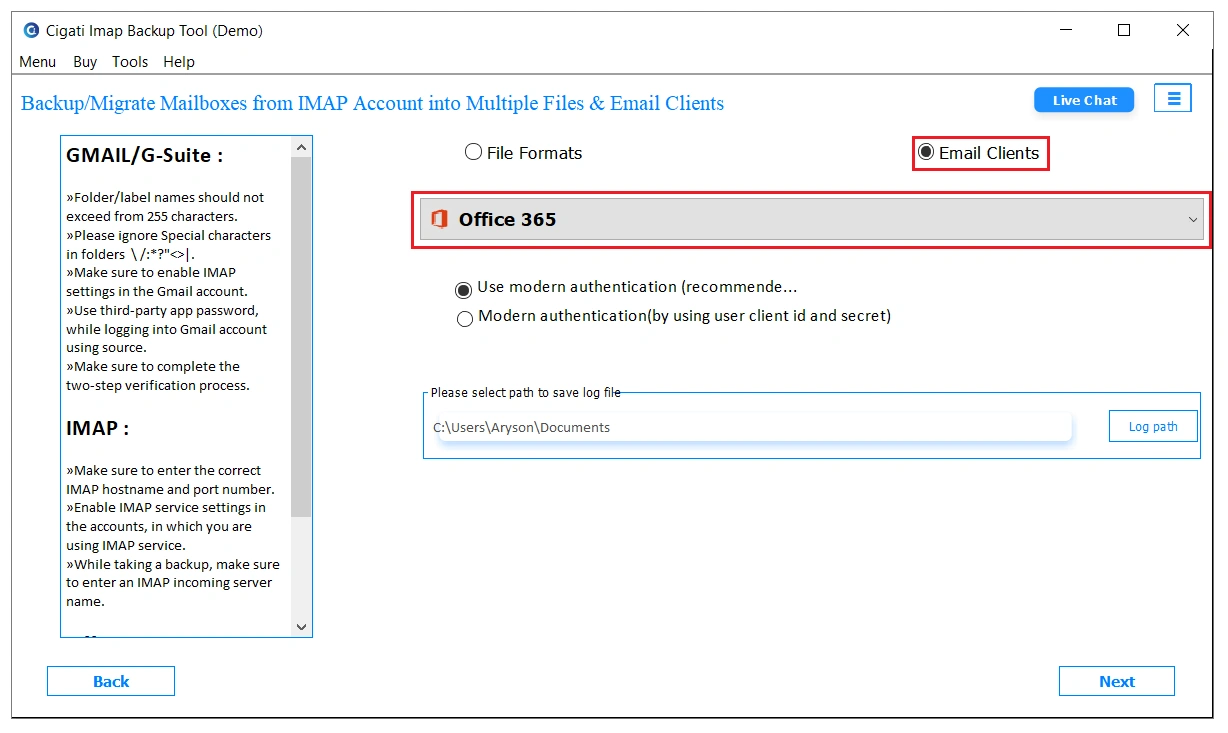
- Further, choose Office 365 from the drop-down menu, enter the login details of your Microsoft account, and click on the Sign In button.
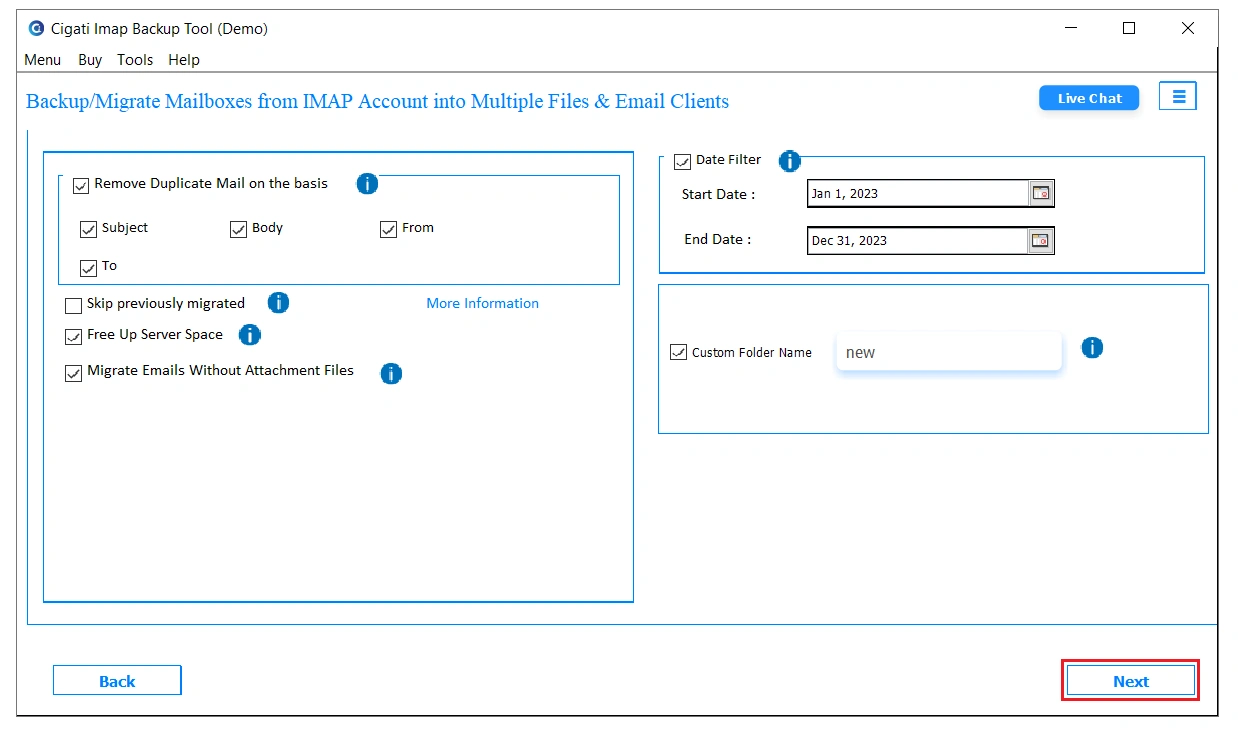
- As the last step, pick the additional filters to apply and then tap on the Convert button.
What Are the Core Benefits of Using This Wizard?
- You can migrate many IMAP mailboxes into Office 365 in one go, instead of doing them one by one.
- Original email folders and the full structure stay exactly as they are during the entire migration.
- It handles large numbers of user accounts without requiring you to repeat setup steps for each mailbox.
- There’s no need to write PowerShell commands or manage CSV files for the migration process.
- Emails and their attachments move together in one single migration cycle.
- The interface is simple and clear, so even non‑technical users can run the migration with confidence.
Real Case Scenario
An accounting firm in the UK had 42 staff on an old IMAP server. They needed to move to Office 365 before their support ended. Manual PowerShell steps took 12 hours and still missed 6 mailboxes. They then used the Cigati IMAP to Office 365 Migration Wizard. In about 3 hours, all 42 mailboxes holding 18,000 emails and 4.2 GB were moved over without issues.
Final Words
If you still rely on manual steps to migrate IMAP email to Office 365, you’re likely facing slow setups, CSV errors, and missing folders. For anyone who eventually needs to export Office 365 to MBOX, getting your data into Office 365 cleanly is the first critical step. The Cigati IMAP to Office 365 Migration Software makes that move faster, keeps folders intact, and removes the need for PowerShell. The software is a perfect choice for enterprises dealing with business-critical data.
You May Also Read: Migrate IMAP to Google Workspace
Frequently Asked Questions
Q1. How can we avoid data loss during long-running IMAP to Office 365 migrations?
Ans: Data loss usually happens when migrations are interrupted or poorly monitored. A migration tool like Cigati IMAP to Office 365 Migration Tool keeps the process stable, allowing users to resume transfers and move data safely without missing folders or messages.
Q2. How can I migrate large IMAP mailboxes to Office 365 without hitting throttling limits?
Ans: Large mailboxes often slow down or get restricted during manual migration. Cigati IMAP to Office 365 Migration Tool handles bulk data transfer more efficiently and reduces throttling issues during migration.
Q3. How do admins handle Shared Mailbox migration from IMAP to Office 365 properly?
Ans: Admins usually prefer migration tools that support bulk mailbox handling instead of manual configuration. Solutions like Cigati IMAP to Office 365 Migration Tool help in moving shared mailboxes with a consistent structure and reduced setup effort.
Q4. Is manual IMAP migration reliable for business email transfer to Office 365?
Ans: Manual IMAP migration is suitable for small setups, but it becomes risky for business environments. Cigati IMAP to Office 365 Migration Tool is often used instead, as it provides a more controlled and structured migration process for enterprise-level email transfer.
Q5. Why do some IMAP folders, like Sent or Drafts, not appear after migration?
Ans: This usually happens due to folder mapping differences between IMAP and Office 365. During migration, some folders are renamed or skipped unless handled properly, which is why migration tools are preferred for accurate folder structure retention.
About The Author:

Rohit Singh is a technology professional with 7+ years of experience specializing in email systems, Exchange Server, Office 365, MS Outlook, and data migration solutions. He creates clear, practical, and solution-oriented content to help users and IT professionals resolve complex technical challenges efficiently.
Related Post