-
Written By Rohit Singh
-
Updated on July 8th, 2026
How to Export Exchange 2010 Mailboxes to PST Files
Fact-checked and reviewed in accordance with our
Editorial Policy
| Our organization is migrating from Exchange 2010 to Microsoft 365 with 180 employee mailboxes. Before the migration, we need PST backups of every mailbox. What’s the fastest way to export them without handling each mailbox individually? ~ Olivia Davies, UK |
Enterprises operating on Exchange 2010 often need to export mailbox data to PST for backup, migration, or compliance purposes. Native methods require technical expertise and careful setup. On the other hand, a dedicated export tool simplifies the task by handling bulk mailboxes without complex commands. This blog covers manual methods to export Exchange 2010 mailboxes to PST, along with a reliable Cigati Office 365 Backup Tool for accurate and error-free results.
Who Needs to Export Mailbox from Exchange2010 to PST?
- IT administrators managing server migration who need to preserve existing mailbox data safely.
- Organizations are retiring old Exchange servers and requiring backup before decommissioning hardware permanently.
- Companies following compliance rules that mandate long-term retention of email records.
- Employees leaving an organization whose mailbox data must be archived for reference.
- Legal teams handling litigation cases that require exported emails as supporting evidence.
- Businesses are reducing mailbox size to improve Exchange server speed and overall performance.
- IT teams troubleshooting corrupted mailboxes who want a safe local data copy.
- Companies are switching to newer Exchange versions or moving to cloud-based platforms.
- Users want a personal backup of important emails stored outside the mail server.
- Organizations conducting internal audits that require reviewing historical email communication records.
Export Exchange 2010 Mailboxes to PST Using PowerShell
There is a built-in method in PowerShell to export the Exchange 2010 mailboxes to PST. Firstly, we will assign the required Mailbox Import Export role to the operating account to export mailbox to PST from Exchange 2010.
Prerequisite: Assign the Mailbox Import Export Role
By default, Exchange administrators cannot export mailboxes. Run the following command to assign the required permission.
New-ManagementRoleAssignment -Role “Mailbox Import Export” -User <username>
| New-ManagementRoleAssignment -Role “Mailbox Import Export” -User david |
Option 1: Export a Single Mailbox to PST
Run the following command to export a user’s mailbox to a shared network location.
New-MailboxExportRequest -Mailbox <username> -FilePath “\\<ServerName>\<SharedFolder>\<PSTFile>.pst”
| New-MailboxExportRequest -Mailbox david -FilePath “\\EXSERVER01\PSTBackup\david_Backup.pst” |
Option 2: Export Mailbox Data Using Filters
You can export only emails that match specific keywords or date criteria.
New-MailboxExportRequest -Mailbox <username> -ContentFilter {(Body -like “*keyword1*”) -and (Body -like “*keyword2*”) -and (Received -lt “MM/DD/YYYY”)} -FilePath “\\<ServerName>\<SharedFolder>\<PSTFile>.pst”
| New-MailboxExportRequest -Mailbox david -ContentFilter {(Body -like “*invoice*”) -and (Body -like “*payment*”) -and (Received -lt “12/31/2023“)} -FilePath “\\EXSERVER01\PSTBackup\david_Invoices.pst” |
Option 3: Export Specific Mailbox Folders
To export only selected folders, such as Inbox and Sent Items, use:
New-MailboxExportRequest -IncludeFolders “#Inbox#/*”,”#SentItems#” -Mailbox <username> -FilePath “\\<ServerName>\<SharedFolder>\<PSTFile>.pst”
| New-MailboxExportRequest -IncludeFolders “#Inbox#/*”,”#SentItems#” -Mailbox david -FilePath “\\EXSERVER01\PSTBackup\david_SelectedFolders.pst” |
Option 4: Export Multiple Mailboxes
To export multiple mailboxes, use:
$AllMailboxes | % { $_ | New-MailboxExportRequest -FilePath “\\<ServerName>\<SharedFolder>\$($_.Alias).pst” }
| $AllMailboxes | % { $_ | New-MailboxExportRequest -FilePath “\\EXSERVER01\PSTBackup\$($_.Alias).pst” } |
Limitations of the Manual Approach
- Requires the Mailbox Import Export management role before mailbox export requests can be created.
- Demands PowerShell knowledge, making it difficult for non-technical users.
- Bulk mailbox exports require scripting and continuous monitoring.
- Incorrect commands or parameters can lead to failed export requests.
- No graphical interface is available to simplify mailbox selection or progress tracking.
- Troubleshooting failed export requests can be time-consuming in large Exchange environments.
- Not ideal for organizations exporting hundreds of mailboxes due to its manual administration.
Scalable Solution to Export Exchange 2010 Mailboxes to PST
The Cigati Office 365 Backup and Restore Tool is one of the most dependable solutions for exporting Exchange mailboxes to PST. This utility supports Primary, Archive, Shared, and Public folders for comprehensive mailbox backup. It provides options for setting date range filters for creating selective backups. The advanced feature, like managing multiple mailboxes, makes it convenient for administrators who have to export large numbers of mailboxes.
Steps to Export Exchange Mailbox to PST
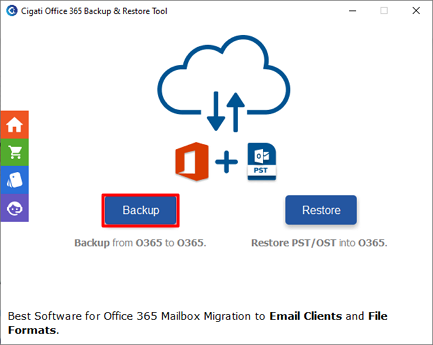
- Download the tool and click the Backup button.
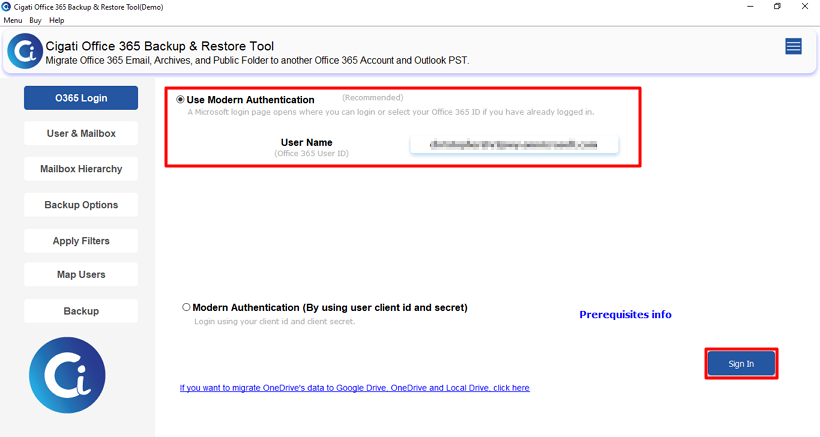
- Then, sign in with the Office 365 credentials in the software.
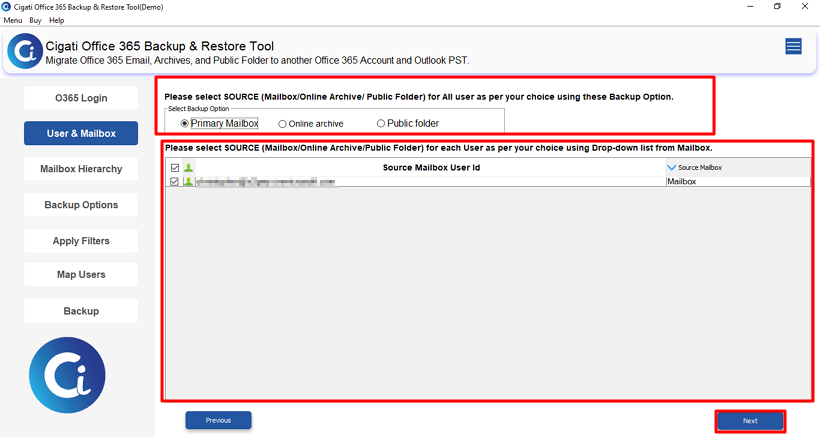
- Now, select the source and mailbox user ID and click Next.
- Thereafter, preview and select files, and hit Next.
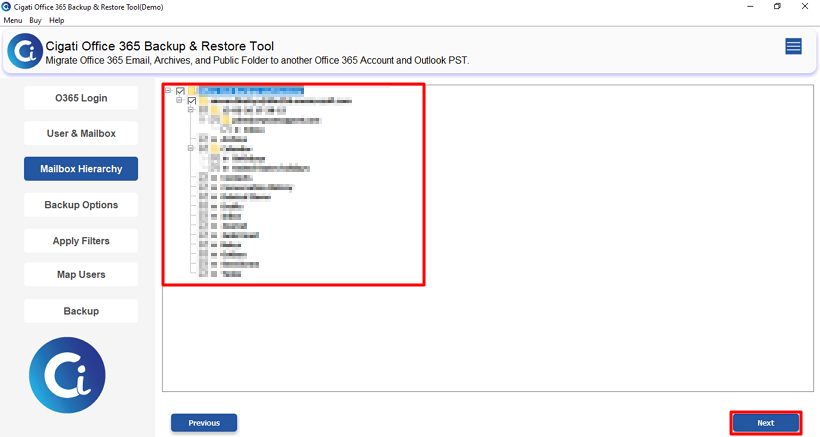
- Afterwards, choose PST from the saving option.
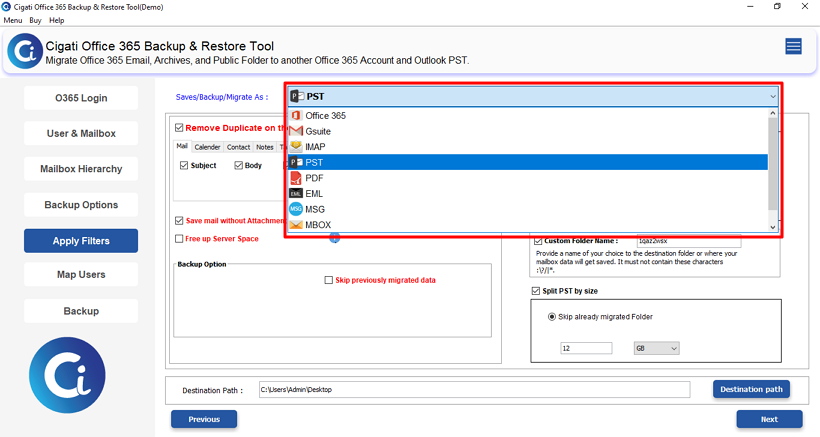
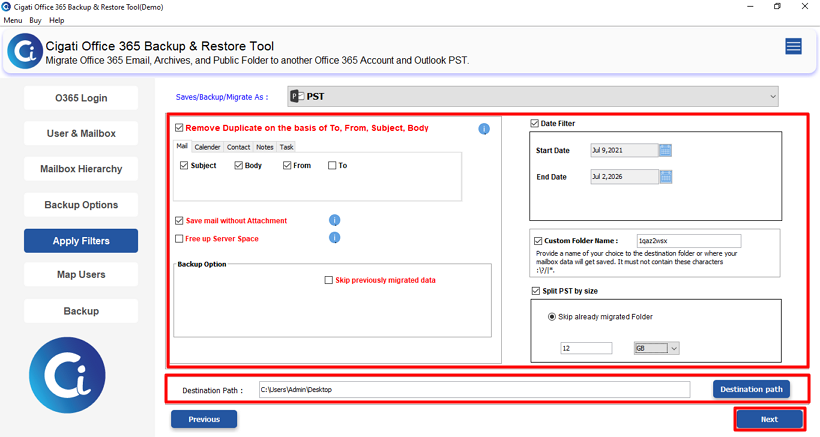
- After that, apply filters, set the destination path, and click Next.
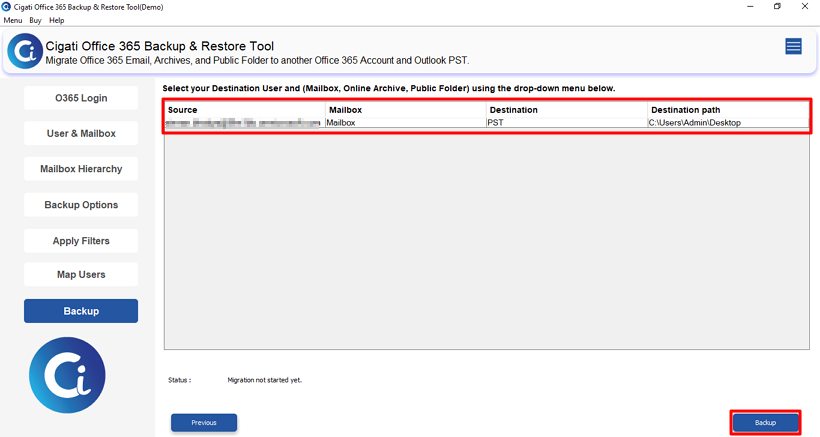
- Finally, click the Backup button to start the process.
Conclusion
Export Exchange 2010 mailboxes to PST file format is necessary for enterprises that intend to migrate their accounts, perform backups, or store emails in compliance with regulations. While manual procedures will be effective when dealing with a few mailboxes, they may become complicated when working with several mailboxes. Utilizing special software such as Cigati Office 365 Backup and Restore Tool can help make the entire process easier.
You May Also Read: Microsoft Exchange Server Unavailable
Frequently Asked Questions
Q1: Can I export multiple Exchange 2010 mailboxes to PST at the same time?
Ans: Yes. PowerShell supports exporting multiple Exchange 2010 mailboxes, but bulk exports require scripting and careful monitoring. For a simpler approach, the Cigati Office 365 Backup and Restore Tool lets you export multiple mailboxes to PST through an easy-to-use interface while maintaining data integrity.
Q2: Does exporting a mailbox to PST affect the original mailbox?
Ans: No. Exporting creates a separate PST copy of the mailbox data. The original mailbox and its contents remain unchanged unless you manually delete or modify them afterward.
Q3: Why is the New-MailboxExportRequest cmdlet not recognized?
Ans: This usually happens because the Mailbox Import Export management role hasn’t been assigned to your account, or you haven’t logged out and back in after assigning the role.
Q4: What is the easiest way to export hundreds of Exchange 2010 mailboxes to PST?
Ans: Manual PowerShell commands work well for small environments but become difficult to manage for hundreds of mailboxes. For large-scale exports, many organizations use dedicated solutions such as the Cigati Office 365 Backup and Restore Tool, which supports bulk mailbox exports through a graphical interface while maintaining mailbox structure.
Q5: Can I export only specific folders or emails from an Exchange 2010 mailbox?
Ans: Yes. PowerShell allows you to export selected folders using the -IncludeFolders parameter or filter emails by keywords, dates, and other criteria with the -ContentFilter parameter. If you prefer a graphical interface, the Cigati Office 365 Backup and Restore Tool also lets you perform selective mailbox exports using built-in filters without writing PowerShell commands.
About The Author:

Rohit Singh is a technology professional with 7+ years of experience specializing in email systems, Exchange Server, Office 365, MS Outlook, and data migration solutions. He creates clear, practical, and solution-oriented content to help users and IT professionals resolve complex technical challenges efficiently.
Related Post