-
Written By Rohit Singh
-
Updated on May 21st, 2026
What Causes OneDrive Error Code 0x8004de40 and How to Fix It
This blog covers everything you need to know about OneDrive Error Code 0x8004de40. Here we will see what the possible reason is that you may face this issue. Also, what are the available methods that you can use to resolve this OneDrive error? Moreover, we will go through the prevention tips that will help to avoid such types of errors in the future.
Understand the Error Code 0x8004de40 when signing in to OneDrive
Error Code 0x8004de40 signifies that OneDrive is facing difficulty while connecting to the cloud. In general, a user gets the following error message while signing in to the Microsoft OneDrive account.
| OneDrive can’t sign in. Error 0x8004de40Login was either interrupted or unsuccessful. Please try logging in again. (Error Code: 0x8004de40) |
Basically, this error code 0x8004de40 occurs due to third-party antivirus software or a faulty internet connection. Therefore, it is advisable to verify the settings of your internet connection.
Let’s find out the possible reasons that cause this sign-in error in OneDrive.
Possible Reasons for OneDrive Sign-In Error Code 0x8004de40
Recently, a user asked about OneDrive Error Code 0x8004de40, which shows “There was a problem while connecting to OneDrive.” He stated:
| “Today, I got an error while attempting to sign in to my OneDrive account. There was a pop-up showing “There was a problem connecting to OneDrive”. Error Code: 0x8004de40. Then, I checked my internet connectivity, and the other internet-based services work normally. Can you provide an effective solution to this error? Also, I want to know about the possible reasons behind this trouble.” |
Experts have confirmed the following reasons behind this error code.
1. Unstable Internet Connectivity
You need a stable and speedy internet connection for the proper functioning of Microsoft OneDrive. Unstable and weak connectivity is one of the reasons behind the failure of OneDrive while connecting to the cloud.
2. Missed Out on the latest Microsoft Updates
Sometimes users miss out on the latest Microsoft updates. Due to this, OneDrive may find it difficult to connect with the recently updated Microsoft servers. Therefore, it may result in displaying the OneDrive Error Code 0x8004de40.
3. Corrupted Installation of OneDrive
Due to the improper installation of OneDrive, some files or folders get corrupted. These installation failure issues are not prominent to the users, as they do not receive any warning. However, it affects the functioning of the OneDrive and leads to the warning “There was a problem connecting to OneDrive. Error Code: 0x8004de40”.
4. Internet Settings are not configured properly
Internet security protocols are very crucial to establishing the encryption channels over the computer network. Disabled or badly configured protocols affect the functioning of the Microsoft OneDrive program and lead to this error under discussion.
Also Read: OneDrive Storage Full – Duplicate Files Eating Cloud Storage
Proven Methods to Fix OneDrive Error Code 0x8004de40
After knowing the possible reasons behind this OneDrive Sign-In Error, let’s discuss reliable ways to rectify this error.
Method 1: Check the Speed and Stability of your Internet Connection
This is the most common reason behind the OneDrive Connectivity Error Code 0x8004de40. Low internet connectivity can interrupt the connection of OneDrive to the cloud. Therefore, you need to resolve this issue first. The following are the steps that you can perform to verify that your internet is working smoothly.
- Check the LAN or wired connection and ensure that the cable is correctly plugged in.
- In case you are using the router, then restart it to check whether it is working properly or not.
- After that, launch your browser and open a couple of sites. If your browser loads the pages properly in the minimum time, the problem isn’t with your internet.
However, if there is an issue with your internet connection, then follow the next step to rectify it.
Method 2: Modify the Internet Properties on Your Windows OS
The Windows-based system uses a Transport Layer Security (TLS) 1.0 and above protocol. It encrypts the data that you sent over the internet. Therefore, OneDrive won’t function properly if this protocol is not enabled. You can follow the steps below to enable the TLS protocol.
- Press Win+R to open the Run wizard. Then, type inetcpl.cpl and click Ok to proceed.
- It will take you to the Internet Properties window. Here, select the Advanced option.
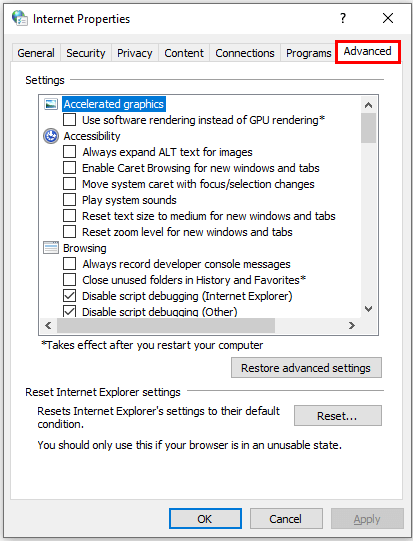
- Now, under the Security, check on the following options:
Use TLS 1.0, Use TLS 1.1, and Use TLS 1.2 - Click on Apply and then Ok to save the TLS settings.
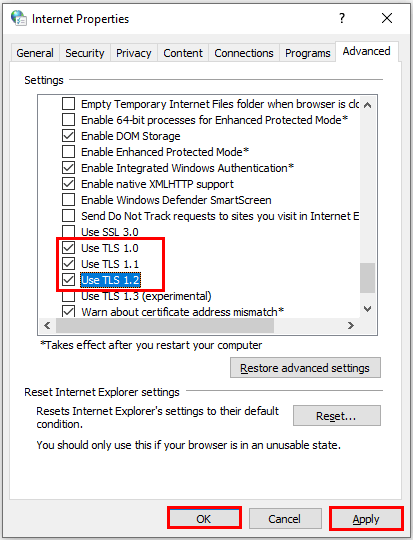
- In the end, reboot your system to check if the issue persists or not.
Method 3: Check for the Proxy Settings and Disable them
Sometimes, “There was a problem connecting to OneDrive Error Code 0x8004de40” occurs due to your proxy server. The following are steps that you can perform to verify whether your Windows device is using it or not.
- Press Win+R and type inetcpl.cpl, then click Ok to access the Internet Properties.
- Now, click on the Connection menu from the Internet Properties wizard.
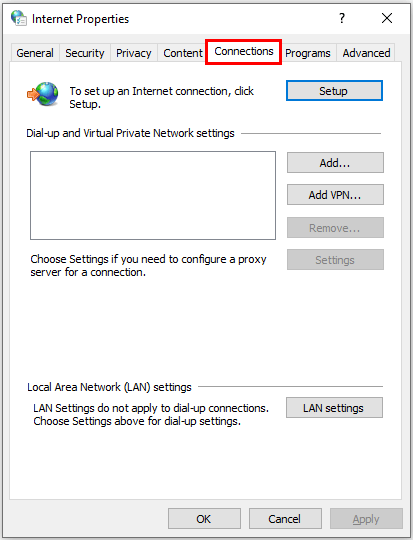
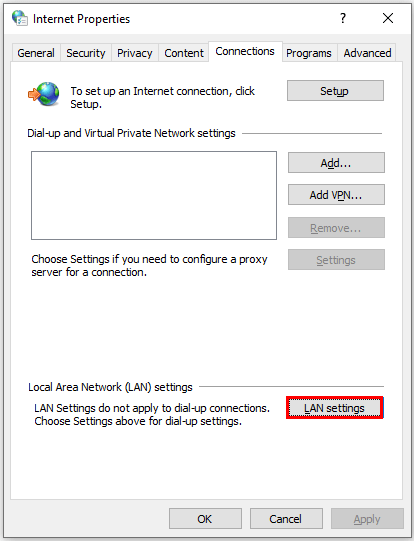
- Here, select the LAN Settings.
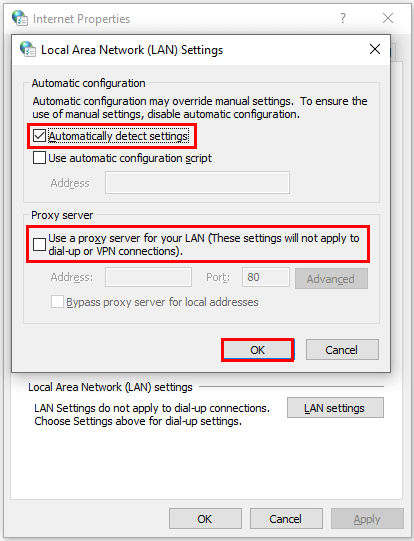
- It will redirect you to the LAN Settings panel. Enable the Automatically Detect Settings option and disable the Use a proxy server for your LAN option. Then, click on the Ok button to save the settings.
- In the end, restart your system and check if the error is resolved.
Method 4: Check For the Third-Party Antivirus (Uninstall if Applicable)
Many users opt for third-party antivirus software to prevent malware attacks on their systems. However, these programs cause various errors. Microsoft OneDrive is also affected by such programs. Hence, you need to uninstall it for the smooth functioning of your OneDrive account. The following steps will help you to uninstall the third-party antivirus on your system.
- Again, press Win+R, type appwiz.cpl, and click Ok to open the Programs and Features panel.
- Here, search for Third-Party Antivirus Software and Right-Click on it. Then, click Uninstall from the available options.
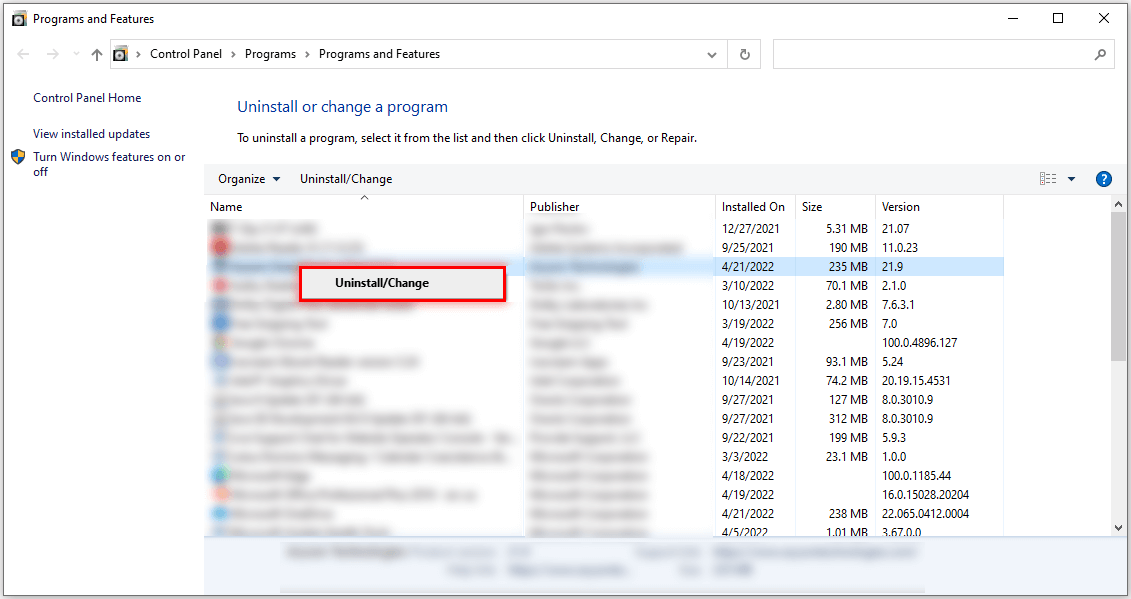
- Now, follow the instructions to uninstall it.
- After successful completion of this process, restart your system and verify if OneDrive shows the error code 0x8004de40 or not.
Method 5: Reset the Windows Socket On your Windows Device
If the above-discussed solutions do not fix the OneDrive Error Code 0x8004de40, try to reset the Windows Socket (Winsock). It manages the input and output requests of the internet on your Windows device. It allows the application to access the internet on your system. So that you can reset Winsock to fix this Error Code 0x8004de40.
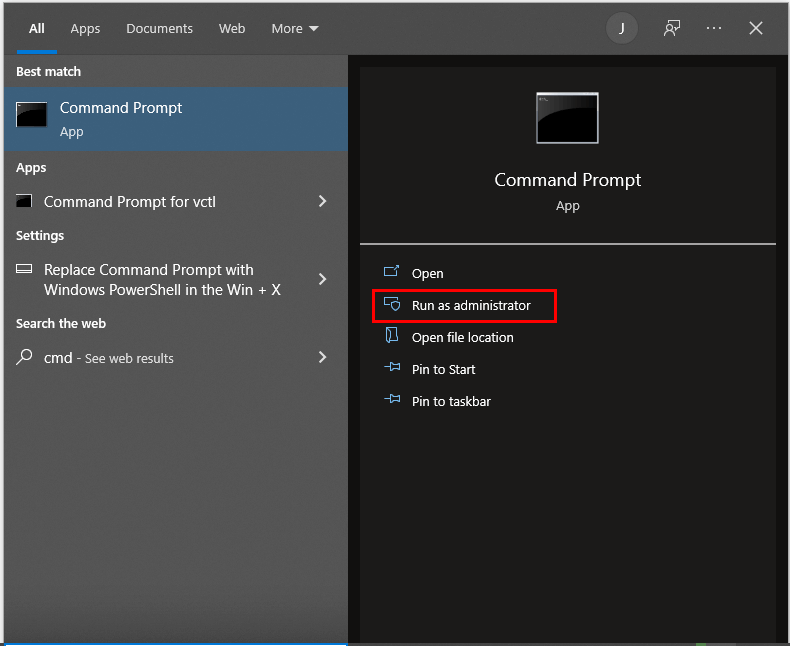
- Press Win+S and type cmd in the search box. Then right-click on the Command Prompt result and run it as Administrator.
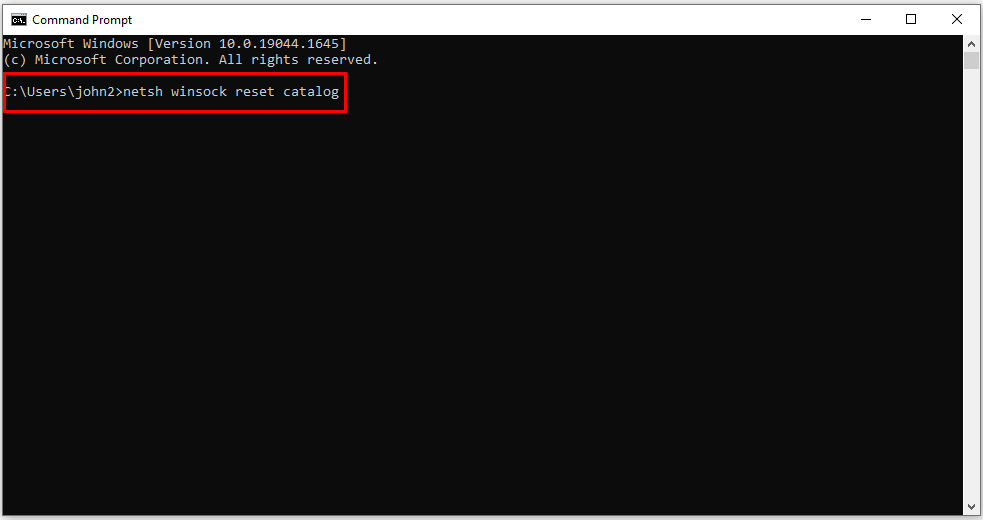
- Type netsh winsock reset catalog in the Command Prompt panel and press Enter.
- Once the command is executed successfully, close the tab and restart your system.
- Now, after restarting your system, check whether the error is fixed or not.
Method 6: Reset the OneDrive Program
It is one of the quickest methods to reset any program to its default state when an application or program functions abnormally. You can execute the following steps to reset OneDrive on your device.
- Press Win+R and open the Run command. Here, paste the command %localappdata%\\Microsoft\\OneDrive\\onedrive.exe /reset and click Ok to start the process.
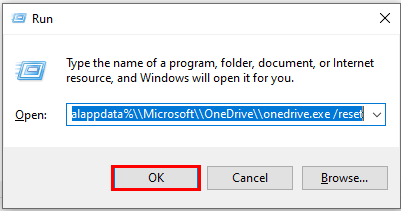
- After the completion of the resetting of OneDrive, you need to restart your computer.
- Now, after restarting, again press Win+R and paste the command %localappdata%\\Microsoft\\OneDrive\\onedrive.exe and select the Ok button to launch OneDrive.
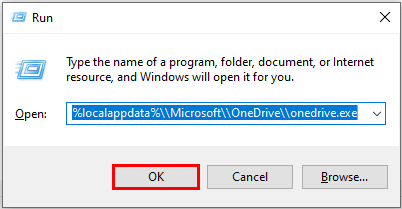
- This eliminates all the errors and sets your OneDrive to its default state.
These are the 6 proven ways to fix “There was a problem connecting to OneDrive Error Code 0x8004de40”. However, it is advisable to save OneDrive data to the Local Drive or Desktop to prevent your crucial data. In this regard, you can use the automated Cigati OneDrive Migration Tool. This utility will help you migrate your data to other cloud services. Additionally, you can back up your data using this tool in multiple file formats.
Summary Table of Causes and Fixes
| Cause | Fix |
| Unstable or weak internet connection | Check your LAN cable, restart the router, and verify connectivity through a browser |
| Outdated Microsoft or Windows updates | Install the latest Windows and OneDrive updates from Settings |
| Corrupted OneDrive installation | Reset OneDrive using the Run command or reinstall it completely |
| TLS protocol not enabled | Open Internet Properties, go to Advanced, and enable TLS 1.0, 1.1, and 1.2 |
| Proxy server interference | Open LAN Settings and enable auto-detect while disabling manual proxy |
| Third-party antivirus blocking OneDrive | Temporarily disable or fully uninstall the antivirus software |
| Winsock configuration issue | Run the netsh winsock reset catalog command in Command Prompt as Administrator |
Prevention Tips to Avoid This Error in the Future
- You need to update your Windows and OneDrive regularly to avoid the issues of compatibility with Microsoft Servers.
- If you are signing in or syncing the OneDrive, then you should use a stable internet connection.
- Always avoid using third-party antivirus software because it can block OneDrive.
- Do not change internet security protocols unnecessarily.
- Also, make sure your TLS settings are enabled.
- Never interrupt OneDrive during sign-in or syncing.
Final Verdict
OneDrive is the best solution for backing up your system’s files on cloud storage. Although some outages with OneDrive result in showing “There was a problem connecting to OneDrive Error Code 0x8004de40.” This article is specifically dedicated to providing the top 6 methods to troubleshoot this error code.
Apart from this, sometimes you find duplicate files in your OneDrive that can cause many unexpected errors. If you want to delete those duplicate files, Cigati offers an advanced Cigati OneDrive Duplicate Finder and Remover Tool. This tool is a professional utility that will help you to ease the process of finding and removing duplicate files in OneDrive.
Frequently Asked Questions
Q1. What does OneDrive Error Code 0x8004de40 actually mean?
Ans: This error means that Microsoft OneDrive is unable to establish a connection with Microsoft cloud servers. It is generally linked to internet connectivity problems, TLS protocol issues, proxy settings, firewall interference, or corrupted OneDrive configuration.
Q2. Why am I getting Error 0x8004de40 even though my internet is working fine?
Ans: Many users reported that browsers and other apps work normally, while only OneDrive fails to connect. This usually happens because:
• TLS 1.2 is disabled.
• Proxy settings are blocking OneDrive.
• Antivirus/firewall interrupts authentication.
• OneDrive cache or credentials are corrupted.
• The Windows network stack is damaged.
Q3. Why does OneDrive work in the browser but not in the desktop app?
Ans: This is one of the most common user complaints online. Usually, the browser version works because:
• Browser authentication succeeds.
• Cached desktop credentials are corrupted.
• Desktop sync settings are damaged.
• Domain policies or proxy settings block the sync client only.
Q4. Why does OneDrive only fail on one computer but work on others?
Ans: This generally indicates a device-specific problem, such as:
• Corrupted OneDrive installation
• Broken user profile.
• Invalid cached credentials.
• Local firewall restrictions.
• Domain policy conflicts.
Q5. Why does OneDrive fail on Wi-Fi but work on a mobile hotspot?
Ans: This usually points toward:
• Router firewall restrictions.
• DNS issues.
• ISP filtering.
• Proxy or VPN conflicts.
• Blocked Microsoft endpoints on the network.
About The Author:

Rohit Singh is a technology professional with 7+ years of experience specializing in email systems, Exchange Server, Office 365, MS Outlook, and data migration solutions. He creates clear, practical, and solution-oriented content to help users and IT professionals resolve complex technical challenges efficiently.
Related Post