-
Written By Rohit Singh
-
Updated on June 24th, 2026
How to Export Office 365 Archive Mailbox to PST File – Verified
Fact-checked and reviewed in accordance with our
Editorial Policy
| “Hi, I am Amelia Carper, and I have my in-place archive nearing capacity, and so I find it logical to export this archive into a PST file and store that on-site for future use, while freeing up the space in the Office 365 archive mailbox itself. However, the problem is that I cannot find any documentation about how to perform this export. Currently, I cannot locate the in-place archive in either Outlook or the web mail interface, nor do I see an export option. Can anyone suggest how I should proceed?” |
Microsoft provided Office 365 Archive Mailboxes to manage the space consumption and secure old historical emails without affecting the performance of the primary mailbox. These mailboxes automatically store the emails and are accessible through desktop or web Outlook. However, when users like Amelia or large organizations need this data on the local OS, converting it to PST becomes a challenge. This guide will explain how you can export Office 365 Archive Mailbox to PST free or with the Cigati Office 365 Backup Tool without any loss or data alterations in minimal time.
How to Conveniently Export Online Archive to PST?
There are three top solutions to make this export depending on your internet speed, technical proficiency, and mailbox size. These are:
- Manually using Microsoft Purview (PowerShell Cmdlet) for Admins
- Free via Microsoft Outlook for Individuals needing control
- Through the expert Office 365 Backup and Restore Tool for All Users
We will discuss all these methods in complete detail below. However, you must first ensure a few prerequisites for a smooth and successful migration.
Pre-Migration Checklist to Export Archive Mailbox to PST
- Appropriate M365 compliance and Exchange permissions
- Active and accessible O365 Archive Mailbox
- Visible archive mailbox within MS Outlook
- Complete storage availability and size of the archive mailbox
- Stable internet connectivity for data handling
| Note: Office 365 Archive Mailbox/In-place Archive/Online Archive is a Microsoft additional mailbox handling storage, reducing mailbox size, improving performance, and meeting long-term retention needs. Generally, stored in Exchange Online and managed independently from the primary mailbox, it requires a specific approach to capture all emails in PST securely. So, meet the above requirements and then proceed with the mentioned stepwise guide. |
Cost-Free Export Office 365 Archive Mailbox to PST
As mentioned above, there are two manual solutions, one specifically for Admins and IT Teams with technical proficiency and another for individuals. However, both must have a few emails to deal with. To understand these methods better, check here:
1) Use Microsoft Compliance Purview Panel for Cloud Exports
If you are an admin and need to extract only the specific user archive data without Outlook access, follow these steps:
- Sign in to the Microsoft Purview Portal and go to Roles and Scopes.
- Then, click Permissions and add your Office 365 archive mailbox account to the eDiscovery Manager Role Group.
- Further, move to Solutions and click on eDiscovery. Press Content Search and then New Search.
- Afterward, name your search and turn on the Mailbox status. Specify the email address of the user there.
- Set your conditions for the search scopes and click the Run Query button.
- Wait for it to complete and track the progress of the migration in the Statistics tab.
- Later, once it finishes, go back to Content Search and click Actions.
- There, tap Export Results and choose to create PSTs for messages.
- Furthermore, from the Export tab in Purview, copy your Export key.
- At last, click Download Results and use the eDiscovery PST Export Tool to save PSTs with the copied Export key.
This is one way to export Office 365 archive mailbox to PST. But this isn’t it. This method can be executed in another way too, using the PowerShell commands as displayed below.
PowerShell Exporting PST Files from Microsoft 365 In-place Archive
- First, install and update the following modules on your system:
| Install-Module ExchangeOnlineManagement -ForceImport-Module ExchangeOnlineManagement |
- Also, connect the Security and Compliance PowerShell module with the command: Connect-IPPSSession.
- This will help you to connect with Microsoft Compliance Purview easily.
- Further, download the PowerShell script, launch it, and run it on your OS.
- Open Windows PowerShell as an administrator. Go to the saved folder and execute it as:
| cd “X:\Path\To\Script” // Replace X with your drive letter where it is saved. .\In-PlaceArchiveDownload1.ps1 //Executing the Script |
- Now, log in using your Exchange Online Administrator Account and enter the mailbox email address to export from.
| Connect-ExchangeOnlineGet-Mailbox -Identity username@domain.com | Select ArchiveStatus |
- Afterward, you will create a new Compliance Search and will be prompted to enter a name for it. Give one.
- Furthermore, log in with the Compliance and Security Admin Credentials.
- Start the compliance search and get the statistics with the commands:
| Get-MailboxStatistics -Identity username@domain.com -ArchiveGet-EXOMailboxStatistics -Identity username@domain.com -Archive |
- Finally, in your MS Purview Portal, go to Content Search. Locate the created Compliance Search and download Export Results as PST.
Even though this manual solution is available, both methods need admin credentials and a high level of technical proficiency. There are high chances of human error and data loss, which can result in more complexities and risks to the business operations and performance. Henceforth, these methods are not recommended.
2) Outlook Export Online Archive to PST
If you are an individual user and have your Office 365 archive mailbox completely loaded in Outlook, then this works for you. Steps to follow are:
- Open Outlook and, along with the Primary Mailbox, the Archive Mailbox must appear in the left pane.
- Then, from File, press Open and Export, and then click Import/Export.
- Afterward, choose Export to a File, click Next, and opt for PST. Again, press Next.
- Select your Online Archive Mail folder for the export and ensure to Include Subfolders.
- Finally, pick a secure destination for your mailbox and click Finish to save the PST.
This method is completely user-dependent and requires an active MS Outlook profile as a mandatory part for export. Also, it is time-consuming for large and bulky mailboxes and may fail midway. It can even result in performance issues, incomplete exports, or data loss. So, this method is also less preferable.
If none of the above manual methods suits the user, then what is the ideal solution that Amelia and others must opt for?
Risk-Free Export Office 365 Archive Mailbox to PST File
If you are an individual, an admin, a team, an organization, or an enterprise that needs a secure Archive mailbox to PST export, use Cigati Office 365 Backup Software. It is specifically built to deal with such mailboxes and very large volumes of email content within it. The software poses no size limitations and uses secure OAuth 2.0 modern authentication for login. Additionally, it keeps all the email folders, structure, metadata, headers, and timestamps preserved, whether you are on Windows or Mac OS. With smart built-in custom filter options, fast processing speed, and secure conversion process, it is a preferred choice of many users and experts globally.
Steps to Export Archive Mailbox to PST
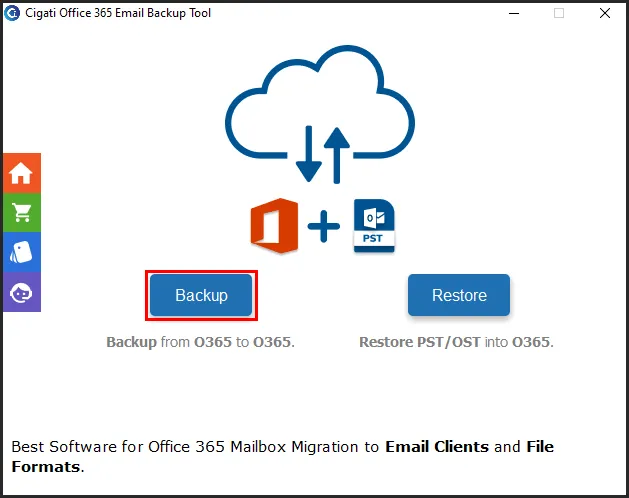
- Launch the Microsoft 365 Backup and Restore Tool and click Backup. In the next window, Continue.
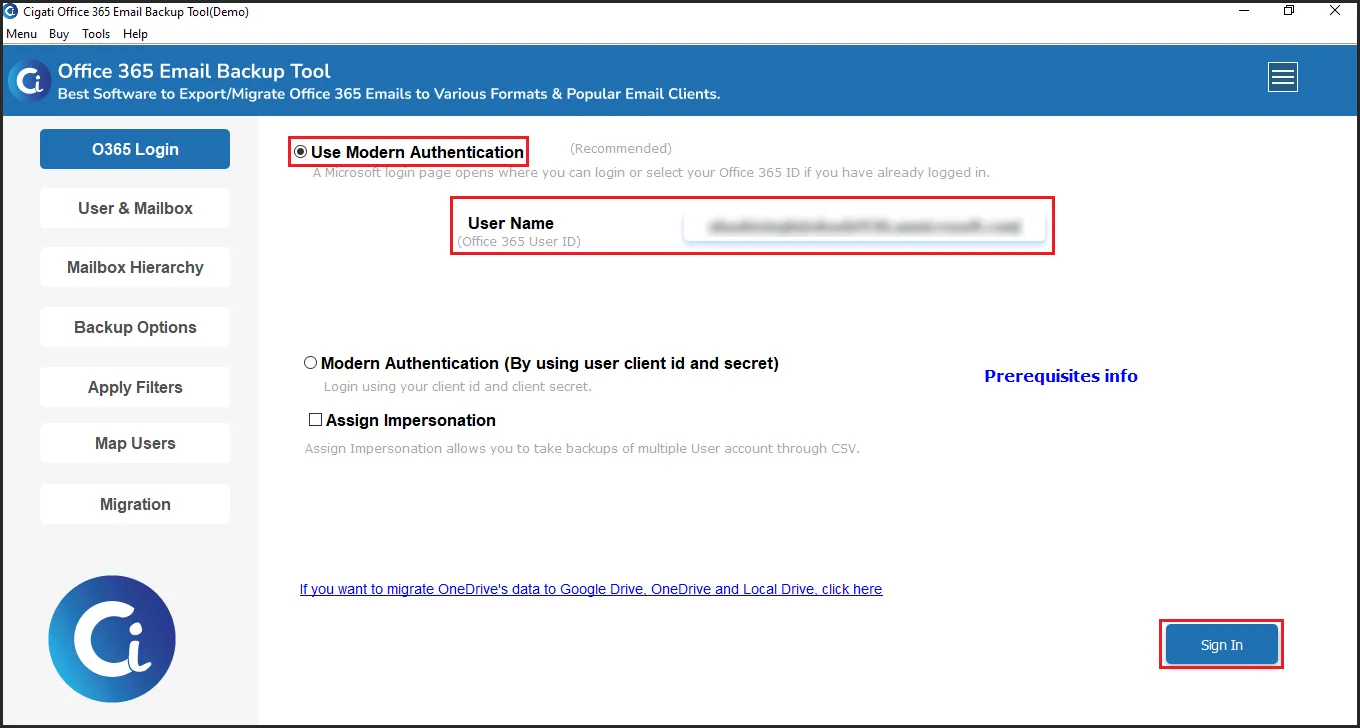
- Then, pick a mode of authentication and enter your Office 365 Archive Mailbox credentials. Authenticate.
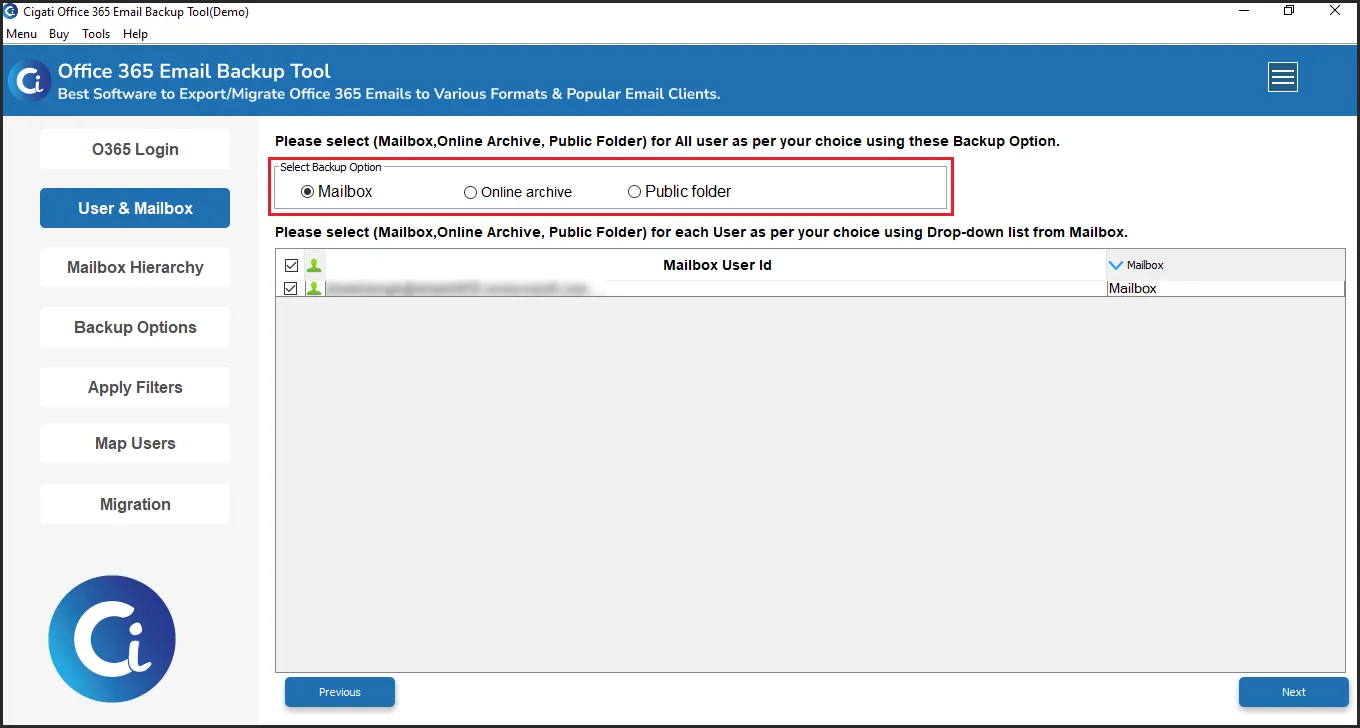
- Further, choose the Online Archive Mailbox from the options and select the IDs. Click Next.
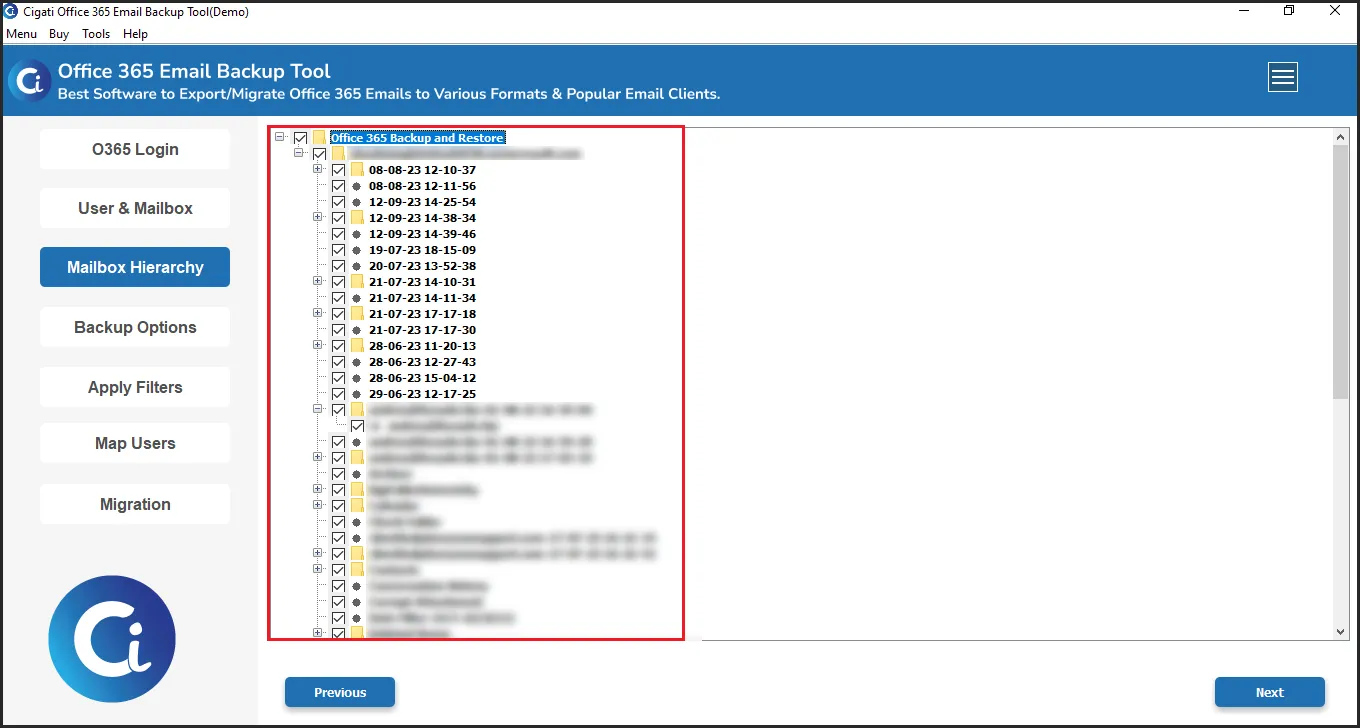
- Afterward, select the email folders that you want to migrate from the tree structure and click Next.
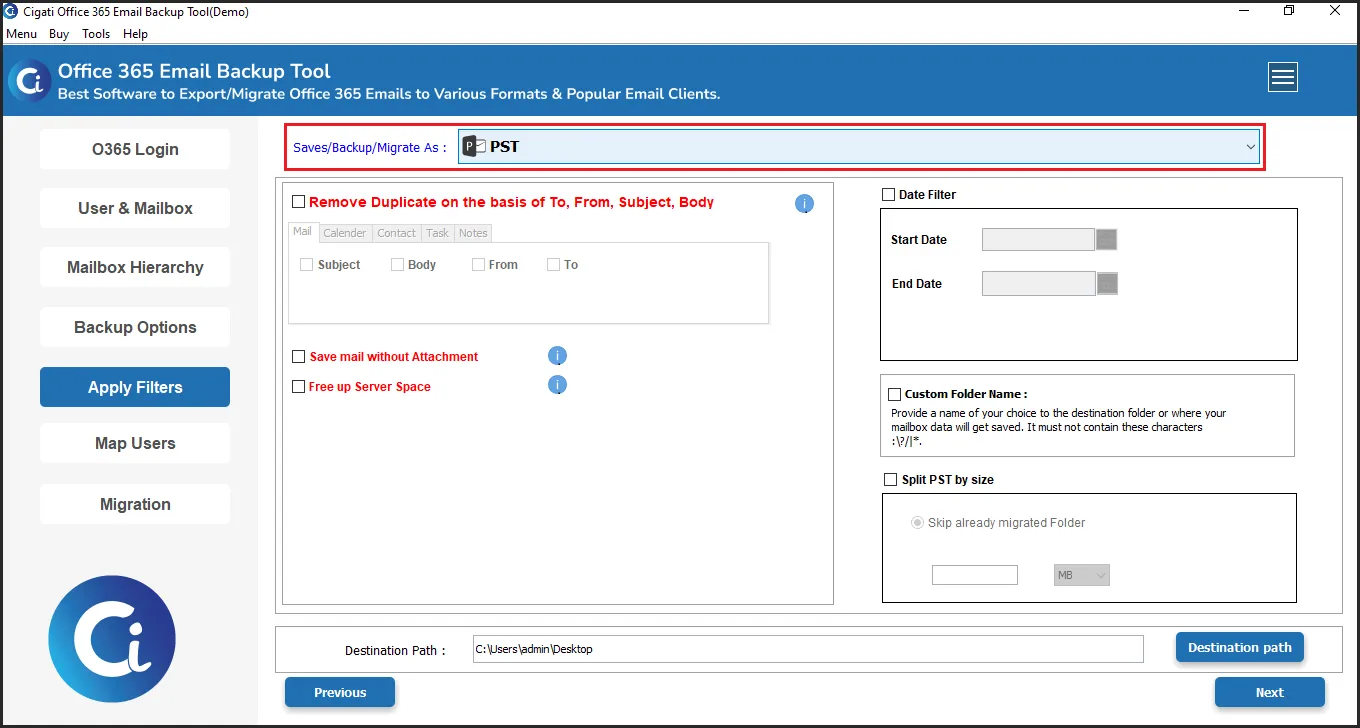
- Later, choose PST from the options and apply the relevant filters before the export.
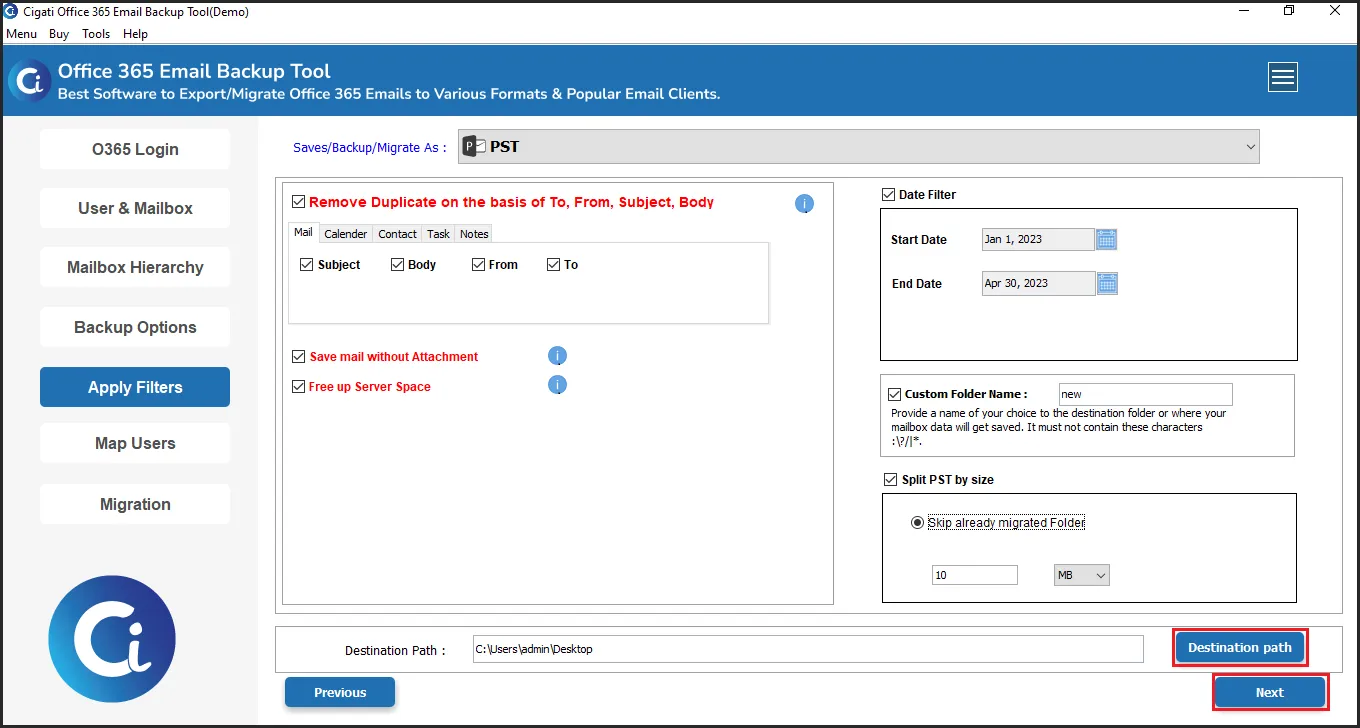
- Pick a destination path to save your data on the OS and click the Next button.
- Finally, verify the source and the conversion to PST and click Convert to finish.
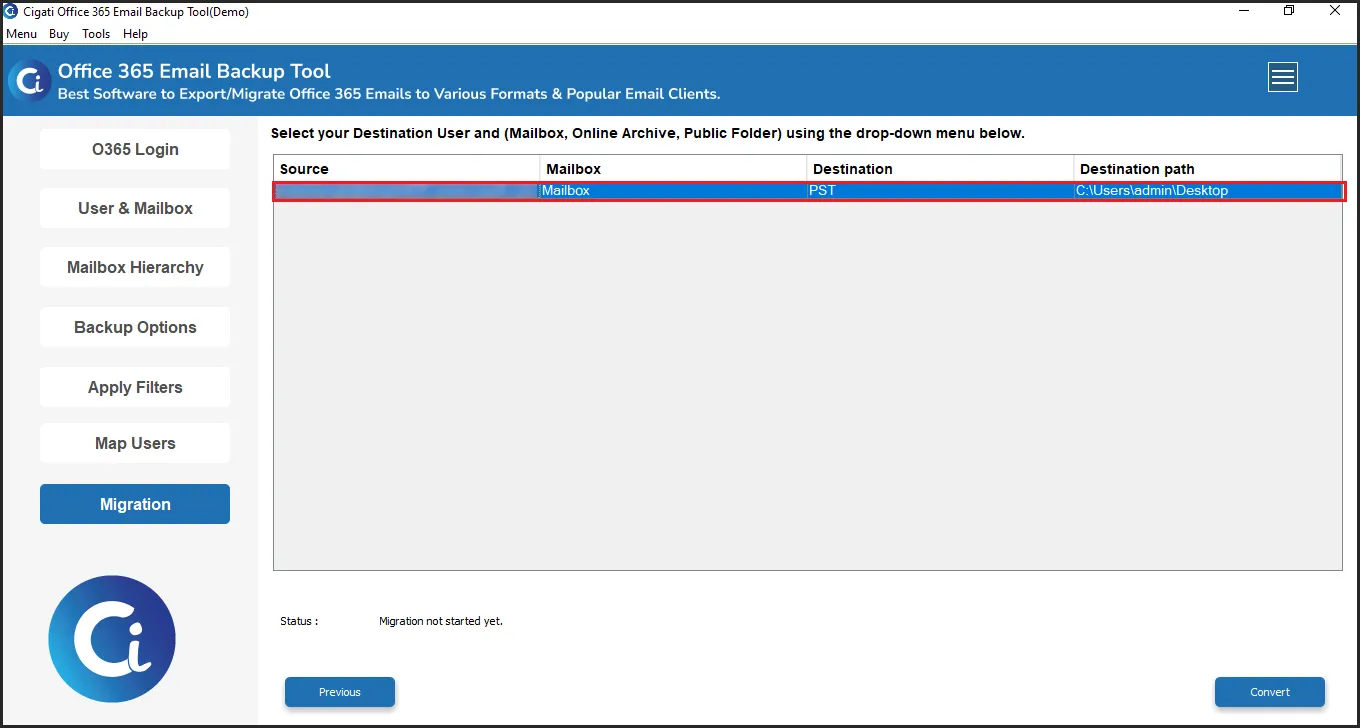
It will securely export all the emails you selected from the archive mailbox into the PST format saved at the chosen location on your OS. You can later access these files easily with MS Outlook. If needed, you can first use the Demo Version to try the export of upto 50 emails per folder for free, evaluating and testing the software and its functionalities. This is easy to use, straightforward, reliable, versatile, and secure, and hence, is generally recommended by experts.
Final Remarks
Long-term archiving and retention of archived mail is extremely important for users with Office 365 Online mailboxes. However, to manage email communication outside of Microsoft 365, it becomes necessary to export Office 365 archive mailbox to PST file. Normally, exporting using the built-in export function available in Outlook is sufficient for single mailbox archives or the Microsoft Purview for admins. But, this can become inefficient for large organisations due to the time, effort, and skills it requires, and still no guarantee for lossless exports. Henceforth, make the right choice by choosing the Cigati Office 365 Migration Tool and ensure your emails are accessible with no loss or downtime in a single go.
You May Also Read: Import PST to Archive Mailbox Office 365
Frequently Asked Questions
Q1. How can I securely transfer an Office 365 Archive Mailbox to PST?
Ans. The most secure way is to use an Office 365 Migrator Tool like Cigati. But if you want to go free and have technical skills, you can use Microsoft Purview Portal with admin credentials, permissions, and access.
Q2. Can I transfer an Online Archive to PST without using Outlook?
Ans. Yes, there is the professional Microsoft 365 Export Tool that can transfer Archive Mailbox data directly to PST without Outlook installation. It works independently and transfers data with utmost precision.
Q3. Can I export more than one Archive Mailbox at a time?
Ans. Outlook and Purview Portal do not support bulk transfers of Archive Mailboxes at one time. So, you may use the Microsoft 365 Backup Tool by Cigati Solutions to make the transfer of multiple Archive Mailboxes at the same time. Pick the IDs once you select and log in to the profile.
Q4. Will the folder Structure of my Archive Mailbox remain intact when I export it to PST?
Ans. If you are using a specialized migration tool for exporting PST files from Microsoft 365 In-place Archive, then yes. Your folder structure and all the data fidelity will be preserved as in the original mailbox.
Q5. Is there a limit on the size when I export Office 365 archive mailbox to PST?
Ans. The practical consideration for the size limit of an Archive Mailbox is based on the performance of Outlook and how large a mailbox you will be transferring. A very large Archive Mailbox will generally require a dedicated Cigati Office 365 Backup and Restore Software for maximum efficiency during processing.
About The Author:

Rohit Singh is a technology professional with 7+ years of experience specializing in email systems, Exchange Server, Office 365, MS Outlook, and data migration solutions. He creates clear, practical, and solution-oriented content to help users and IT professionals resolve complex technical challenges efficiently.
Related Post