-
Written By Rohit Singh
-
Updated on May 29th, 2026
How to Convert IMAP Emails to PDF Easily and Fast
I need to convert emails from an old IMAP mailbox into PDF files for record-keeping. Saving emails one by one is becoming impossible now. Is there any quicker way to export complete IMAP emails into PDF with attachments properly included?
Many users eventually need offline copies of their IMAP mailbox emails for audits, documentation, or long-term storage. PDF is usually preferred because the files are easier to access later without depending on the original email account. The difficulty appears when you try to convert IMAP emails to PDF.
Manual methods become repetitive very quickly, especially when multiple folders or thousands of emails are involved. Cigati IMAP Backup Tool helps to easily get your mailbox data in PDF with no data loss. This article covers both methods in detail to help you with the export process.
Quick Answer
How can I convert IMAP email data to PDF without saving emails one by one?
Saving IMAP emails manually as PDF works for a few messages, but the process slows down badly on larger mailboxes. Most users later switch to Cigati IMAP Backup Utility because it exports mailbox folders together instead of repeating the same save process again and again.
What Is The Hands-On Way to Convert IMAP Emails to PDF?
There is no direct built-in option to convert complete IMAP mailbox emails into a PDF together. Most users rely on desktop email clients for this process. Although manual methods will let you transfer your data sometimes, they are really ineffective on a large scale. Below, we have mentioned some more limitations that cause issues for the users. These are:
- Saving emails individually takes too much time on larger mailboxes.
- Many users struggle while configuring Thunderbird with IMAP accounts manually.
- Exporting large numbers of emails through Outlook becomes tiring very quickly.
- Folder structure may not stay properly arranged after export.
- Large mailbox exports can slow down the whole process later.
- Attachments do not always appear correctly inside exported PDF files.
Using Mozilla Thunderbird To Save IMAP Emails as PDF
- First, configure the IMAP account inside Mozilla Thunderbird.
- After setup, install the ImportExportTools NG add-on within Thunderbird.
- After this, move to the IMAP folder that needs exporting and right-click on it. Then choose Export all messages from the available options.
- Here, select PDF as the saving format. Attachments and index settings can also be included during export.
- At the end, browse the destination location and save the exported IMAP emails as PDF files.
Using Microsoft Outlook To Export IMAP Emails to PDF
- Start by adding and syncing the IMAP account inside Outlook.
- Open the email you want to convert into PDF format.
- Then click File and choose the Save As option.
- You can also use Ctrl + P with Microsoft Print to PDF.
- At last, choose the save location and export the email as a PDF file.
What Is The Expert Choice To Convert IMAP Emails to PDF?
The manual route starts becoming difficult once the mailbox contains thousands of emails. To avoid that situation, many users prefer using Cigati IMAP Backup Software for direct PDF conversion. The tool connects directly with IMAP email accounts and reads mailbox folders automatically.
Users can export mailbox emails into a PDF without saving messages again and again. Also, Attachments, email folders, and message layout stay properly arranged after conversion. This keeps the exported PDF records easier to read and manage later.
Steps To Convert IMAP Server Emails to PDF:
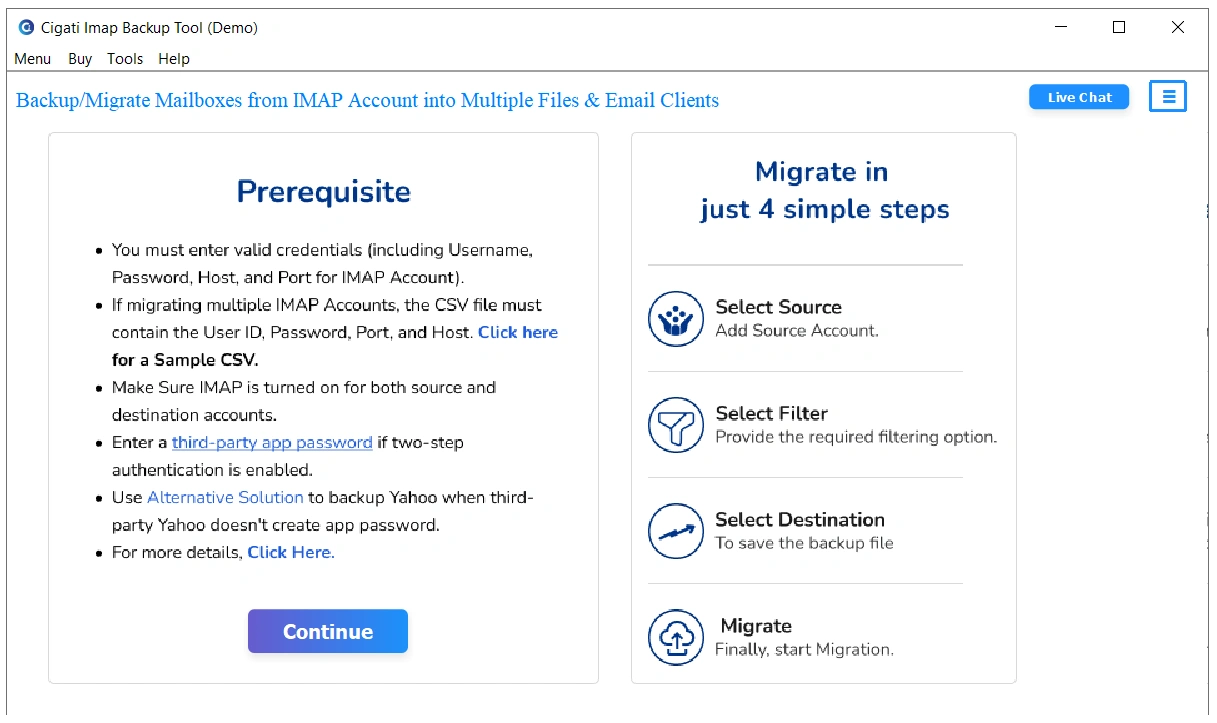
- At first, install the IMAP Migration Wizard on the system and open the software.
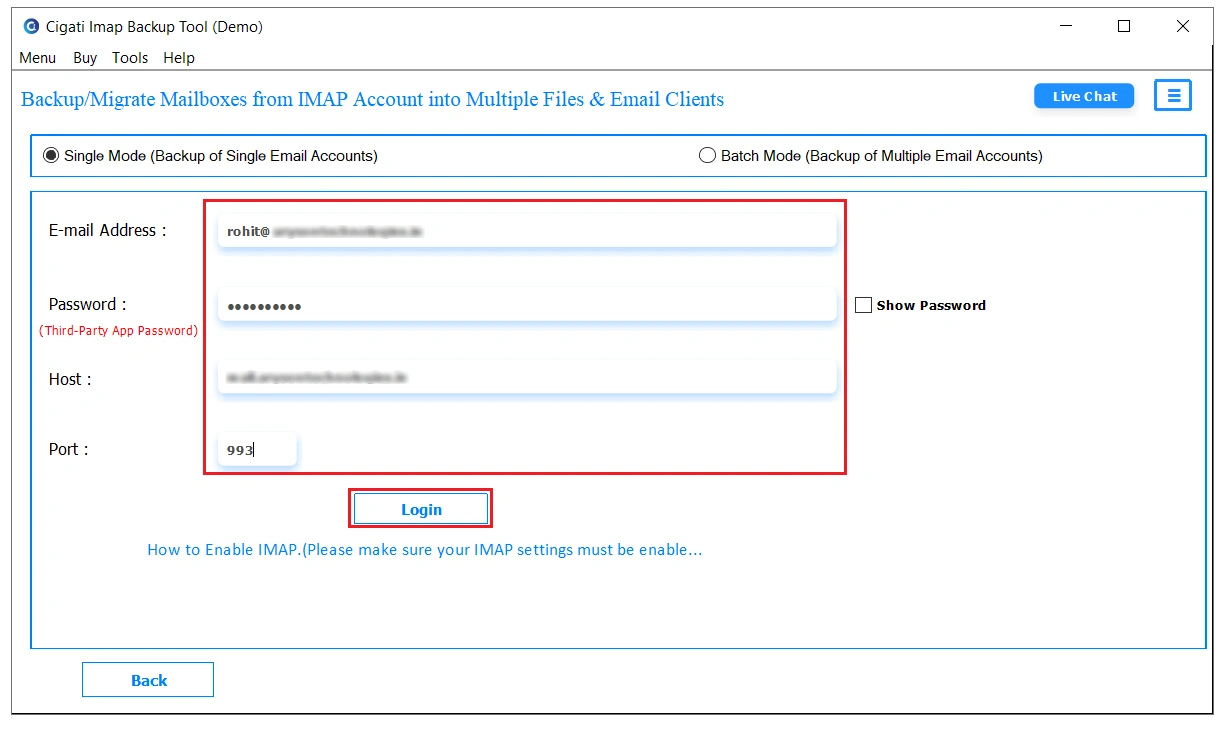
- After opening it, enter the required login details and click on Login.
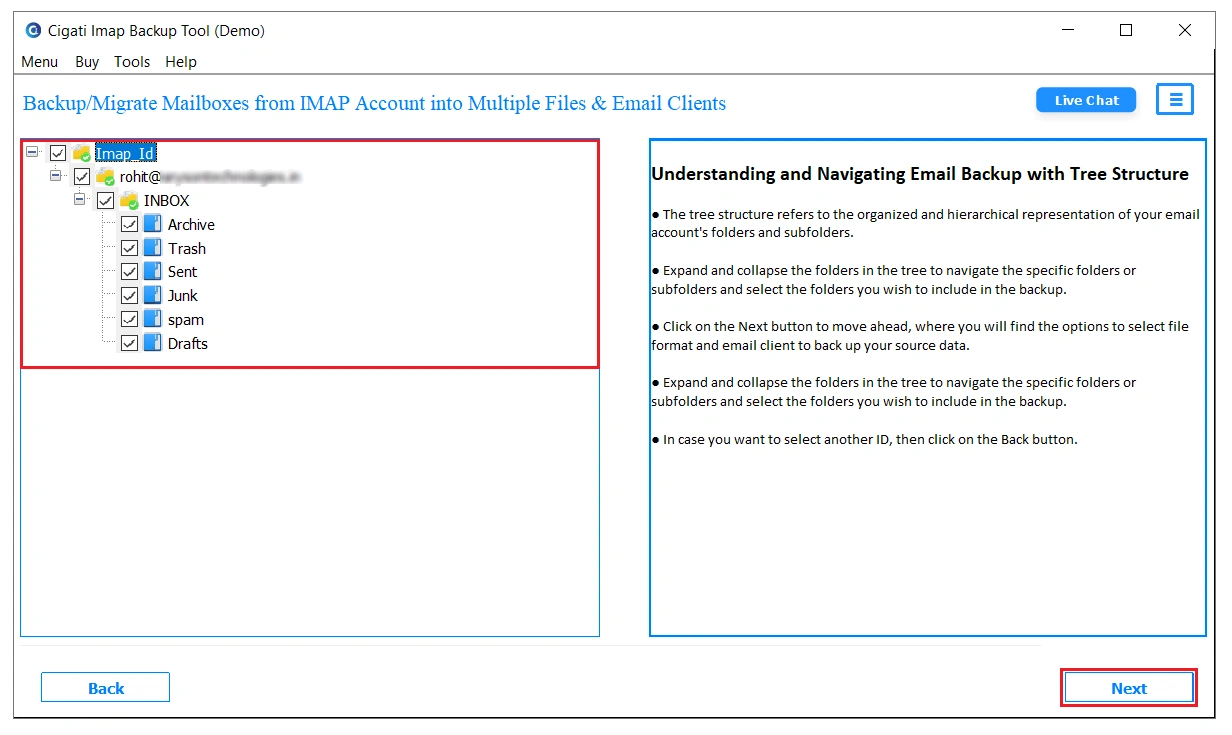
- The software will show mailbox files in a tree structure. You can preview the content and select the required files.
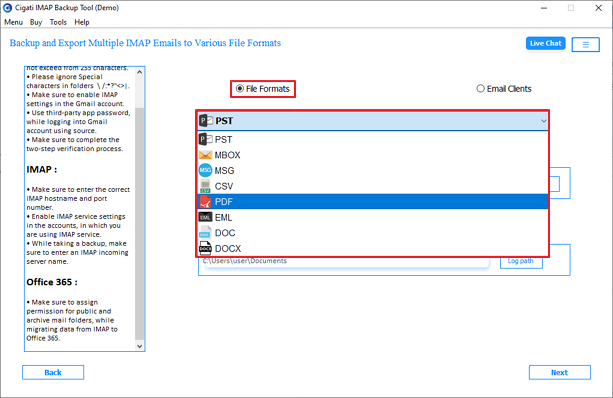
- Afterward, move to the file formats section and choose PDF from the drop-down menu.
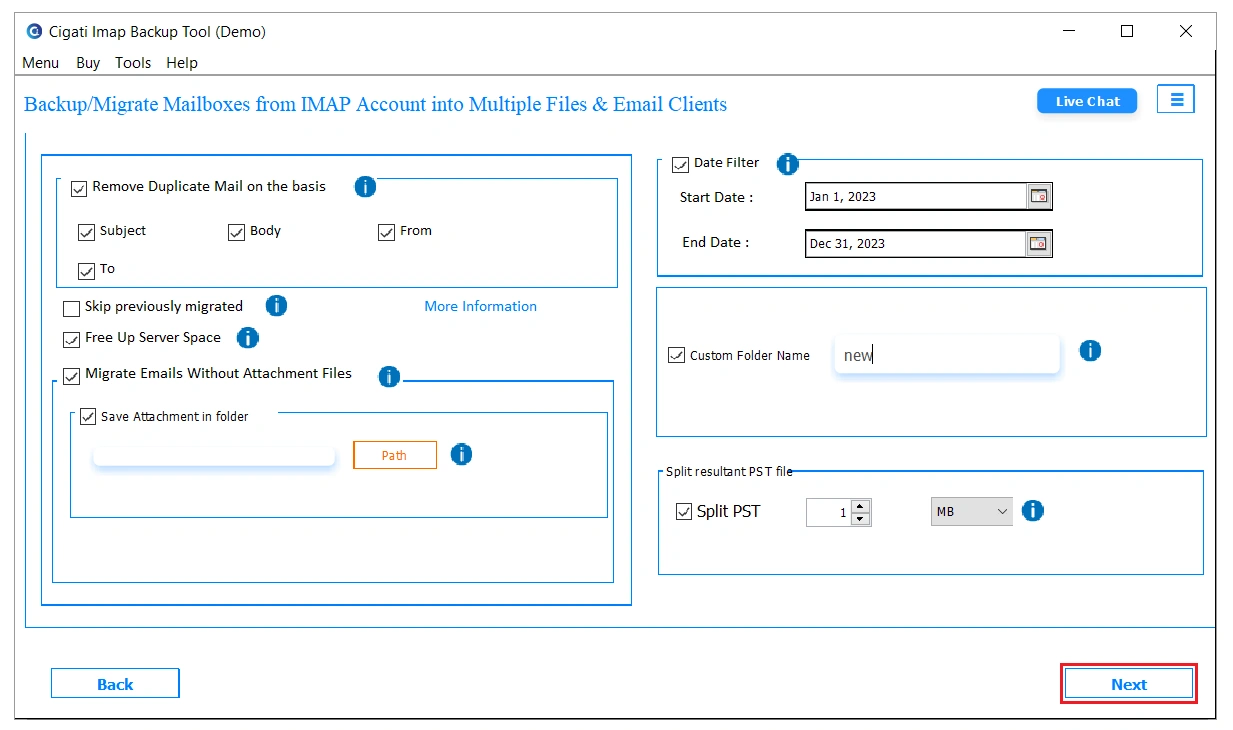
- In the final step, apply the additional filters if needed and tap on the Next button to start the process.
What Are The Exclusive Features Of The Tool?
- Saves IMAP mailbox emails into PDF without using Outlook or Thunderbird exports.
- Loads mailbox folders separately, which makes email selection easier later.
- Exports email attachments together with the selected mailbox data.
- Handles large IMAP mailboxes without repeating the conversion process manually.
- Allows users to filter emails before starting the PDF conversion process.
- Keeps exported PDF emails arranged according to the original mailbox folders.
Real Life Example
One accounting company needed PDF copies of old IMAP mailbox emails during a tax investigation. The staff first tried Outlook printing, but after exporting only a few folders, the work started slowing down badly.
The company later used the Cigati IMAP Backup Wizard for IMAP to PDF conversion. Nearly 19 mailbox accounts and around 21,000 emails were exported into PDF during the project with no downtime and zero data loss.
To Wrap Up
Exporting a few IMAP emails into PDF is manageable at first. Problems usually begin after the mailbox grows larger and users start handling thousands of emails together. Manual exports take longer, folders become harder to track, and organizing the final PDF files turns into extra work later. The Cigati IMAP Backup Tool helps convert IMAP emails to PDF and reduces much of that effort. Users can convert mailbox emails into PDF in a more organized way while keeping the exported records easier to review afterward.
You May Also Read: Backup IMAP Email Locally
Frequently Asked Questions
Q1. How can I bulk export IMAP mailbox emails into PDF files?
Ans. The Cigati IMAP Mail Backup Tool allows users to export complete IMAP mailbox folders into a PDF together. It avoids repeated manual saving and keeps mailbox folders properly arranged during export.
Q2. Is there any free way to convert IMAP emails into PDF?
Ans. Many users try Thunderbird with ImportExportTools NG for free PDF conversion. The method works on smaller mailboxes, but larger exports usually become slower and harder to manage later.
Q3. Can IMAP email attachments stay connected with exported PDF files?
Ans. Yes, the Cigati IMAP Backup Utility exports mailbox emails along with attachments during PDF conversion. This keeps related email records easier to review later for audits or documentation work.
Q4. Why do image attachments disappear after saving emails as PDF manually?
Ans. Manual Outlook or browser printing sometimes skips embedded images or attachments during conversion. This mostly happens with larger emails, unstable syncing, or unsupported mailbox formatting structures.
Q5. How do users archive large IMAP mailboxes for legal storage?
Ans. Most companies export mailbox emails into PDF because the files are easier to store and share later. Bulk IMAP export tools are usually preferred once the mailbox size becomes difficult to manage manually.
Q6. Is it possible to keep timestamps and sender details during PDF conversion?
Ans. The Cigati IMAP Mail Backup Software preserves sender details, timestamps, and mailbox information during conversion. Exported PDF files remain closer to the original IMAP mailbox records afterward.
Q7. What is the easiest way to batch-convert IMAP emails into searchable PDF files?
Ans. The Cigati IMAP Mail Backup Tool provides batch IMAP email conversion into PDF without repeated manual exporting. Users can handle mailbox folders together instead of saving emails separately.
About The Author:

Rohit Singh is a technology professional with 7+ years of experience specializing in email systems, Exchange Server, Office 365, MS Outlook, and data migration solutions. He creates clear, practical, and solution-oriented content to help users and IT professionals resolve complex technical challenges efficiently.
Related Post