-
Written By Rohit Singh
-
Updated on May 21st, 2026
How to Export IMAP to PST Format: Quick and Easy Steps
User Query: Our office uses multiple IMAP accounts for daily communication, and I need to get IMAP emails to PST before shifting employees to Microsoft Outlook. Is there any quick and safe method to get this migration done in easy steps?
IMAP emails usually stay stored on the mail server instead of the local system. That becomes a problem when users need offline mailbox access later. Because of this, many people now export IMAP to PST for safer email storage inside Microsoft Outlook. Manual methods still work, but repeated mailbox syncing and large email folders can make the whole task feel unnecessarily slow. Cigati IMAP Mail Backup Tool gives a much easier way to save IMAP mailbox data into PST format.
How to Use Outlook to Save IMAP Data to PST?
Outlook handles this natively, so no third-party software is needed at any point. Make sure the IMAP account is fully synced before starting, as an incomplete sync means missing emails in the PST output.
- Open Microsoft Outlook and check that your IMAP account is connected and fully synced.
- Hit the File tab at the top and select Open and Export from the sidebar.
- Next, click Import/Export to pull up the wizard inside Outlook.
- When the wizard opens, pick Export to a File and press Next.
- Choose Outlook Data File (.pst) from the format options and click Next again.
- Now select the IMAP folders you need, such as Inbox, Sent, custom folders, or the full mailbox.
- Then set a destination on your PC and give the PST file a name you will recognize later.
- Click Finish, and Outlook handles the rest as it copies everything into the PST file automatically.
Close Outlook once it finishes, and the PST file is sitting ready wherever you saved it. Then, you can open it locally or move it to another machine as needed.
Why Does This Free Method Fall Apart So Often?
- Outlook must be installed and the IMAP account fully synced before starting.
- Large IMAP mailboxes slow Outlook down and sometimes cause mid-export crashes.
- Contacts and calendars do not export cleanly into PST through this method.
- Users get zero visibility into export progress, making interruptions hard to avoid.
- Interrupted exports leave behind a corrupt PST file with no recovery option.
- One mailbox exports at a time, as bulk IMAP to PST conversion is impossible.
What Handles IMAP to PST Without the Hassle?
Cigati IMAP Mail Backup Tool helps users export IMAP to PST without handling long mailbox syncing again and again. The software ensures that the folder structure stays intact, attachments come through correctly, and duplicate emails get caught before they land in the output. Users can add several IMAP accounts at the same time during export. This saves extra work when enterprise mailbox data becomes too large to manage manually.
Steps To Download IMAP To PST:
- To begin, download and run the Cigati IMAP Mail Backup Tool as an administrator on your PC.
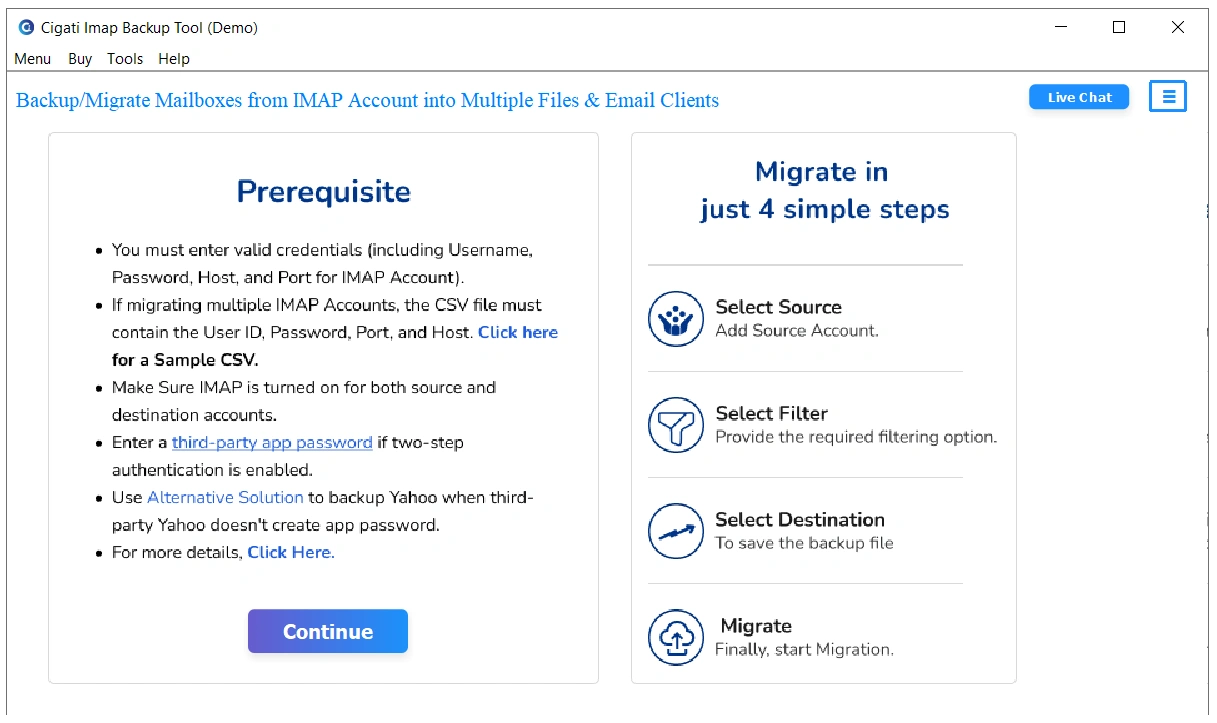
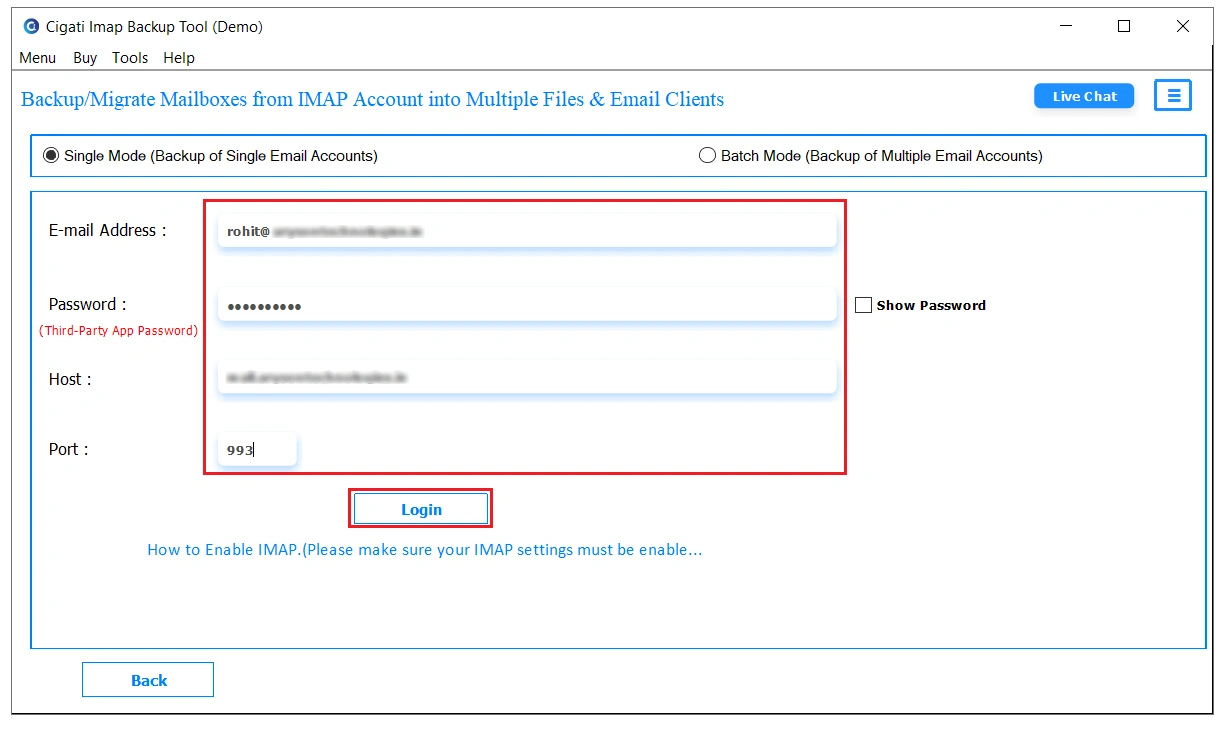
- Further, fill in the required IMAP details and click on Login to proceed.
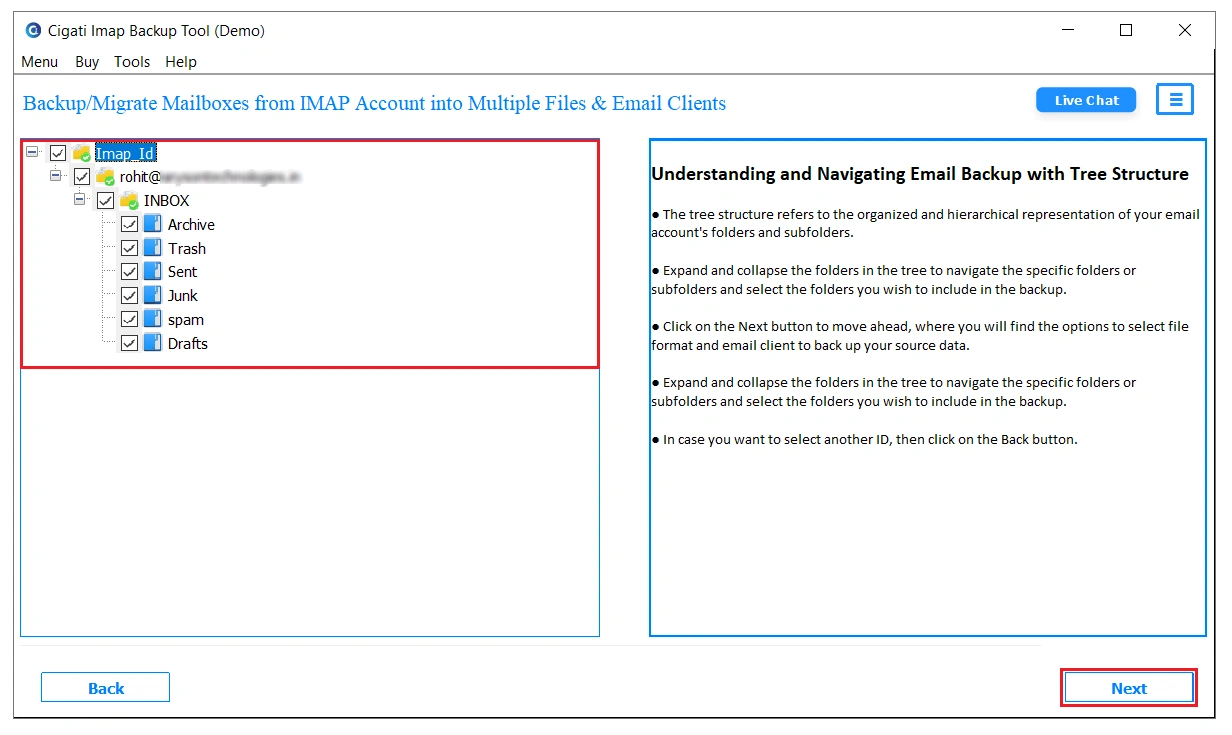
- Next, you can preview the mailbox data from the tree structure in the left panel and then select the files to migrate. Hit Next.
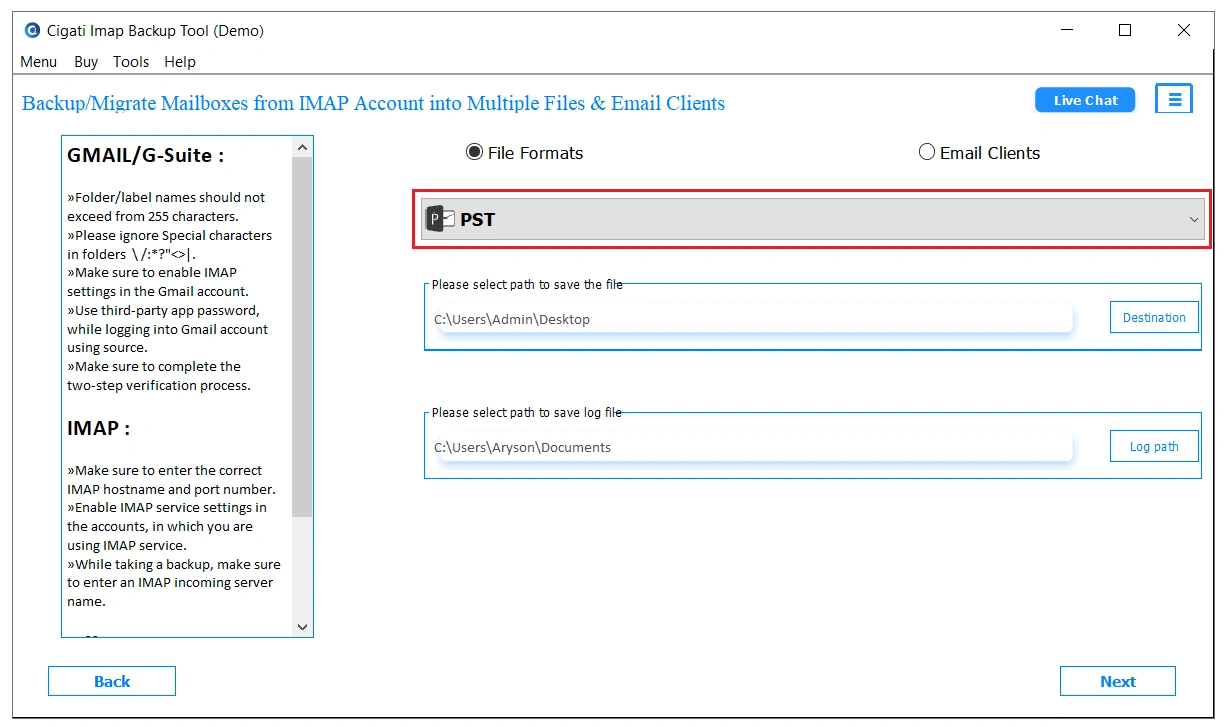
- After that, choose PST in the File Format option from the drop-down menu.
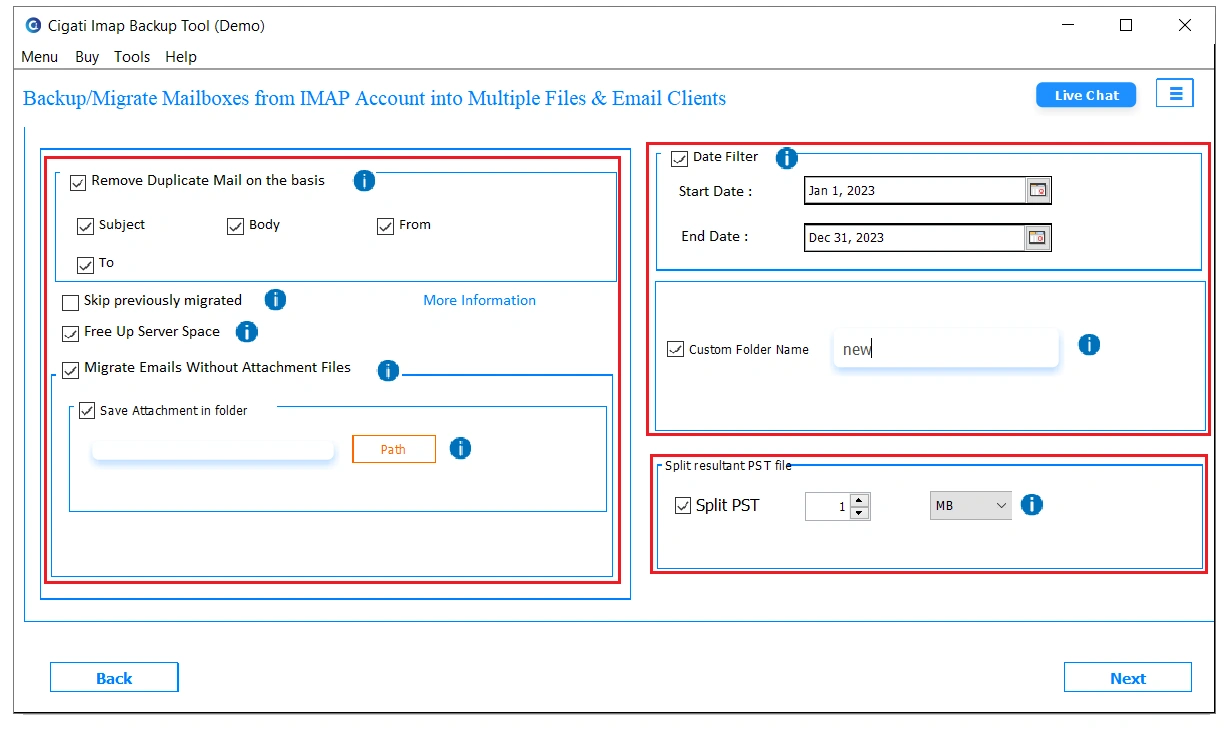
- As the last step, apply the required filters for selective export and click on Next to export IMAP emails to PST.
What Are The Standout Features Of The Tool?
- Mail folders remain properly arranged after PST export.
- Export IMAP emails directly into PST mailbox files.
- Add multiple IMAP accounts during one backup session.
- Export selected mailbox emails using date filter options.
- Large IMAP mailboxes export without stopping midway.
- Email attachments stay linked after PST mailbox export.
When Outlook Kept Failing: Real World Case
A logistics firm in Manchester needed to backup IMAP to PST across 25 user accounts before a full platform switch. Outlook crashed on larger mailboxes and produced corrupt PST files on every single attempt. Two days passed by with no results and nothing usable to show for it. Cigati IMAP Backup Tool processed all 25 accounts in one session with zero data loss. Every PST file arrived with folder hierarchy, attachments, and data integrity completely preserved before the deadline.
Final Words
Corrupt PST files and mid-export crashes are the standard outcome when Outlook handles large IMAP mailboxes under deadline pressure. Bulk migration pipeline failures cost time that most teams simply cannot recover. Cigati IMAP Backup Tool takes that risk off the table entirely. It helps to export IMAP to PST with complete data integrity, preserves folder hierarchy across every account, and delivers clean, usable PST output.
You May Also Read: Migrate IMAP Email to Office 365
Frequently Asked Questions
Q1. Is it possible to keep attachments after exporting IMAP files to PST?
Ans. Yes, Cigati IMAP Mail Backup Tool keeps email attachments linked with their original messages during PST export. Users can later open the PST file without missing attachment data.
Q2. Is there a simple way to backup large IMAP mailboxes into PST?
Ans. Yes, Cigati IMAP Mail Backup Tool helps users backup large IMAP mailboxes into PST without dealing with long Outlook syncing or repeated mailbox export steps manually.
Q3. How can I export IMAP to PST without repeated Outlook syncing?
Ans. You can use Cigati IMAP Mail Backup Tool to save IMAP mailbox data into PST directly. This avoids repeated Outlook mailbox syncing during larger email exports.
Q4. Can enterprise teams backup multiple IMAP mailboxes into PST together?
Ans. Yes, Cigati IMAP Mail Backup Tool supports batch IMAP mailbox export through CSV file upload. Enterprise admins can add multiple IMAP accounts together and export mailbox data into PST without configuring every account one after another.
About The Author:

Rohit Singh is a technology professional with 7+ years of experience specializing in email systems, Exchange Server, Office 365, MS Outlook, and data migration solutions. He creates clear, practical, and solution-oriented content to help users and IT professionals resolve complex technical challenges efficiently.
Related Post