-
Written By Khushboo Maurya
-
Updated on October 27th, 2026
Outlook Something Went Wrong Error: Causes & Easy Fixes
Fact-checked and reviewed in accordance with our
Editorial Policy
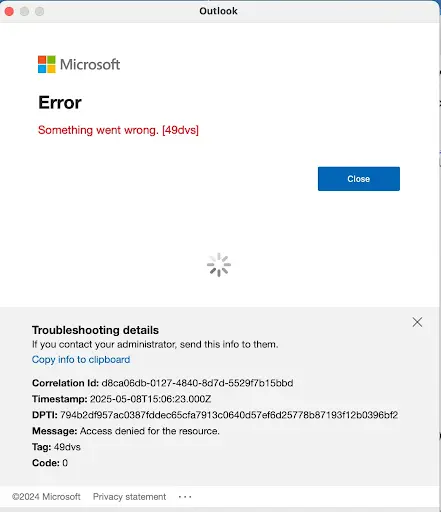
Are you also facing this error when you type a sender name into Outlook’s search bar? If you rely on search to find old invoices, client threads, or attachments, this is more than an annoyance. The Outlook something went wrong error is common, & in most cases it can be fixed without reinstalling anything. This guide covers why it appears, how to fix it, and what to do when the cause is a damaged PST file.
What Does the “Something Went Wrong” Error Mean?
This message appears when Outlook asks Windows Search for results & the request fails. Sometimes it shows up with a misleading line about your network connection, even when your internet works fine. In other cases, searches return only part of what you expect, which is the Outlook search results incomplete problem. Look at the related symptoms include:
- Outlook search not working at all, with a blank results pane.
- The Outlook search couldn’t be completed error appearing after every query.
- Recent emails missing from results while older ones show up.
- Search works in one folder but fails in “All Mailboxes”.
Common Causes of the Error
Let’s have a look at what causes these errors:
- A stalled or corrupted search index: Outlook depends on an index catalog. If it breaks, searches fail.
- If there is problem in service search, the service is stopped, Outlook has nothing to query.
- Conflicting add-ins: Third-party COM add-ins sometimes interface with search.
- An outdated Office can break search until a later patch fixes it.
- When a profile is corrupted, then it can cause strange behaviour that includes search errors.
- Corrupted OST or PST file: Damaged data files often cause incomplete results or failed searches.
How to Fix Outlook Something Went Wrong Error
Follow these steps that will help you to fix the Outlook error.
Fix 1: Restart Outlook and Update It
This fix looks very basic, but a fresh session clears many temporary glitches. Then open Outlook, go to File >> Office Account >> Update Options >> Update Now. After that, run Windows Update, since search relies on system components.
Fix 2: Check the Windows Search Service
- First, press Win + R, then type service.msc, and then press Enter.
- Find Windows Search in the list.
- Set the startup type to Automatic (Delayed Start).
- If the status is not “Running,” click Start.
After that, you must restart Outlook and try a search.
Fix 3: Check Indexing Status
In Outlook, click into the search box, then choose Search Tools >> Indexing Status. If items are still waiting to be indexed, give it time, especially on a large mailbox. If the count never moves, the index is probably stuck, which leads to the next fix.
Fix 4: Rebuild the Search Index
This is the most effective option to fix the Outlook search that could not be the completed error. Close Outlook, then:
- Open Control Panel >> Indexing Options.
- Click Advanced.
- On the Index Settings tab, click Rebuild under Troubleshooting.
- Confirm and wait. Rebuilding can take a long time on big mailboxes.
Microsoft documents this process in its guide, Fix search issues by rebuilding your Instant Search catalog. Once the rebuild finishes, reopen Outlook and test again.
Fix 5. Disable Add-ins
- Go to File >> Options >> Add-ins.
- Next to Manage, select COM Add-ins and click Go.
- Untick non-essential add-ins and click OK.
- Restart Outlook.
If search works, re-enable add-ins one at a time to find the culprit.
Fix 6. Repair Microsoft Office
- Close Outlook and open Control Panel >> Programs and Features.
- Select your Microsoft Office entry and click Change.
- Choose Quick Repair. If that fails, run Online Repair.
Fix 7. Create a New Outlook Profile
Open Control Panel >> Mail >> Show Profiles, add a new profile, and set up your account again. If search works in the new profile, the old one was damaged.
Fix 8. Run the Windows Search Troubleshooter
Go to Settings >> Update & Security >> Troubleshoot (on Windows 11, System >> Troubleshoot), find Search and Indexing, and run the troubleshooter. It can detect and repair common indexing issues automatically.
Fix 9. Try Outlook on the Web While You Fix It
If you need a message right now, sign in to Outlook on the web. It uses server-side search, so it’s unaffected by your local index and works as a stopgap.
When the Problem Is a Damaged PST File
If every fix above fails, or if you notice Outlook search results incomplete only for certain folders, suspect the data file itself. PST corruption can come from abrupt shutdowns, oversized files, disk errors, or malware. Microsoft’s built-in Inbox Repair Tool (SCANPST.EXE) is the first thing to try:
- Close Outlook.
- Locate and launch SCANPST.EXE from your Office installation folder.
- Browse to your PST file and click Start.
- If errors are found, click Repair.
Make a backup copy of the PST before repairing. After the repair, rebuild the index once more so Outlook re-catalogs the recovered items.
For Professionals: When Built-in Tools Aren’t Enough
Inbox Repair works for minor structural issues, but it has limits. It can struggle with severely corrupted, oversized, or password-protected files, & it can leave items unrecovered. For IT admins, consultants, and anyone handling business-critical mailboxes, losing emails isn’t an option.
That’s where a dedicated recovery tool helps when the Outlook Something Went Wrong Error shows. Cigati PST Recovery Software is built to repair corrupted or inaccessible PST files and recover emails, contacts, calendars, tasks, notes, and attachments with their folder structure preserved. It’s useful when SCANPST fails, when files are very large, or when you need to restore deleted mailbox items. Because it works on a copy of your data, it adds an extra safety margin when you’re dealing with irreplaceable messages.
Look at how Cigati PST Repair repairs your PST files in a step-by-step guide.
Tips to Prevent the Error from Coming Back
- Keep Outlook and Windows updated.
- Archive old mail so your PST doesn’t grow too large.
- Close Outlook properly rather than forcing a shutdown.
- Limit add-ins to those you actually use.
- Back up your PST files regularly.
- Don’t interrupt indexing after a rebuild.
Related Reading
Outlook errors often come in clusters. If you’re also dealing with connection trouble, see our guide on the Outlook Encrypted Connection is Not Available error. For a broader look at indexing and search problems, check our walkthrough on Outlook search not working.
Final Thoughts
The Outlook something went wrong error looks alarming, but it usually comes down to a stuck index, a stopped Windows service, a clashing add-in, or a damaged data file. Start with the simple steps, rebuild the index, and move to repairs only if needed. This kind of Outlook search troubleshooting is mostly patience: rebuilding and waiting solves the majority of cases. When the PST itself is the problem, a dedicated recovery tool saves you from losing important mail.
Frequently Asked Questions
Q. Why does Outlook say my search couldn’t be completed when my internet works?
Ans. The message is generic. The real cause is usually a local indexing or Windows Search problem, not your connection.
Q. How long does rebuilding the index take?
Ans. From a few minutes to several hours; it depends on mailbox size & your drive speed.
Q. Will rebuilding the index delete my emails?
Ans. No. It only recreates the search catalog. Your messages stay in the PST or OST file.
Q. Why are my Outlook search results incomplete?
Ans. It might be because Outlook’s indexing is still running or the index file or data file has gotten damaged. First check if indexing is complete. If it’s not wait for it to finish. If it is try rebuilding the index. That usually fixes the problem.
About The Author:

Khushboo Maurya is a digital content and SEO professional focused on creating useful, search-friendly content that connects with the right audience. She specializes in content optimization, website growth, and practical SEO strategies that improve visibility, engagement, and organic reach.
Related Post