-
Written By Rohit Singh
-
Updated on June 8th, 2026
How to Download All Emails from Office 365? [Stepwise Guide]
Fact-checked and reviewed in accordance with our
Editorial Policy
User Query: I use Office 365 for my business emails and now need to download all mailbox data for backup and offline access. What is the easiest and safest way to export or download my emails from Office 365 without losing folder structure, attachments, or formatting?
What if your Office 365 mailbox suddenly became inaccessible due to deletion or server failure? It could instantly disrupt your work and put important business emails at risk. That is why having a dependable way to download all emails from Office 365 is so important. Instead of dealing with complicated manual steps, the Cigati Office 365 Backup Tool offers a simple and efficient way to back up everything securely. In this guide, we will walk you through the manual process and our smart automated solution to tackle the issue.
Quick Answer
How can I get all my emails from Outlook with zero data loss and minimal workaround?
You can use MS Outlook or OWA to download your emails manually. But if you are dealing with large amounts of data, these methods might not be effective. For enterprise-level migration, use the Cigati Office 365 Backup Wizard to securely transfer all emails with minimal downtime and complete data safety.
What Is The Native Approach to Download Office 365 Emails?
There are various ways to download your email data from Office 365 manually. In this section below, we have covered Outlook Desktop Version and Outlook Web App methods.
Using Microsoft Outlook To Download Emails
This is the method most people rely on when they want a complete offline backup. Using Microsoft Outlook, you can export your entire mailbox, including emails, attachments, and folder structure, into a single PST file.
Here is how to do it step by step:
- At first, open Microsoft Outlook and sign in with your Microsoft 365 account.
- In the top-left corner, click File, then go to the Open & Export option.
- Moving ahead, select Import/Export from the menu. This will open the export wizard.
- Further, choose Export to a File, then hit Next.
- After that, select Outlook Data File (.pst) as your file type and continue.
- Now pick the mailbox or specific folder you want to export. If you want everything, make sure Include Subfolders is checked.
- Meanwhile, choose a destination on your computer where the PST file should be saved, then click Finish.
- You can optionally set a password for the PST file if you want an extra layer of protection.
Once it runs, Outlook creates a complete offline backup you can reopen anytime inside Outlook.
Download Office 365 Emails Using Outlook Web App
If you do not want to install anything or you are just trying to save a few specific emails, the browser version is much faster. This works through Outlook on the web.
This method is not built for full backups, but it works well for quick saves.
Here is how it works:
- Open your browser and log in to Outlook on the Web using your Office 365 credentials.
- Find the email you want to save and open it fully so it loads all content.
- Click the three-dot menu (More options) inside the email.
- Select Download to save it directly to your device.
- If you prefer a cleaner format, choose Print instead and change the destination to Save as PDF.
- For multiple emails, you can select and drag and drop emails into a folder on the desktop.
This completes both methods to download mailbox from Office 365, although these methods come with some additional pain points that we have converted below.
Why Users Don’t Prefer the Native Approach?
- Outlook desktop export only works when the app is installed and configured.
- Large mailboxes take hours to export with no real progress indicator shown.
- OWA saves emails one at a time, making bulk download completely impractical.
- Dragging emails to a local folder strips metadata and breaks the folder hierarchy.
- Neither method offers date range or selective folder filtering before downloading.
- PST files grow very large and become difficult to manage over time.
- Contacts and calendars do not download through either of these manual methods.
How to Download All Emails from Outlook 365 Efficiently?
Outlook PST exports stall on larger mailboxes, and OWA was never built for bulk downloads. Cigati Office 365 Backup Tool connects directly to Office 365 and downloads complete mailbox data in one session. The tool helps to backup even large multiple files along with attachments with complete data safety. Along with all that, it consists of advanced features to enable selective or delta migration.
Steps To Download All Emails from Office 365:
- To start, install and launch the Office 365 Backup Software on your PC.
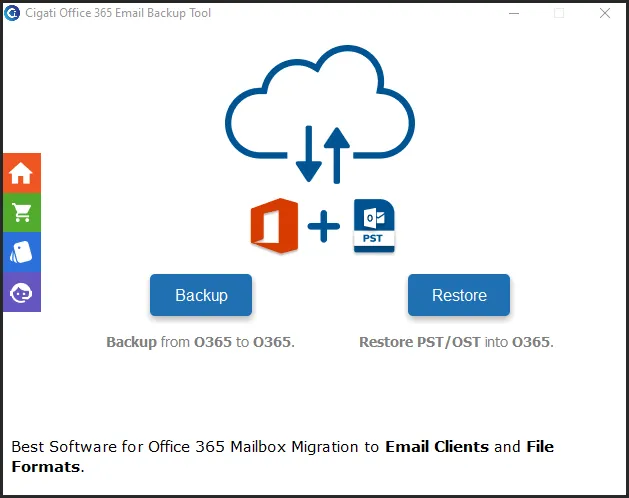
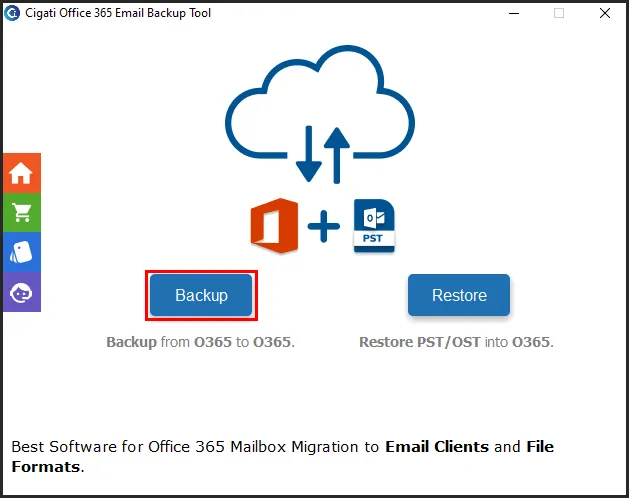
- After that, tap on the Backup option and then click on Continue to proceed.
- On the next panel, enter your correct M365 credentials and authenticate your account.
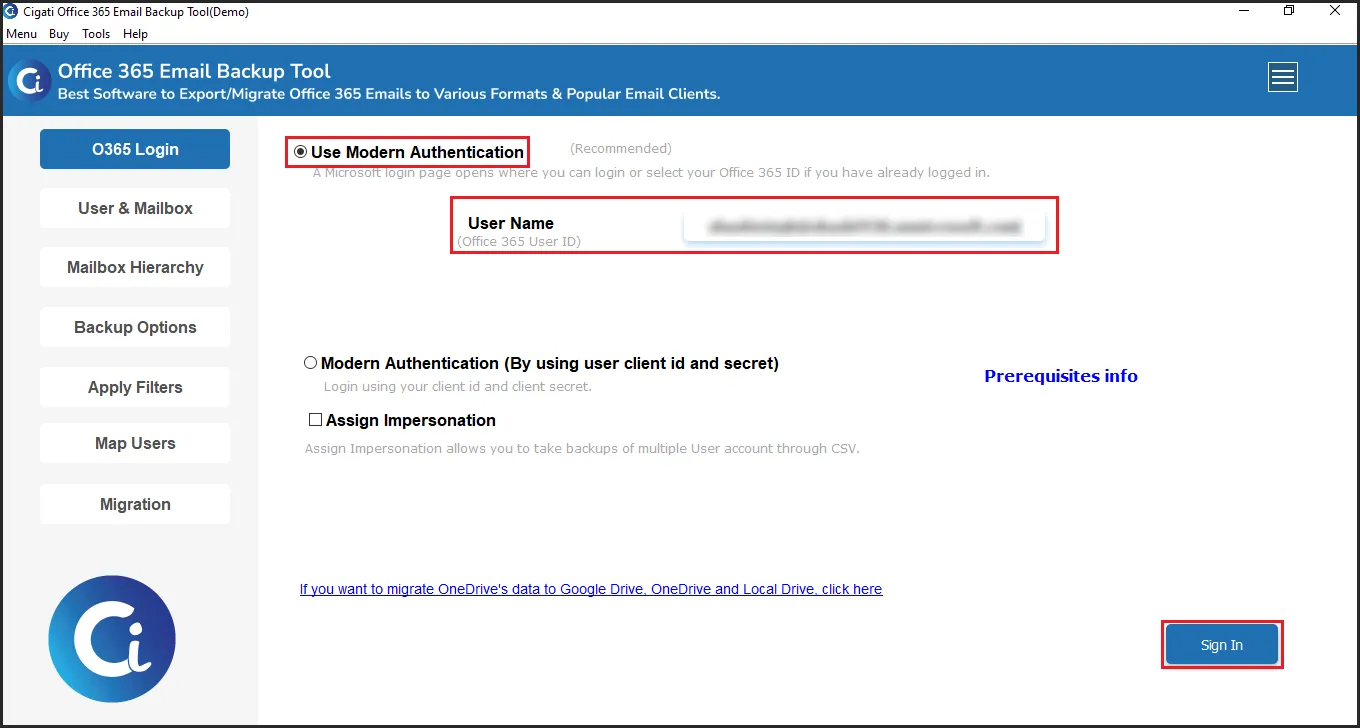
- Further, the tool will display the mailbox list, and select the mailbox you want to download.
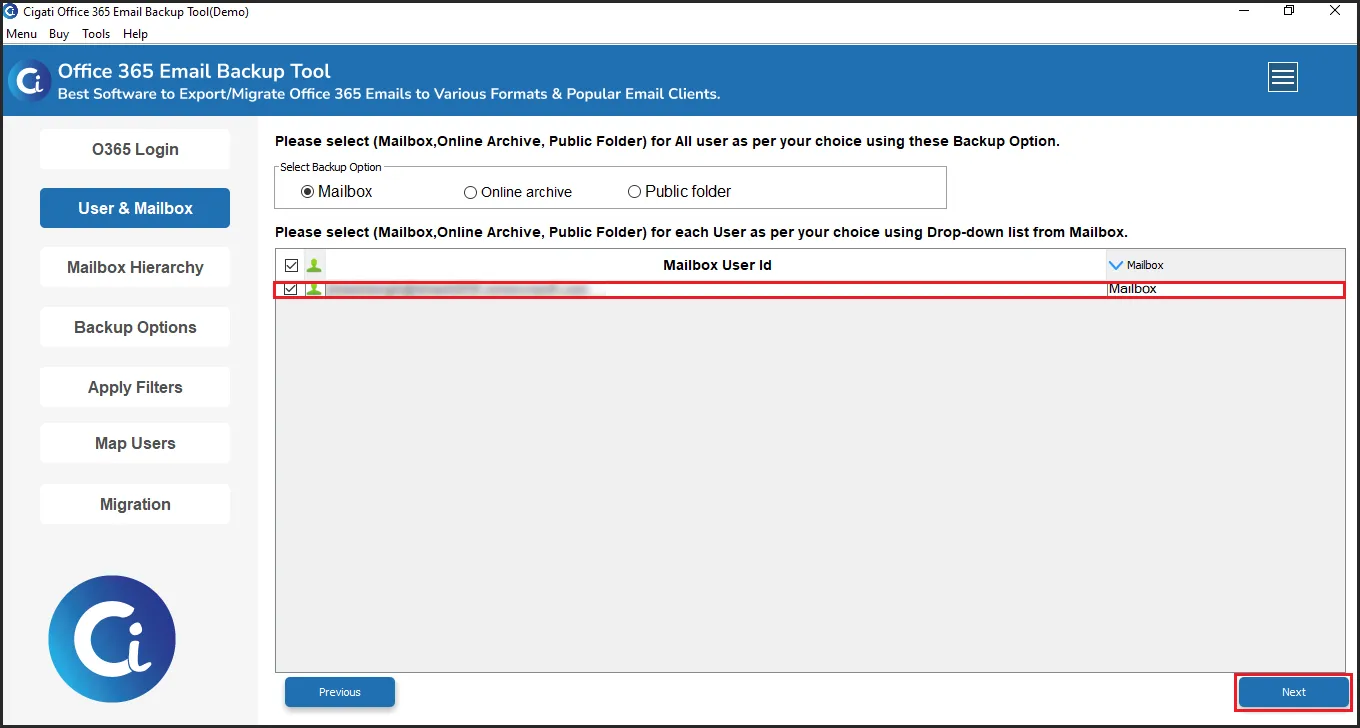
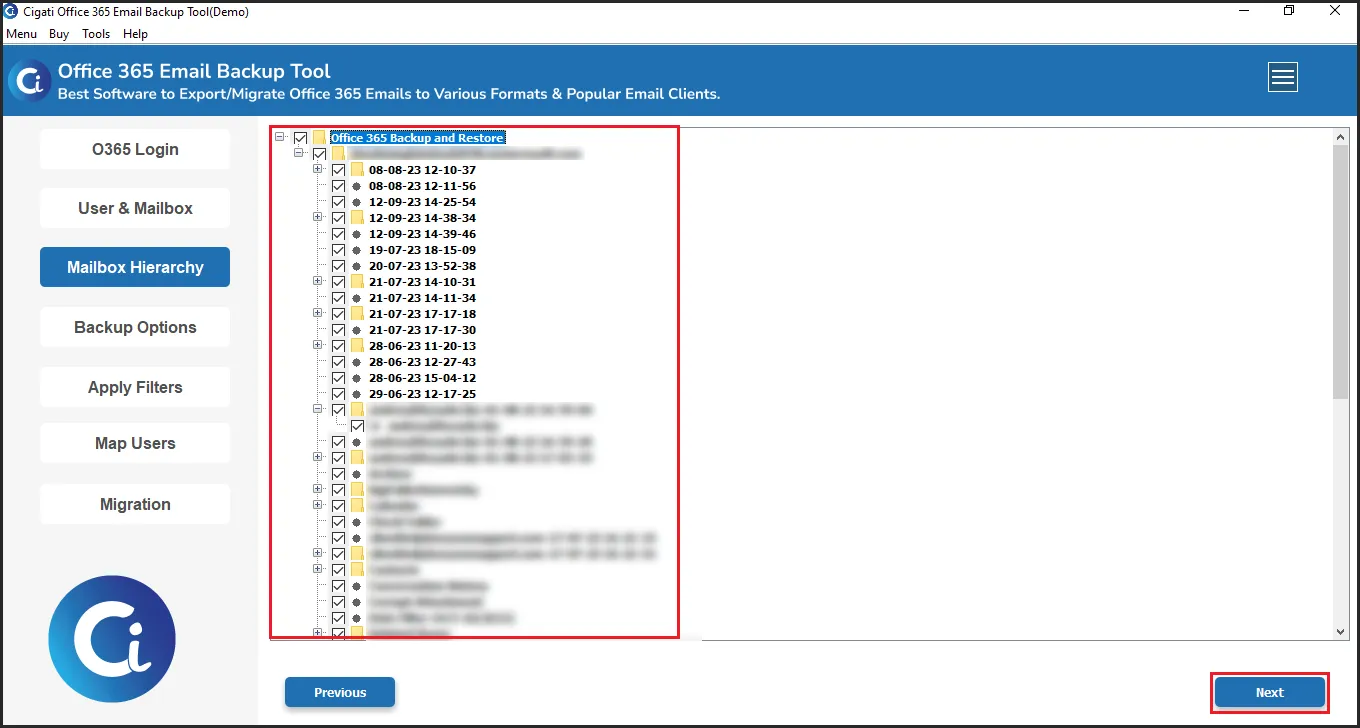
- Moving ahead, select the files or folders from the tree structure to download and click Next.
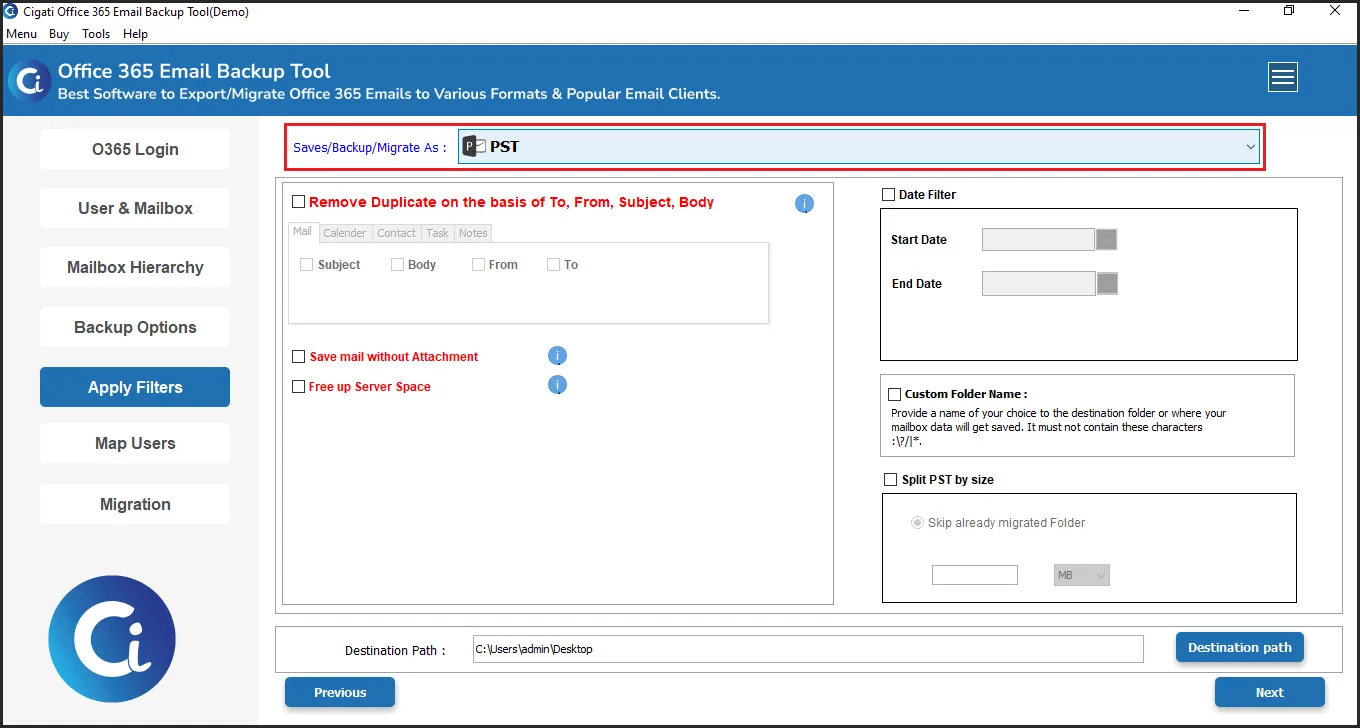
- Moving on to the next screen, choose the desired File Format or Email Client where you want to download the mails.
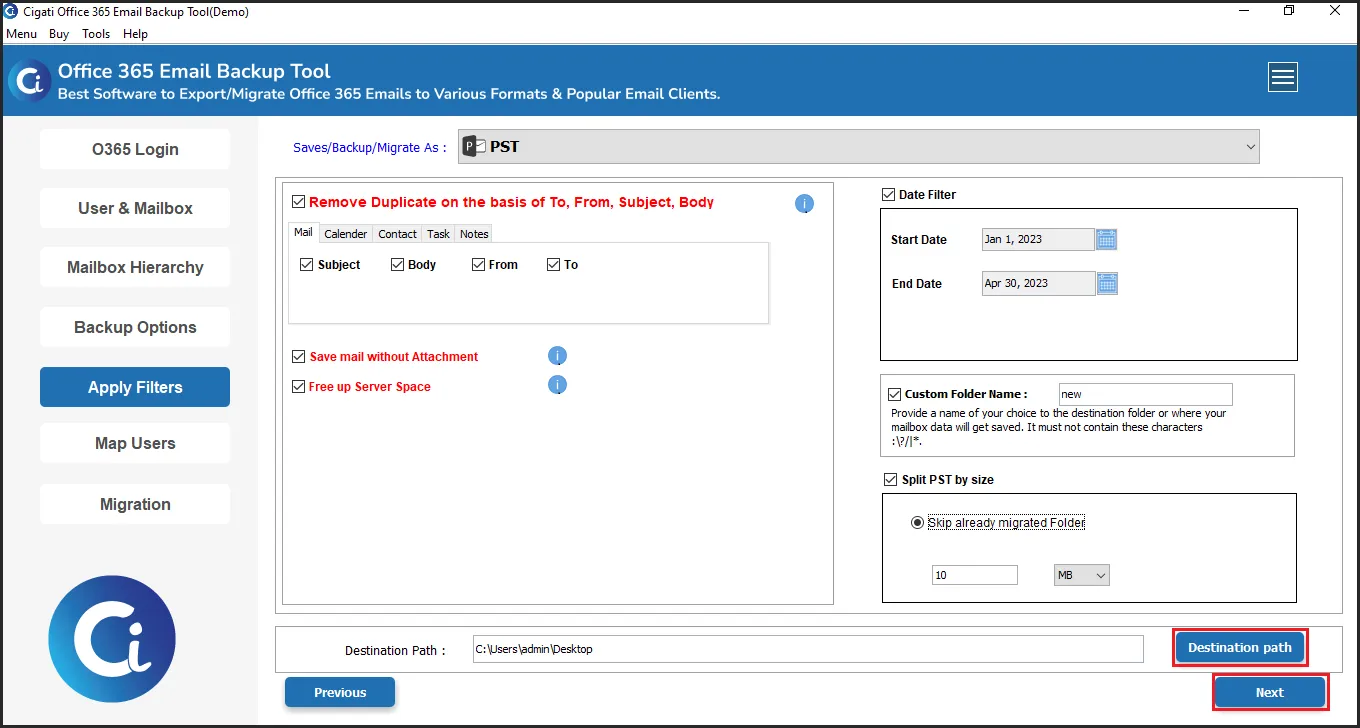
- In the end, opt for the additional filters if you need to apply them, and then click on the Convert button to start the process.
What Are The Exclusive Features of The Software?
- Allows for the transfer of complete mailbox items along with attachments in one session.
- Duplicate emails get caught and removed before landing in the backup output.
- Previously downloaded emails get skipped on repeat runs without any duplicates created.
- Folder hierarchy from Office 365 lands correctly in the backup output every time.
- Date range filter downloads only emails from periods the team actually needs.
- Available in Demo Version and compatible with all Windows and MacOS.
Real Case Scenario
A finance firm in Dublin needed to download its emails from Office 365 across 40 user accounts before a compliance audit. Outlook PST export stalled on larger mailboxes, and OWA saved emails one at a time, making bulk download completely unrealistic. Three days in, and barely 8 accounts had exported cleanly. Cigati Office 365 Backup Wizard processed all 40 accounts in one overnight session. Every email, attachment, and folder landed in the backup with complete data integrity intact before the audit deadline.
To Wrap Up
Outlook PST export and OWA downloads were never designed for bulk Office 365 email backup under real business pressure. Large mailboxes stall, contacts get missed, and folder hierarchy breaks often in the resultant files. Business-critical email archives need a more dependable download path than manual methods can offer. Cigati Office 365 Backup Software helps to download all emails from Office 365 in one session. Every account, every attachment, and every folder comes through clean without a single retry needed.
You May Also Read: How to Backup Outlook 365 Emails from Browser?
Frequently Asked Questions
Q1. How can I download all emails and attachments from Office 365 at once?
Ans. You can use manual Outlook PST export, but for a quicker and more reliable approach, the Cigati Office 365 Backup Tool directly downloads the complete mailbox, including emails, attachments, folders, and metadata in a single process without sync limitations.
Q2. Can I download Office 365 emails along with attachments?
Ans. Yes. Emails can be exported along with attachments using PST export or a professional solution. The Cigati Office 365 Backup and Restore Tool ensures all attachments, inline files, and email properties are preserved accurately during backup.
Q3. Why do users prefer alternatives to Outlook for Office 365 backup?
Ans. Outlook export depends on cache settings, sync issues, and mailbox size limits. The Cigati Office 365 Backup Software removes these restrictions by directly connecting to the mailbox and exporting data without manual configuration.
Q4. Can I download only specific folders from an Office 365 mailbox?
Ans. Yes. Instead of exporting everything, the Cigati Office 365 Backup and Restore Wizard allows selective folder backup, such as the Inbox, Sent Items, or custom folders, giving users more control over what they export.
Q5. How do I download all emails without losing folder structure?
Ans. Folder hierarchy is preserved when using PST export or a dedicated tool. A dedicated tool maintains the original mailbox structure, so emails remain organized exactly as in the source account.
About The Author:

Rohit Singh is a technology professional with 7+ years of experience specializing in email systems, Exchange Server, Office 365, MS Outlook, and data migration solutions. He creates clear, practical, and solution-oriented content to help users and IT professionals resolve complex technical challenges efficiently.
Related Post