-
Written By Rohit Singh
-
Updated on May 26th, 2026
Best Ways to Download All Emails from Mail Server [2026 Guide]
User Query: Running a business on a shared IMAP server and need a full local backup before switching providers. Tried Thunderbird, but it stalled on larger folders, and attachments went missing. Is there a reliable way to download all emails from the server without losing any data?
Most businesses discover their mail server dependency at the worst possible moment. A provider switch, a decommission deadline, or an unexpected account suspension, and years of email history suddenly become unreachable. Getting a complete local copy of everything on the server before that happens is the only safe play. Manual approaches available to download all emails from server are ineffective on larger mailboxes and drop attachments without warning. This guide covers manual approaches and a dedicated Cigati IMAP Backup Tool for a seamless process.
Quick Answer
How do I download all emails from a mail server without missing anything?
Thunderbird pulls emails down after IMAP setup, but stalls on larger mailboxes every time. Attachments drop silently, and folder structure rarely survives intact. Cigati IMAP Email Backup Software connects directly to any IMAP server and downloads everything locally. It keeps folders organized, attachments intact, and handles multiple accounts in one run without any manual configuration needed.At first, download and run the Cigati IMAP mail Backup Tool as an administrator. Then, hit Continue.
What Is The Native Way To Download Emails from IMAP Server?
Both methods below are free and handle IMAP email downloads without any paid software needed. One uses Outlook and the other uses Thunderbird, you are advised to go through both and pick the one that suits your setup.
Method 1: Save IMAP Emails from Server Using MS Outlook
Outlook creates a local email backup by syncing the IMAP account and downloading all server data. Check every server setting carefully before clicking Finish, as wrong entries block the connection entirely.
- At first, launch Microsoft Outlook and head to File > Account Settings > Account Settings.
- From there, click Email > New and choose Manual Setup or Additional Server Types.
- Next, select IMAP and fill in the account credentials and server information below:
- Incoming Mail Server: imap.gmail.com
- Outgoing Mail Server: smtp.gmail.com
- Username: Your email address
- Password: Your email or app password
- After that, click More Settings and head over to the Outgoing Server tab.
- Moving ahead, select the box for My Outgoing Server (SMTP) Requires Authentication.
- Then move to the Advanced tab and enter the port details shown below:
- IMAP: Port 993 — SSL
- SMTP: Port 465 or 587
- Hit OK, then Next, and click Finish to complete the IMAP account setup.
Outlook syncs with the server and downloads all emails locally from this point.
Note: Technical knowledge of IMAP server configuration is needed here. Also, users unfamiliar with server settings often struggle at step three and beyond.
Method 2: Download All Emails From Server Using Thunderbird
Thunderbird is free, open-source, and widely used for offline email backup across personal and business accounts. Once emails land in Local Folders, they stay accessible without any server connection needed. Follow the procedure mentioned below:
- Download, install, and open Mozilla Thunderbird on your machine to begin.
- Further, tap on the Email tab and fill in your IMAP account details to proceed with account setup.
- Once the account loads, find Local Folders in the left panel and expand it.
- Moving ahead, right-click Local Folders and then choose the New Folder option. Also, give it a clear and recognizable name.
- Further, go to your IMAP inbox and pick the emails or folders you want to download locally.
- As the last step, drag and drop everything selected straight into the new Local Folder on the left panel.
Everything moves into Local Folders immediately and stays available for offline access without needing server connectivity again. Many users rely on an IMAP Email Downloader to save all server emails locally without manual syncing issues.
Why Is Manual Email Download from The Server Not Reliable?
- IMAP setup often fails when even a small server detail is wrong.
- Big mailboxes slow everything down and may pause during sync.
- Outlook setup needs manual port settings, which many users miss.
- Thunderbird requires dragging emails manually, which gets messy fast.
- Weak internet can stop the email download in the middle.
- No automatic backup option exists in either method.
- Folder order may not stay the same after transfer.
- Handling many accounts takes repeated manual effort.
Recommended Method To Download All Emails from Server
Manual IMAP download methods often slow down when the mailbox size increases or the folders become heavy. In such cases, users prefer a more stable approach instead of relying only on Outlook or Thunderbird syncing. Cigati IMAP Mail Backup Tool allows users to download emails from server accounts in a safe and secure manner. Users can migrate from IMAP to different file formats and email clients while maintaining their data integrity.
Steps to Download IMAP Emails from Server:
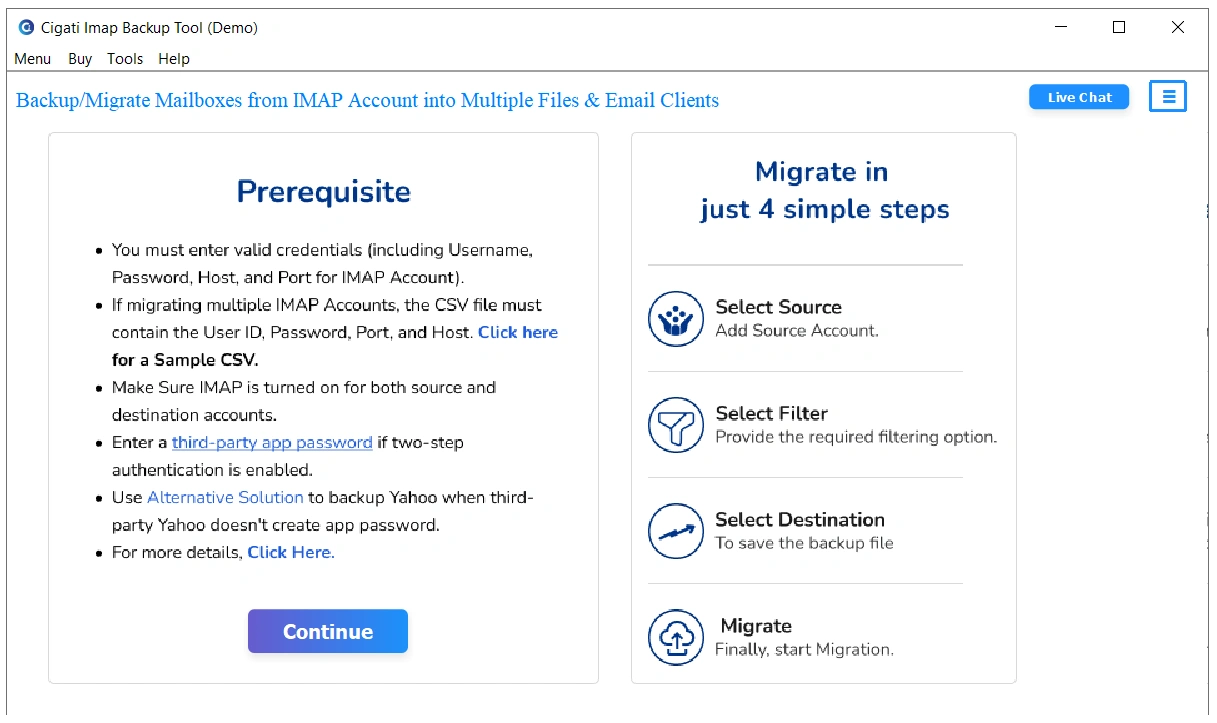
- At first, download and run the Cigati IMAP mail Backup Tool as an administrator. Then, hit Continue.
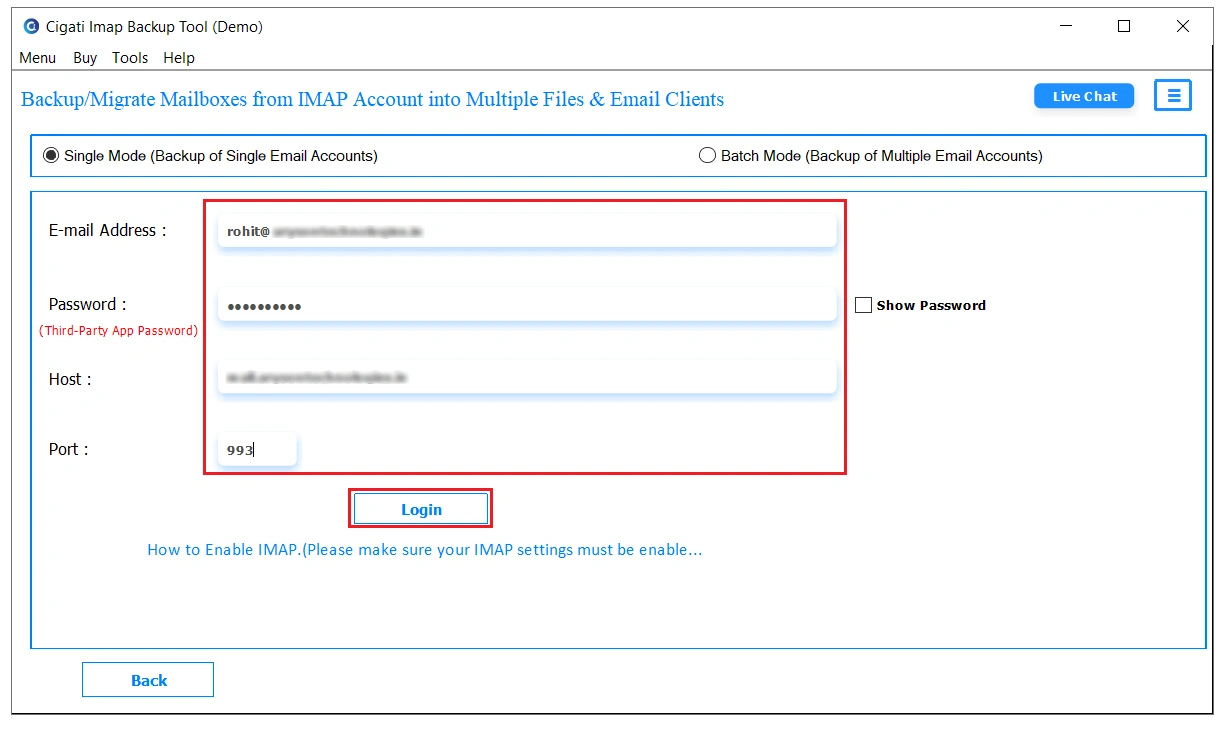
- Now, fill in the required details of your IMAP account and login. You can also import CSV for bulk migration.
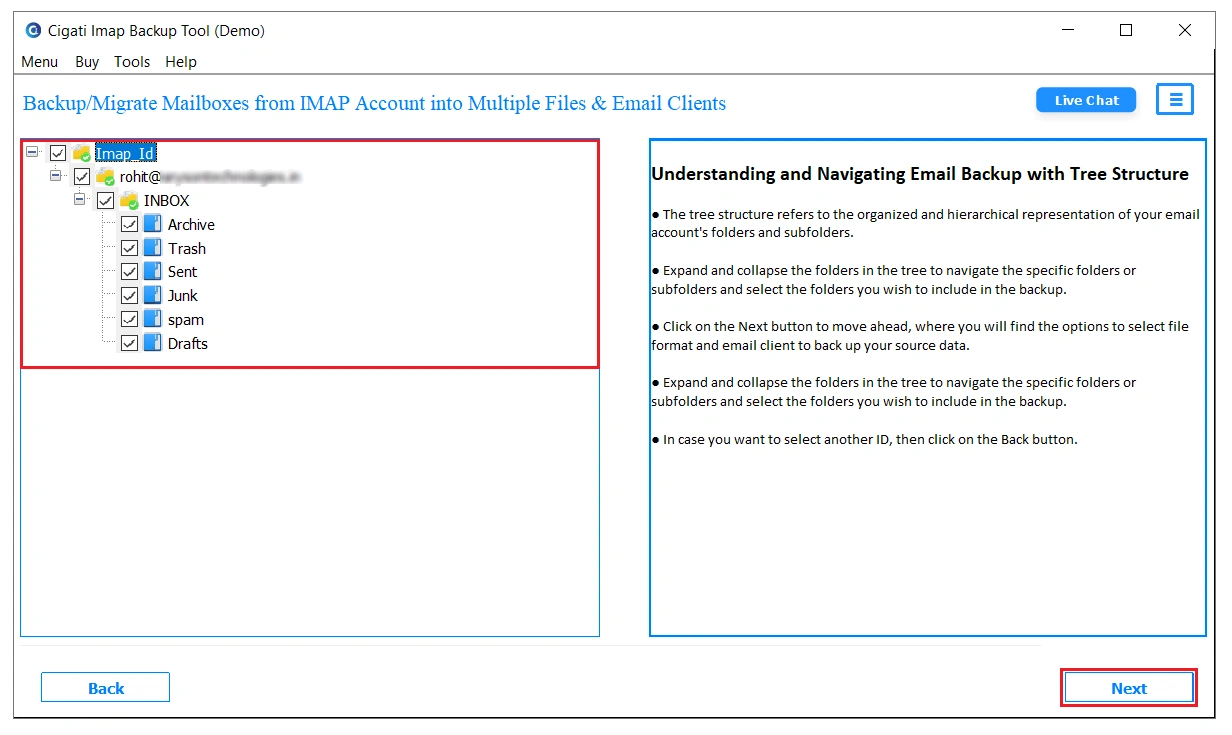
- After that, you can preview mailbox data from the tree structure and then select the files to download emails from them.
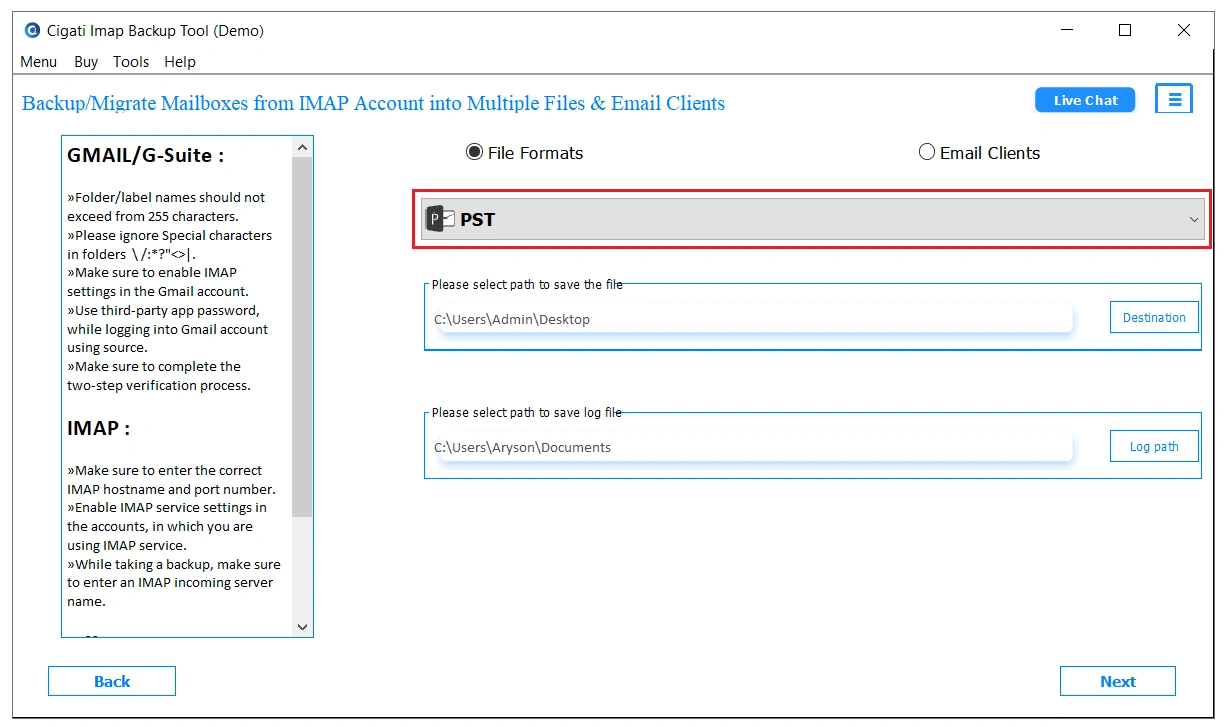
- Moving ahead, choose the file format or email client from the drop-down menu in which you want to save emails.
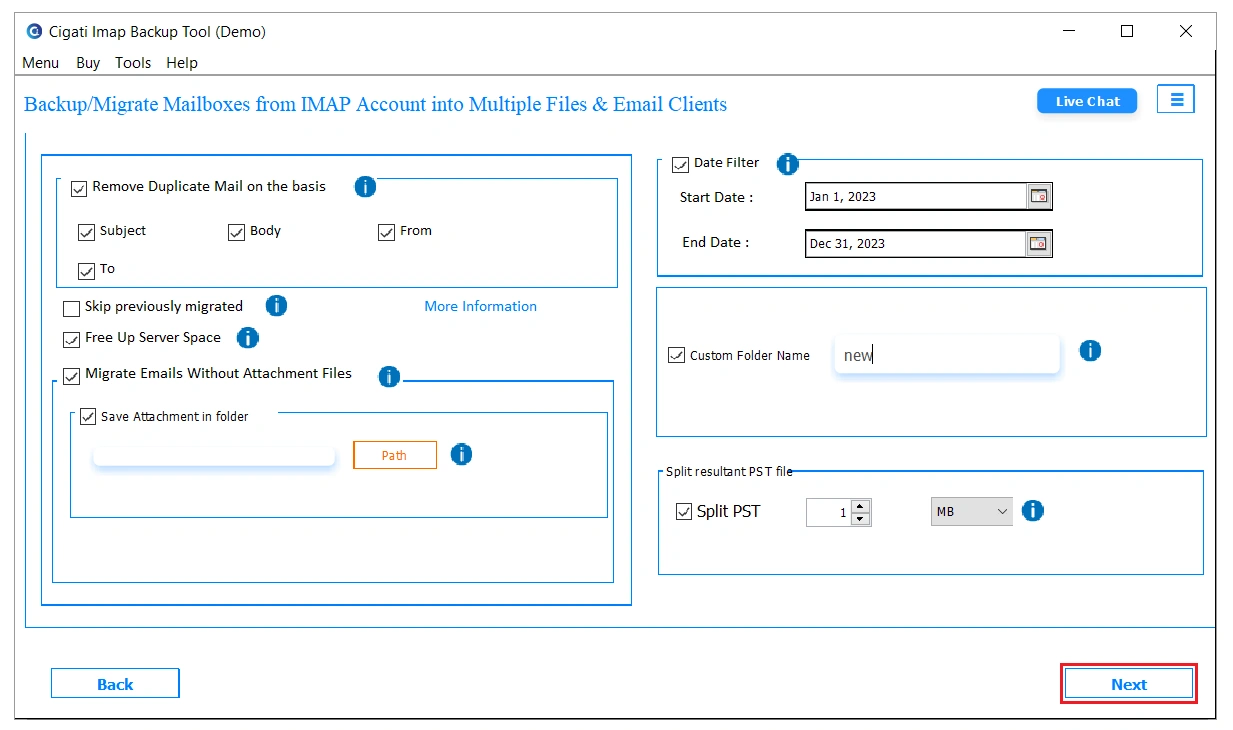
- In the end, pick from the additional filters to apply if needed, and then click on Next to start the process.
What Makes This Tool A Standout Choice?
- It pulls complete IMAP mailbox data straight to your system.
- Emails and attachments are saved together in one go.
- You don’t need to export everything, as only selected folders can be picked.
- Multiple mail accounts can be handled without repeating setup steps.
- You can narrow exports using simple date-based filters.
- Folder structure doesn’t get disturbed during the backup process.
- It works independently without constant Outlook or Thunderbird syncing.
Case Study
| Client Background A mid-sized IT team had to download and store emails from multiple IMAP accounts before moving to a new setup. The mailboxes were large, and the team needed a way to save everything locally without breaking folder structure or losing attachments. Challenges Faced – Managing several IMAP accounts at the same time became difficult. – Large mailboxes slowed down regular email clients during download. – The folder structure did not always stay intact with manual handling. – Handling bulk data across users took a lot of manual effort. Solution Provided The team used Cigati IMAP Mail Backup Tool and got the complete mailbox data in a single click. There was no continuous email client syncing during the process of migration. Results Achieved – All mailbox data was saved locally without missing items. – Email folders and attachments stayed properly arranged. – Large accounts processed without repeated sync issues. – Multiple accounts were handled in a single run. – The overall process became much faster compared to manual methods. |
Final Words
Outlook and Thunderbird both download IMAP emails locally, but neither handles bulk accounts, larger mailboxes, or multiple servers without breaking down. Technical configuration errors, attachment loss, and stalled downloads are standard outcomes under real data volume. Cigati IMAP Backup Tool removes every one of those failure points and helps to download all emails from server. It connects to any IMAP server, downloads all emails with folder hierarchy and attachments intact, and handles multiple accounts in one run without any manual configuration repeated.
You May Also Read: Backup IMAP Email Locally
Frequently Asked Questions
Q1. How can I download all emails from an IMAP server before the hosting expires?
Ans: You can use IMAP clients like Mozilla Thunderbird or Outlook to sync and save emails locally. However, large mailboxes may take time or miss data during sync. A more stable option is using IMAP backup utilities like Cigati IMAP Mail Backup Tool to download complete server data in one go.
Q2. Is there a way to force full IMAP email download instead of only headers in Outlook or Thunderbird?
Ans: Yes, both Outlook and Thunderbird allow full sync settings, but they need manual configuration. Users must change sync preferences to download complete messages. Tools like Cigati IMAP Mail Backup Tool help avoid such limitations by directly saving full mailbox data.
Q3. What is the safest method to take a complete backup of IMAP emails with attachments locally?
Ans: The safest method is using IMAP backup software that preserves both emails and attachments during export. Solutions like Cigati IMAP Mail Backup Tool help ensure a complete mailbox download without dependency on continuous syncing.
Q4. How do I download all emails from the IMAP server into MBOX or PST format without data loss?
Ans: Manual methods through Outlook or Mozilla Thunderbird can export MBOX or PST, but large mailboxes may cause missing data. A dedicated tool like Cigati IMAP Mail Backup Tool allows direct conversion to MBOX or PST with better consistency.
Q5. Why does my IMAP email client only download recent emails and not the full mailbox?
Ans: This usually happens because IMAP clients are set to sync only recent or cached emails by default. Users need to manually adjust settings or switch to tools like Cigati IMAP Mail Backup Tool, which downloads the complete mailbox instead of partial syncing behavior.
About The Author:

Rohit Singh is a technology professional with 7+ years of experience specializing in email systems, Exchange Server, Office 365, MS Outlook, and data migration solutions. He creates clear, practical, and solution-oriented content to help users and IT professionals resolve complex technical challenges efficiently.
Related Post