-
Written By Rohit Singh
-
Updated on May 25th, 2026
How to Backup IMAP Email Locally: Verified Methods (2026)
User Query: I manage several IMAP mailboxes for office work and need a reliable way to backup IMAP emails locally. Outlook export feels slow with larger inboxes, and sometimes folders go missing. What is the safest way to keep a proper offline mailbox backup?
Backing up IMAP email locally protects your data if the server has issues or filters change. Many users do this for audits, records, or simple safety. Manual methods to backup IMAP email locally exist, but they are slow and easy to mess up with big inboxes. Folder mapping often breaks, and you may miss messages. Cigati IMAP Backup Tool simplifies backup of IMAP emails with email archiving, batch export, and folder mapping. This guide will cover the manual method and our professional tool for a safe and smooth backup process.
Quick Answer
How can I backup IMAP emails locally without losing mailbox folders or attachments?
You can save IMAP email locally manually through Outlook by exporting mailbox data into PST format after IMAP syncing completes. However, larger mailboxes often cause sync problems or missing folders. So users should prefer the Cigati IMAP Backup Tool because it saves IMAP emails locally without relying on Outlook profiles or OST synchronization.
Also Read: Migrate IMAP to Gmail
How to Save IMAP Emails Locally Using The Traditional Way?
To backup IMAP emails locally through the traditional method, you need to complete the job in two clear stages.
Stage 1: Configure the IMAP account in Outlook.
Stage 2: Use the Import/Export wizard to save those IMAP emails to a local drive.
Microsoft Outlook remains a popular choice because it can pull IMAP data and store it offline in an OST file. That way, even if the server changes or the OST gets corrupted, you still have a clean local copy with folders, dates, and attachments intact. The Import/Export wizard is complex but reliable, and it’s the only way Outlook natively lets you pull IMAP data into a real offline backup.
Below is a step‑by‑step breakdown of how to backup IMAP email locally this way.
#1: Configure IMAP Account in Outlook
To begin this stage, make sure you already have an email account that supports IMAP. Now follow these steps:
- At first, launch the MS Outlook app and go to the File tab.
- Click Add Account from the options shown.
- A new setup screen appears. Enter the email address of the IMAP account that you want to add.
- Check the box that says “Let me set up my account manually.” Press Connect.
- From the account‑type list, choose IMAP.
- Next, enter the Incoming mail server and Outgoing mail server details.
- Click Next, input your IMAP account password, then click Connect again.
Once Outlook finishes syncing, you’ll see your IMAP folders loaded inside the app. At this point, you’ve completed the first half of the backup your IMAP email locally task.
#2: Use Import/Export Wizard to Archive IMAP Email Locally
Now that your IMAP account sits inside Outlook, you can pull its data into a real local backup. This is where you actually backup your IMAP email locally using Outlook’s built‑in tools. Follow these steps:
- Open Outlook with the IMAP account already set up.
- Click the File tab in the top‑left corner.
- Choose Open & Export, then pick Import/Export.
- In the Import and Export Wizard, select Export to a File.
- From the list, choose Outlook Data File (.pst) as your format.
- Select the IMAP account from which you want to back up emails.
- Choose the folder you want to export (or the whole mailbox).
- Browse and set a local folder on your drive where the PST file should be saved.
- Click Finish, then OK when prompted.
Outlook will now copy all selected IMAP emails into the PST file on your local drive. This way, you’ve created a proper backup IMAP email locally, separate from the server and from the OST file.
What Makes Manual IMAP Local Backup Hard to Manage?
- Outlook sync becomes unstable with heavy IMAP mailboxes.
- Newly received emails may not appear in the backup.
- Manual Outlook configuration confuses many non-technical users.
- OST corruption creates problems during local mailbox backup.
- Exporting several accounts separately wastes working hours.
- Mail folders may appear differently after PST creation.
What Is The Verified Method To Archive Email Locally?
If you are tired of complex manual steps but still want to backup IMAP email locally, the Cigati IMAP Backup Tool is a much simpler option. It connects directly to your IMAP account, reads your folders, and saves everything in safe local formats like PST, EML, or MBOX. You keep the original dates, structure, and attachments, and the whole process is guided by a clear, click‑through interface.
Steps To Download IMAP Emails Locally:
- To start, install and open the Cigati IMAP Backup Tool and run it as an administrator.
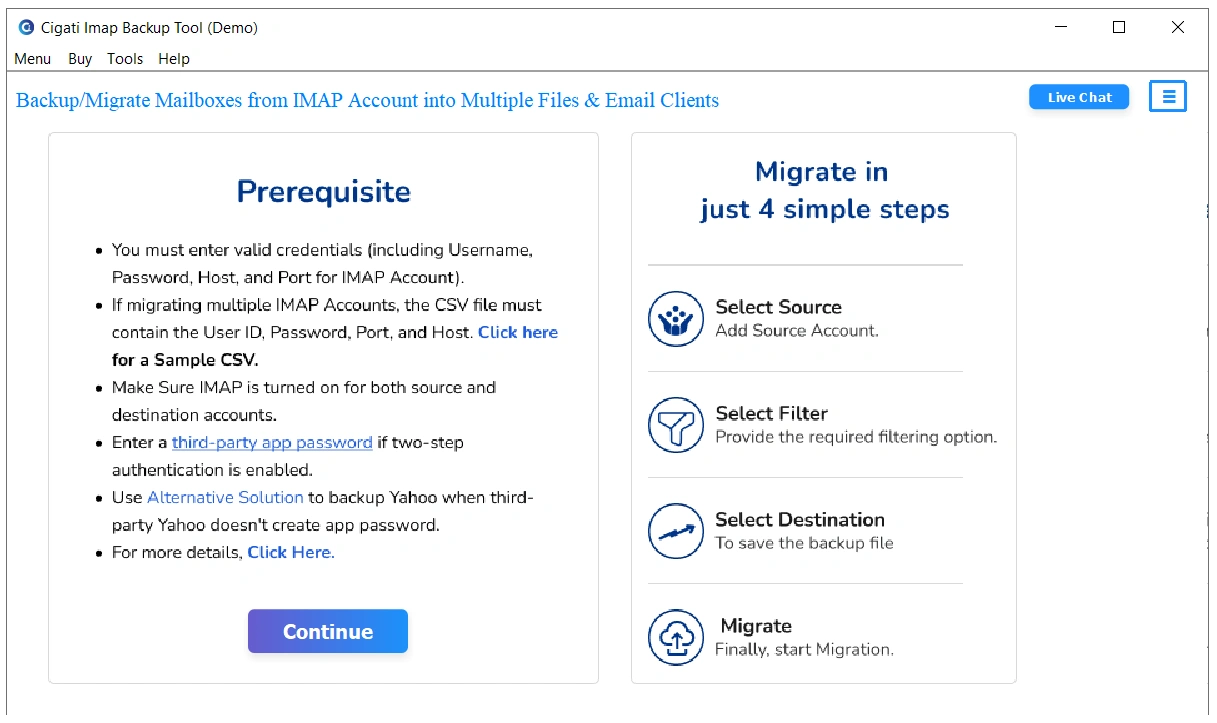
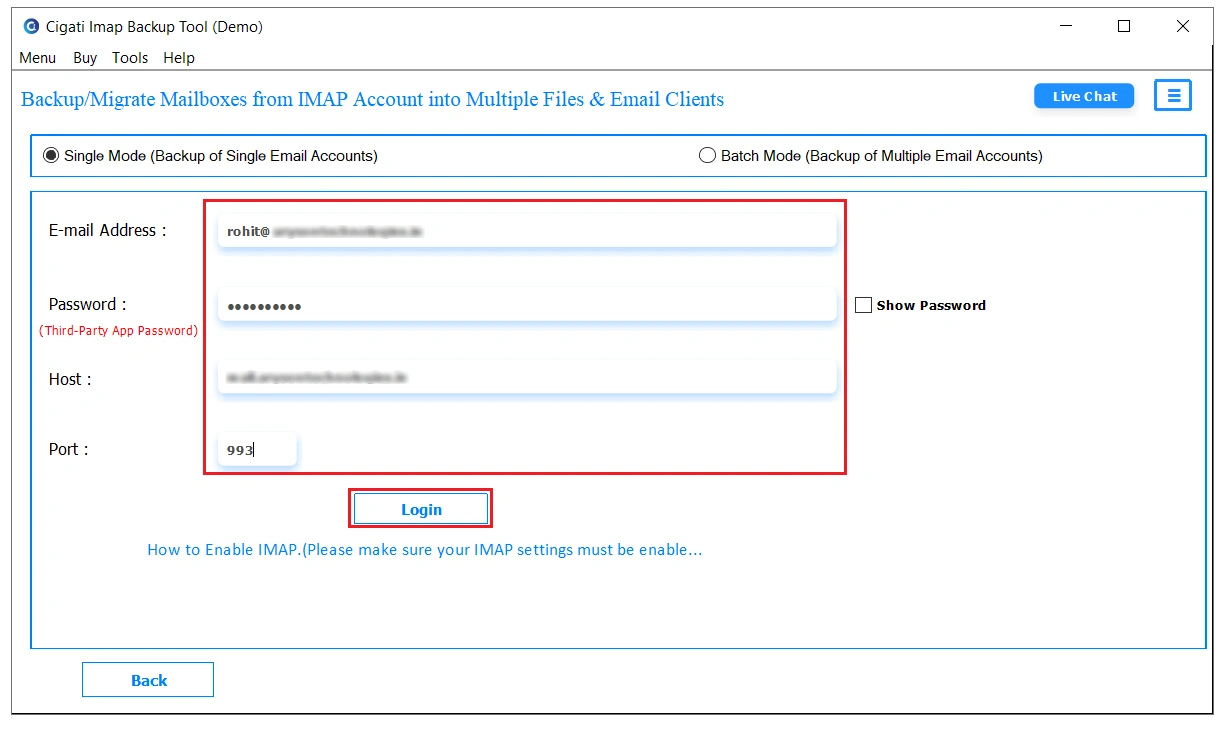
- On the next panel, enter the required account credentials and tap on Login. You can also upload a CSV file for bulk migration.
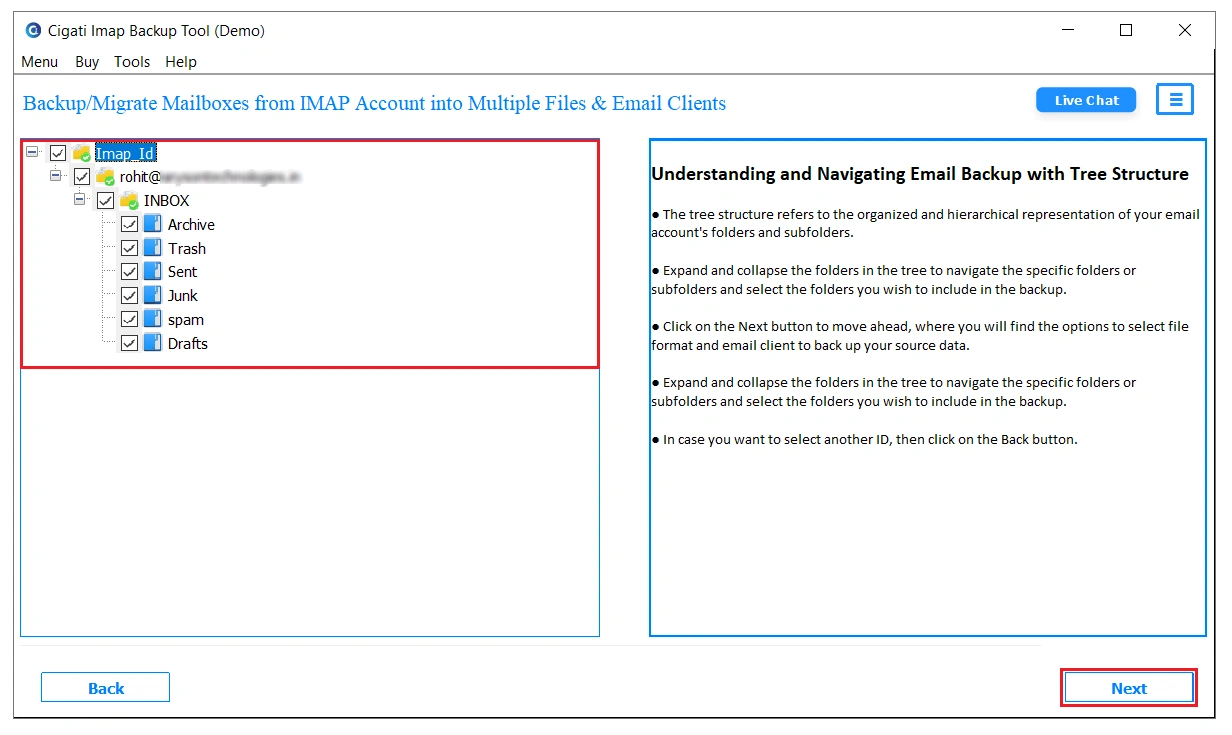
- Further, preview the mailbox data such as metadata, emails, and attachments. Select the folders to backup and click Next.
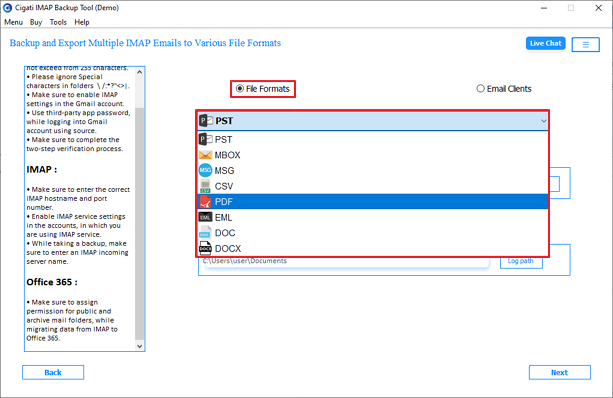
- Moving ahead, you can select the file format of your choice, where you want the backup, such as PDF.
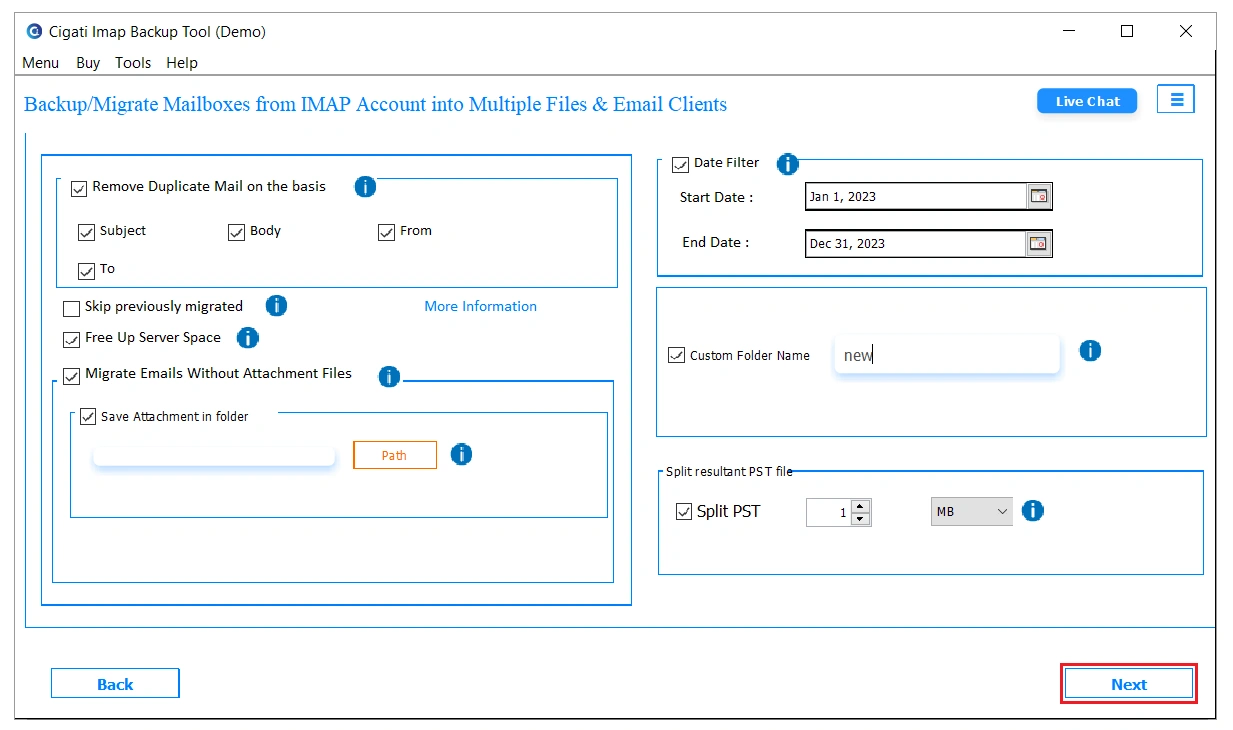
- As the last step, apply the filters for selective backup and click on Next to initiate the process.
What Can This IMAP Backup Tool Actually Do?
- Creates offline mailbox copies from IMAP accounts.
- Local backup keeps the existing mailbox folder sequence.
- Admins can backup several IMAP accounts together.
- Saves IMAP emails directly onto computer drives.
- Selective backup works through built-in date filtering.
- Email attachments stay available after local backup.
Real World Scenario
A small digital‑marketing agency in Chennai runs on IMAP-based accounts for 15 staff. They realized they had no local backup when one employee accidentally filtered out three months of client emails. After that, they decided to backup IMAP emails to local drive for all 15 accounts.
Using the Cigati IMAP Backup Tool, they exported roughly 40,000 emails per year into separate PST files. Each average mailbox was about 8–12 GB. The full backup took about 4–5 hours on a local SSD, but it ran once a month in the background.
To Wrap Up
If you still rely on manual steps to backup IMAP email locally, you’re risking data loss, missed folders, and hours of tedious work. Using the Cigati IMAP Backup Tool, you get a fast, single‑click way to grab IMAP mail and save it in local PST, EML, or MBOX files. The tool keeps folders, dates, and attachments intact, so you always have a real offline copy, without Outlook Export wizards or fragile OST files getting in the way.
You May Also Read: Migrate IMAP to Office 365
Frequently Asked Questions
Q1. What is the easiest way to backup IMAP email locally?
Ans. You can manually export IMAP emails through Microsoft Outlook into PST format, but larger mailboxes often create sync delays and missing folders. Many users prefer Cigati IMAP Backup Tool because it saves mailbox data locally without repeated Outlook export steps.
Q2. How can I save all IMAP emails to a local drive before changing email hosts?
Ans. Before switching email providers, users usually create a local PST or MBOX backup copy. Cigati IMAP Backup Tool helps download complete mailbox folders onto a local drive while keeping attachments and mailbox hierarchy unchanged.
Q3. Why does Outlook download only recent IMAP emails during local backup?
Ans. Microsoft Outlook sometimes syncs only recent mailbox data because of cached sync settings. As a result, older IMAP emails may not appear during export. Cigati IMAP Backup Tool helps avoid partial mailbox download problems during local backup.
Q4. Can I backup large IMAP mailboxes locally without missing folders or attachments?
Ans. Yes, although manual Outlook export becomes unstable with larger mailboxes. Cigati IMAP Backup Tool supports complete local mailbox backup while keeping folders, attachments, and mailbox structure available after export finishes.
Q5. How do admins automate local IMAP email backup for multiple accounts?
Ans. Admins often use CSV-based mailbox import for handling several IMAP accounts together. Cigati IMAP Backup Tool supports bulk IMAP account backup, reducing repeated login steps during local mailbox export.
About The Author:

Rohit Singh is a technology professional with 7+ years of experience specializing in email systems, Exchange Server, Office 365, MS Outlook, and data migration solutions. He creates clear, practical, and solution-oriented content to help users and IT professionals resolve complex technical challenges efficiently.
Related Post